
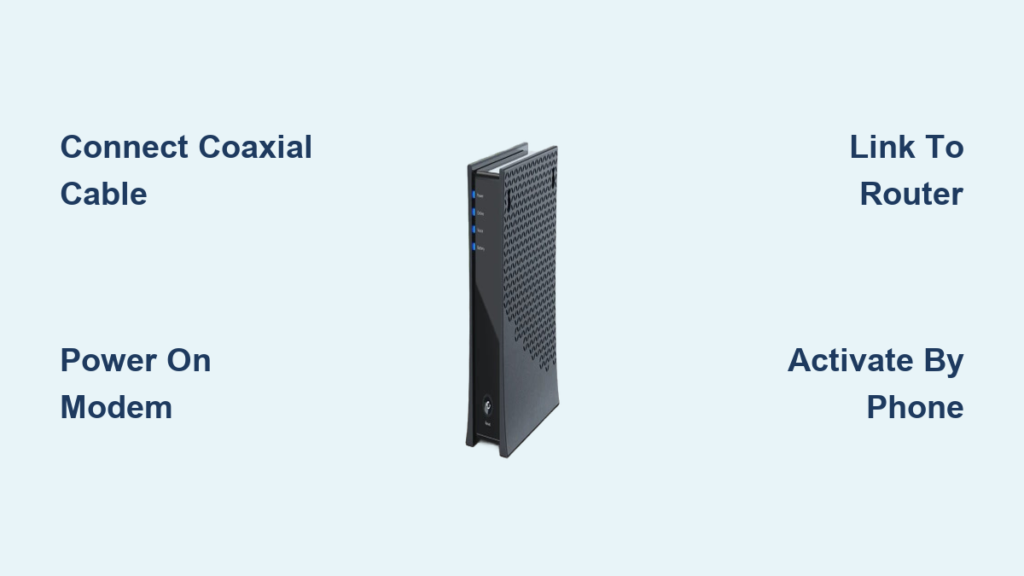
You just unboxed your new Spectrum modem and you’re ready to get online fast. The good news is that setting up your Spectrum modem is designed to be plug-and-play simple, taking most users less than 15 minutes. With the right steps, you can have high-speed internet running without a technician, phone call, or technical know-how.
The self-installation kit includes everything you need: modem, router, power supplies, Ethernet cables, and even extra coaxial jumpers. The real challenge some users face isn’t the physical setup; it’s activating the service. Many report issues with the online portal, like endless loading screens or repeated SMS code requests. The fix is to skip the website and use the faster, more reliable phone activation method.
In this guide, you’ll learn how to connect your Spectrum modem and router correctly, interpret the light signals, connect your devices, and, most importantly, activate your service without frustration. Whether you’re setting up for the first time or troubleshooting a reinstallation, this step-by-step walkthrough ensures you’ll be online quickly and confidently.
Connect the Coaxial Cable to Your Modem

Secure the Wall Outlet to Modem Link
Start by locating the coaxial cable outlet in your wall. This delivers the internet signal from Spectrum to your home. Take the coaxial cable from your kit (or use the one already connected to the outlet) and screw it into the “Cable In” port on the back of the modem. Turn it clockwise until snug, but do not over-tighten. A secure connection ensures a stable signal.
If you’re also using Spectrum TV, connect the included coaxial splitter to the wall outlet first. Then attach two cables: one to the modem and one to your TV receiver. This allows both devices to share the same line without signal loss.
Check for Signal Interference
After connecting, inspect the area around the coaxial line. Avoid sharp bends, pinches, or nearby electrical wiring that could interfere with the signal. A clean, direct path from wall to modem ensures optimal performance. If the modem fails to power up correctly later, a loose or damaged coaxial connection is often the culprit.
Power On the Modem
Plug In and Wait for Signal
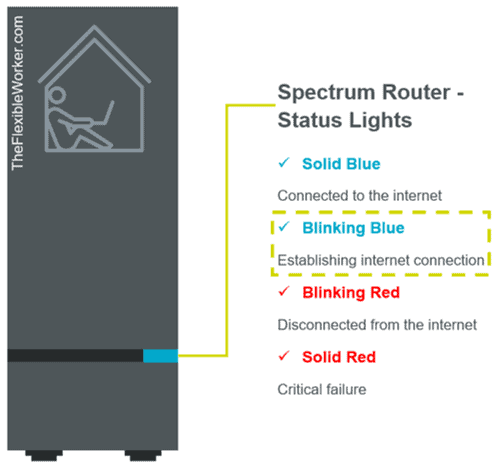
Once the coaxial cable is secure, plug the modem power supply into a wall outlet and connect it to the modem. Power starts automatically on most models. The lights on the front will begin flashing as the modem boots up.
Wait 2 to 5 minutes for the power light to turn solid blue. This indicates the modem has successfully synced with Spectrum’s network. If the light remains off, blinking, or red, double-check the coaxial connection and outlet power.
Recognize Modem Light Patterns
- Solid blue power light = Connected and ready
- Blinking blue or white = Still syncing (wait longer)
- Red or no light = No signal or hardware issue
If the light doesn’t turn solid blue after 10 minutes, unplug the modem, wait 30 seconds, and plug it back in. This reboot often resolves sync issues.
Link the Modem to the Router via Ethernet
Use Correct Ports for Connection
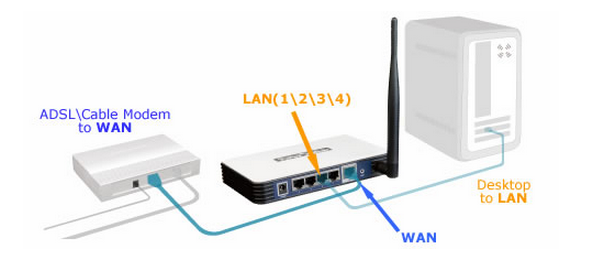
Take the included Ethernet cable and connect one end to the LAN port on the modem. Plug the other end into the WAN or Internet port on the router. This port is usually color-coded, often yellow, and labeled clearly.
Using the correct ports is critical. Plugging into a regular LAN port on the router instead of the WAN port will prevent internet access, even if everything else looks connected.
Power Up the Router
Now plug the router’s power supply into the wall and connect it to the router. Turn it on and wait 1 to 2 minutes for the router to boot. Look for the status light on the front. When it turns solid blue, your Wi-Fi network is active and ready to use.
If the light blinks or stays off, verify the following:
– Ethernet cable is fully inserted at both ends
– Correct router port is used (WAN or Internet)
– Modem is already showing a solid blue power light
Connect to the Default Wi-Fi Network
Find the SSID and Password on the Router Label
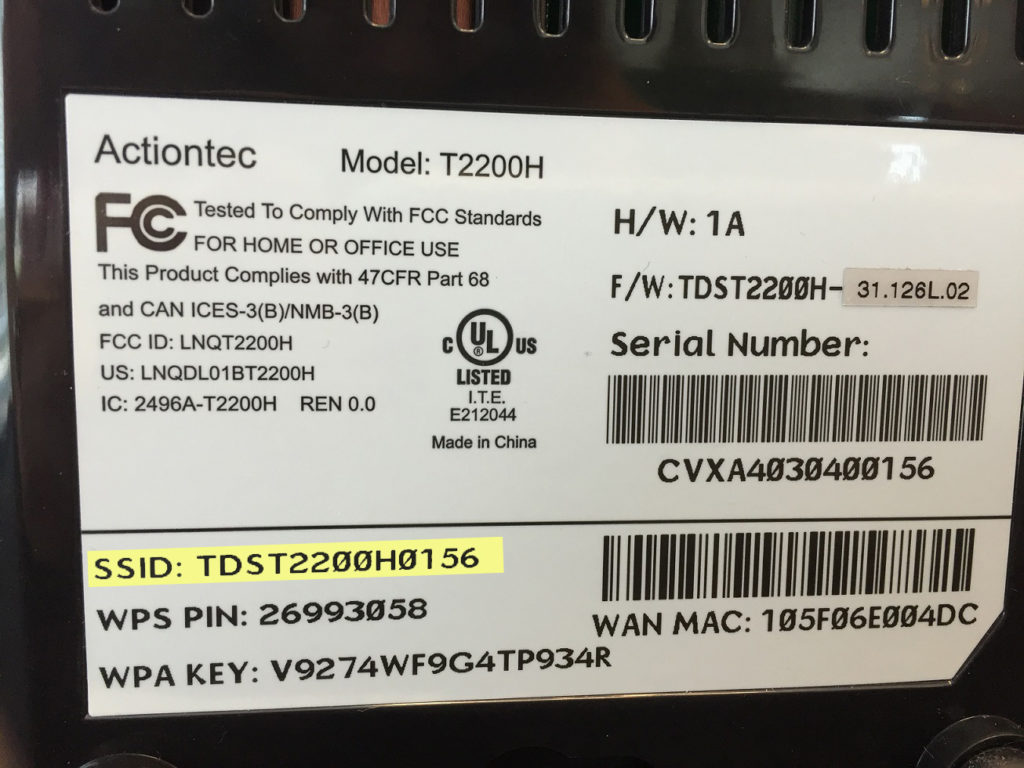
Grab your phone, tablet, or laptop and open the Wi-Fi settings. Search for available networks and look for the default network name (SSID) printed on the label at the bottom or back of the router. It typically starts with “SpectrumSetup” or “NETGEAR” depending on your router model.
Next to the SSID, you’ll see the Wi-Fi password (WPA key), also printed on the same label. Enter this password to connect. Once connected, you’ll have full internet access.
Connect Multiple Devices Wirelessly
Repeat this process for all Wi-Fi-enabled devices: smartphones, smart TVs, laptops, tablets, and voice assistants. Each device should detect the same network name and use the same password. No additional setup is needed. Once activated, the network works automatically.
Avoid changing the SSID or password during initial setup. Wait until after activation to customize settings via the My Spectrum app.
Activate Your Spectrum Service
Use Phone Activation for the Fastest Results
While Spectrum provides an online activation portal at spectrum.net/selfinstall, many users report technical glitches such as spinning wheels, failed SMS codes, and login loops. Instead, use the phone activation method. It’s faster, more reliable, and requires no app download.
Flip over the installation guide included in your kit. Find the toll-free activation number printed on the back. Call it from any phone.
When prompted:
1. Enter your Spectrum account number (found on your bill or welcome email)
2. Select the option to activate your self-install kit
3. Follow the automated voice instructions
Activation typically completes within 2 to 5 minutes. You’ll hear a confirmation message, and no agent is needed.
Avoid Online Portal Pitfalls
If you prefer online activation:
– Visit spectrum.net/selfinstall
– Sign in to your Spectrum account
– Follow the prompts to register your equipment
But be prepared for potential issues:
– Spinning loading circle: Close browser and retry
– Repeated SMS codes: Wait 15 minutes and try again
– Login failures: Reset password or clear cache
If problems persist, switch to phone activation. It’s the most efficient solution cited by users and support teams alike.
Connect Wired Devices to the Router
Use Three Built-In Ethernet Ports
Your Spectrum router includes three Ethernet ports on the back, ideal for devices that need a stable, high-speed connection. Use them to connect:
– Gaming consoles
– Desktop computers
– Smart TVs
– Streaming boxes
Use any standard Ethernet cable to link the device directly to one of the LAN ports. The connection activates automatically with no configuration needed.
Benefits of Wired Over Wi-Fi
Wired connections offer:
– Lower latency (ideal for gaming and video calls)
– More consistent speeds
– Reduced Wi-Fi congestion
For households with multiple users or bandwidth-heavy activities, connecting key devices via Ethernet improves overall network performance.
Manage Your Network with the My Spectrum App
Download the App for Full Control
Once online, download the My Spectrum app on iOS or Android. It gives you complete control over your home network from your smartphone.
Features include:
– Speed test to check current performance
– Parental controls to set time limits or block content
– Device manager to see who’s connected and pause access
– Wi-Fi optimization to restart the router remotely
– Troubleshooting tools to diagnose issues
Customize Your Network
After activation, use the app to:
– Change your Wi-Fi name (SSID) and password
– Create a guest network
– Schedule internet downtime
– Monitor data usage
The app also sends alerts if a device disconnects or if there’s a service outage in your area.
Troubleshoot Common Setup Issues
Fix No Internet Despite Blue Lights
Even with solid blue lights on both modem and router, you might still have no internet. First, confirm activation is complete, as this is the most common cause. If not activated, call the number on the guide.
If already activated:
– Reboot both modem and router (unplug for 30 seconds, then plug back in)
– Forget the Wi-Fi network on your device and reconnect
– Try a wired connection to rule out Wi-Fi issues
Resolve Wi-Fi Connection Failures
If devices can’t connect to Wi-Fi:
– Ensure you’re entering the correct password from the router label
– Move closer to the router since walls and distance weaken signal
– Restart the router
– Check if the router’s Wi-Fi is disabled
If only one device fails, forget the network and reconnect. If all do, the router may need a factory reset. Use the reset button on the back for 10 seconds.
Frequently Asked Questions About Spectrum Modem Setup
How long does it take to set up a Spectrum modem?
The standard setup takes less than 15 minutes for most users. With a streamlined approach using the phone activation method, some users complete the process in about 1 minute once all cables are connected.
What do the lights on my Spectrum modem mean?
A solid blue power light means the modem is connected to Spectrum’s network and ready. Blinking blue or white indicates the modem is still syncing. A red light or no light suggests no signal or a hardware issue that needs troubleshooting.
Should I activate online or by phone?
Phone activation is faster and more reliable. The online portal at spectrum.net/selfinstall frequently has issues like spinning loading circles and repeated SMS code requests. The phone method requires only your account number and typically completes within minutes.
Where do I find my Wi-Fi network name and password?
The default network name (SSID) and password are printed on a label on the router. Check the bottom or back of the device. The network name often starts with “SpectrumSetup” or “NETGEAR” depending on your model.
Do I need a technician to install my Spectrum modem?
No technician is needed. The self-installation kit includes all necessary components, and the process is designed for plug-and-play setup without technical expertise. As long as you have a coaxial outlet and a power source, you can complete the installation yourself.
Can I connect devices with Ethernet cables too?
Yes. The Spectrum router has three Ethernet ports for wired connections. These are ideal for gaming consoles, desktop computers, smart TVs, and streaming boxes that benefit from stable, high-speed connections.
Key Takeaways for Your Spectrum Modem Setup
Setting up your Spectrum modem comes down to three essential steps. First, connect the hardware by attaching the coaxial cable, powering on the modem, and linking it to the router via Ethernet. Wait for solid blue lights on both devices to confirm a stable connection. Second, activate your service using the phone number printed on your installation guide to avoid the common glitches of the online portal. Third, connect your devices using the default Wi-Fi credentials found on the router label.
Once you’re online, download the My Spectrum app to manage your network, run speed tests, and customize settings. If you run into any issues, a quick reboot of both modem and router often resolves most connectivity problems. With these steps complete, your high-speed internet is ready for streaming, browsing, and gaming without any further configuration needed.



