
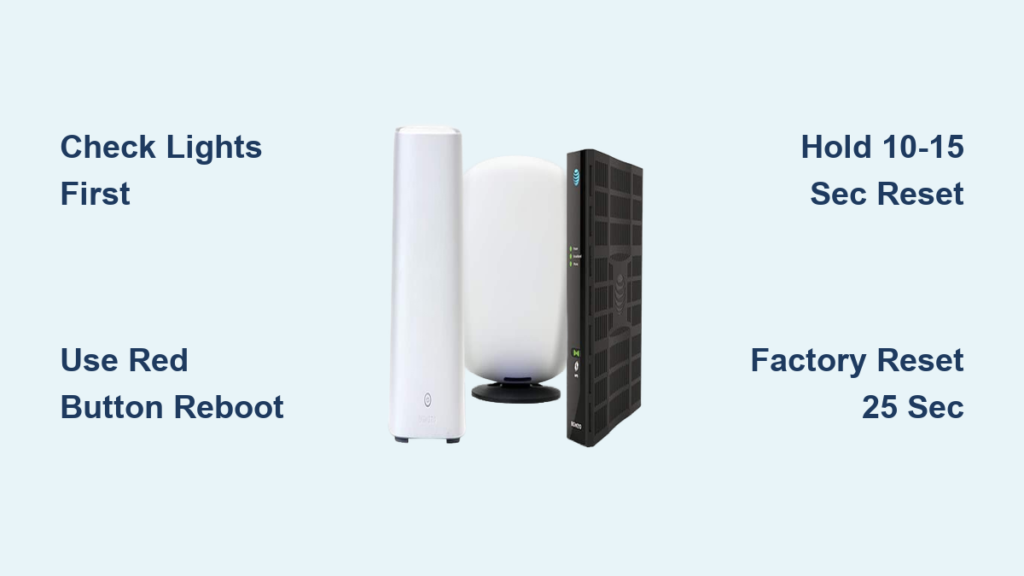
Few things are more frustrating than Wi-Fi that suddenly stops working when you need it most. Whether your AT&T modem is running slow, dropping connections, or completely frozen, knowing how to reset AT&T modem devices correctly can save you hours of frustration. A proper reset often resolves common connectivity issues without needing a service call.
This guide walks you through every approved reset method, including quick reboots, fiber router resets, and full factory resets. You will learn exactly when to use each method, what the lights on your modem mean, and how to avoid common mistakes that can make things worse. By the end, you will be able to troubleshoot your AT&T modem with confidence.
Check AT&T Modem Lights Before Doing Anything Else
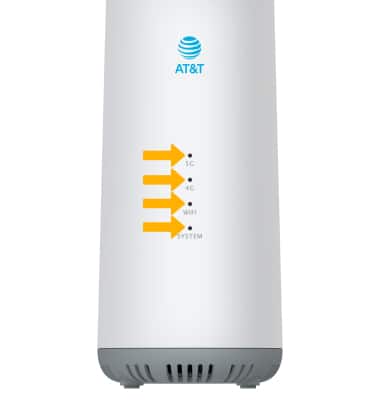
Before you reset anything, look at the lights on your modem. These indicators tell you exactly what is happening with your connection and whether a reset will actually help.
What Each Light Color and Pattern Means
Your AT&T modem uses light patterns to communicate its status. Here is what each one signals:
- Solid White: Internet is fully active and working
- Flashing Fast White: The modem is searching for a network connection
- Flashing Slow White: The device is powering back on
- Solid Red: No internet connection or hardware failure
- Flashing Red: No signal detected at all
- Orange: A power supply issue exists
- Green: The modem needs activation, which is not normal during active service
- Blue: A line interruption has occurred and service may be down
When You Should Not Reset Your Modem
Some light patterns indicate serious problems that a reset cannot fix. Avoid resetting if you notice:
- Flashing red, green, or orange lights, which usually point to hardware faults or service outages
- A blue light, which may mean a severed line that requires professional repair
In these cases, contact AT&T support directly. Resetting will not solve network-side or hardware issues.
Reboot Your AT&T Modem for Quick Fixes
A reboot is the safest first step for most connection problems. It refreshes your network connection, clears temporary glitches, and does not erase any of your custom settings.
Use the Red Button Method
Most AT&T residential gateways have a red button on the front or side of the device. This is the fastest way to reboot.
- Locate the red button on your gateway
- Press and release it once
- Wait 2 to 3 minutes for the modem to restart
- Check the lights to confirm a solid white light
Pro Tip: Think of this like restarting your phone. It is quick, safe, and resolves most everyday issues.
Try the Power Cycle Method
If your gateway does not have a red button or it is unresponsive, a power cycle works on any device.
- Unplug the modem power cord from the wall
- Wait at least 30 seconds to fully clear internal memory
- Plug the power cord back in
- Wait 2 to 3 minutes for the modem to fully reboot
When Rebooting Makes Sense
A reboot is your best option in these situations:
- Wi-Fi drops randomly throughout the day
- Internet speeds feel unusually slow
- The router appears frozen or unresponsive
- You just experienced a brief power outage
Reset AT&T Fiber Router Modem Properly
If you have an AT&T fiber optic router, the reset process is slightly different and requires a small tool to access the recessed button.
Find the Reset Button
The reset button on a fiber router is located on the back or side of the device. It sits recessed inside the casing, so you cannot press it with your finger alone.
Perform a 10 to 15 Second Reset
Follow these steps carefully:
- Straighten a paperclip or use a similar thin tool
- Press and hold the reset button
- Hold for 10 to 15 seconds until the lights begin to blink
- Release the button and wait 2 to 3 minutes
What Happens After the Fiber Reset
Once the reset completes:
- The modem reboots and reconnects to the AT&T network
- Your Wi-Fi name and password remain unchanged
- Connected devices may briefly disconnect during the process
Use this reset method when you face unexpected outages or persistent connectivity issues that a simple reboot did not fix.
Factory Reset Your AT&T Gateway as a Last Resort
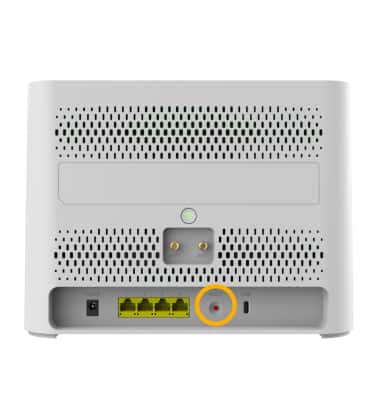
A factory reset erases every custom setting on your modem and restores it to original factory condition. This should only be done when other methods have failed or when specific situations require it.
When a Factory Reset Is Necessary
Consider a factory reset only in these scenarios:
- You are returning equipment to AT&T
- A new gateway still shows an old Wi-Fi name after a technician swap
- You have already tried rebooting and the problem persists
- You are setting up your network completely from scratch
How to Perform a 25-Second Factory Reset
Precision matters here, so use a stopwatch or timer.
- Find the red button on your residential gateway
- Press and hold the button for exactly 25 seconds
- Watch for lights to flash or change, then release
- Wait 3 to 5 minutes for the full reset to complete
Warning: This action cannot be undone. All your custom settings will be permanently erased.
What Gets Deleted During a Factory Reset
Be aware that you will lose:
- Your custom Wi-Fi name (SSID)
- Your Wi-Fi password
- Port forwarding rules
- Security settings
- All saved configurations
After the reset, you will need to set up your entire network again from scratch.
Reconnect All Devices After a Reset
After any reset, especially a factory reset, you need to reconnect every device that uses your Wi-Fi network.
Locate Your Default Wi-Fi Credentials
The default Wi-Fi information is printed on a label on the bottom or back of your modem. It usually starts with “AT&T” followed by a series of numbers and letters.
Reconnect Your Devices Step by Step
- Open Wi-Fi settings on your phone, laptop, or tablet
- Select the default AT&T network name
- Enter the default password from the label
- Reconnect smart home devices one at a time
Pro Tip: Rename Your Network After Reconnecting
Once everything is back online, log into the AT&T Smart Home Manager app and change your Wi-Fi name and password to something memorable. Store these credentials in a secure location to avoid future confusion.
Use the AT&T Smart Home Manager App
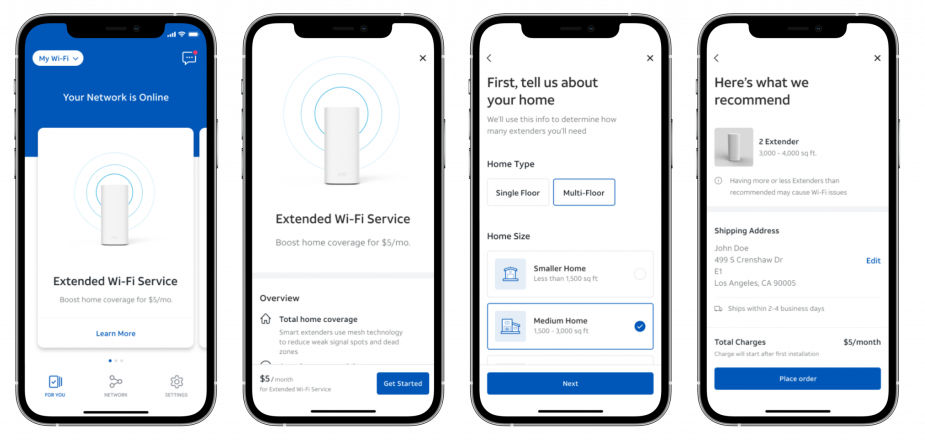
The Smart Home Manager app is a powerful tool that helps you monitor and manage your home network.
Why This App Is Essential
The app provides several useful features:
- Real-time connection status monitoring
- A list of all connected devices
- Guided setup instructions after a reset
- Help during technician swaps when old network credentials cause confusion
How to Download and Set Up the App
- Open your phone’s camera app
- Scan the QR code located on your modem
- Install the AT&T Smart Home Manager app
- Sign in using your AT&T account credentials
Use the app for diagnostics and to follow official AT&T reset videos when needed.
Troubleshoot Common Reset Issues
Sometimes problems continue even after a reset. Here is how to handle the most common situations.
No Lights Appear After Reset
- Test the power outlet with another device to confirm it works
- Try a different power cable if available
- Contact AT&T support if the modem still shows no signs of life
Lights Flash but Internet Does Not Work
- Wait up to 10 minutes, since fiber modems take longer to fully sync
- Call AT&T support if the light never settles into a solid white
Wi-Fi Devices Keep Failing to Reconnect
- Confirm you are using the correct default password
- Restart the phone or laptop you are trying to connect
- Forget the network in your device settings and try reconnecting
Avoid These Common Reset Mistakes
Small errors can prevent your reset from working properly or even create new problems.
Holding the Reset Button for the Wrong Duration
Timing mistakes are extremely common:
- Holding for less than 10 seconds usually has no effect
- Holding for more than 15 seconds on a fiber router may trigger an unintended factory reset
- For a deliberate factory reset, you must hold for exactly 25 seconds using a timer
Resetting When Warning Lights Are Present
Resetting a modem that shows green, orange, or flashing red lights will not fix the underlying issue:
- Green means activation is required
- Orange indicates a power problem
- Flashing red means there is no signal
In all of these cases, call AT&T support instead.
Skipping the 30-Second Power Cycle Wait
If you unplug your modem, you must wait at least 30 seconds before plugging it back in. Cutting this time short means residual power remains in the system and the reset may not fully complete.
When to Contact AT&T Support
Some situations require professional help rather than a DIY reset. Reach out to AT&T if:
- Lights remain red, orange, or green after a reset
- The modem does not power on at all
- You have tried every step and still have no internet
- The default password label is missing or unreadable
Have your modem’s serial number ready when you call. You can find it printed on the back of the device.
Quick Reference: Which Reset Should You Use?
Use this guide to choose the right action for your situation:
- Slow Wi-Fi or random drops: Reboot using the red button or power cycle
- No internet after an outage: Reset the fiber router with a 10 to 15 second hold
- Returning your modem to AT&T: Perform a 25-second factory reset
- New gateway showing old Wi-Fi name: Perform a factory reset
- Frozen or unresponsive modem: Power cycle by unplugging for 30 seconds
- Flashing red, green, or orange lights: Call AT&T support and do not reset
Frequently Asked Questions About Resetting an AT&T Modem
How long do I hold the reset button on an AT&T modem?
For a standard reset on a fiber router, hold the button for 10 to 15 seconds. For a full factory reset on a residential gateway, hold the red button for exactly 25 seconds. Use a timer for accuracy.
Will resetting my AT&T modem erase my Wi-Fi name and password?
A simple reboot does not erase anything. However, a factory reset will permanently delete your custom Wi-Fi name, password, and all other settings, returning the device to its original factory configuration.
Why are the lights on my AT&T modem red?
A solid red light means there is no internet connection or a hardware failure. A flashing red light means there is no signal at all. In both cases, contact AT&T support rather than attempting a reset.
How long does it take for an AT&T modem to reboot after a reset?
Most AT&T modems take 2 to 3 minutes to fully reboot after a reset. Fiber optic modems may take up to 10 minutes to complete the reconnection process, especially after a power outage.
What is the difference between a reboot and a factory reset?
A reboot simply restarts the modem and clears temporary glitches without changing any settings. A factory reset erases all custom configurations and restores the device to its original out-of-the-box state.
Do I need the AT&T Smart Home Manager app to reset my modem?
No, the app is not required to perform a reset, but it is extremely helpful. It provides diagnostics, official guides, and makes reconfiguring your network after a factory reset much easier.
Key Takeaways for Resetting Your AT&T Modem
Resetting your AT&T modem does not have to be complicated. Start by checking the indicator lights to make sure a reset will actually help. If the lights look normal, begin with a simple reboot using the red button or a power cycle. This safe method resolves the majority of everyday connectivity issues.
Reserve the 10 to 15 second fiber router reset for persistent connection problems, and save the 25-second factory reset for situations like returning equipment or resolving issues after a technician swap. Always wait the full 2 to 3 minutes for the modem to complete its reboot cycle, and keep your Wi-Fi credentials accessible before performing a factory reset.
Save this guide so you can reference it the next time your AT&T modem acts up. With the right approach, you can restore your connection quickly and avoid unnecessary service calls.



