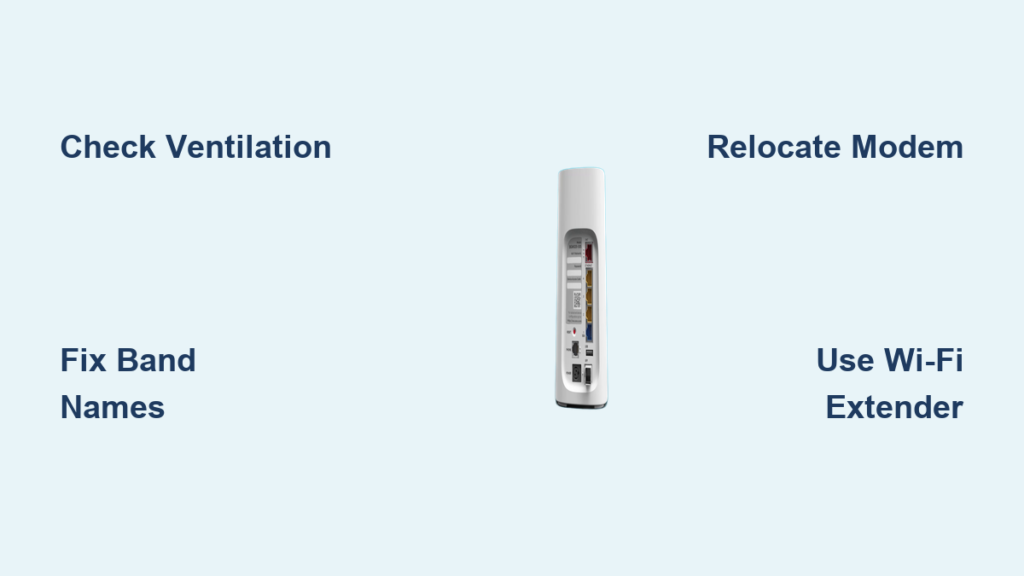
Is your AT&T internet slow, dropping frequently, or not working at all? You’re not alone. Millions of users experience problems with their AT&T modem, especially the BGW 320 505 Wi-Fi 6 gateway. The good news: most issues can be resolved quickly with the right steps. This guide walks you through proven troubleshooting methods, from simple fixes to advanced diagnostics, so you can restore fast, stable internet without unnecessary technician visits.
You’ll learn how to identify overheating risks, optimize Wi-Fi band performance, extend coverage to dead zones, and know exactly when to contact AT&T for support. Whether your modem was dropped, tucked into a cabinet, or just acting up, this guide has you covered.
Optimize Gateway Placement

Where your AT&T modem sits in your home directly impacts performance and longevity. Poor placement is one of the top causes of slow speeds and disconnections.
Ensure Proper Ventilation
The BGW 320 505 gateway generates heat during operation and needs airflow to stay cool. When ventilation is blocked, the device overheats, leading to reduced performance and a shorter lifespan.
- Keep it upright and never place the modem upside down
- Avoid enclosed spaces like cabinets, shelves, or behind furniture
- Do not cover the device with books, papers, or decor
- Clear all vents on the sides and top, since these are critical for cooling
If the modem feels hot to the touch, move it immediately to an open area.
Position in a Central Location
For best Wi-Fi coverage, place the gateway in the center of your home, elevated on a shelf or table, and away from large metal objects or thick walls. This helps distribute the signal evenly and reduces dead zones throughout your space.
Check for Physical Damage
If your modem was dropped or fell, especially on its back, inspect the coaxial cable for kinks or sharp bends. Even a small twist can damage internal wiring. A damaged cable may still show signal, but it will be unstable or degraded.
Note: Internal damage isn’t always visible. If you suspect impact, contact AT&T for a technician check.
Manage Wi-Fi Bands Correctly
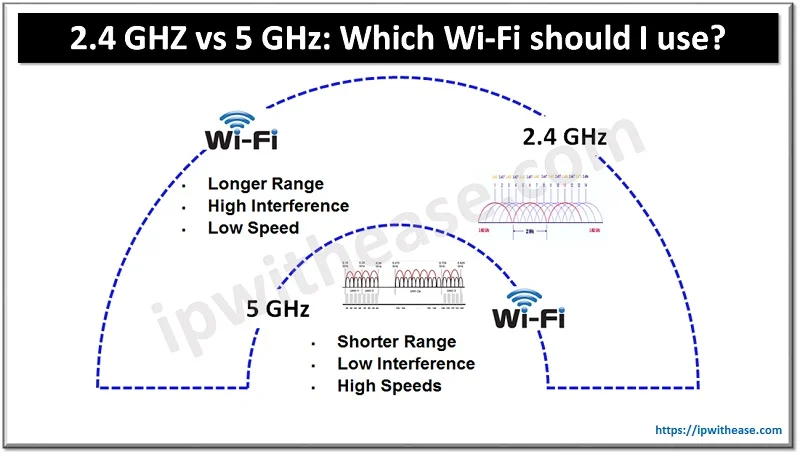
Your AT&T modem broadcasts two Wi-Fi networks: 2.4 GHz and 5 GHz. Using them properly ensures optimal speed and coverage across all your devices.
Know the Band Differences
| Band | Best For | Limitations |
|---|---|---|
| 2.4 GHz | Long range, wall penetration | Slower speeds, more interference |
| 5 GHz | High speed, low latency | Shorter range, struggles through walls |
Devices automatically connect to the best band based on location and signal strength.
Keep Default Network Names
Renaming your Wi-Fi bands (like to “Superman” or “Flash”) causes confusion and disrupts automatic switching. The recommended setup keeps things simple:
My Wi-Fi→ 2.4 GHz bandMy Wi-Fi_5G→ 5 GHz band
This allows devices to seamlessly switch between bands as you move through your home.
Fix Band Confusion Issues
If you renamed the networks and now can’t tell which is which, open the AT&T Smart Home Manager app, view the current network names, and revert to the defaults. This restores automatic band selection and improves performance.
Extend Coverage to Dead Zones
Even with proper placement, some areas like patios, basements, or far rooms may have weak or no signal.
Use the Smart Home Manager App
The AT&T Smart Home Manager app helps you check Wi-Fi signal strength in different rooms, order a Wi-Fi extender directly, and monitor connected devices. Download it from the App Store or Google Play.
Install a Wi-Fi 6 Extender
The AT&T Wi-Fi 6 Extender boosts coverage to dead zones. To order one, open the Smart Home Manager app, tap “Improve Wi-Fi,” select “Order a Wi-Fi Extender,” and follow the prompts. The extender works best when paired with the BGW 320 505 gateway.
Place the Extender Strategically
For maximum effectiveness, place the extender within range of the gateway and halfway between the modem and the weak area. Avoid placing it behind thick walls, metal objects, or appliances like microwaves and refrigerators.
Example: If your patio has no signal, place the extender near the back door.
Quick Fixes for Common Issues
Most problems can be resolved in minutes with these straightforward steps.
Fix an Overheating Modem
Symptoms: Slow speeds, frequent disconnects, hot casing
Solution:
1. Move modem to an open, elevated spot
2. Remove any covers or obstructions
3. Ensure side and top vents are clear
4. Wait 10 minutes for it to cool down
Prevention: Never place the modem in a cabinet or under furniture.
Restore Poor Wi-Fi Signal
Causes: Bad placement, interference, band confusion
Action steps:
– Relocate the gateway to a central area
– Revert Wi-Fi names to defaults
– Restart the modem by unplugging for 30 seconds, then plugging back in
This often restores full signal strength.
Resolve Unstable Connection After a Fall
If the modem was dropped:
1. Inspect the coaxial cable for kinks
2. Ensure connectors are tight
3. Test internet on multiple devices
Even if the signal seems okay, internal damage can cause intermittent drops. Your next step should be calling AT&T for a technician inspection.
Diagnose Without Guessing
Follow this step-by-step process to identify the root cause of your connectivity problems.
Step 1: Check the Physical Environment
Ask yourself:
– Is the modem in an open area?
– Are vents clear?
– Was it recently moved or dropped?
If you answered yes to any risk factors, fix placement first.
Step 2: Verify Wi-Fi Configuration
Check that networks are named My Wi-Fi and My Wi-Fi_5G, devices are connecting to the right band, and band switching happens automatically. If not, reset names and restart devices.
Step 3: Test Coverage
Use the Smart Home Manager app to walk through your home, see real-time signal strength, and identify dead zones. If signal drops in key areas, add an extender.
Step 4: Escalate to AT&T
Contact support if problems persist after all fixes, you suspect cable or hardware damage, or the modem fails to power on. AT&T can run remote diagnostics, dispatch a technician, or replace damaged equipment.
Prevent Future Problems
Avoid recurring issues with these proactive steps.
Follow Placement Rules
Do:
– Keep modem upright and ventilated
– Place centrally and elevated
– Use default Wi-Fi names
Don’t:
– Block vents or cover the device
– Place in cabinets or behind furniture
– Bend or kink the coaxial cable
Monitor for Warning Signs
Watch for frequent disconnects, slower speeds over time, overheating, or unusual indicator lights. These may signal hardware issues needing professional help.
Schedule Regular Checks
Every 2–3 months, inspect the cable for damage, clean dust from vents, test Wi-Fi in key areas, and update extender placement if needed. This keeps your network running smoothly.
When to Call AT&T Support
Some issues require expert help. Don’t waste time if you’re dealing with suspected hardware damage, persistent connectivity issues, or unexplained signal degradation.
Suspected Hardware Damage
If the modem was dropped, has a kinked coaxial cable, or shows intermittent signal, call AT&T. They can send a technician to inspect and replace equipment.
Persistent Connectivity Issues
After trying all fixes, if you still have no internet, frequent drops, or slow speeds across devices, AT&T can run remote diagnostics and identify line or signal problems.
Signal Degradation Without Obvious Cause
Sometimes the signal appears strong but performs poorly. This can be due to internal cable damage, network congestion, or firmware issues. Only AT&T can fully diagnose and resolve these.
Frequently Asked Questions About AT&T Modem Troubleshooting
Why does my AT&T modem keep overheating?
Your modem overheats when airflow is restricted. Placing it in a cabinet, covering it, or blocking the ventilation holes on the sides and top traps heat. Move it to an open, elevated spot and keep all vents clear to prevent overheating and extend its lifespan.
Should I rename my AT&T Wi-Fi bands?
No, renaming the bands can cause confusion and disrupt automatic switching. Keep the default names My Wi-Fi for 2.4 GHz and My Wi-Fi_5G for 5 GHz so your devices can automatically connect to the best available band as you move through your home.
How do I fix dead zones in my home?
Use the AT&T Smart Home Manager app to check signal strength in weak areas, then order a Wi-Fi 6 Extender. Place the extender halfway between your gateway and the dead zone for best results, avoiding thick walls and metal objects.
What should I do if my AT&T modem was dropped?
Inspect the coaxial cable for kinks or sharp bends, since the cable is bend-sensitive. Even if the signal seems present, internal damage may cause unstable performance. Contact AT&T for a technician inspection to check for hidden damage.
How do I know if my Wi-Fi issue is hardware or configuration?
Start by checking placement and ventilation, then verify your Wi-Fi band names match the defaults. Use the Smart Home Manager app to test signal strength. If problems persist after these fixes, contact AT&T for remote diagnostics.
When should I contact AT&T support instead of troubleshooting myself?
Call AT&T if your modem was physically damaged, if you’ve tried all troubleshooting steps without success, or if the signal appears functional but is unstable or degraded. They can run remote tests and dispatch a technician if needed.
Key Takeaways for AT&T Modem Troubleshooting
Most AT&T modem problems stem from three common causes: poor placement, overheating, and misconfigured Wi-Fi bands. By keeping the gateway ventilated, using default network names, and leveraging the Smart Home Manager app, you can resolve the majority of issues on your own.
For persistent problems or suspected hardware damage, don’t hesitate to contact AT&T. They can remotely test your connection and send a technician to inspect or replace equipment. Start with the quick fixes today, and you’ll be back to fast, stable internet in no time.