
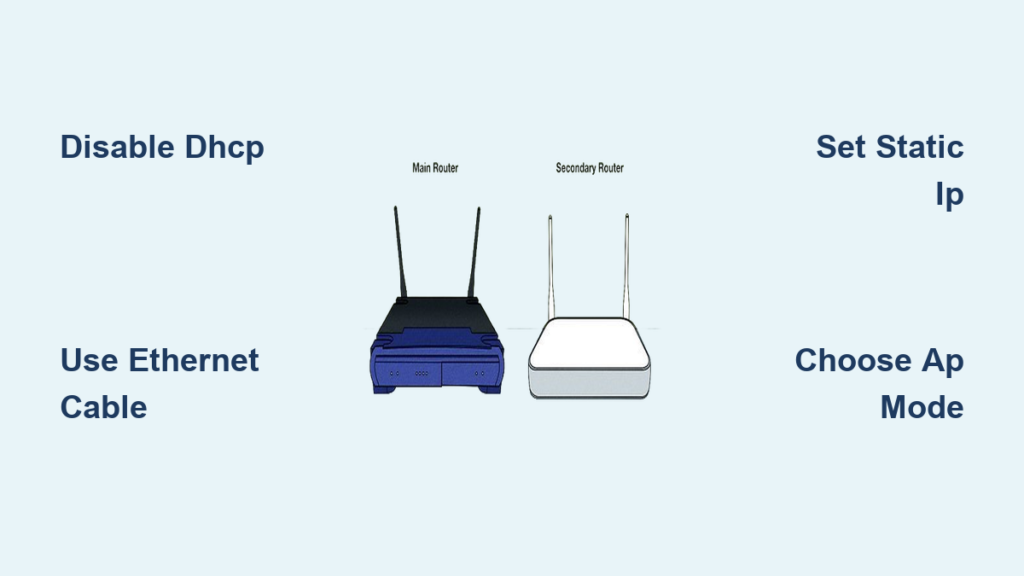
Your Wi-Fi struggles to reach every corner because ISP-provided modem-routers often lack the power to cover large homes effectively. These combination units frequently suffer from outdated firmware and weak signals that cap your actual internet speed.
You can fix this by learning how to connect a router to a router modem using three proven methods to boost your range. This guide walks you through Access Point mode, Router mode, and Wireless Repeater setups with clear steps to eliminate dead zones.
Select the Best Connection Method for Your Home

Choosing the right configuration depends on whether you prioritize speed, device isolation, or convenience. Each approach offers distinct advantages and specific trade-offs you must consider before starting.
Access Point Mode for Seamless Extension
This method turns your second router into a wireless access point that extends your existing network under one name. It provides full-speed wired backhaul and avoids Double NAT issues entirely.
* Best for: Homes needing seamless roaming and maximum speed.
* Requirement: Requires an Ethernet cable run between the two units.
Router Mode for Network Segmentation
Creating a separate sub-network behind the second router isolates traffic effectively. This setup is ideal for guests or smart home devices but introduces Double NAT limitations.
* Best for: Isolating IoT devices or creating a dedicated guest network.
* Drawback: Devices on different networks cannot easily communicate with each other.
Wireless Repeater Mode for Cable-Free Setup
This option links the two routers using Wi-Fi signals rather than physical cables. It is the easiest to install but cuts your available bandwidth in half due to signal retransmission.
* Best for: Areas where running cables is impossible.
* Drawback: Significant speed loss makes it poor for gaming or 4K streaming.
Expert Note: Wired Access Point mode is the gold standard for performance. Only use Router or Repeater modes if cabling is impossible or network separation is your specific goal.
Gather Equipment and Prepare Your Devices
Proper preparation prevents IP conflicts and ensures a smooth installation process. You need specific tools and must perform critical resets before connecting any cables.
Required Hardware Checklist
- Primary ISP modem-router unit (e.g., Xfinity or Spectrum gateway)
- Secondary router (any compatible brand like TP-Link or Netgear)
- CAT5e or CAT6 Ethernet cable for wired connections
- Laptop or smartphone for configuration tasks
Essential Pre-Connection Steps
- Update Firmware: Check both routers for the latest software to ensure compatibility and security.
- Reset Secondary Unit: Hold the reset button for 10 to 15 seconds to wipe old settings that cause conflicts.
- Verify Login Details: Check the label on your secondary router for the default IP address and password.
- Position for Setup: Place the secondary router near the primary unit during configuration before moving it.
⚠️ Warning: Never connect two routers without resetting the secondary unit first. Leftover settings often cause IP conflicts that block internet access completely.
Configure Wired Access Point Mode Step by Step
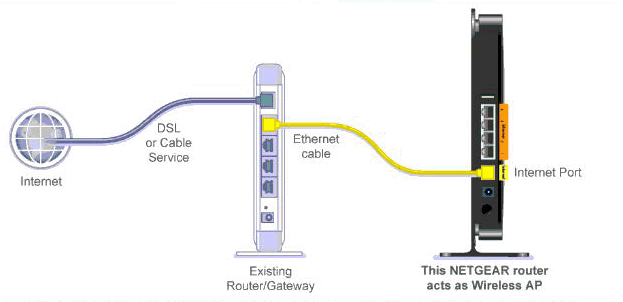
This method delivers the most reliable performance by extending your network without creating a separate subnet. Follow these instructions carefully to avoid common configuration errors.
Connect the Ethernet Cable Properly
Plug one end of your Ethernet cable into a LAN port on the primary modem-router. Insert the other end into the WAN port on your secondary router unless your device has a specific AP mode switch.
Access the Secondary Router Interface
Connect your computer to the secondary router via Wi-Fi or Ethernet cable. Open a web browser and enter the default IP address found on the device label to log in.
Assign a Static IP Address
You must give the secondary router a fixed IP within the primary network but outside its DHCP range.
* If the primary router is 192.168.1.1, assign 192.168.1.2 to the secondary unit.
* Navigate to LAN Settings and enter this new static IP address.
* Save your changes immediately to prevent address collisions.
✅ Pro Tip: Write down this static IP address. You will need it to access the secondary router settings in the future.
Disable the DHCP Server
Only one device should assign IP addresses to your network.
1. Go to LAN or Network Settings on the secondary router.
2. Find the DHCP Server option and select Disable.
3. Save the settings and let the router reboot.
❌ Critical: Failing to disable DHCP causes “Double DHCP” errors that prevent devices from getting an IP address.
Set Wi-Fi Names and Passwords
Decide if you want devices to roam automatically or connect to distinct networks.
* Seamless Roaming: Match the SSID and password exactly to your primary router for automatic switching.
* Separate Networks: Use a different name like Home_Ext to manually control connections.
Verify Your Connection Status
Reboot the secondary router and connect a device to test the setup. Run a speed test to confirm you are getting full speeds without the halving effect seen in repeater modes.
Establish Router Mode for Isolated Networks
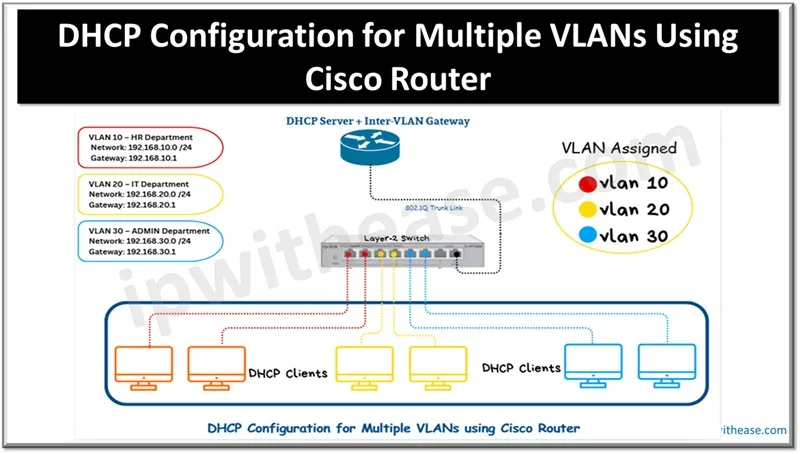
Use this configuration when you need a completely separate network segment for security or organizational purposes. This setup creates a sub-network with its own IP range.
Link LAN Ports to WAN Ports
Run an Ethernet cable from a LAN port on the primary modem-router to the WAN port on the secondary router. This physical connection establishes the hierarchy between the two networks.
Maintain DHCP Functionality
Unlike Access Point mode, you must keep the DHCP server enabled on the secondary router. This allows it to assign unique IP addresses to devices within its own sub-network.
Create Unique Network Credentials
Set a different SSID and password to distinguish this network from your main one. This separation prevents devices on the secondary network from seeing those on the primary network.
Understand Double NAT Limitations
Be aware that this setup creates Double NAT because both routers perform network address translation.
* Online gaming may experience lag or connection errors.
* Port forwarding becomes complex to manage.
* Screen mirroring between devices on different networks often fails.
Deploy Wireless Repeater Mode Without Cables
This method extends coverage using only Wi-Fi signals, making it ideal for locations where drilling holes or running cables is not an option.
Reset and Connect Locally
Perform a factory reset on the secondary router. Connect your computer to it via Ethernet cable for the initial setup to avoid losing connection during mode changes.
Select Repeater Operation Mode
Log into the router interface and find the operation mode settings. Look for options labeled Range Extender, Repeater Mode, or Wireless Bridge.
⚠️ Compatibility Check: Not all routers support native repeater mode. Check your specific model specifications before attempting this setup.
Join the Primary Network
The interface will scan for available wireless networks. Select your main SSID from the list and enter the primary Wi-Fi password to establish the link.
Optimize Placement for Signal Strength
Place the repeater halfway between your main router and the dead zone. Ensure it still receives a strong signal from the source, or the extended signal will also be weak.
Accept Bandwidth Trade-Offs
Understand that wireless repeating reduces your total available speed by approximately 50 percent. The radio splits its time between receiving and retransmitting data, increasing latency.
Troubleshoot Common Connection Issues
Even careful setups can encounter problems. Use these diagnostic steps to resolve connectivity issues quickly and effectively.
Resolve No Internet Errors
Cause: IP conflict or active DHCP on both routers.
Fix: Ensure DHCP is disabled on the secondary router and assign it a unique static IP outside the primary range. Reboot both devices to clear the error.
Fix Double NAT Warnings
Cause: Using Router Mode instead of Access Point mode.
Fix: Switch the secondary router to AP Mode or contact your ISP to enable Bridge Mode on the modem-router unit.
Address Slow Speed Performance
Causes: Wireless repeater limitations, old cables, or channel congestion.
Fix: Upgrade to wired AP mode, replace old Ethernet cables with CAT6, or manually set Wi-Fi channels to 1, 6, or 11 for 2.4 GHz bands.
Fix Device Connection Failures
Causes: Security mismatches or hidden SSIDs.
Fix: Match security protocols like WPA2 on both routers and ensure the SSID is broadcasting visibly.
Stop Intermittent Connectivity
Cause: Interference from appliances or neighboring networks.
Fix: Use the 5 GHz band where possible and avoid placing routers near microwaves or metal objects.
Optimize Network Performance and Stability
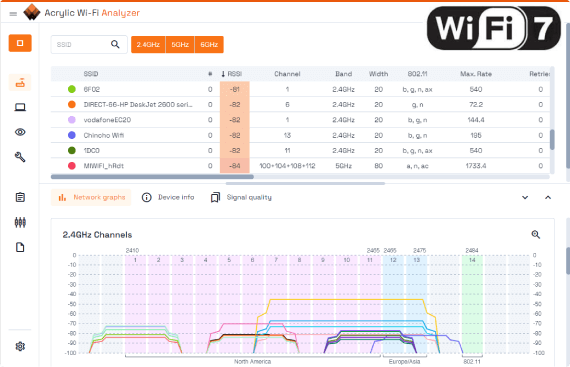
Fine-tune your configuration after setup to ensure long-term reliability and maximum throughput. Small adjustments can significantly improve your daily internet experience.
Select Optimal Wi-Fi Channels
Manually set your 2.4 GHz band to channels 1, 6, or 11 to prevent overlap. Use Wi-Fi analyzer apps to find the least congested 5 GHz channels for high-speed devices.
Enable Quality of Service Features
If your secondary router handles routing duties, enable QoS to prioritize video calls or gaming traffic. This limits bandwidth for background downloads and improves responsiveness.
Manage Heat and Physical Placement
Place routers off the floor and away from walls to ensure proper ventilation. Overheating causes thermal throttling that slows down your entire network.
Maintain Regular Firmware Updates
Check for software updates every three to six months. Log into each router interface and install available updates during low-usage hours to patch security vulnerabilities.
Frequently Asked Questions About Connecting Routers
Can I connect two routers without an Ethernet cable?
Yes, you can use Wireless Repeater Mode if your secondary router supports it. However, this method cuts your available bandwidth in half and increases latency compared to wired connections.
Why do I get a Double NAT error message?
This occurs when both routers perform Network Address Translation in Router Mode. Switch the secondary router to Access Point Mode or enable Bridge Mode on your ISP modem to fix it.
Do I need to disable DHCP on the second router?
You must disable DHCP if using Access Point Mode to prevent IP conflicts. Keep DHCP enabled only if using Router Mode to create a separate sub-network.
Will connecting a second router increase my internet speed?
It will not increase your plan speed from the ISP, but it can help you achieve the full speed you pay for by replacing underpowered ISP hardware.
What Ethernet cable should I use for the best results?
Use CAT5e or CAT6 cables to support Gigabit speeds. Older CAT5 cables may limit your connection to 100 Mbps even if your plan is faster.
How do I avoid IP address conflicts between routers?
Assign a static IP to the secondary router that is within the primary subnet but outside the DHCP pool. For example, use 192.168.1.2 if the primary is 192.168.1.1.
Key Takeaways for Connecting a Router to a Router Modem
Connecting a second router to your existing modem-router setup is the most effective way to eliminate dead zones and reclaim your full internet speed. By choosing the right method, specifically wired Access Point mode, you create a seamless network that covers your entire home without performance loss.
Remember to always disable DHCP on the secondary unit when using AP mode and assign it a unique static IP to prevent conflicts. Avoid wireless repeaters unless absolutely necessary, as they significantly reduce your available bandwidth.
Start by gathering your equipment and resetting your secondary router today. Follow the step-by-step instructions above to transform your spotty Wi-Fi into a robust, whole-home network that supports all your devices effortlessly.



