Your Arris modem suddenly drops offline, and the blinking lights look like a foreign language. You’re not the only one facing this—cable faults cause up to 80% of Arris modem connectivity issues, and outdated firmware is the leading trigger behind unexpected disconnections. The good news is that most of these problems are fixable at home without waiting for a technician.
This guide walks you through a proven Arris modem troubleshooting sequence, starting with the simplest checks and moving toward advanced diagnostics. You’ll learn how to read LED signals, measure signal health, avoid overheating, and recognize when replacement is the smarter option.
Confirm No ISP Outage Before Troubleshooting
Check Your Provider’s Service Status
Before you touch any cables, find out if your ISP is the source of the problem. If your neighbors are also offline, no local fix will help. Visit your provider’s official website or check their Twitter/X account for real-time outage updates. Major providers like Xfinity and Spectrum post alerts within minutes of an incident.
Skip Unnecessary Steps During Outages
Rebooting or resetting your modem during a regional outage wastes time and accomplishes nothing. If the ISP confirms a network issue, simply wait for service to return. This single step saves you hours of unnecessary troubleshooting.
Inspect Every Cable Connection
Secure the Coaxial Cable First
Loose coaxial cables are the number one cause of Arris modem problems. Hand-tighten the cable from the wall outlet to your modem’s coax port, then add a quarter-turn using a wrench. Don’t overtighten, but make sure it’s snug. Examine the cable for kinks, frayed ends, or crushed sections—any visible damage means replacement. Even minor defects degrade signal quality significantly.
Verify Your Ethernet Connection
The Ethernet cable linking your modem to your router or computer must be firmly seated at both ends. Unplug and reconnect it, then wiggle gently while watching the modem lights. If lights flicker or your connection drops during wiggling, the cable or port is suspect. Swap in a known-good cable to confirm.
Run a Quick Stability Test
After reseating all cables, perform this simple check:
– Wiggle each connection gently
– Watch for light fluctuations
– Listen for audio cutouts on video calls
If the modem resets or disconnects during this test, replace the faulty cable immediately.
Power Cycle Your Arris Modem the Right Way
Use a Full Hard Reboot
A proper power cycle clears temporary glitches and resets the handshake with your ISP. Skip the power button—it only triggers a soft reboot that leaves core memory intact. Follow these steps:
1. Unplug the modem from power
2. Wait 30 to 60 seconds to allow capacitors to discharge
3. Plug it back in
4. Wait 2 to 3 minutes for full boot-up
This waiting window is what separates a true reset from a no-op.
Try an Extended Power Cycle for Stubborn Problems
If the standard reboot doesn’t work, escalate:
1. Unplug the power cord from both the modem and the wall outlet
2. Wait 60 seconds
3. Reconnect and wait 3 minutes
4. Check the lights: a steady blue indicates success
This method resolves most intermittent dropouts and sync failures, which is why power cycling alone fixes up to 70% of connectivity issues.
Decode Your Arris Modem’s LED Lights
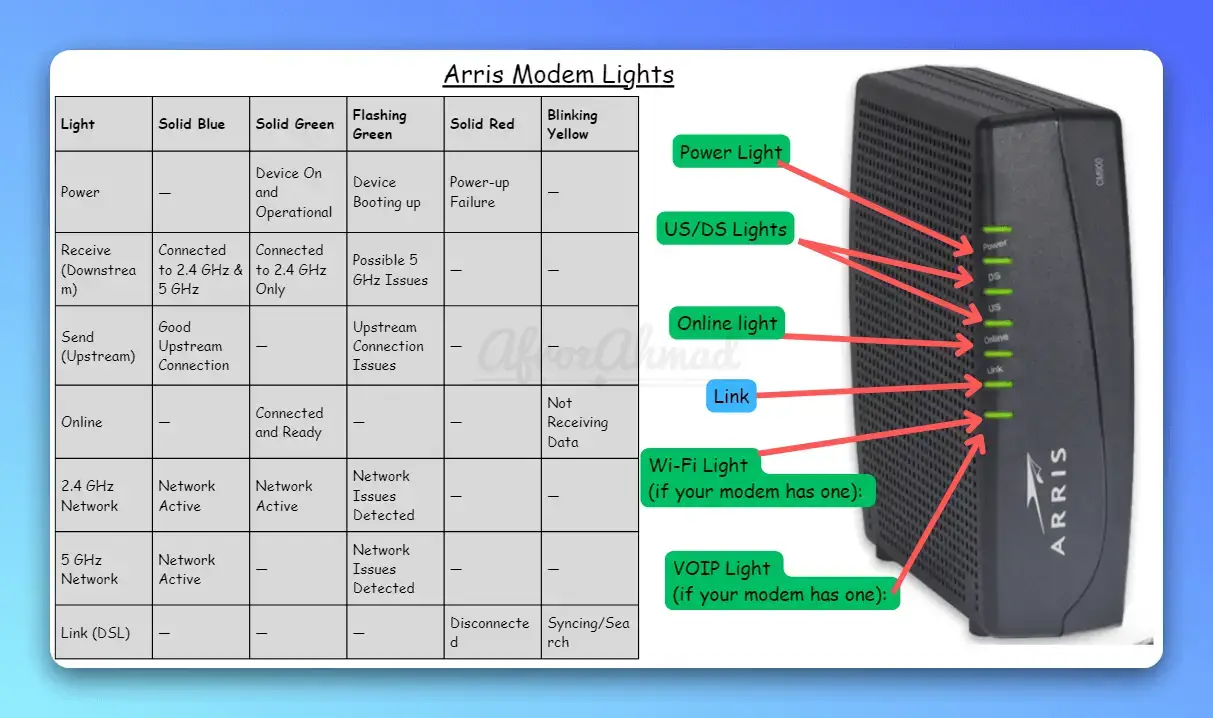
Learn What Each Light Means
Your modem’s LEDs function as a built-in diagnostic panel. Here are the standard indicators:
- Solid Power Light: Normal operation
- Solid Receive (Rx) Light: Signal from ISP detected
- Solid Transmit (Tx) Light: Data sending capability
- Blinking Online Light: Syncing with ISP
- Blinking Error Light (Red or Amber): Hardware, firmware, or authentication issue
Understand Color Coding
Color varies by model, but the general rules apply:
– Steady Blue: All systems normal
– Flashing Blue: Connecting or updating
– Amber or Orange: Problem detected—contact your ISP
Identify Critical Failure Patterns
Watch for these warning signs:
– No Power Light: Check the outlet, adapter, or internal failure
– Flashing Rx/Tx Lights: Signal instability—inspect cables or ISP line
– Blinking Error Light: Firmware or hardware fault—call your ISP
If the Online light keeps blinking or stays off, your modem isn’t registering with the ISP. An amber Internet light typically means it’s out of sync.
Access Signal Level Diagnostics
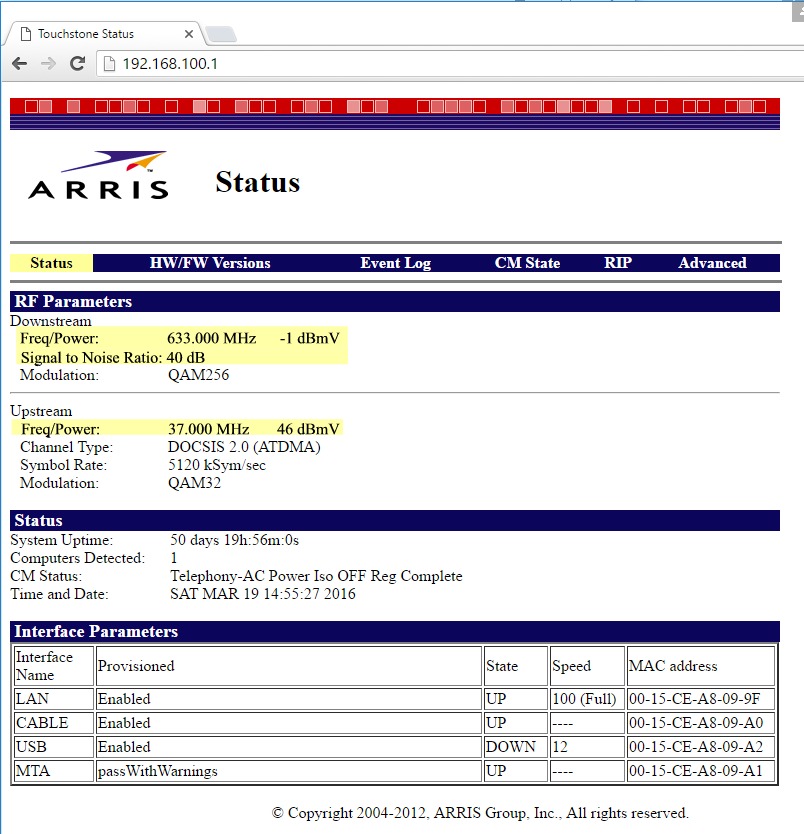
Log Into the Modem Interface
Visit http://192.168.100.1 to access real-time signal diagnostics. This page displays downstream and upstream power plus signal-to-noise ratio (SNR). Use the default login printed on your modem label or your custom credentials.
Check Downstream Power
Aim for a range between -10 dBmV and +10 dBmV.
– Below -10: signal too weak
– Above +10: signal too strong
Both extremes cause slow speeds or disconnections. Out-of-range values almost always indicate an ISP line issue.
Verify Upstream Power
Target 35 dBmV to 55 dBmV.
– Below 35: weak upload signal
– Above 55: overdriven and potentially damaging
Readings outside this range require an ISP technician visit.
Monitor Signal-to-Noise Ratio
SNR should stay above 25 dB. Lower values mean excessive line noise, which causes packet loss and intermittent drops. Common culprits include damaged cables, faulty splitters, and electromagnetic interference.
Address Firmware-Related Disconnections
Understand ISP-Controlled Updates
Unlike routers, Arris modems don’t support user-initiated firmware updates. Your ISP pushes updates remotely, and many modems still run outdated versions from late 2023. This delay leaves devices vulnerable to known bugs.
Request a Firmware Update from Your ISP
Call your provider and ask:
– What firmware version is currently installed?
– Is a newer version available?
– Can they push it remotely?
Many users eliminate chronic drops through this single conversation.
Watch for Model-Specific Bugs
The Arris G36 (SBG3600) has documented firmware instability, especially on Xfinity networks. Symptoms include frequent reboots, random disconnections, and failure to re-sync after power loss. If you own this model and experience drops, firmware is almost certainly involved.
Verify ISP Registration and Provisioning
Confirm Your Modem Is Activated
Your modem may be perfectly functional but not authorized on the ISP network. Contact your provider to verify:
– The MAC address is registered to your account
– The modem is properly provisioned
– No service holds exist
Many ISPs push activation settings remotely, so no technician visit is needed.
Avoid Known Compatibility Problems
The G36 is notorious for sync issues with Xfinity. If you’re on that network and using a G36, request a replacement from the ISP’s approved device list. Recommended alternatives include the Arris SBG7600AC2 and the Motorola MB8600, both offering better stability and full DOCSIS 3.1 support.
Reduce Wi-Fi Interference
Remove Physical Barriers
Walls, metal furniture, and large appliances weaken Wi-Fi signals significantly. Place your modem in a central, elevated location away from obstructions. Avoid cabinets, basements, and corners where signal coverage drops.
Eliminate Electromagnetic Noise
Keep your modem at least 3 to 5 feet from these common interference sources:
– Microwaves
– Cordless phones (especially 2.4 GHz models)
– Bluetooth devices
– Baby monitors
– Neighboring Wi-Fi networks
Optimize Channel and Band Selection
Use a Wi-Fi analyzer app to identify the least congested channel, then switch your network to it via the admin panel at 192.168.10.1. Choose 5 GHz for speed when devices are near the modem, and 2.4 GHz for range when devices are farther away. Enable band steering if available—it automatically routes each device to the optimal frequency.
Prevent Overheating Shutdowns
Recognize Heat Sensitivity
The Arris G36 runs hot and frequently triggers thermal shutdowns. If your modem feels hot to the touch, it may be throttling performance or disconnecting entirely to protect internal components.
Improve Airflow Around the Modem
Take these steps immediately:
– Move the modem out of enclosed spaces
– Never stack devices on top of it
– Leave at least 6 inches of clearance on all sides
– Keep it away from direct sunlight and heat sources
Clean Vents Monthly
Dust blocks airflow and accelerates overheating. Use a soft brush or compressed air to clean the vents every month. In warm environments, place a small fan nearby to boost cooling.
Perform a Factory Reset Only as a Last Resort
Understand What Gets Erased
A factory reset wipes all custom settings, including your Wi-Fi name, password, port forwarding rules, and security configurations. Only attempt this after exhausting every other option.
Execute the Reset Correctly
- Locate the reset button on the back or side
- Press and hold for 10 to 15 seconds using a paperclip
- Wait 3 to 5 minutes for full reboot
Reconfigure Your Network
After the reset, access 192.168.10.1 to set up Wi-Fi again. Re-enter ISP credentials if prompted, then restore any port forwarding rules. Keep your settings documented to speed up this process next time.
Diagnose Hardware Failure
Test with a Known-Good Modem
If every step above fails, borrow a compatible modem or request one from your ISP. If the replacement connects instantly, your original Arris unit has failed.
Know When Replacement Makes Sense
Arris modems typically last 5+ years under normal conditions. If yours is older and showing repeated failures, replacement is the most cost-effective fix. Frequent drops, overheating, and persistent sync issues in aging units usually signal end-of-life.
Upgrade to a Reliable Model
Recommended replacements include:
– Arris SBG7600AC2: Better heat management and DOCSIS 3.1 support
– Motorola MB8600: Proven stability and broad ISP approval
These models handle high-speed plans better and have fewer known firmware bugs.
Establish a Preventive Maintenance Routine
Schedule Monthly Checks
Perform these tasks every 30 days:
– Power cycle the modem
– Inspect and tighten all cables
– Clean vents with compressed air
– Review LED status and signal levels
This routine prevents the majority of recurring issues.
Track Performance Trends
Keep notes on:
– Times of day when drops occur
– Weather conditions during outages
– Firmware version changes
– ISP maintenance notices
Patterns help you identify root causes faster.
Store Critical Information
Keep these details handy for faster support calls:
– Modem MAC address and model number
– ISP support contact
– Firmware version history
– Troubleshooting log
Resolve Arris G36 (SBG3600) Specific Problems
Recognize the Known Flaws
The G36 has several documented issues:
– Firmware bugs cause random drops
– Overheating triggers automatic shutdowns
– Xfinity compatibility issues lead to sync loss
– Some production batches are systematically problematic
Request a Replacement Instead
If you own a G36 and suffer frequent disconnections, don’t waste time troubleshooting. Request a replacement from your ISP’s approved device list. The SBG7600AC2 or MB8600 will save you hours of frustration and deliver consistent performance.
Frequently Asked Questions About Arris Modem Troubleshooting
Why Does My Arris Modem Keep Disconnecting Randomly?
Random drops usually point to outdated firmware, overheating, or unstable signal levels. Check your firmware version with your ISP, improve airflow around the modem, and verify signal diagnostics at 192.168.100.1. The Arris G36 is especially prone to this issue on Xfinity networks.
How Do I Fix a Blinking Online Light on My Arris Modem?
A blinking Online light means the modem isn’t registering with your ISP. Start with a full power cycle (30 to 60 seconds unplugged), then verify your modem is provisioned and registered on your account. If the light continues blinking, contact your ISP to push activation settings remotely.
What Are the Ideal Signal Levels for an Arris Modem?
Downstream power should fall between -10 dBmV and +10 dBmV. Upstream power should range from 35 dBmV to 55 dBmV. Signal-to-noise ratio must stay above 25 dB. Any reading outside these ranges indicates a line issue that requires ISP intervention.
Can I Update Arris Modem Firmware Myself?
No. Arris modems don’t support user-initiated firmware updates—your ISP controls deployment remotely. Call your provider to confirm your current version and request an update if available. This is the most common fix for chronic disconnection problems.
When Should I Replace My Arris Modem?
Replace your modem if it’s over 5 years old and showing repeated failures, if signal levels stay out of range despite ISP visits, or if you own a known problematic model like the G36. Recommended upgrades include the Arris SBG7600AC2 and Motorola MB8600.
Key Takeaways for Faster Arris Modem Fixes
Most Arris modem problems come down to cable faults, outdated firmware, or overheating—issues you can address in minutes without a technician visit. Start by confirming there’s no ISP outage, then work through the sequence: inspect cables, power cycle properly, decode the LED lights, and check signal levels at 192.168.100.1. If your modem is a known problematic model like the G36, skip the extended troubleshooting and request a replacement immediately. Schedule a quick monthly maintenance routine to prevent the majority of recurring issues, and keep your modem’s MAC address and firmware version documented for faster support calls. With this systematic approach, you’ll resolve nearly any Arris modem issue on your own.