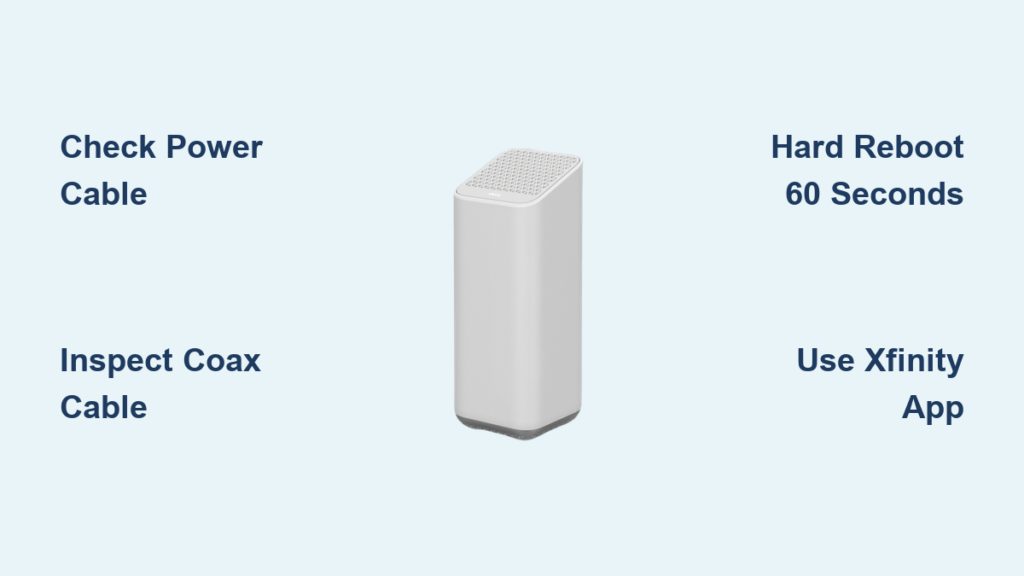
Your Xfinity modem isn’t connecting. The Wi-Fi is down, devices won’t go online, and that blinking or red light on the gateway is driving you crazy. You’re not alone; thousands of users face this every day. The good news? Most connectivity issues with Xfinity modems clear up in under 10 minutes using simple, proven steps.
This guide gives you fast, effective fixes for when your Xfinity modem won’t connect to the internet or Wi-Fi. You’ll learn how to read LED signals, perform a correct reboot, rule out outages, and know when to contact support. Whether you have an XB3, XB6, or XB7 gateway, these troubleshooting steps apply to all Xfinity-provided equipment. Let’s get your internet back online quickly and confidently.
Check Power and Coax Connections

Before rebooting or calling support, verify the physical links keeping your modem alive.
A surprising number of “no connection” issues stem from loose cables or power problems. These are easy to miss but simple to fix.
Secure the Power Cable
- Ensure the white power adapter is fully inserted into the back of the gateway.
- Confirm the outlet is active by plugging in a lamp or phone charger.
- If using a surge protector or power strip, make sure it’s switched on and receiving power.
- Avoid extension cords, which can reduce voltage and cause instability.
If the modem has no lights at all, power is likely the culprit.
Inspect the Coax Cable
- Locate the coaxial cable running from the wall to the “CABLE IN” port on your gateway.
- Check that both ends are hand-tight (do not over-tighten; this can strip threads).
- Look for kinks, bends, or damage along the cable’s length.
- Ensure no splitters are in use unless approved by Xfinity.
A slightly loose coax connection often causes intermittent or total signal loss. Turn it one full rotation tighter; it could restore your connection instantly.
Read Your Modem’s LED Lights

The status lights on your Xfinity gateway tell you exactly what’s happening. No app or technician required.
Don’t ignore them. Each color and pattern indicates a specific state.
What Each Light Means
| Light Color | Meaning |
|---|---|
| Solid White | Connected and working normally |
| Blinking White | Booting up or reconnecting to network |
| Blinking Orange | Firmware update in progress or weak signal |
| Solid Red | Hardware failure or service outage |
| No Light | No power or dead outlet |
Diagnose by Light Pattern
No Light on Modem
You have a power issue. Test the outlet and power cord, then return to the connection checks above.
Blinking White for Over 10 Minutes
The modem can’t establish a connection. Move on to performing a hard reboot.
Solid Red Light
This indicates a serious problem, such as a local service outage, damaged hardware, or account suspension. Rule out outages using the Xfinity app first.
Blinking Orange
The modem is updating firmware or struggling with signal strength. Wait up to 20 minutes. If it doesn’t turn solid white, proceed with a reboot.
Perform a Hard Reboot Correctly
A proper hard reboot clears glitches, resets network handshakes, and often restores connectivity.
Most people do it wrong, either skipping the wait time or plugging it back in too soon.
Step-by-Step Reboot Process
- Unplug the power cord from the back of the gateway.
- Wait 60 seconds. This is critical. It allows capacitors to discharge and clears cached errors.
- Plug the power back in firmly.
- Wait 5–10 minutes for full reboot.
The lights will blink white or orange as the modem syncs with Xfinity’s network. Be patient. Only after the light turns solid white is your connection restored.
When to Reboot Again
If after 10 minutes the light is still blinking or red, unplug again and disconnect the coax cable for 2 minutes. Reconnect coax, then power, and wait another 10 minutes. This deeper reset can resolve persistent signal handshake issues.
Reboot your devices too. Once the modem is back online, restart your phone, laptop, or tablet to clear old network caches.
Use the Xfinity App to Check for Outages

Even with a perfectly working modem, you won’t get internet if there’s a local outage.
The fastest way to check? The Xfinity app.
How to Check Outage Status
- Open the Xfinity app on your smartphone.
- Tap the Wi-Fi tab at the bottom.
- View your gateway’s status. “Online” means connected; “Offline” means a problem was detected.
- Scroll down to Network Health. If it says “No outages detected,” the issue is likely at your end. If an outage is reported, Xfinity is already working on it.
No internet on phone? Use cellular data to open the app. As long as your mobile signal works, you can check your home network status.
Run In-App Troubleshooting
The Xfinity app includes a built-in diagnostic tool. Tap Troubleshoot and follow prompts to test connection, signal strength, and device status. The app may recommend a reboot or detect signal issues.
Using the app creates a service ticket. If you later call support, they’ll see your diagnostic history, speeding up resolution.
Rule Out Account or Service Issues
Sometimes, your modem isn’t broken. It just isn’t authorized to connect.
Xfinity may suspend service due to billing issues or account changes.
Check Your Account Status
- Visit xfinity.com on a mobile hotspot or friend’s Wi-Fi.
- Log in to your account.
- Look for alerts like “Service suspended,” “Payment overdue,” or “Account on hold.”
- If you see any of these, make a payment or contact billing support.
Even one day past due can trigger service suspension, especially after repeated late payments.
Verify Equipment Status
In your Xfinity account, go to My Equipment and confirm your gateway is listed and active. If it shows “Offline” or “Unregistered,” it may need reactivation. Call Xfinity support and request a remote equipment reset. They can push a reauthorization signal in seconds.
Test for Signal Strength Problems
:max_bytes(150000):strip_icc()/how-to-connect-a-tv-and-modem-to-one-cable-outlet-02-94bab013f13f450d9c5f98f75f53baef.jpg)
Weak cable signal prevents your modem from syncing with Xfinity’s network, even with perfect cables and power.
This often shows as blinking orange, intermittent connectivity, or failed reboots.
Identify Signal Issues
- Reboot fails repeatedly.
- Modem connects but drops every few minutes.
- Only wired devices work (if any).
These point to poor upstream or downstream signal.
Quick Fixes for Low Signal
Remove Splitters and Filters
If you’re using a coax splitter (for cable TV, for example), remove it temporarily. Connect the coax directly from the wall to the modem. Splitters reduce signal strength by 3–9 dB, often enough to break the connection.
Try a Different Wall Outlet
Some coax wall ports are inactive or poorly grounded. Locate another coax outlet and test there using a short coax jumper cable.
A $10 coax continuity tester can confirm if the wall port is live.
When to Replace or Upgrade Your Modem

If you’ve tried everything and still have no connection, your modem may be failing.
Xfinity gateways typically last 3–5 years. Older models struggle with modern bandwidth demands.
Signs of Hardware Failure
- Frequent disconnections
- Overheating (hot to the touch)
- Burnt smell or discoloration
- Lights stay red after multiple reboots
- Only works when placed at a certain angle (loose internal connections)
Upgrade Options
Rent from Xfinity
Newer gateways (XB7, XB8) offer faster Wi-Fi 6 and better range. Rental fees run $14–$20 per month. Call support to request a hassle-free replacement swap.
Buy Your Own Modem
Save money long-term by purchasing a compatible modem.
Top picks:
– Motorola MB8600 (DOCSIS 3.1, up to 1 Gbps)
– Netgear CM2000 (Wi-Fi 6 compatible, excellent signal handling)
Verify compatibility using Xfinity’s official equipment list.
If buying your own, pair it with a separate Wi-Fi router for better performance and easier troubleshooting.
Contact Xfinity Support the Right Way
When all else fails, it’s time to call. Do it smart to avoid long hold times and unhelpful reps.
Best Ways to Get Help
Use the Xfinity App (Fastest)
Open the app, go to the Wi-Fi tab, and tap Troubleshoot. Let it run diagnostics, then tap Chat or Call when prompted. The system sees your modem’s status in real time, so you don’t have to describe blinking lights.
Call the Tech Support Line
Dial 1-800-XFINITY (1-800-934-6489). Say “Internet issues” to bypass sales. Press 0 to reach a live agent if stuck in an automated loop.
Schedule a Technician Visit
If remote fixes fail, request an in-home visit via the app or website. Xfinity often waives the service fee when the issue is network-side.
Schedule weekday mornings when technicians are less rushed and more thorough.
What to Tell Support
Have this info ready:
– Gateway model number (e.g., XB7)
– Serial number (on the bottom)
– Account number
– Summary of steps you’ve already tried
Try saying: “I’ve checked connections, rebooted, and confirmed no outage. The modem shows a red light. Please check signal levels or dispatch a replacement.” This shows you’re informed and gets you faster, better help.
Prevent Future Connection Issues
Don’t wait for the next outage. Take steps now to reduce downtime.
Schedule Monthly Reboots
Set a reminder to reboot your modem once a month. This prevents memory leaks, clears connection logs, and maintains optimal performance. Unplug, wait 60 seconds, and plug back in.
Monitor Signal Health
Use the Xfinity app weekly to check downstream and upstream signal levels, connected devices, and firmware version. Sudden drops in signal deserve early investigation.
Keep Firmware Updated
Your modem updates automatically, but sometimes updates fail. If you see blinking orange frequently, reboot during off-hours (updates often run at night) and ensure stable power. Interruptions can corrupt firmware.
Frequently Asked Questions About Xfinity Modem Not Connecting
Why is my Xfinity modem blinking white and not connecting?
A blinking white light means the modem is connecting to the network or completing a reboot. If it blinks for more than 10 minutes, the device may be struggling to establish a stable signal. Try a 60-second hard reboot by unplugging the power cord, waiting, and plugging it back in.
What does a solid red light on an Xfinity modem mean?
A solid red light indicates a hardware issue or a local service outage. Check the Xfinity app’s Network Health section first to rule out an outage. If none is reported, perform a hard reboot and inspect your coax and power connections.
How long does an Xfinity modem take to reboot?
After a hard reboot, allow 5–10 minutes for the modem to fully reconnect. The light will blink white during the process and turn solid white once online. If it doesn’t stabilize after 10 minutes, reboot again with the coax cable disconnected for 2 minutes.
Can I fix an Xfinity modem not connecting without calling support?
Yes. Most connection issues are resolved by checking power and coax cables, performing a 60-second hard reboot, and confirming there’s no outage via the Xfinity app. Support is only necessary if these steps don’t restore connectivity.
Do I need to replace my Xfinity modem if it keeps disconnecting?
Frequent disconnections, overheating, or persistent red lights after reboots often signal hardware failure. Xfinity gateways last 3–5 years. You can request a replacement from Xfinity or buy a compatible third-party modem such as the Motorola MB8600 or Netgear CM2000.
Key Takeaways for Fixing Your Xfinity Modem
Most Xfinity modem connection problems clear up with a 60-second hard reboot and a quick cable check. LED lights guide your diagnosis; learn them and you’ll skip hours of guesswork. Use the Xfinity app to rule out outages and run diagnostics before calling support. If problems persist, upgrade to a newer gateway or a compatible third-party modem for long-term reliability. Stay proactive, and you’ll spend less time troubleshooting and more time online.