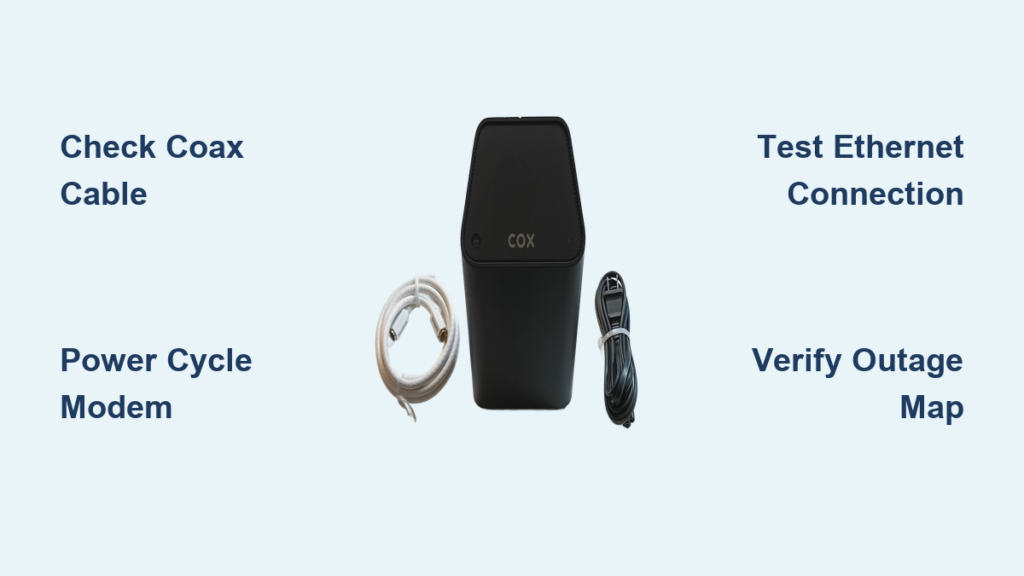
Is your Cox internet down right now? You’re definitely not alone. A blinking light, sluggish speeds, or a total connection loss can disrupt your work, streaming, and gaming in seconds. The encouraging news: most Cox modem issues get resolved in under 10 minutes using straightforward, proven steps. In fact, 40% of connectivity problems trace back to loose coax cables or failed reboots, which are simple fixes anyone can handle.
This guide provides a clear, step-by-step plan to diagnose and fix Cox modem issues quickly. Whether you’re seeing a blinking green light, experiencing Wi-Fi drops, or facing a complete outage, you’ll learn exactly what to check, how to test, and when to reach out for support. No technical jargon. No guesswork. Just real results.
Check Physical Connections

Inspect Coax and Power Cables
Loose or damaged cables cause nearly half of all Cox internet outages. Start your troubleshooting here:
- Unplug the coaxial cable from both the wall outlet and the modem
- Examine the center pin; it should be straight and free of corrosion
- Reconnect firmly by hand (avoid using tools, since over-tightening damages threads)
- Confirm power cables are fully plugged into both the modem and the outlet
Visual cue: A loose coax often wiggles slightly when touched. A corroded pin appears dull or greenish.
Verify Device Power Status
- Confirm both modem and router have power flowing to them
- Look for solid or blinking lights (no completely dead units)
- If lights remain off, try a different power outlet or swap the cable
Pro tip: If you’re using a surge protector, bypass it temporarily to rule out power block issues.
Perform a Proper Reboot
Standard Power Cycle (30-Second Rule)
Most issues resolve with a correct reboot sequence. Follow these exact steps:
- Turn off both modem and router
- Unplug power from both devices
- Wait 30 seconds (this wait is critical for a proper reset)
- Plug in the modem first, then wait 2–3 minutes for full connection
- Power on the router afterward
What to look for: Wait until the “Online” or “Internet” light turns solid before testing your connection.
Extended Reset for Stubborn Issues
If the standard reboot doesn’t fix the problem:
- Leave the modem unplugged for 60 seconds
- Plug it back in and wait 5 full minutes for complete initialization
- This clears deeper system glitches and renews your IP assignment
Time estimate: The total process takes 6–8 minutes. Don’t skip the wait.
Test Your Connection Type

Run a Direct Ethernet Test
To determine whether the issue lies with Wi-Fi or your actual internet:
- Connect a laptop or PC directly to the modem using an Ethernet cable
- Open a browser and visit a site like google.com
- If the page loads, your internet is working and the problem is Wi-Fi related
Common mistake: Assuming Wi-Fi issues mean no internet service. Always test a wired connection first.
Diagnose Wi-Fi vs. Modem Failure
| Symptom | Likely Cause |
|---|---|
| Wired works, Wi-Fi doesn’t | Router or interference issue |
| No connection on any device | Modem or service outage |
| One device fails, others work | Device-specific problem |
Action step: If only one device fails, forget the network on that device and reconnect.
Confirm Service Outages
Check Cox Outage Map
Before diving deeper into troubleshooting, verify whether Cox is experiencing an outage in your area:
- Visit cox.com/outage
- Enter your address to view real-time service status
- Look for alerts like “service interruption” or “planned maintenance”
Note: Outages typically resolve automatically, so no action is needed on your end.
Use Third-Party Tools
Cross-check the status using Down Detector at downdetector.com:
- See whether neighbors are reporting similar issues
- View outage maps and historical timelines
- Filter results by internet provider
If confirmed: Simply wait for restoration. Calling support won’t speed up the process.
Analyze Light Indicators

Decode Blinking Green Light
A blinking green light indicates upstream channel failure, meaning your modem cannot communicate properly with Cox’s network.
Common causes include:
– Loose or damaged coax cable
– Signal interference
– Temporary network glitch
Fix it:
1. Re-seat the coax cable at both ends
2. Perform an extended power cycle (60 seconds off)
3. Check for outage notifications
4. Contact Cox if the light persists after two reboots
Warning: Don’t ignore this light, as it blocks all internet traffic.
Interpret Other Light Patterns
| Light Status | Meaning |
|---|---|
| Solid white or green | Normal operation |
| Blinking white | Booting up (wait 3+ minutes) |
| Red light | Service disruption or hardware failure |
| No lights | Power or hardware issue |
Expert note: Cox Panoramic and Contour gateways have specific light codes. Refer to your device manual if you’re unsure.
Update Firmware and Settings
Access Router Admin Panel
Updating firmware fixes bugs and improves overall stability:
- Connect to your network
- Open a browser and enter one of these addresses:
- 192.168.0.1
- 192.168.1.1
- 192.168.100.1
- Log in using credentials found on the router label
Caution: For Cox-provided gateways, avoid changing settings unless directed. Incorrect changes can disable your service.
Install Firmware Updates
Once you’re in the admin panel:
- Navigate to Firmware Update or Router Update
- Click Check for Updates
- Install any available version
- Wait 5 minutes for the device to reboot
Pro tip: Set a reminder to check firmware every 3 months for optimal performance.
Optimize Wi-Fi Channel
Reduce interference from microwaves, Bluetooth devices, and neighboring networks:
- In router settings, go to Wireless Settings
- Change the 2.4 GHz channel to 1, 6, or 11 (the least crowded options)
- Use the 5 GHz band for high-speed, short-range devices
Best practice: Run a Wi-Fi analyzer app to find the clearest channel in your area.
Fix Common Internet Issues
No Internet on Any Device
Step-by-step fix:
1. Power cycle modem and router
2. Check the Cox outage map
3. Test with an Ethernet cable
4. Inspect coax for damage
5. Contact support if all else fails
Red flag: If no lights appear after reboot, the modem may be dead and require replacement.
Slow Internet Speeds
Immediate actions:
– Run a speed test at speedtest.net
– Compare results to your Cox plan (such as Ultimate or Gigablast)
– Disconnect unused devices like smart TVs, phones, and tablets
Speed boosters:
– Move router to a central location
– Elevate the router off the floor
– Keep away from metal objects and large appliances
Note: Multiple 4K streams or large downloads can saturate your available bandwidth.
Frequent Wi-Fi Drops
Root causes and fixes:
– Interference: Move router away from microwaves and cordless phones
– Overloaded channel: Change Wi-Fi channel in settings
– Outdated firmware: Update router software
– Distance: Add a Wi-Fi extender for large homes
Prevention: Reboot the router monthly to maintain consistent performance.
Can’t Connect to Wi-Fi Network
Quick fixes:
– Reboot modem and router
– On your device, forget the network and reconnect
– Enter Wi-Fi password carefully, since passwords are case-sensitive
Nuclear option: Reset router to factory settings using the pinhole button.
Warning: This erases all custom settings, so only use it as a last resort.
Prevent Future Problems
Optimize Router Placement
Location matters more than most people realize:
- Place in a central area, away from walls and furniture
- Keep at least 3 feet from microwaves, cordless phones, and baby monitors
- Ensure good ventilation, since overheating causes slowdowns
Pro tip: Mount the router on a shelf or wall for better signal distribution throughout your home.
Maintain Signal Stability
- Hand-tighten coax connections monthly
- Schedule firmware checks every 90 days
- Label cables to avoid confusion during future resets
Long-term benefit: Reduces reboots and support calls by up to 60%.
Handle Cox Equipment Safely
- Do not reset or reconfigure Cox-provided gateways without approval
- Unauthorized changes may void support or trigger service lockouts
- Call Cox first for configuration help
Exception: Basic reboots and cable checks are always safe to perform.
When to Call Cox Support
Contact Support If:
- Internet remains down after two full reboots
- Blinking green light persists
- Outage map shows no issues but you’re still offline
- You suspect hardware failure
Support numbers:
– 1-800-288-2020 (Primary)
– 1-866-589-5992 (Alternate)
Prepare Before Calling
Have this information ready:
– Your account number
– Service address
– Description of the issue
– Steps you’ve already tried
Why it matters: This preparation speeds up diagnosis and reduces your hold time.
Request a Technician If:
- Signal levels are weak (only testable by Cox)
- Modem fails repeatedly
- Coax line shows damage beyond your control
- You suspect internal wiring issues
Good news: Cox often sends technicians at no cost for service-related faults.
Quick Troubleshooting Flowchart
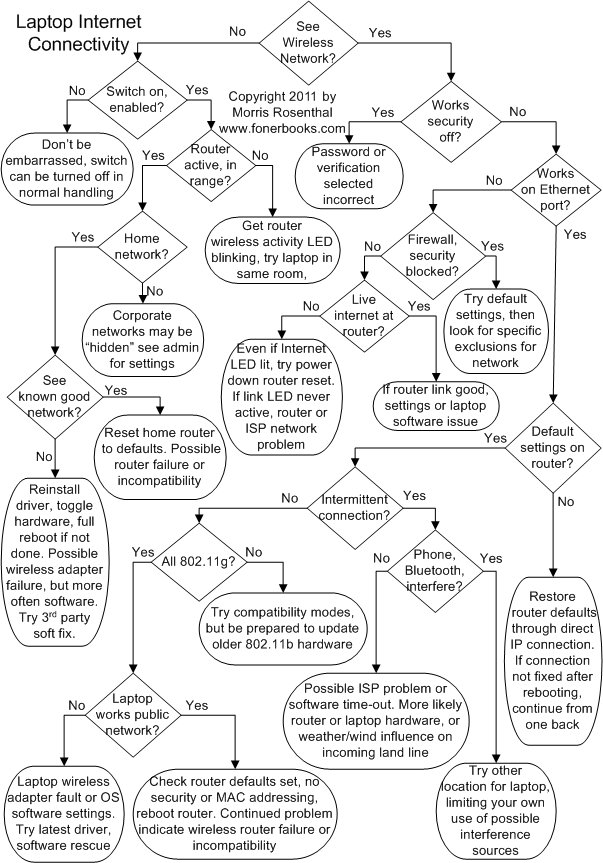
Level 1: Basic Checks
– Are cables secure?
– Is power on?
– Are lights active?
Level 2: Reset
– Power cycle (30 seconds off)
– Wait 2–3 minutes
– Test connection
Level 3: Isolate
– Try Ethernet connection
– Check outage map
– Test another device
Level 4: Optimize
– Update firmware
– Change Wi-Fi channel
– Reposition router
Level 5: Escalate
– Call Cox support
– Request technician
– Consider equipment replacement
Frequently Asked Questions About Cox Modem Troubleshooting
What does a blinking green light on my Cox modem mean?
A blinking green light indicates upstream channel failure, meaning your modem cannot establish a stable connection to Cox’s network. This usually results from loose coax cables, signal interference, or temporary network glitches. Try reseating your coax cable and performing an extended power cycle before calling support.
How long should I wait when power cycling my Cox modem?
For a standard reboot, wait 30 seconds with the modem unplugged before powering it back on. Then wait 2–3 minutes for full reconnection. For stubborn issues, unplug for 60 seconds and wait 5 full minutes for complete initialization.
How do I check if Cox is down in my area?
Visit cox.com/outage and enter your address to see real-time service status. You can also check Down Detector at downdetector.com to see whether neighbors are reporting similar issues. If an outage is confirmed, simply wait for restoration.
Why is my Cox internet so slow all of a sudden?
Slow speeds often result from too many connected devices, signal interference, or outdated firmware. Run a speed test at speedtest.net to compare against your plan. Disconnect unused devices, move your router to a central location, and update firmware to improve performance.
What should I do before calling Cox support?
Before calling, have your account number, service address, and a clear description of the issue ready. Also document the troubleshooting steps you’ve already tried, such as reboots and cable inspections. This information speeds up diagnosis and reduces your hold time.
Can I reset my Cox-provided gateway myself?
Avoid resetting or reconfiguring Cox-provided gateways without approval. Unauthorized changes may void your support coverage or trigger service lockouts. Basic reboots and cable checks are safe, but call Cox first for any configuration changes.
Key Takeaways for Cox Modem Troubleshooting Success
Most Cox modem issues resolve quickly when you follow the right sequence. Start by inspecting physical connections and performing a proper reboot, since 40% of problems end right there. Test your connection type to determine whether the issue is Wi-Fi or modem related, and always check the outage map before diving deeper into troubleshooting. Update firmware regularly and optimize your router placement to prevent future issues. When in doubt, call Cox support at 1-800-288-2020 with your troubleshooting log ready.
Pro habit: Reboot your modem once a month. This clears memory, refreshes your IP address, and prevents slowdowns. Set a calendar reminder; it takes just 5 minutes and keeps your internet running smoothly.
Stay connected.