
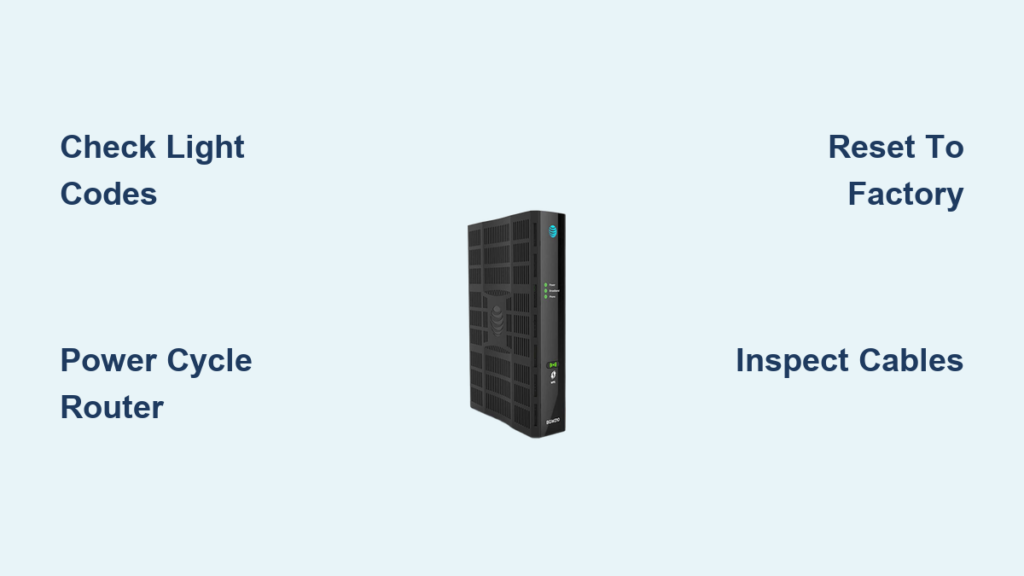
Your internet cuts out right when you need it most, leaving you staring at a blinking red light on your AT&T router. This common frustration often stems from simple glitches that you can fix yourself with the right steps.
This guide walks you through proven AT&T router troubleshooting methods to restore your Wi-Fi signal quickly. You will learn how to diagnose light codes, reset your hardware, and optimize settings for a stable connection.
Diagnose AT&T Router Light Codes Accurately
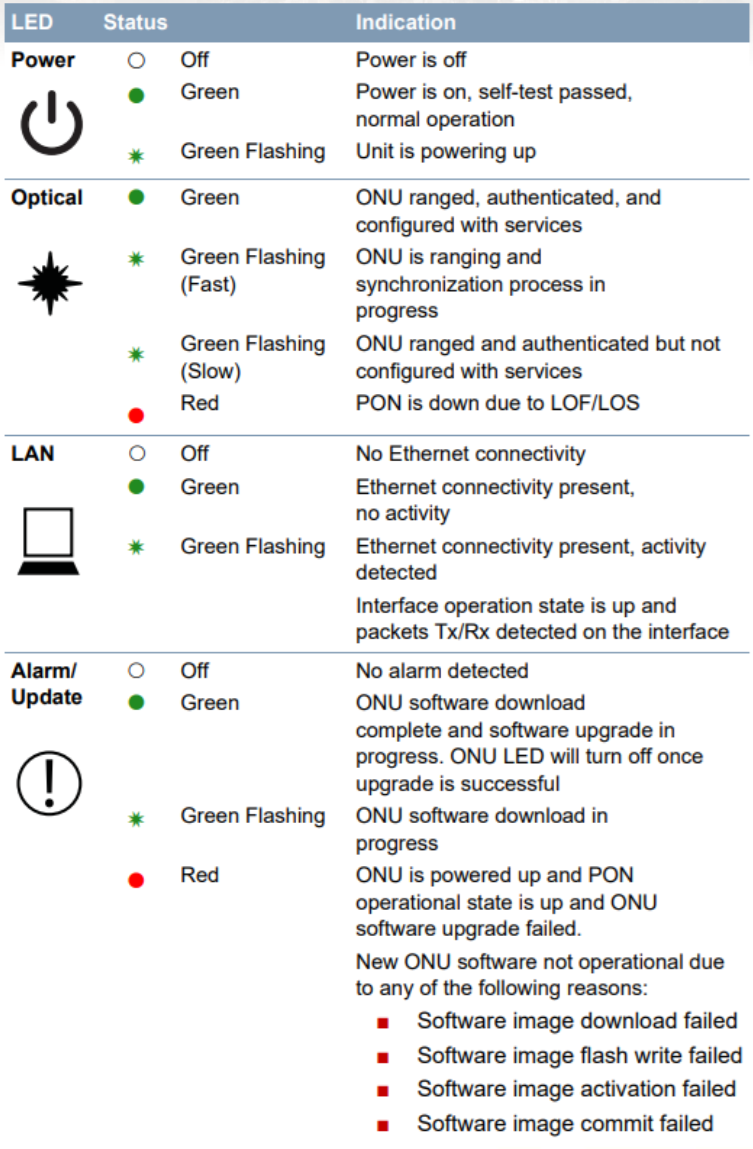
The lights on your AT&T gateway provide immediate clues about what is wrong with your connection. Interpreting these colors correctly is the first step in any effective troubleshooting process.
What Does a Blinking Red Light Mean?
A blinking red light usually indicates that the router cannot find a signal from the network. This often happens during service outages or when the fiber line is disconnected. Check your email or the AT&T app for reported area outages before proceeding.
Why Is My Green Light Flashing?
A flashing green light means the router is actively trying to establish a connection with the AT&T network. If this persists for more than five minutes, the device may be failing to authenticate. Verify that all cables are tightly secured to the correct ports.
When Should You Worry About Amber Lights?
An amber or orange light often signals a firmware update is in progress or a configuration error exists. Do not unplug the device while the light is amber, as this can corrupt the software. Wait for the light to turn solid green or red to determine the next step.
Perform a Power Cycle to Fix Glitches
Restarting your router is the most effective solution for minor software hiccups and memory leaks. This process clears the temporary cache and forces the device to renegotiate a fresh connection with the tower.
Steps to Properly Restart Your Gateway
- Unplug the power cord from the back of the AT&T router.
- Wait at least 30 seconds to ensure all residual power drains from the unit.
- Plug the power cord back in and wait for the broadband light to turn solid green.
- Test your internet connection on a mobile device or computer.
Avoid These Common Restart Mistakes
Many users plug the device back in too soon, which prevents a full system flush. Ensure you wait the full 30 seconds to let the internal components reset completely. Skipping this wait time often results in the same issue recurring immediately.
How Long Should You Wait After Rebooting?
Allow up to ten minutes for the router to fully boot and synchronize with the network. The lights may flash in various patterns during this startup sequence before settling. Patience is key during this phase to avoid unnecessary additional resets.
Reset AT&T Router to Factory Defaults
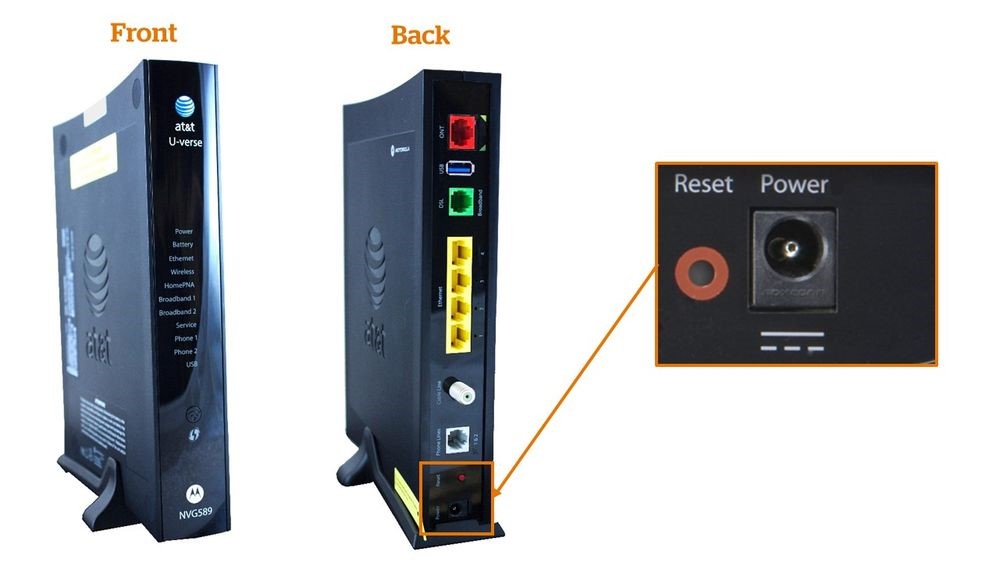
If a simple restart fails, resetting the router to its original factory settings can resolve deep-seated configuration errors. This action erases all custom settings, so you will need to set up your Wi-Fi name and password again.
Locate the Reset Button on Your Device
Most AT&T routers have a small recessed pinhole button labeled “Reset” on the back or bottom. You will need a paperclip or a SIM card tool to press this button effectively. Do not confuse this with the power button or the WPS pairing button.
Execute a Hard Reset Correctly
- Insert the paperclip into the reset pinhole while the router is powered on.
- Press and hold the button for at least 15 to 20 seconds.
- Release the button when all the lights flash simultaneously or turn off briefly.
- Wait for the device to reboot and restore its default factory configuration.
Reconfigure Your Network After Resetting
Once the router restarts, connect to the default Wi-Fi network listed on the device label. Open a web browser to complete the setup wizard and create a new secure password. This step is crucial to prevent unauthorized access to your network.
Check Physical Connections and Cables
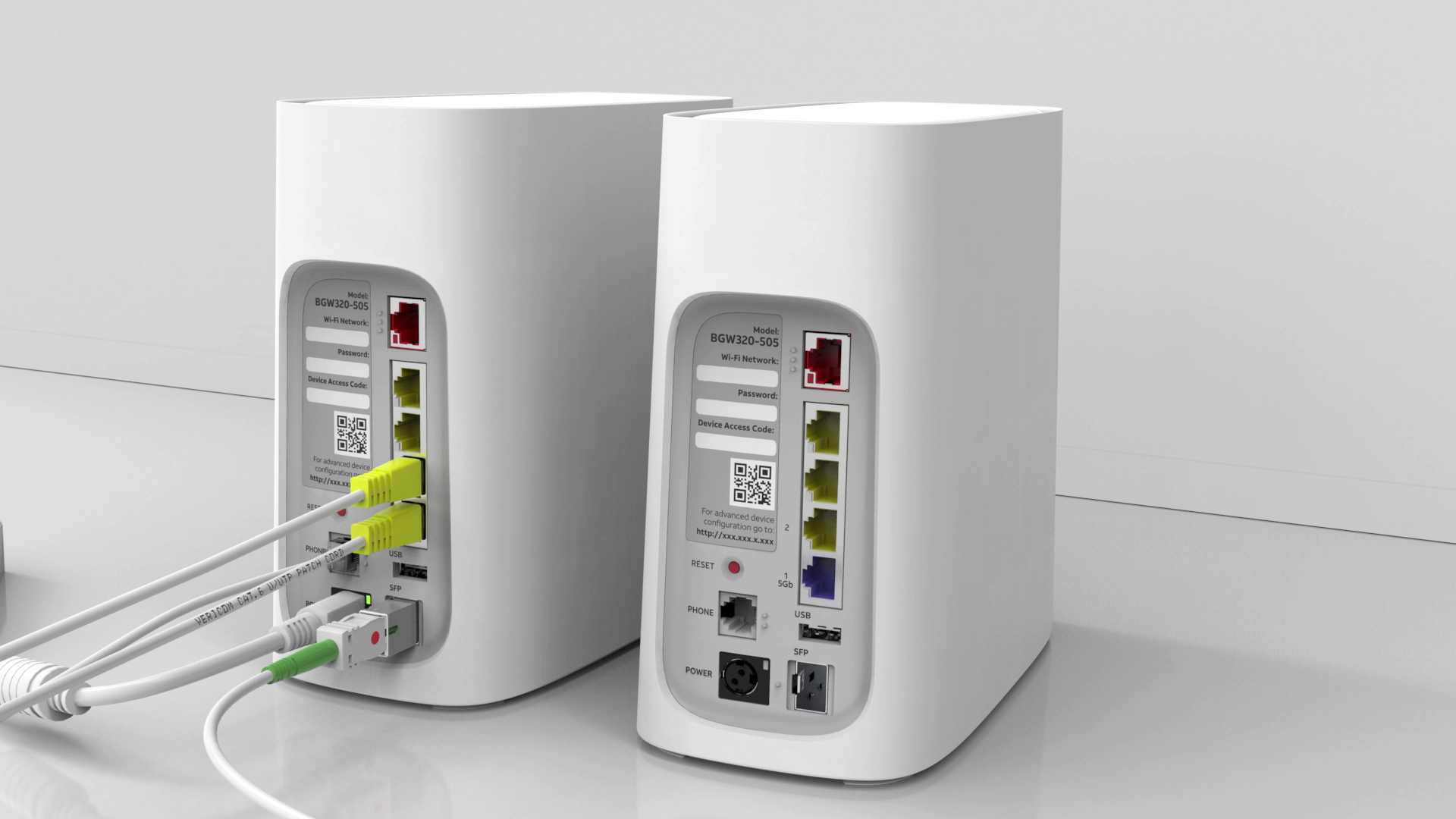
Loose or damaged cables are a frequent cause of intermittent connectivity and slow speeds. Inspecting your physical setup can reveal issues that software diagnostics might miss entirely.
Inspect the Fiber or DSL Line Entry
Ensure the main line entering your home is not bent, kinked, or chewed by pets. A damaged fiber optic cable can cause significant signal loss or total connection failure. If you see visible damage, contact AT&T support for a professional replacement.
Secure All Ethernet and Power Plugs
Push firmly on every cable connected to the router to ensure they click into place. Loose Ethernet cables can cause devices to drop connection randomly throughout the day. Replace any cables that show signs of fraying or corrosion.
Optimize Router Placement for Signal Strength
Place your router in a central location away from thick walls and metal objects. Avoid placing the device near microwaves or cordless phones that interfere with Wi-Fi signals. Elevating the router to a shelf can significantly improve coverage range.
Update Router Firmware Manually
Outdated firmware can lead to security vulnerabilities and performance issues with your AT&T router. While updates usually happen automatically, manual checks ensure you have the latest fixes.
Access the AT&T Smart Home Manager App
Download the official app on your smartphone and log in with your AT&T ID. Navigate to the “Network” tab to view the current status of your gateway. The app will notify you if a firmware update is pending or available.
Force a Firmware Check via Web Interface
- Type “192.168.1.254” into your browser address bar to access the gateway interface.
- Log in using the access code found on the side of your router.
- Go to the “Settings” or “System” tab to find the software update option.
- Click “Check for Updates” and follow the prompts if a new version is found.
What Happens If the Update Fails?
If an update fails, the router may revert to the previous stable version automatically. Do not interrupt the power supply during an update, as this can brick the device. Contact AT&T support if the router remains unstable after a failed update attempt.
Optimize Wi-Fi Settings for Better Performance
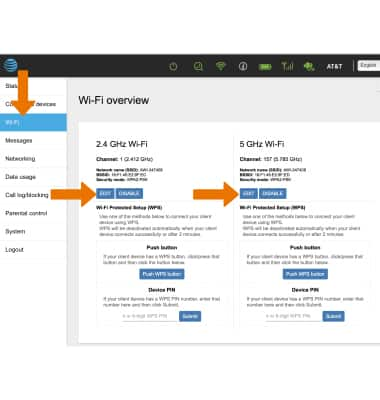
Adjusting specific settings within your router can drastically improve speed and reliability for all connected devices. These tweaks help manage bandwidth and reduce interference from neighboring networks.
Change Your Wi-Fi Channel to Reduce Interference
Log into your gateway settings and switch your Wi-Fi channel to a less crowded one. Use a Wi-Fi analyzer tool on your phone to see which channels neighbors are using. Selecting a clear channel can eliminate lag and buffering issues.
Enable Band Steering for Seamless Connectivity
Band steering allows your router to automatically assign devices to the best frequency band. This feature ensures your phone uses 5 GHz for speed while smart home devices use 2.4 GHz for range. Enable this setting in the wireless configuration menu for optimal performance.
Set Up a Guest Network for Visitors
Creating a separate network for guests keeps your main devices secure and reduces congestion. This isolates visitor traffic from your personal files and smart home controls. You can easily toggle this feature on or off via the Smart Home Manager app.
Identify Service Outages and Account Issues
Sometimes the problem lies with the AT&T network itself rather than your specific equipment. Checking for broader service issues can save you time on unnecessary troubleshooting steps.
Use the AT&T Support App to Check Status
Open the support app and select “Check Service Status” to see real-time outage maps. This tool provides estimated restoration times if a known issue exists in your zip code. It is the fastest way to confirm if the problem is on your end.
Verify Your Account Billing and Status
Unpaid bills or account suspensions can result in an immediate loss of internet access. Log into your AT&T account online to ensure there are no outstanding balances. Reactivating a suspended account often restores service within minutes.
Contact Support When DIY Fixes Fail
If you have tried all steps and the light remains red, it is time to call technical support. Have your account number and router model ready to speed up the diagnostic process. The support team can run remote line tests to pinpoint external line faults.
Frequently Asked Questions About AT&T Router Troubleshooting
How do I reset my AT&T router without losing my settings?
You cannot perform a full factory reset without losing custom settings like your Wi-Fi name. However, a simple power cycle (unplugging for 30 seconds) will restart the device without erasing your data. Use the power cycle method first before attempting a hard reset.
Why is my AT&T internet working but the Wi-Fi is not?
This issue often indicates a problem with the wireless radio inside the router rather than the internet line. Try toggling the Wi-Fi feature off and on via the button on the device or the app. If that fails, a factory reset may be required to restore wireless functionality.
What does it mean if all lights are off on my AT&T gateway?
If all lights are off, the device is likely not receiving any electrical power. Check that the power cord is firmly plugged into both the wall outlet and the router. Try a different power outlet to rule out a faulty socket or power strip.
Can I use my own router with AT&T Fiber?
Yes, but you typically need to keep the AT&T gateway in place and set your router to IP Passthrough mode. This configuration allows your personal router to handle Wi-Fi duties while the AT&T device manages the fiber connection. Consult AT&T guides for specific IP Passthrough setup instructions.
How often should I restart my AT&T router?
It is good practice to restart your router once a month to clear memory and apply updates. Frequent restarts are not necessary unless you are experiencing specific performance issues. Regular maintenance helps keep your network running smoothly over time.
Key Takeaways for Successful AT&T Router Troubleshooting

Restoring your internet connection often requires a systematic approach starting with light code diagnosis and physical checks. By following the correct reset procedures and optimizing your settings, you can resolve most common connectivity issues independently. Remember that checking for service outages is always a smart first step before diving into complex fixes.
Take action now by inspecting your router lights and performing a power cycle if you haven’t already. These simple steps resolve the majority of AT&T router problems and get your family back online quickly. If issues persist after these efforts, our team is ready to assist with advanced diagnostics.



