
Is your Fios router flashing red or refusing to connect devices to the internet? You are not alone in facing sudden Wi-Fi dropouts, sluggish speeds, or complete signal loss due to loose cables or temporary glitches. Most Fios router troubleshooting steps take less than ten minutes and require no special technical skills to perform safely at home. This guide walks you through checking physical ports, interpreting LED status lights, and rebooting your system to restore full connectivity. You will learn exactly how to diagnose common failures and get your network running smoothly again.
Verify Physical Cable Connections on Your Router
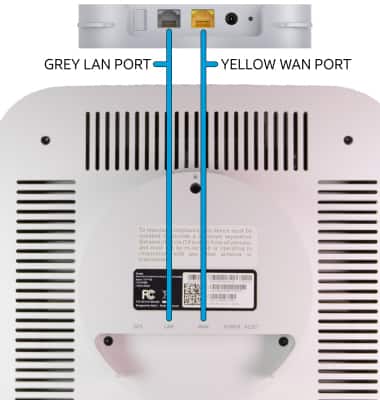
Loose or misaligned cables cause the majority of total internet failures. A quick visual inspection of your hardware often reveals the root cause before you need to adjust any software settings.
Secure the White WAN Port Cable
Locate the white Ethernet port on the back of your Fios router, which is often labeled WAN. Ensure the cable coming from the wall is pushed firmly into this specific port until you hear a click. If this cable is loose or plugged into the wrong spot, your router cannot receive an internet signal. Replace the cable immediately if you notice any visible damage to the connectors.
Tighten Coaxial Cable Connections
If you subscribe to Fios TV services, a coaxial cable connects your home network interface to the router. Screw this connector clockwise into the coax port until it feels snug and secure. A loose coax connection can disrupt both your television service and your internet data stream simultaneously. Avoid over-tightening the connector as this might damage the threading.
Connect Devices to Yellow LAN Ports
Ensure all wired devices like gaming consoles, desktop computers, and smart TVs plug into the yellow LAN ports. Never insert a device cable into the white WAN port, as this prevents proper network communication. Double-check that every Ethernet cable is seated correctly in its corresponding yellow slot on the router rear.
Interpret Fios Router LED Status Lights
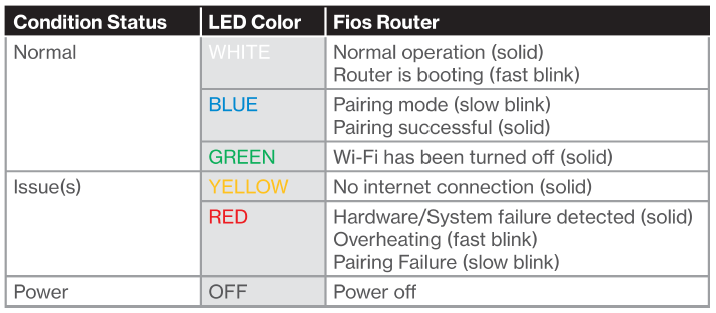
Your router uses colored LED lights to communicate its current operational state. Understanding these visual cues allows you to pinpoint whether the issue lies with power, internet signal, or Wi-Fi transmission.
Analyze the WAN Light Status
The WAN light indicates if your router is receiving a signal from the Verizon network. This light should appear solid green or white during normal operation. If the light is off, blinking red, or amber, the router is not detecting a valid signal from the wall outlet.
Decode Power and Internet Indicators
- Power light: Must remain solid white or blue to indicate electrical connection.
- Internet light: Should be solid; blinking or darkness suggests no active data connection.
- Wi-Fi light: Needs to be on to broadcast wireless signals to your devices.
Warning: If the power light is on but both WAN and Internet lights remain dark, the problem likely exists outside your home.
Perform a Complete Router Power Cycle
Rebooting your Fios router clears temporary memory errors and resets the network handshake. This simple action resolves most transient connectivity issues without needing advanced configuration.
Execute the 60-Second Restart Method
- Unplug the power cable directly from the router unit.
- Wait exactly 60 seconds to allow internal capacitors to discharge fully.
- Plug the power cable back into the router and the wall outlet.
- Allow two to three minutes for all status lights to stabilize before testing.
Skipping the wait time often results in an incomplete reset that fails to clear the glitch.
Distinguish Between Reboot and Factory Reset
- Reboot: Cycles power to fix temporary glitches without losing settings.
- Factory Reset: Erases all custom names and passwords using the reset button.
Note: Only perform a factory reset if you intend to reconfigure your entire network from scratch.
Resolve Common Wi-Fi Connectivity Problems
Even with a working internet connection, individual devices may struggle to join your wireless network. These targeted steps address frequent wireless access issues.
Address Missing Network Names
If your home Wi-Fi name does not appear in your device list, check that the router Wi-Fi light is illuminated. Move closer to the router to rule out distance or wall interference blocking the signal. Toggle airplane mode on your device or restart it to force a new network scan.
Improve Slow or Unstable Wireless Speeds
Slow performance often stems from signal interference or too many active devices.
- Reduce congestion: Pause large downloads or 4K streaming on other devices.
- Reposition equipment: Place the router in a central, elevated location away from microwaves.
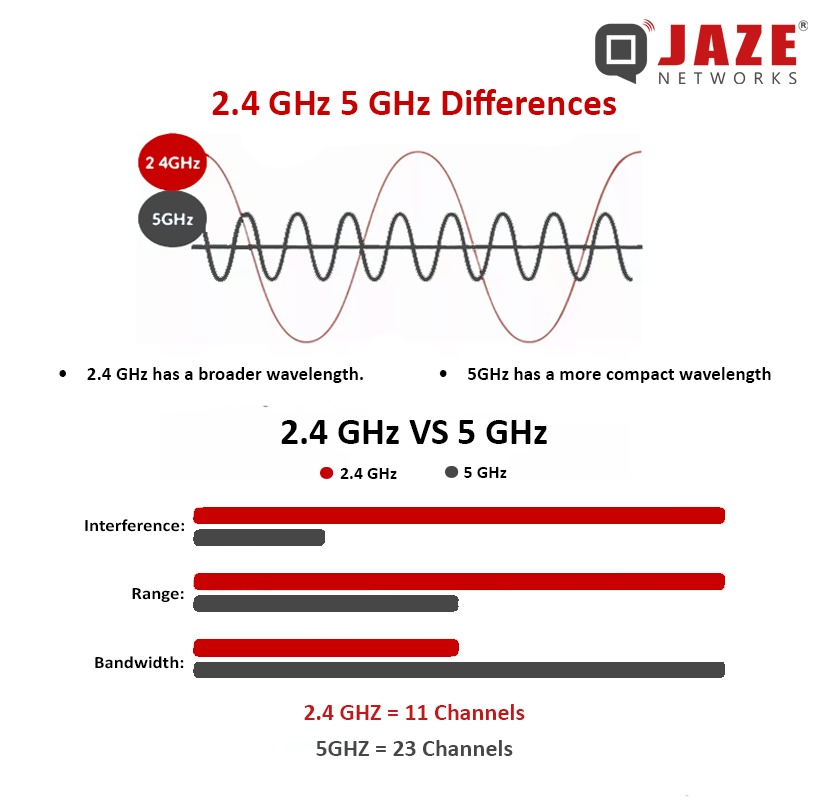
- Switch frequency bands: Connect to the 5 GHz band for speed or 2.4 GHz for better range.
Retrieve Forgotten Wi-Fi Passwords
You can find your default network credentials on the sticker located on the router body. Log in to the My Verizon portal to view or change your current SSID and password if the label is outdated. Remember that custom changes made previously will not match the original printed label information.
Troubleshoot DSL and Phone Line Filters
Users with Verizon High Speed Internet via DSL must ensure proper filter installation to prevent signal degradation. Incorrect setup here causes static on phone lines and intermittent internet drops.
Install Microfilters Correctly
Attach a microfilter to every phone jack that connects to a telephone, fax machine, or answering machine. Never place a filter between the router and the phone jack, as the router requires a direct connection. Improper filtering creates noise that disrupts data transmission across the line.
Test Active Phone Line Status
Pick up a connected telephone handset to listen for a clear dial tone. If you hear static or no sound at all, the line may have a service interruption or wiring fault. Contact support if multiple phones in the house lack a dial tone despite correct filter placement.
Utilize the Guided Solutions Tool
Verizon provides an online diagnostic portal to help you identify and fix network issues without calling support. This tool automates many checks and offers personalized advice based on your account.
Access Automated Diagnostics
Visit the Verizon Support website to launch the Guided Solutions Tool. The system walks you through checking for area outages and verifying router status remotely. You can also use it to add new devices or reboot your router if supported. Log in with your My Verizon credentials for the most accurate assistance.
Confirm Local Service Outage Status
Sometimes the issue lies with the broader network rather than your specific equipment. Checking for reported outages saves you time troubleshooting a working router.
Check the Outage Center
Visit the official Verizon Outage Center online and enter your home address. If a known outage exists in your area, local fixes like rebooting will not restore service. You must wait for the network team to resolve the external issue before connectivity returns.
Monitor Restoration Updates
Most outages are resolved within a few hours of being reported. Sign up for text or email alerts in your My Verizon account to receive real-time restoration estimates.
Prevent Future Network Disruptions

Proactive maintenance helps ensure your Fios router remains stable and performs optimally over time. Regular checks reduce the frequency of unexpected downtime.
Keep Router Firmware Updated
Fios routers typically update automatically, but you should verify your version occasionally. Open the My Fios app and navigate to the Equipment section to check for pending updates. Running outdated firmware can lead to security vulnerabilities and stability issues.
Schedule Monthly Maintenance Reboots
Set a calendar reminder to power cycle your router once every month. This practice clears accumulated memory errors and refreshes your IP address assignment. Regular reboots keep your network running at peak efficiency.
Protect Equipment with Surge Suppressors
Plug your router and modem into a quality surge protector rather than a basic power strip. Power spikes can damage internal components and cause premature hardware failure. Protecting your equipment extends its lifespan and prevents sudden outages.
Know When to Contact Verizon Support
Certain persistent issues indicate a need for professional technical assistance or hardware replacement.
Identify Signs Requiring Expert Help
- WAN and Internet lights stay off after multiple reboots.
- Frequent disconnections occur despite correct cable setup.
- Multiple devices fail to connect via both Wi-Fi and Ethernet.
- No outage is reported in your area yet service remains down.
Call the support line or use live chat with your account details ready.
Request Hardware Replacement if Needed
If your router is several years old or fails all diagnostic tests, Verizon may provide a replacement. Use the My Fios app to request new equipment under the troubleshooting menu. Newer hardware often supports faster speeds and more stable connections.
Frequently Asked Questions About Fios Router Troubleshooting
Why is my Fios router WAN light blinking red?
A blinking red WAN light means the router is not receiving a valid signal from the wall. Check that the white Ethernet cable is securely plugged into the WAN port and try rebooting the unit.
How long should I wait to reboot my Fios router?
You should wait at least 60 seconds after unplugging the router before plugging it back in. This duration ensures the internal memory clears completely for a fresh start.
Where can I find my Wi-Fi password if I forgot it?
Check the sticker on the back of your router for the default password or log in to the My Verizon app. Note that if you changed the password previously, the sticker information will no longer work.
Do I need filters for my Fios DSL connection?
Yes, you must install microfilters on all phone devices except the router itself. Placing a filter between the router and the wall jack will prevent your internet from working.
What do solid green lights on my router mean?
Solid green or white lights on the WAN and Internet indicators signify a healthy, active connection. This status means your router is communicating properly with the Verizon network.
Key Takeaways for Successful Fios Router Troubleshooting
Most internet issues resolve quickly by checking physical cables, interpreting LED lights correctly, and performing a proper 60-second reboot. Regular maintenance like firmware updates and monthly power cycles prevents many common connectivity problems before they start. If basic steps fail and no outage is reported, contact Verizon support for further diagnostics or equipment replacement.



