
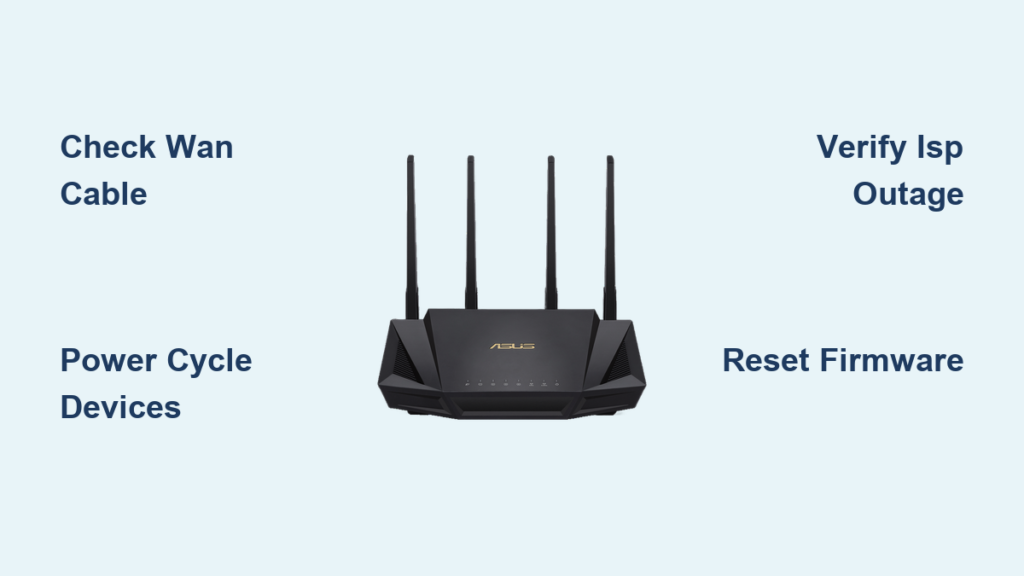
You are not alone if your ASUS router shows Wi-Fi but no internet access. This frustrating issue strikes even high-performance models like the RT-AX86U or RT-AC68R. The problem often stems from connection glitches or ISP outages rather than hardware failure. You might see a blinking WAN light or full signal strength with zero browsing ability. Most fixes take under ten minutes to complete successfully.
In this guide, you will learn how to diagnose and resolve ASUS router internet failure step by step. We cover everything from checking physical cables to resetting firmware without technical jargon. You will discover how to verify ISP status and clear device network errors quickly. Follow these instructions to restore your connectivity fast.
Inspect Physical Cables and Power Sources
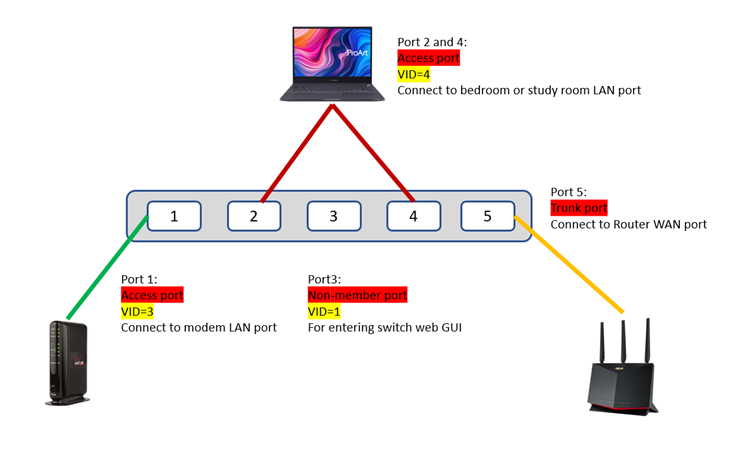
Hardware issues cause many connectivity failures before software ever becomes a factor. A loose cable or power fluctuation can disconnect your entire network instantly.
Verify WAN Port and Ethernet Integrity
Ensure the Ethernet cable from your modem plugs firmly into the WAN port on your ASUS router. This port is usually yellow and labeled “Internet.” Unplug and reconnect it to rule out poor contact issues. Check both ends including the modem side and router side for security. Look for bent pins or debris inside the port that might block signals. Try a different Ethernet cable if the current one shows kinks or damage.
Confirm Modem and Router Power Status
Make sure the ASUS router is powered on and its lights are active visibly. If the power LED is off, test the outlet with another device like a lamp. Also check your modem status lights carefully. The DSL, Internet, or WAN light should be solid rather than blinking red. If the modem looks faulty, restart it before proceeding with router troubleshooting.
Check for Overheating Hardware Signs
ASUS routers can overheat in enclosed spaces or dusty environments. If the casing feels hot, turn it off for fifteen minutes immediately. Clean dust from vents using compressed air to improve airflow. Overheating often causes intermittent internet drops or failed reboots during operation.
Execute Proper Reboot Sequence for Router
A proper reboot resolves most temporary glitches in ASUS routers and modems effectively. Skipping steps here often leads to continued connection failures.
Follow the Correct Power Cycle Steps
- Power off both the modem and ASUS router completely.
- Wait 30 seconds to clear residual power and reset internal memory.
- Turn on the modem first and wait until all lights stabilize.
- Power on the ASUS router and wait two to three minutes for full boot.
Skipping this sequence often fails to resolve the issue. The modem must sync with your ISP before the router establishes a connection.
Confirm Boot Completion via Web Console
Open a browser and go to 192.168.1.1 or 192.168.0.1 after reboot. If the login page loads, the router is ready for configuration. If the page does not load, wait another minute for the system to finish. Persistent failure suggests deeper configuration or hardware issues requiring attention.
Access ASUS Router Admin Panel Status
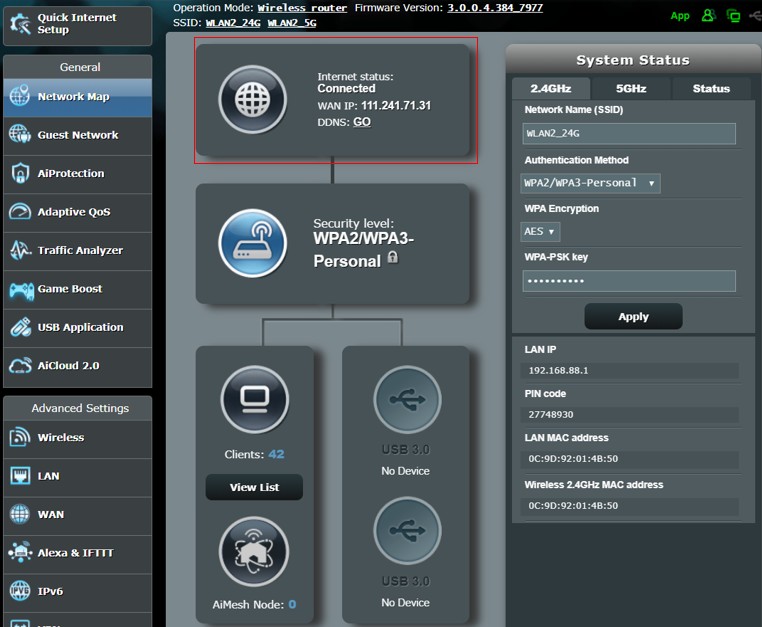
The admin interface reveals whether your router has internet or is stuck locally. You need this data to diagnose the root cause accurately.
Log In to Your ASUS Dashboard
- Connect via Wi-Fi or Ethernet to the router directly.
- Open a browser and enter
http://192.168.1.1in the address bar. - Enter your admin username and password from the router label.
- Try a wired connection if the page will not load initially.
Check Internet Status in Network Map
Once logged in, go to Network Map or Internet Status under the General tab. Look for specific indicators of health.
* WAN Status: Should show “Connected” clearly.
* Public IP Address: Must be a real IP, not 0.0.0.0.
* DNS Servers: Should display valid addresses from your ISP.
If WAN status is disconnected, move to ISP and firmware checks immediately.
Test for ISP Outages and Signal Loss

Your internet may be down before it even reaches the ASUS router hardware. Verifying external service saves time on internal fixes.
Verify Service with Other Devices
- Turn off Wi-Fi on a smartphone and switch to mobile data.
- Check your ISP website for outage maps or status alerts.
- Call your ISP and ask if there is an outage at your address.
Have your account number ready when calling support for faster service.
Bypass the Router Temporarily
Connect a laptop directly to the modem with an Ethernet cable.
* If internet works, the issue is with your ASUS router settings.
* If no internet, the problem lies with the modem or ISP directly.
This simple test saves hours of unnecessary router tinkering and confusion.
Reset Network Settings on Connected Devices
Sometimes the problem is not the router but your device network memory. Clearing old configurations often restores access instantly.
Forget and Rejoin Wi-Fi Network
On each affected device, go to Wi-Fi settings first. Forget the ASUS router network completely. Reconnect by entering the password again fresh. This clears outdated IP and DNS configurations causing conflicts.
Flush DNS and Renew IP on Windows
Open Command Prompt as Administrator on your computer. Run the following commands in order:
* ipconfig /release
* ipconfig /renew
* ipconfig /flushdns
These commands clear cached data that might block new connections.
Clear Network Cache on macOS
Open Terminal on your Mac device. Run the following commands to reset networking:
* sudo ipconfig set en0 DHCP
* sudo dscacheutil -flushcache
Restart your browser after running these commands to test connectivity.
Update or Reinstall Router Firmware
Outdated software causes bugs that block internet access frequently. Keeping firmware current ensures stability and security patches.
Check Current Firmware Version
Access the router admin panel again. Navigate to Administration or System Tools. Note the current firmware version number displayed there. Compare this number with the latest version on the ASUS support site.
Install Latest Firmware Update
- Download the latest firmware file from the official ASUS website.
- Upload the file via the Firmware Upgrade section in admin panel.
- Do not power off the router during the update process.
- Wait for the router to reboot automatically after installation.
Interrupting an update can corrupt the router software permanently.
Perform Factory Reset as Last Resort
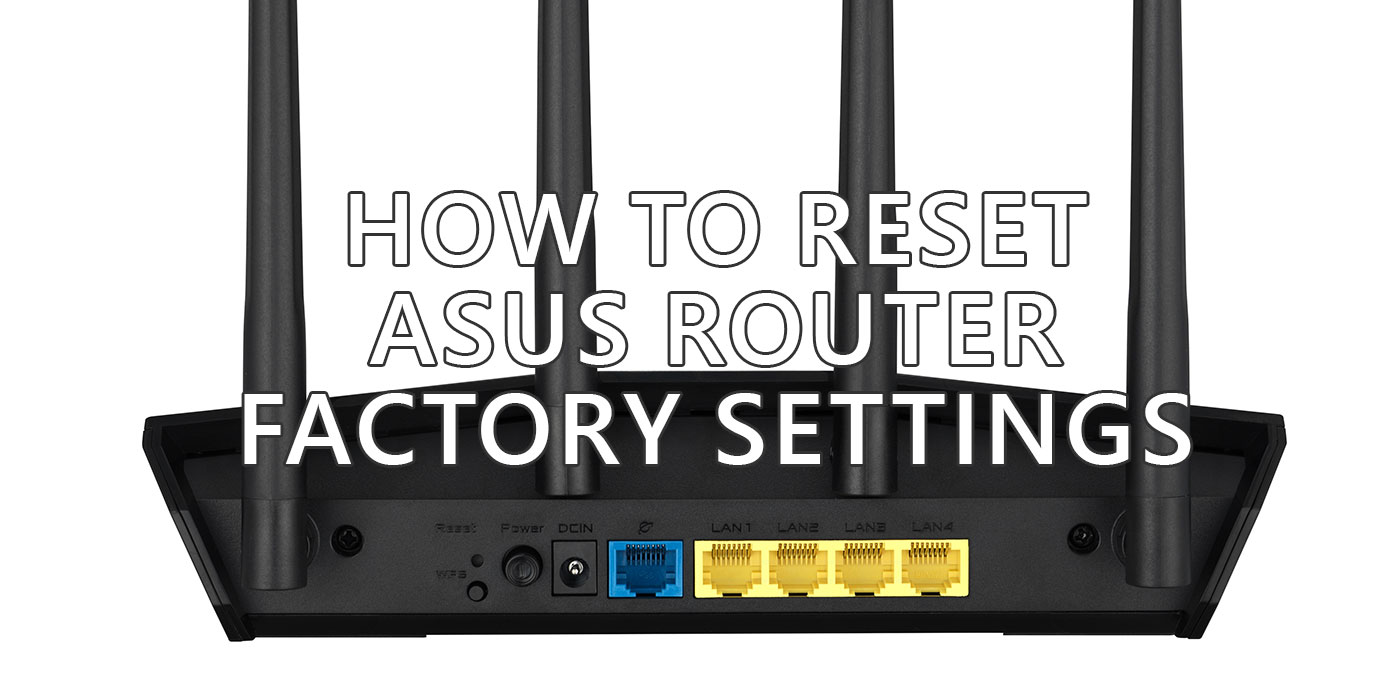
Resetting erases all custom settings and returns the router to default state. Use this only if other steps fail to restore internet.
Locate and Press Reset Button
Find the Reset button on the back of the router. Use a paperclip to press and hold it for ten seconds. Wait for all lights to flash indicating a reset. Reconfigure the router using the setup wizard afterward.
Reconfigure WAN Settings Properly
After reset, you must set up your internet connection again. Enter your ISP credentials if required (PPPoE). Select Automatic IP for most cable connections. Save settings and test internet access on a device.
Frequently Asked Questions About ASUS Router Troubleshooting
Why does my ASUS router show Wi-Fi but no internet?
This usually means the router connects to devices but not the modem. Check the WAN cable connection and ensure the modem has a solid internet light. Restarting both devices in the correct order often fixes this sync issue.
How do I know if my ASUS router firmware is outdated?
Log in to the admin panel at 192.168.1.1 and check the firmware version. Compare it to the version listed on the ASUS support website for your specific model. The router may also notify you of updates on the dashboard home screen.
What should I do if the WAN light is off?
An off WAN light indicates no signal from the modem. Check that the Ethernet cable is plugged into the correct yellow WAN port. Replace the cable or try a different port on the modem if the light remains off.
Will resetting my ASUS router delete my internet settings?
Yes, a factory reset erases all custom settings including Wi-Fi names and passwords. You will need to reconfigure your network from scratch using the setup wizard. Only perform this step after trying other troubleshooting methods.
How long should I wait when restarting my modem and router?
Wait at least 30 seconds after powering off both devices before turning them back on. Allow the modem two minutes to fully boot before powering on the router. This ensures the modem establishes a clean connection with the ISP first.
Key Takeaways for ASUS Router Troubleshooting Success
Restoring internet access often requires checking physical cables and rebooting devices in the correct order. Most ASUS router troubleshooting cases resolve by verifying the WAN connection or updating firmware. Avoid skipping the modem wait time during restarts to ensure proper synchronization.
Take action now by inspecting your Ethernet cables and performing a full power cycle. If these steps fail, proceed to firmware updates or a factory reset. Your network should be running smoothly again with these systematic fixes.



