
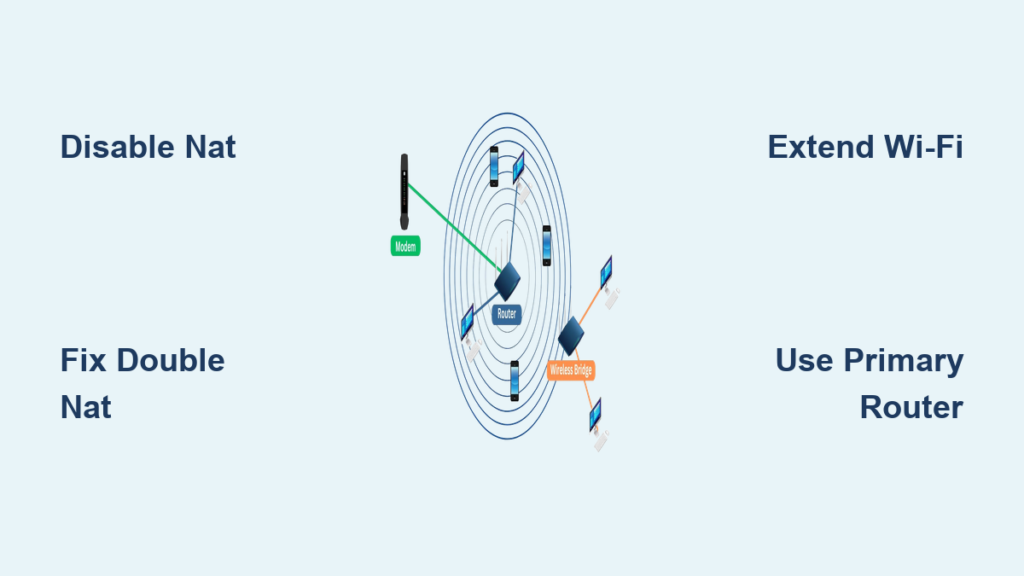
You likely encountered the term “bridge mode” while struggling with slow gaming speeds or setting up a new router system. Bridge mode on a router disables its internal routing functions to act as a simple pass-through device. This setup prevents network conflicts like double NAT and allows your primary router to manage all traffic efficiently.
This guide explains exactly how bridge mode works and when you should use it. You will learn to identify double NAT issues and configure your hardware for a single unified network. We will cover the step-by-step setup process without using confusing technical jargon.
What Bridge Mode Actually Does to Your Network
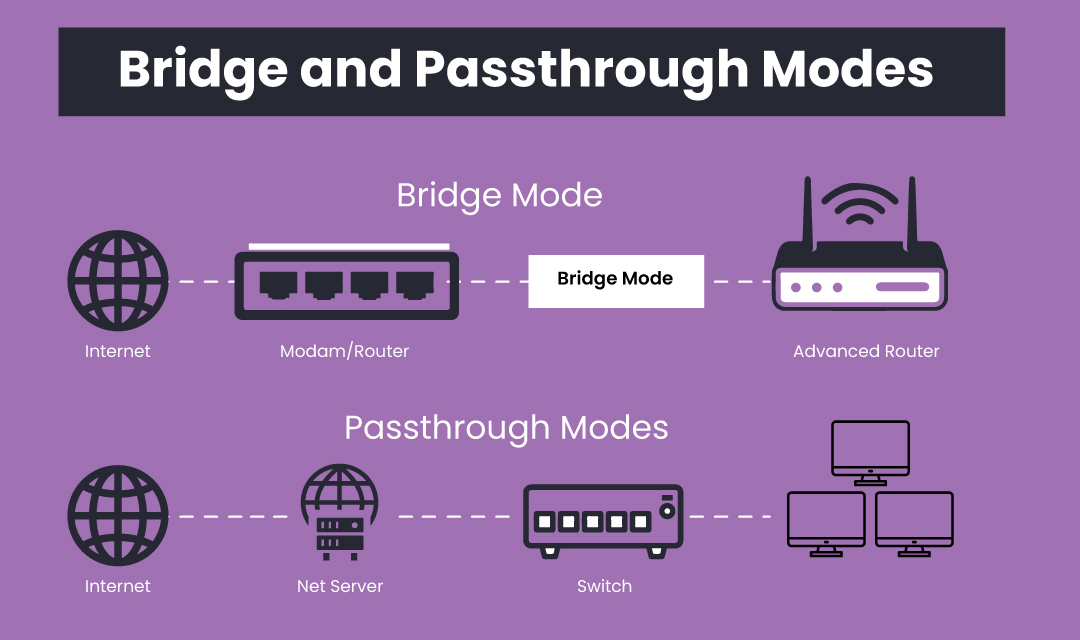
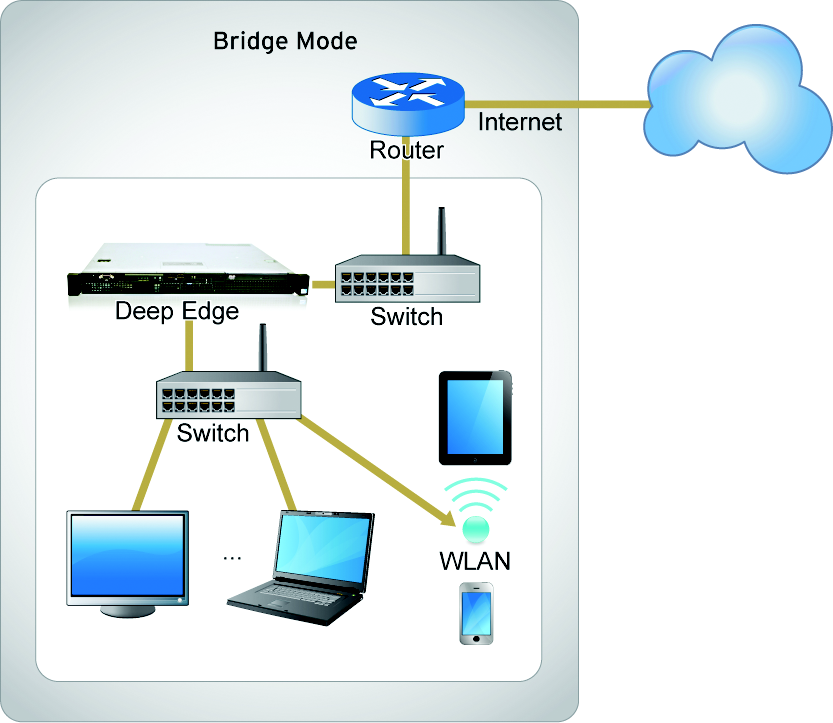
Bridge mode fundamentally changes your device from a network manager into a data messenger. It stops assigning IP addresses or translating traffic for connected devices. Instead, it forwards all data requests directly to your main router for processing.
Key Functions Disabled in Bridge Mode
Your router stops performing several critical tasks when you enable this setting. The primary router takes over all management duties for the entire system.
- DHCP Server: The bridged device stops handing out IP addresses to your phones and laptops.
- NAT Services: Network Address Translation turns off to prevent double layering of traffic rules.
- Firewall Protection: Security filters disable completely on the bridged unit.
- Traffic Inspection: Data passes through untouched without any routing table checks.
This creates one seamless network where your printer and laptop communicate as if plugged into the same switch.
Creation of a Single Unified Network
The main goal is merging two separate networks into one cohesive broadcast domain. Devices connected to the bridge can access resources on the main router without complex configuration.
You avoid issues where a laptop on one router cannot find a printer on another. All devices share the same security policies and parental controls defined by the primary unit. This simplifies management and ensures consistent connectivity across your home.
When to Use Bridge Mode for Best Results
Bridge mode solves specific networking problems rather than serving as a daily default setting. You should consider it when facing distinct performance bottlenecks or hardware limitations.
Fixing Double NAT Issues
Double NAT occurs when two routers try to manage traffic simultaneously. This often happens if your ISP modem acts as a router and you add a second one.
- Symptoms: You cannot host game servers or port forwarding fails consistently.
- Impact: Video calls drop unexpectedly and online gaming suffers from strict NAT types.
- Solution: Put the ISP modem in bridge mode so only your main router handles NAT.
This change gives you an open NAT type and smoother connectivity for all applications.
Extending Wi-Fi to Remote Areas
You can use a secondary router in bridge mode to extend coverage to a garage or shed. This setup connects wirelessly to your main network to provide access in distant spots.
Devices stay on the same subnet which allows seamless file sharing. You do not need to run long Ethernet cables if your signal strength is sufficient. This is ideal for connecting smart TVs or security systems in outbuildings.
Replacing ISP Router with Better Hardware
ISP-provided combo units often have weak Wi-Fi and limited features. Bridge mode lets you disable these functions to use your own high-performance router.
- Gain support for Wi-Fi 6 or 6E standards.
- Access advanced Quality of Service (QoS) for gaming.
- Utilize better parental controls and security features.
This approach gives you full control over your network environment while keeping the ISP modem for signal conversion.
How Bridge Mode Works Step by Step
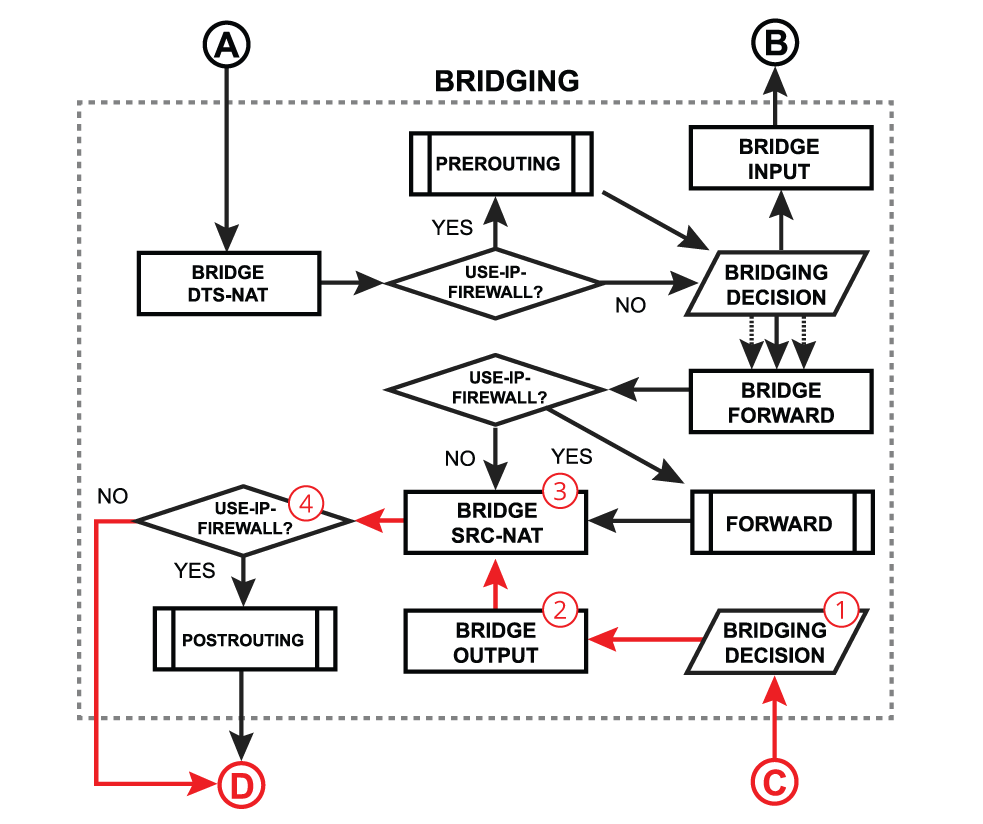
Understanding the data path clarifies why this configuration improves performance. The process involves four distinct stages from request to response.
1. Device Requests Data
Your smartphone connects to the bridged router and asks for a webpage. The request travels through the air or cable to the bridged device.
2. Traffic Passes Through Unchanged
The bridged router does not inspect or modify the request packet. It simply forwards the data directly to the primary router via Wi-Fi or Ethernet.
3. Primary Router Handles Everything
The main router receives the request and performs all necessary management tasks. It assigns the correct IP address and applies firewall rules before translating the private IP to public.
4. Response Returns Smoothly
The web server sends its reply back to your primary router. The primary router translates the address and sends the data to your phone via the bridge. This happens instantly without the bottlenecks of double routing.
Types of Bridge Configurations Available
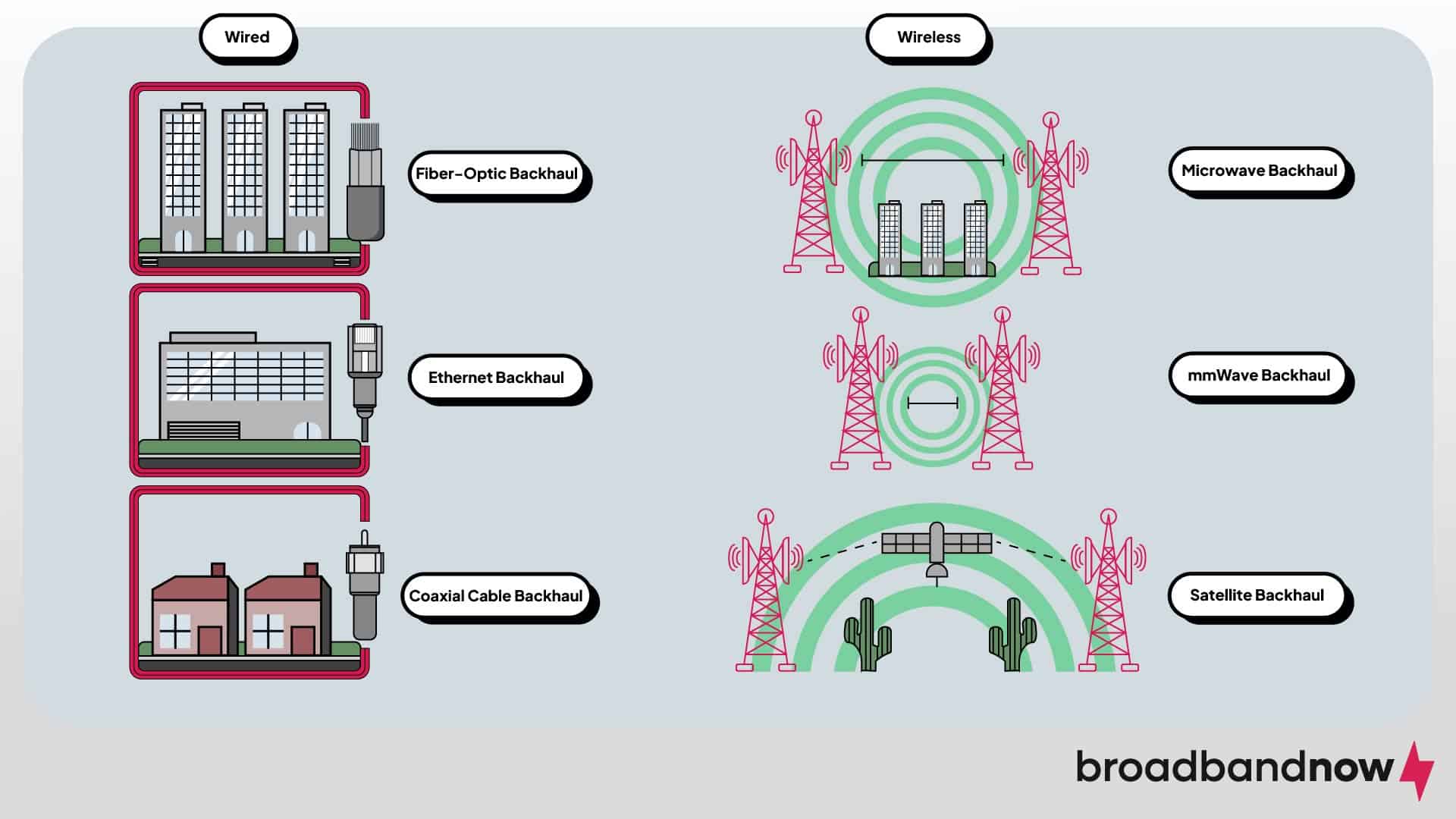
Not all bridge setups function identically across different hardware models. Your choice depends on your specific goals and available equipment.
Wireless Bridge Router to Router
A secondary router connects to the primary router Wi-Fi signal to extend the network. This is ideal for locations where running cables is impossible.
- Best For: Connecting remote security cameras or smart TVs.
- Limitation: May reduce bandwidth by up to 50 percent due to radio usage.
- Requirement: Needs a strong signal between the two devices.
Wired Bridge Ethernet Backhaul
You use an Ethernet cable to link two routers physically. The secondary router operates in bridge mode acting like a switch or access point.
This method provides full bandwidth availability and maximum stability. It eliminates wireless interference completely for critical applications.
ISP Modem in Bridge Mode
Your ISP modem stops routing and becomes a pure signal converter. Your personal router then dials into the internet and manages all connections.
- Best For: Gamers and streamers wanting top-tier performance.
- Benefit: Full control over network settings and port forwarding.
- Note: You must have your own router ready before switching.
How to Set Up Bridge Mode Generally
Every router interface differs slightly but the logic remains consistent. Always back up your current settings before making changes.
Step 1 Access the Router Admin Page
Connect a computer to the router via Ethernet or Wi-Fi. Open a browser and enter the router IP address such as 192.168.1.1. Log in with your administrator credentials.
Step 2 Find Bridge Mode Setting
Navigate to the advanced settings menu. Look for options labeled Wireless Bridge or Operation Mode.
- Check under Advanced Setup or Wireless Settings.
- Some models hide this under AP Mode or Media Bridge.
- Verify your specific model supports this feature in the manual.
Step 3 Enter Primary Network Details
You must input exact details from your main network for the connection to work.
- SSID: Enter the exact name of the main Wi-Fi network.
- Password: Type the wireless security key correctly.
- Security Type: Match the encryption method like WPA2 or WPA3.
- Band Selection: Choose 2.4 GHz or 5 GHz based on your needs.
Step 4 Save and Reboot the Device
Click Apply to save your changes. The router will restart and attempt to connect to the primary network automatically.
Step 5 Test the Connection
Plug a device into the bridged router to verify functionality. Check if it receives an IP address from the main router range. Try accessing a network printer to confirm seamless communication.
NETGEAR Bridge Mode Setup Example

NETGEAR routers follow a specific path for configuration. This example helps visualize the process for common home setups.
Path and Navigation Steps
Go to ADVANCED then Advanced Setup and select Wireless Bridge. Click Enable Bridge Mode to start the wizard.
- Click Setup Bridge Mode Wireless Settings.
- Choose your preferred 2.4 GHz or 5 GHz band.
- Enter the SSID and Security Mode of the primary network.
- Input the password and click Apply.
The router will reboot and join the primary network. Supported models include the RAX series and R7000 routers.
Limitations and Hardware Differences
Bridge mode does not work identically on every device available today. You must understand your specific hardware capabilities before proceeding.
Some Routers Disable Wi-Fi in Bridge Mode
Certain models from TP-Link and older ASUS lines turn off internal Wi-Fi when bridged. This means only Ethernet devices can connect to the secondary unit.
- Result: You cannot extend wireless coverage with these specific models.
- Use Case: Ideal for connecting a desktop PC or smart TV via cable.
- Check: Verify if your model supports simultaneous AP and bridge functions.
Others Support Simultaneous AP and Bridge
Higher-end routers from ASUS and Linksys can connect to the main router and broadcast Wi-Fi. This is often called Media Bridge or Universal Repeater mode.
These devices provide true network extension with full wireless coverage. Tri-band routers may even use a dedicated band for the backhaul connection. This ensures maximum speed for client devices without interference.
Performance Benefits of Bridge Mode
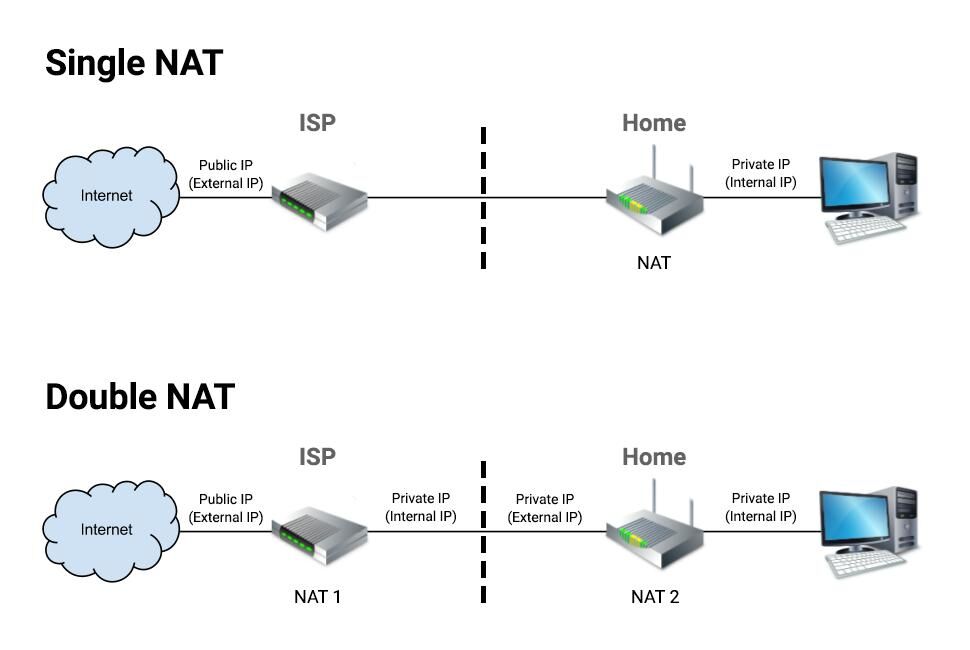
Switching to bridge mode actively improves your network beyond just fixing errors. It optimizes how data flows through your home infrastructure.
Eliminates Double NAT Completely
Removing the second layer of NAT reduces latency by 10 to 30 milliseconds in games. It fixes strict NAT errors on consoles like PlayStation and Xbox.
Port forwarding becomes reliable for security cameras and web servers. This is essential for anyone hosting services or playing competitive online games.
Improves QoS Accuracy
Your router cannot prioritize traffic it cannot see clearly. With bridge mode all data flows through one central point for analysis.
- Streaming gets priority during large downloads.
- Video calls remain stable when others use the internet.
- Gaming packets receive immediate attention over background tasks.
Increases Overall Stability
Fewer devices managing connections means fewer potential conflicts. You avoid IP address collisions and inconsistent DNS settings. This leads to a more reliable experience for every user on the network.
Security Considerations for Bridge Mode
Bridge mode shifts all security responsibility to your primary router. You must ensure your main unit is configured correctly to protect the network.
Risks of Disabled Firewalls
The bridged router firewall turns off completely. There are no parental controls or MAC filtering on that specific device.
If your primary router is compromised the entire network is exposed. You lose the safety net of a secondary security layer.
Best Practices for Protection
Keep your primary router firmware updated to the latest version. Use WPA3 encryption on your main network if available.
- Set a strong and unique administrator password.
- Disable WPS as it is vulnerable to brute-force attacks.
- Never leave a bridged modem-router unsecured from the internet.
Troubleshooting Common Bridge Mode Issues
Even with perfect setup you might encounter connectivity problems. Here is how to diagnose and fix common errors.
No Internet on Bridged Router
Check if the bridged router is connected to the correct SSID. Verify the Wi-Fi password and security mode match exactly.
Try rebooting both routers in sequence starting with the main unit. Check the status page to ensure a wireless uplink exists.
Devices Cannot Communicate Across Networks
If a laptop cannot see a printer verify both are on the same IP subnet. Ensure DHCP is turned off on the bridged device completely.
Disable any client isolation or AP isolation settings in the menu. These features prevent devices from talking to each other locally.
Frequent Disconnections Occur
Weak signals between routers often cause unstable connections. Interference from microwaves or cordless phones can also disrupt the link.
- Move routers closer together for a stronger signal.
- Switch to the 5 GHz band for less interference if in range.
- Lock both devices to the same channel manually.
When NOT to Use Bridge Mode
Bridge mode is not the solution for every networking scenario. Avoid using it in these specific situations.
Need Separate Networks
If you want guest Wi-Fi isolated from your main devices do not use bridge mode. Use the guest network feature on your primary router instead.
Bridge mode merges networks rather than separating them. You lose the ability to create distinct subnets for different users.
Using ISP Wi-Fi After Bridging
Once you bridge your modem its built-in Wi-Fi turns off immediately. You must have your own router ready to provide wireless access.
If you do not have a replacement router you will lose all connectivity. Ensure you have the hardware prepared before making the switch.
Poor Signal for Wireless Bridge
If the secondary router cannot get a strong signal performance will suffer. Wireless bridging relies heavily on signal strength and clarity.
Use wired Ethernet or a mesh system if the distance is too great. Do not rely on a weak wireless bridge for critical tasks.
Final Tips for Success
Bridge mode can transform your network if you execute it correctly. Follow these final recommendations for the best results.
Do This for Best Results
- Use wired backhaul whenever possible for maximum speed.
- Choose a high-end router as your main network controller.
- Test IP assignment on client devices after setup.
- Keep one admin interface for all network management tasks.
Do Not Do These Things
- Never enable DHCP on both routers simultaneously.
- Do not use mismatched security settings between devices.
- Do not skip firmware updates before bridging your hardware.
- Do not assume all routers support wireless bridging features.
Frequently Asked Questions About Bridge Mode
Does bridge mode improve internet speed?
Bridge mode itself does not increase your ISP bandwidth speed. However it removes processing bottlenecks caused by double NAT and inefficient hardware. This often results in lower latency and more consistent throughput for gaming and streaming.
Can I use my own router with an ISP modem in bridge mode?
Yes this is the most common use case for bridge mode. You disable the routing functions on the ISP modem to use your own high-performance router. This gives you full control over security and network features.
Will I lose Wi-Fi if I enable bridge mode on my modem?
Yes enabling bridge mode on a combo unit disables its Wi-Fi completely. You must connect your own wireless router to provide Wi-Fi coverage. Without a secondary router you will have no wireless network.
What is the difference between bridge mode and AP mode?
Bridge mode typically connects two networks wirelessly while AP mode extends a wired network wirelessly. In practice many consumer routers use the terms interchangeably for wireless extension. Both result in a single unified network for your devices.
How do I know if I need bridge mode?
You likely need it if you experience double NAT errors or cannot host game servers. It is also necessary if you want to use advanced features of your own router. Check your WAN IP address to see if it is a private IP indicating double NAT.
Key Takeaways for Fixing Router Issues with Bridge Mode
Bridge mode simplifies your network by removing unnecessary layers of complexity. It eliminates double NAT issues and allows your primary router to manage all traffic efficiently. This setup is essential for gamers and users who want full control over their home network.
Always verify your hardware compatibility before enabling this feature. Ensure your primary router has robust security settings since the bridged device disables its firewall. With the right configuration your entire home will run as one seamless high-performance network.



