
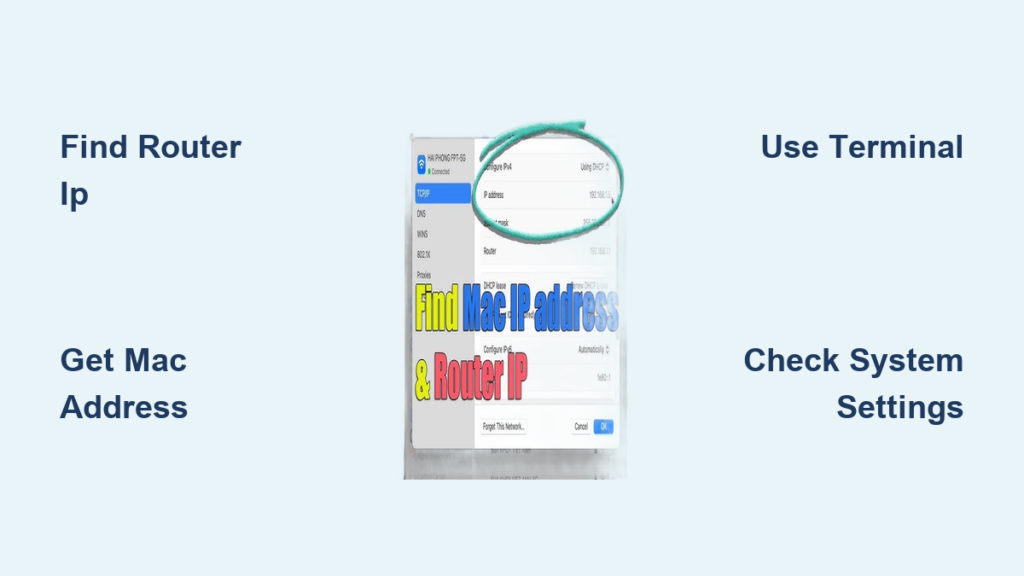
Your Wi-Fi acts up or you need to set up port forwarding, but you cannot find your router IP or Mac MAC address. These numbers are hidden deep in macOS settings, especially on newer M3 models with updated system layouts.
This guide shows you exactly how to find router IP and MAC address on Mac using fast Terminal commands and simple menu clicks. You will learn to locate your gateway, identify your hardware address, and access your router admin panel without confusion.
Find Router IP Using Terminal Commands
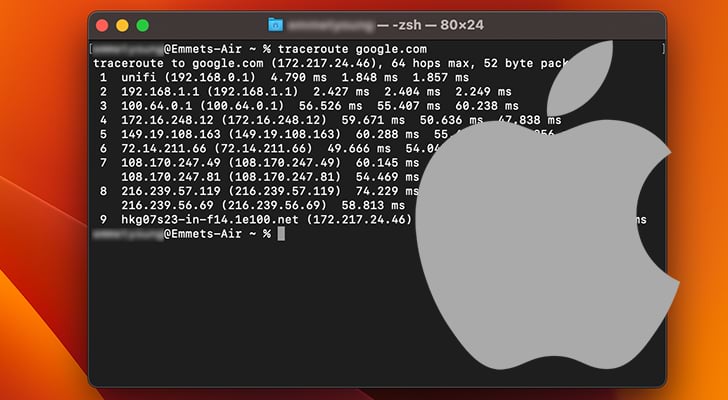
The Terminal offers the fastest route to your network data. This method bypasses multiple menu clicks and works instantly on any macOS version.
Run the Route Command
Open Terminal and type the following command to see your default gateway.
bash

route -n get default | grep gateway
Your screen will display a line reading gateway: 192.168.1.1. This number is your router IP address. The -n flag ensures you see a numeric IP instead of a hostname like home.gateway.
Extract Clean IP for Scripts
You might need just the numbers for a script or configuration file. Use this command to remove the text label.
bash

route -n get default | grep gateway | awk '{print $2}'
The output will be a clean string like 192.168.1.1. This format is perfect for automation tasks where extra text causes errors.
Check Full Routing Details
Run route get default without flags if you need deeper network diagnostics. This shows interface names, flags, and round-trip times. It helps when troubleshooting complex connection issues beyond just finding the IP.
Locate Router IP via System Settings
Prefer using your mouse? You can find the same router IP information through the graphical interface on modern Macs.
Navigate to Network Details
Click the Apple menu and select System Settings. Choose Network from the sidebar and click your active Wi-Fi connection. Press the Details button next to your network name.
View TCP/IP Information
Select the TCP/IP tab in the details window. Look for the field labeled Router. The number listed there is your gateway address. If this field is blank, click Renew DHCP Lease to refresh your connection data.
Steps for Older macOS Versions
Users on macOS Monterey or earlier must open System Preferences instead. Go to Network, select your connection, and click Advanced. The TCP/IP tab contains the same Router field you need.
Identify Mac Local IP and MAC Address
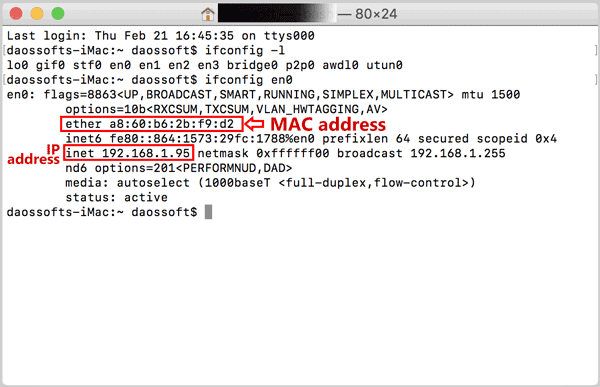
Your Mac has its own identity on the network called a MAC address. You also need your local IP to configure port forwarding or device filtering.
Use ifconfig to Reveal Addresses
Type ifconfig en0 in Terminal to see your Wi-Fi interface details. The en0 designation is standard for Wi-Fi on M3 Macs and most modern models.
- Look for
inetto find your local IP address (e.g.,192.168.1.105). - Look for
etherto find your Wi-Fi MAC address (e.g.,a4:bc:7a:1f:2e:5d).
Check Addresses in GUI Tabs
Return to System Settings > Network > Wi-Fi > Details. The TCP/IP tab lists your IP Address. Switch to the Wi-Fi tab to see your MAC Address.
Note that the GUI might display the MAC address with hyphens like A4-BC-7A. Terminal uses colons like a4:bc:7a. Both represent the exact same hardware identifier.
Determine Your Public IP Address
Your public IP is what the internet sees, which differs from your local router IP. macOS does not show this in system settings, so you must check externally.
Search via Browser
Open Safari or Chrome and search for “What is my IP”. Google displays your public IP at the top of the results page instantly. This is the fastest method for most users.
Use Dedicated IP Websites
Visit trusted sites like whatismyipaddress.com or ipinfo.io for more details. These tools show your public IP, your ISP name, and your approximate geographic location.
You need this number for remote desktop setups or configuring security cameras. It changes occasionally unless you pay for a static IP from your provider.
Access Router Admin Panel with IP
Now that you have the router IP, you can log in to manage your network settings. This is essential for changing passwords or setting up guest networks.
Enter IP in Browser Address Bar
Copy your router IP address from the earlier steps. Open a web browser and type http:// followed by the IP address. Press Enter to load the login page.
Do not use https or www as this often causes connection errors. The page may warn about security certificates, which is normal for local router pages.
Try Default Login Credentials
If you never changed your password, try these common defaults based on your router brand.
- Sky (UK): Username
admin, Passwordsky - TP-Link: Username
admin, Passwordadmin - Netgear: Username
admin, Passwordpassword - Asus: Username
admin, Password1234oradmin
Check the sticker on the bottom of your router for specific credentials if these do not work. Always change default passwords immediately for security.
Understand IP and MAC Address Formats
Knowing what these numbers look like helps you verify you have the correct information. Confusion often arises from different formatting styles.
Recognize Router IP Patterns
Home routers usually use specific private IP ranges. Common examples include 192.168.1.1, 192.168.0.1, or 10.0.0.1. Some ISPs prefer 192.168.1.254.
If your Mac shows an IP starting with 169.254, you have no valid connection to the router. This indicates a DHCP failure, and you should reconnect to Wi-Fi.
Decode MAC Address Structures
A MAC address consists of six pairs of hexadecimal digits. You will see them separated by colons in Terminal or hyphens in some GUI windows.
- Terminal format:
a4:bc:7a:1f:2e:5d - GUI format:
A4-BC-7A-1F-2E-5D
Both formats are identical in function. The variation is purely cosmetic depending on the software displaying the address.
Apply Network Addresses for Common Tasks
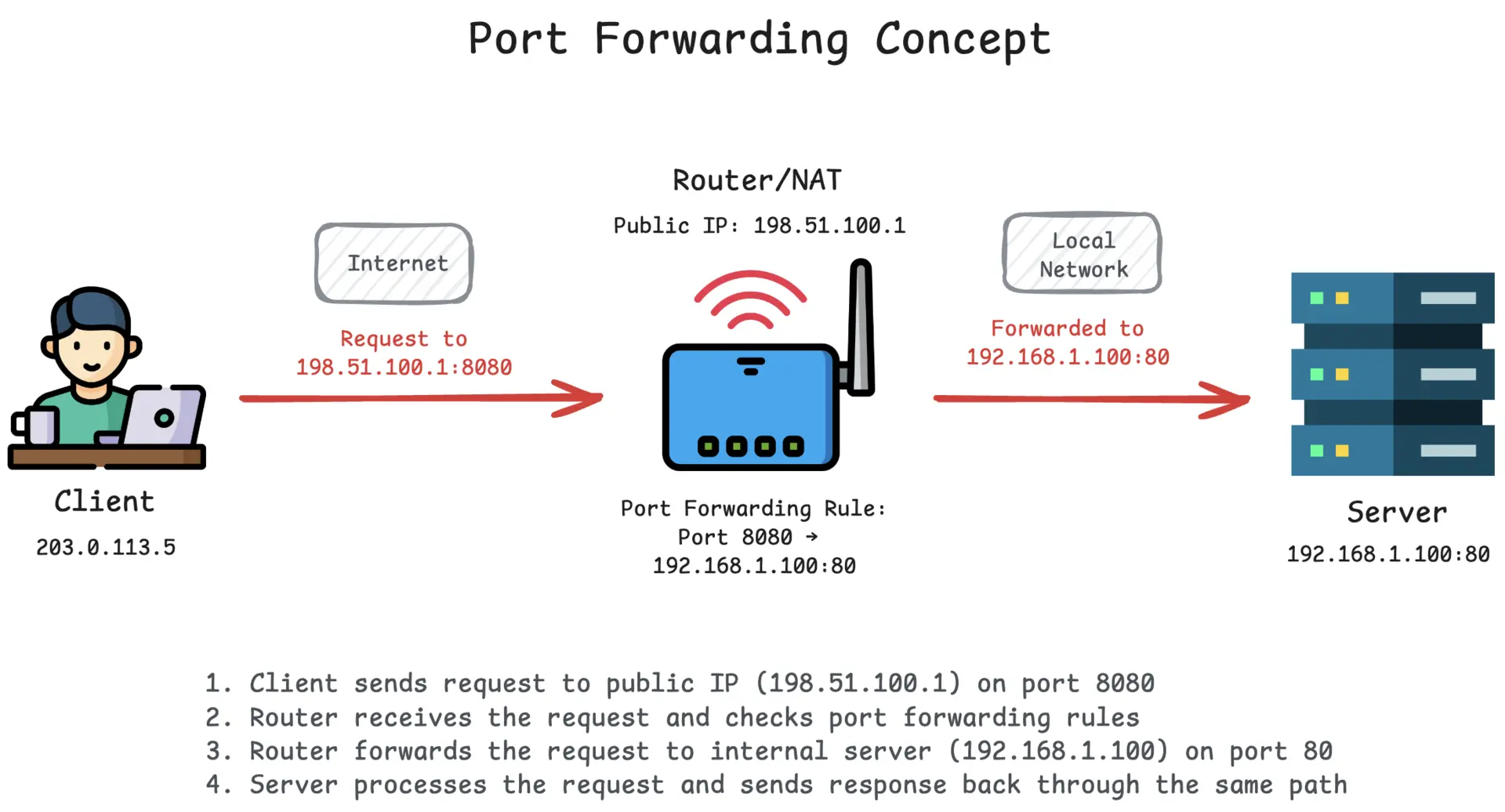
Finding these addresses is only useful if you know how to apply them. Here are practical scenarios where you need this data.
Configure Port Forwarding
Gamers and server hosts must forward ports to their specific local IP. Log into your router using the router IP. Enter your Mac’s local IP to direct traffic correctly.
Assign a static IP in your router settings to prevent your Mac’s address from changing. This ensures your port rules always point to the right device.
Enable MAC Filtering
Secure your Wi-Fi by allowing only known devices. Find your Mac’s MAC address and add it to the allow list in your router settings.
This prevents unauthorized devices from connecting even if they know your password. Remember to use the real hardware MAC, not a randomized private address.
Troubleshoot Connection Issues
Compare your router IP and Mac IP to ensure they match subnets. If your router is 192.168.1.1 and your Mac is 192.168.1.50, you are on the same network.
If your Mac shows 10.0.0.5 while the router is 192.168.1.1, you have a configuration conflict. This mismatch prevents proper communication between devices.
Quick Reference for Network Data
.png?width=600&name=Mac%20Security%20Blog%20Infographic%20Osquery%20Background%20BLOG%20(1).png)
Use this table to quickly recall which command or menu path gives you the specific data point you need.
| Data Point | Terminal Command | GUI Path | Example Value |
|---|---|---|---|
| Router IP | route -n get default |
Network > Details > TCP/IP | 192.168.1.1 |
| Local IP | ifconfig en0 (inet) |
Network > Details > TCP/IP | 192.168.1.105 |
| MAC Address | ifconfig en0 (ether) |
Network > Details > Wi-Fi | a4:bc:7a... |
| Public IP | Browser search | whatismyipaddress.com |
73.123.45.67 |
Troubleshoot Missing Network Information
Sometimes fields appear blank or commands return unexpected results. Follow these steps to resolve common data retrieval issues.
Fix Blank Router Fields
If the Router field is empty in System Settings, try renewing your DHCP lease. Toggle your Wi-Fi off and on again. Restarting your Mac often clears stuck network states.
Resolve ifconfig Errors
If ifconfig en0 shows no inet address, you are not connected to Wi-Fi. Verify your connection status using networksetup -getinfo Wi-Fi. Reconnect to your network manually.
Handle Router Login Failures
Cannot access the admin panel at the IP address? Ensure you are using http:// and not https://. Clear your browser cache or try an incognito window. Restart the router if the page simply will not load.
Frequently Asked Questions About Router IP and MAC
Where do I find my router IP on a Mac M3?
Open System Settings, go to Network, select Wi-Fi, and click Details. The Router IP is listed under the TCP/IP tab. You can also run route -n get default in Terminal.
What is the difference between local IP and public IP?
Your local IP identifies your Mac within your home network (e.g., 192.168.x.x). Your public IP identifies your entire household to the internet. You need the public IP for remote access.
Can I change my Mac’s MAC address?
macOS allows you to use a private (randomized) MAC address for privacy on public Wi-Fi. However, your physical hardware MAC remains constant and is what you use for router filtering.
Why is my router IP 169.254.x.x?
This indicates your Mac failed to get an IP from the router. It is a self-assigned link-local address. Check your Wi-Fi password or restart your router to fix the connection.
Do I need the MAC address for port forwarding?
No, port forwarding uses your local IP address. However, you should set a static IP based on your MAC address in the router to ensure your local IP never changes.
Key Takeaways for Finding Router IP and MAC on Mac
You now know how to find router IP and MAC address on Mac using both Terminal commands and System Settings. The Terminal method using route and ifconfig provides the fastest and most reliable results for technical tasks.
Always verify your router IP before attempting to log in to the admin panel. Use your local IP and MAC address to configure port forwarding and device filtering securely.
Start by running the route -n get default command today to see your gateway instantly. Keep this guide handy for your next network configuration or troubleshooting session.



