
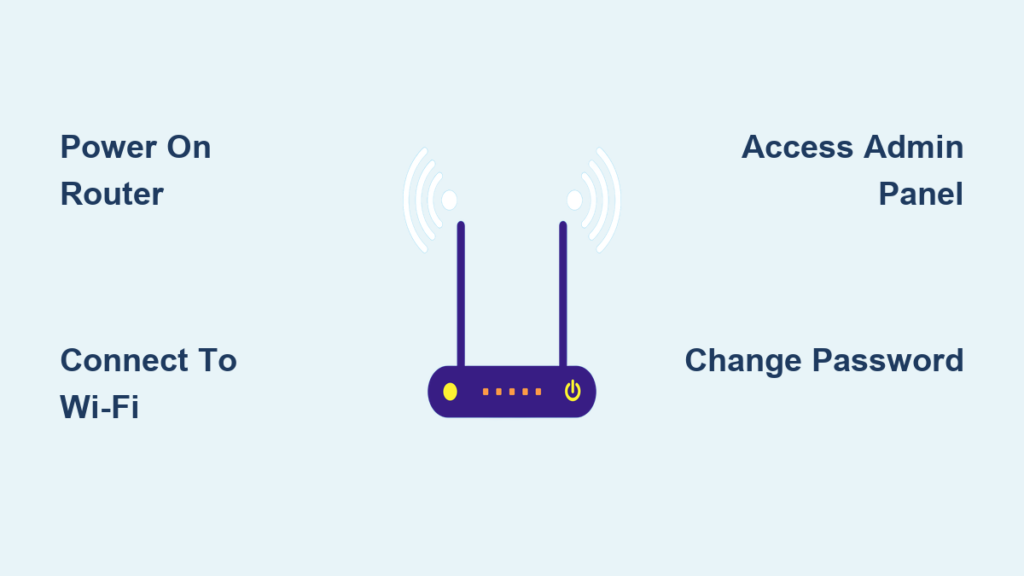
You just bought a new router and need to get online using only your smartphone. Many people wonder how to connect a Wi-Fi router to a phone without a computer, but the process is actually simple and fast.
This guide shows you exactly how to power your device, join the network, and configure settings directly from your mobile screen. You will learn to troubleshoot common issues and secure your home network entirely from your phone.
Power On and Connect Hardware Correctly

Your router needs proper physical connections before any wireless setup can begin. Ensure all cables are secure to prevent connection drops later.
Plug In and Verify Status Lights
- Connect the internet cable from your modem to the WAN port on the router.
– Look for a port labeled “Internet” or one that is blue. - Plug the power adapter into an electrical outlet.
- Wait 60 to 120 seconds for the lights to stabilize.
– A solid or blinking internet light indicates a good signal.
– No lights mean you should check your power source.
Locate Default Login Information
Flip the router over to find the sticker on the bottom or back. This label holds the keys to your initial access.
- Default IP Address: Usually
192.168.1.1or192.168.0.1. - Admin Credentials: Often
adminfor both username and password. - Default SSID: The factory name of your Wi-Fi network.
- Wi-Fi Password: The pre-set key required for the first connection.
Search online for your specific model if this sticker is missing or unreadable.
Join the Default Wi-Fi Network on Phone
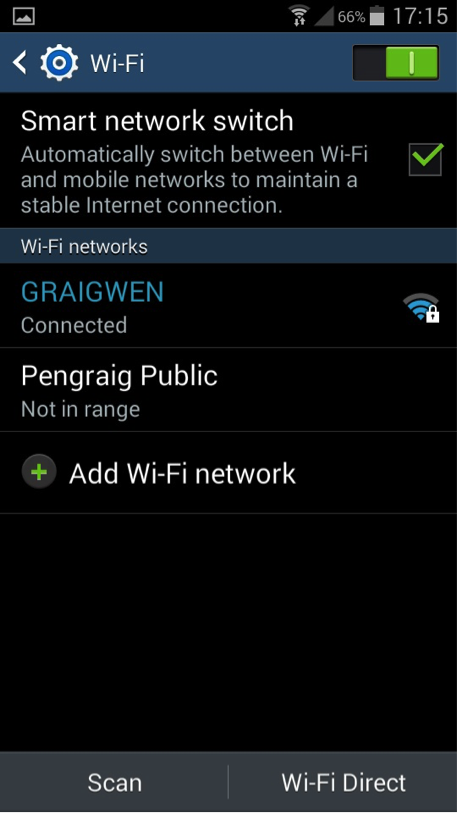
Your phone must connect to the router locally before you can change any settings. This step establishes the bridge between your device and the router.
Execute Connection Steps
- Open the Settings app on your smartphone.
- Tap Wi-Fi or Network & Internet.
- Toggle the switch to On if it is not already active.
- Find the network name (SSID) listed on your router label.
- Enter the default password exactly as printed.
- Tap Connect and wait for confirmation.
You will see “Connected” under the network name once successful. A Wi-Fi icon will appear in your status bar.
Note: You may see “No Internet” during this phase. This is normal because the router is not yet configured to talk to your ISP.
Add Hidden Networks Manually
Some routers hide their name by default for security. You must add these manually if they do not appear in the list.
- Scroll to the bottom of your Wi-Fi list and tap Add Network.
- Type the SSID exactly as it appears on the label.
- Select WPA2-PSK as the security type.
- Enter the password and save the settings.
Access Router Admin Panel via Browser

You need to log into the router’s internal software to customize your internet. This interface is called the admin panel.
Navigate to Local IP Address
- Ensure your phone is connected to the router’s Wi-Fi.
- Turn off Mobile Data to force the phone to use the local connection.
- Open a web browser like Chrome or Safari.
- Type the router’s IP address into the address bar, not the search bar.
– Example:192.168.1.1 - Press Go or Enter.
A login screen should appear asking for credentials.
Enter Default Credentials
Input the username and password found on the router label. Common combinations include admin/admin or admin/password.
- Double-check for capitalization errors.
- Try
admin/1234if the standard ones fail. - Search “[Router Model] default login” if you cannot get in.
Pro Tip: Bookmark this page immediately after logging in for easy future access.
Resolve Admin Page Loading Errors
If the page does not load, your phone might need a static IP address to communicate properly.
Configure Static IP on Android
- Go to Settings > Wi-Fi and tap the gear icon next to your network.
- Select Advanced and find IP Settings.
- Change the setting from DHCP to Static.
- Enter the following details:
– IP Address:192.168.1.123(match the first three numbers of your router).
– Gateway: Your router IP (e.g.,192.168.1.1).
– Subnet Mask:255.255.255.0.
– DNS 1:8.8.8.8. - Save the changes and reload the browser.
Warning: Change this back to DHCP after you finish setup to avoid issues on other networks.
Configure Internet and Wireless Settings
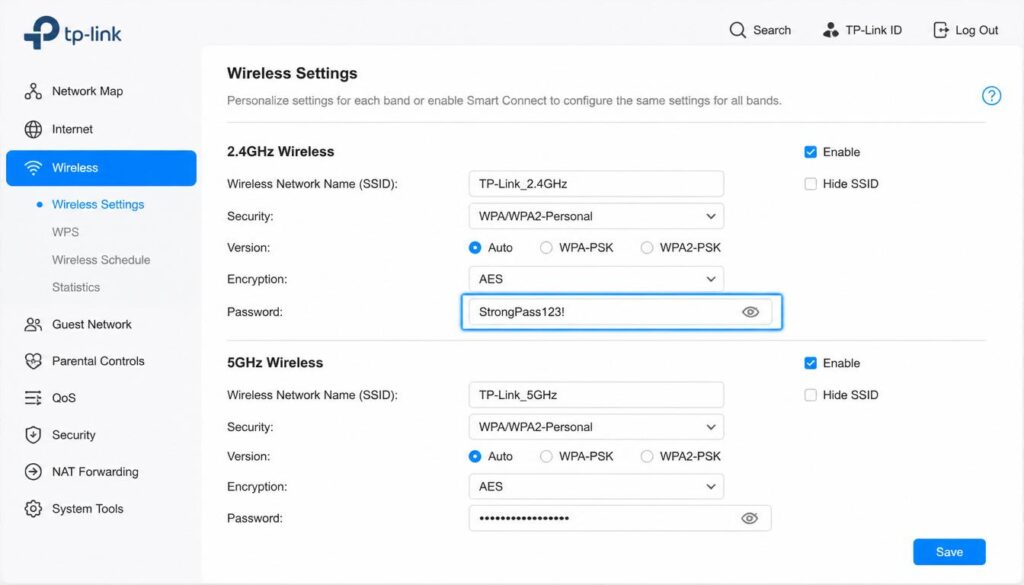
Now that you are logged in, you can set up your internet connection type and personalize your Wi-Fi name.
Select Internet Connection Type
Navigate to WAN, Internet, or Connection Type in the menu. Choose the option provided by your ISP.
- Dynamic IP (DHCP): Best for cable and fiber. No extra data needed.
- PPPoE: Common for DSL. Requires a username and password from your ISP.
- Static IP: Used only if your ISP gave you fixed numbers.
Click Save and wait for the router to process the change.
Personalize Wi-Fi Name and Security
Go to Wireless or Wi-Fi Settings to customize your network identity.
- Change the SSID to a name you recognize easily.
- Set security to WPA3 or WPA2-PSK.
– Avoid WEP or open networks as they are insecure. - Create a strong password with 12+ characters.
– Mix letters, numbers, and symbols for best protection. - Save your settings.
The router will reboot. Reconnect your phone using the new name and password.
Enable Guest Network Access
Create a separate network for visitors to keep your main devices safe.
- Find Guest Network in the wireless menu.
- Toggle it to Enable.
- Set a unique name and password for guests.
- Apply limits on time or bandwidth if desired.
Secure Router and Maintain Performance
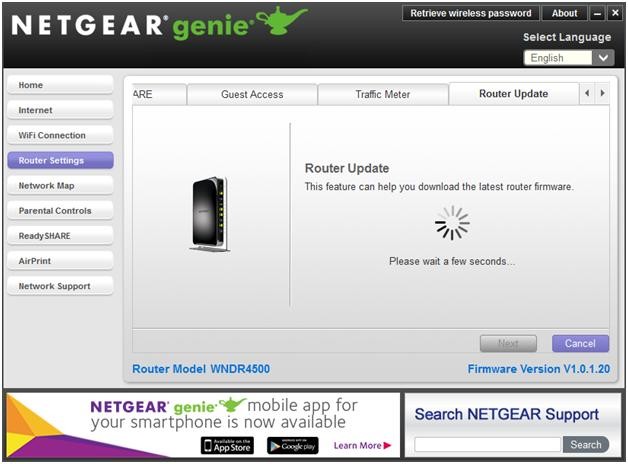
Protecting your network requires changing default passwords and keeping software current. Neglecting this leaves you vulnerable to attacks.
Change the Admin Password
The default login for the admin panel is a major security risk. Change it immediately.
- Locate Administration, System Tools, or Management.
- Find the field for Router Admin Password.
- Create a unique, complex password different from your Wi-Fi key.
- Save the changes.
Critical: Never leave the default admin password active. Hackers scan for these constantly.
Update Router Firmware
Firmware updates fix bugs and patch security holes in your router software.
- Go to Firmware Update or System in the admin panel.
- Click Check for Updates.
- Download and install if a new version is available.
- Do not power off the router during this process.
Manage Wi-Fi Connections Efficiently
Your phone offers powerful tools to manage how you and others connect to the network.
Share Wi-Fi Using QR Codes
You can share your password without speaking it aloud.
- Go to Settings > Wi-Fi on Android.
- Tap the gear icon next to your connected network.
- Select Share and authenticate with your fingerprint or PIN.
- Let the other person scan the QR code with their camera.
iPhone users can share credentials automatically when near another Apple device running iOS 16 or later.
Forget Unused Networks
Remove old public networks to stop your phone from auto-connecting to unsafe spots.
- Long-press the network name in your Wi-Fi list.
- Tap Forget or the trash icon.
- Your phone will no longer remember this network.
Reset Network Settings
Resetting clears all saved networks and fixes persistent connection glitches.
- Android: Hold the Wi-Fi icon in quick settings and tap Reset.
- iPhone: Go to Settings > General > Reset > Reset Network Settings.
Troubleshoot Common Connection Issues
Even with careful setup, you might face hurdles. These solutions address the most frequent problems users encounter.
Phone Refuses to Connect
- Move closer to the router to ensure strong signal strength.
- Restart both the router and your phone.
- Re-enter the password carefully, checking for case sensitivity.
- Ensure you are not confusing the 2.4GHz and 5GHz bands.
No Internet After Configuration
- Verify the WAN cable is firmly plugged into the correct port.
- Check if your ISP is experiencing an outage.
- Confirm you selected the correct connection type (PPPoE vs DHCP).
- Reboot the modem first, then the router.
Cannot Access Admin Panel Again
- Clear your browser cache or try Incognito mode.
- Ensure you are still connected to the router’s Wi-Fi.
- Try a different browser application.
- Perform a factory reset using the pinhole button on the back if all else fails.
Frequently Asked Questions About Connecting Wi-Fi Router to Phone
Can I set up my router completely without a computer?
Yes, you can fully configure most modern routers using only a smartphone. You simply connect to the default Wi-Fi, access the admin IP in a browser, and follow the setup wizard.
What do I do if I forgot my router admin password?
You must perform a factory reset using the small pinhole button on the router. Hold it for 10 to 15 seconds to restore default credentials found on the label.
Why does my phone say “Connected” but have no internet?
This often happens during initial setup before the WAN settings are saved. It can also mean the ISP cable is loose or the connection type is incorrect.
Is it safe to use the default Wi-Fi name and password?
No, you should change both immediately. Default names reveal your router model to hackers, and default passwords are publicly known and easily exploited.
How do I find my router IP address on my phone?
Go to Settings > Wi-Fi, tap the connected network, and look for Gateway or Router in the details. This number is your admin IP address.
Key Takeaways for Connecting Your Wi-Fi Router to Phone
Connecting your Wi-Fi router to your phone is a straightforward process that eliminates the need for a laptop. By powering the hardware, joining the default network, and accessing the admin panel via your browser, you gain full control over your home internet. Remember to change default passwords and update firmware to keep your network secure.
Start by locating the label on your router and gathering the default credentials. Follow the steps above to get your family online quickly and safely using just your mobile device.



