
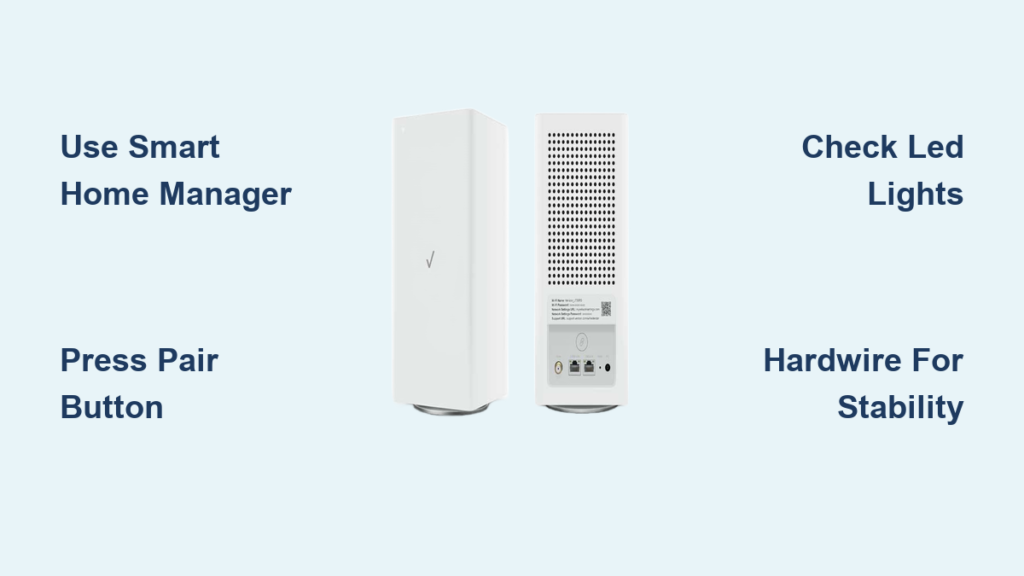
Weak Wi-Fi signals in specific rooms often require a booster, but success depends entirely on knowing how to connect Verizon extender to router correctly. Different models like the E3200 or CE1000A demand unique pairing steps that vary by your gateway type.
This guide details the exact app procedures, button sequences, and wiring methods needed for your specific hardware. You will learn to interpret LED status lights, optimize placement for maximum range, and resolve common sync errors without technical support.
Identify Your Extender Model and Router Type
Your connection method depends strictly on the hardware combination you own. Using the wrong setup process for your specific Verizon extender model leads to pairing failures.
Match Hardware to Setup Method
- E3200 Extenders: Require the Verizon Smart Home Manager app and a G3100 or CR1000A router.
- CE1000A Units: Support manual web setup via 192.168.1.1 or physical button pairing.
- WCB6200Q Devices: Utilize button pairing or hardwired coax connections for older networks.
- 5G Home Extenders: Function exclusively through the My Verizon app and 5G gateways.
- Legacy Coax Models: Demand a physical coaxial cable connection to function at all.
Warning: Never attempt a wireless setup on legacy coax-only models. These units will not operate without a hardwired backhaul connection.
Verify Router Compatibility
Newer Fios Quantum Gateways support automatic Self-Organizing Network features. Older BHR series routers often require manual SSID entry. Ensure your primary router is powered on and fully connected to the internet before starting.
Install E3200 Extender Using Smart Home Manager

The E3200 relies on the Verizon Smart Home Manager app for automated configuration. This method replicates your network settings automatically when paired with compatible Fios routers.
Execute App-Guided Pairing
- Power the device near the router: Plug the extender into an outlet within 10 feet of your gateway.
- Wait for solid white LED: Allow approximately 30 seconds for the unit to initialize.
- Connect mobile device to extender: Select the Verizon-Extender-XXXX network in your phone settings.
- Launch the Smart Home Manager app: Sign in and tap Add Device followed by Wi-Fi Extender.
- Follow on-screen prompts: The app detects the hardware and pairs it using SON technology.
- Relocate the unit: Move the extender to its final spot only after the app confirms connection.
Pro Tip: Keep the extender upright during operation. Tilting the E3200 can degrade antenna performance and reduce signal quality.
Pair CE1000A and WCB Models via Unified Button
Physical button pairing works best for CE1000A and WCB series extenders when app setup is unavailable. This method creates a secure link between your gateway and the extension unit.
Perform Manual Button Sequence
- Position extender close to router: Ensure the LED shows solid yellow or white.
- Activate extender pairing mode: Press the Pair button for 3 seconds until the light blinks blue.
- Press router pair button: Push the Unified or Pair button on your gateway within 2 minutes.
- Monitor the handshake: Wait 2 to 3 minutes while the LED blinks blue.
- Confirm success: A solid white light indicates a successful link.
Avoid Common Pairing Errors
Do not use the WPS button for this process. Verizon advises against WPS due to potential synchronization conflicts. If the LED blinks yellow after pairing, your placement is suboptimal.
Configure CE1000A Through Web Interface
Manual web configuration offers precise control for CE1000A units. Use this method if button pairing fails or if you prefer browser-based management.
Access Admin Panel Steps
- Connect to extender Wi-Fi: Join the Verizon_Extender_XXXX network on your computer.
- Open web browser: Navigate to http://192.168.1.1 in the address bar.
- Select primary network: Choose your main router SSID from the available list.
- Enter credentials: Type your Wi-Fi password exactly as it appears on your router.
- Finalize setup: Click Next and wait for the solid blue connection light.
Note: Older BHR series routers may not auto-sync SSIDs. You might need to manually enter network names in this interface.
Set Up 5G Home Internet Extender via App

Verizon 5G Home Internet users must use the My Verizon app for extender installation. Standard Fios setup methods do not apply to 5G gateways.
My Verizon App Procedure
- Open My Verizon application: Navigate to Menu then My Devices.
- Select 5G Home Internet: Tap Wi-Fi Settings and choose Add Extender.
- Activate hardware pairing: Press the button on the extender until the LED blinks.
- Allow automatic detection: The app configures the device without manual input.
- Verify connection status: Wait for the “Connected” message before moving the unit.
Critical Check: Do not assume Fios extenders work with 5G gateways. Always verify compatibility on the Verizon support site before purchasing.
Hardwire Extender with Coax or Ethernet
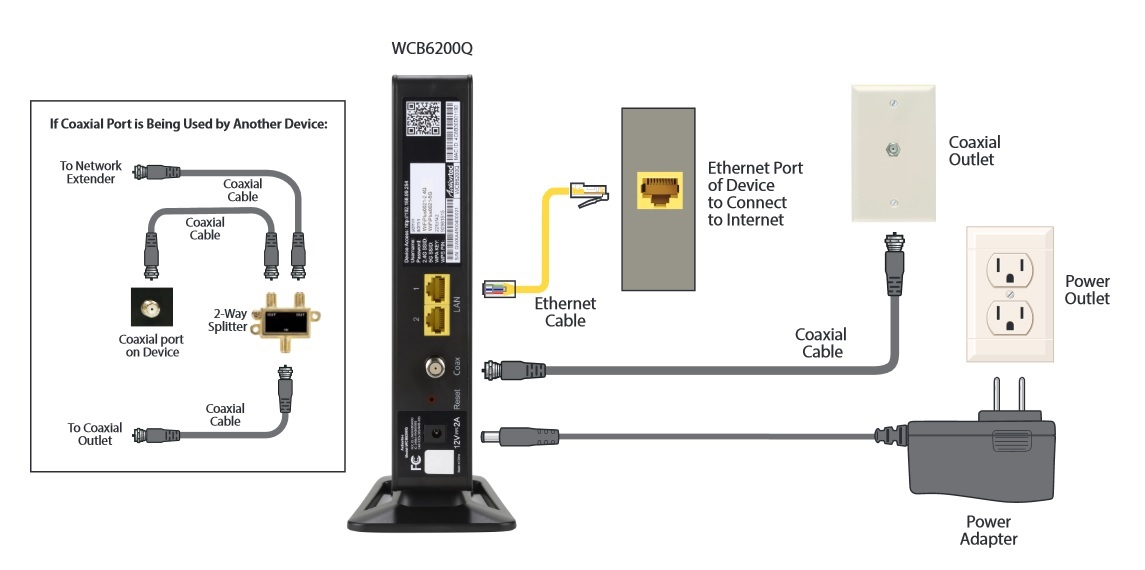
Wired connections provide maximum stability and enable features like Guest Wi-Fi on the extender. Legacy models strictly require this connection type to function.
Connect Via Coaxial Cable
- Locate active coax outlet: Ensure the wall port connects to your Fios line.
- Attach cable securely: Tighten connections at both the wall and extender ports.
- Power on the unit: Plug in the adapter and wait 2 to 3 minutes.
- Check status light: Solid white confirms a successful hardwired sync.
Connect Via Ethernet Cable
- Run Ethernet cable: Connect from a router LAN port to the extender Ethernet port.
- Power the device: Plug in the extender to activate the link.
- Verify connection: Look for the solid white LED indicator.
Best Practice: Use wired connections for Fios TV One Mini boxes. Wireless extenders cannot support these set-top boxes without a hardwired backhaul.
Optimize Placement Using LED Indicators
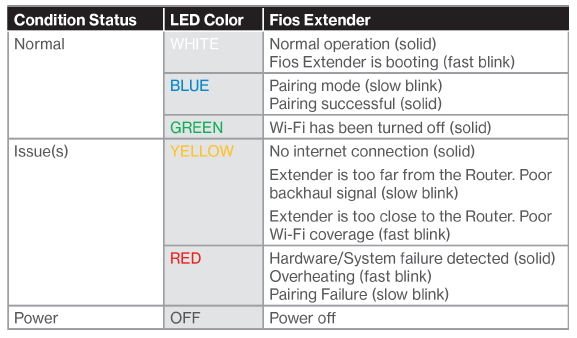
LED lights provide real-time feedback on signal strength and placement quality. Interpreting these colors correctly ensures optimal coverage in dead zones.
Decode LED Status Lights
| LED Pattern | Meaning | Required Action |
|---|---|---|
| Solid White | Optimal signal | No move needed |
| Fast Blink Yellow | Too close to router | Move farther away |
| Slow Blink Yellow | Too far from router | Move closer |
| Blinking Blue | Pairing in progress | Wait 2-3 minutes |
| No Light | Power failure | Check outlet and cable |
Apply the Halfway Rule
Place the extender halfway between your router and the weak signal area. Putting the device inside the dead zone amplifies a weak signal rather than fixing it. Avoid interference sources like microwaves and metal objects.
Ensure SSID Replication and Seamless Roaming
Proper configuration allows devices to switch between router and extender automatically. This feature relies on Self-Organizing Network technology in newer systems.
Understand SSID Behavior
- Automatic Replication: New Fios routers copy SSIDs and passwords automatically.
- Manual Entry: Older routers may require you to type network names manually.
- Guest Network: This feature only broadcasts on the extender if hardwired.
Resolve Sync Issues
Reboot both router and extender if names do not match. Unplug both devices, wait 10 seconds, and power the router first. Allow 5 to 10 minutes for full configuration synchronization.
Troubleshoot Connection and Performance Issues
Most setup failures stem from range issues or outdated software. Follow these steps to resolve common connectivity problems quickly.
Fix Detection and Signal Problems
- Extender not detected: Restart both devices and retry pairing within 2 minutes.
- Blinking yellow light: Adjust distance from the router based on blink speed.
- No internet access: Tighten coax or Ethernet cables and perform a 10-second reset.
- Missing Wi-Fi 6 networks: Update Wi-Fi drivers on laptops and smart TVs.
Reset Tip: Hold the reset pinhole for 10 seconds to factory reset the device if issues persist.
Maintain Firmware and Update Settings
Regular maintenance ensures your extender remains secure and performs efficiently. Firmware updates often include critical performance improvements.
Update and Reboot Routine
- Check for updates: Use the Smart Home Manager app or router admin page.
- Power cycle monthly: Unplug and replug devices to clear memory caches.
- Contact support: Call 1-800-VERIZON for persistent coax or wiring issues.
Frequently Asked Questions About Connecting Verizon Extenders
Can I use a Fios extender with a non-Verizon router?
Verizon extenders are optimized for Verizon gateways. While some manual configuration might work, features like automatic SSID replication often fail on third-party routers.
Why is my extender LED blinking yellow slowly?
A slow blinking yellow light means the extender is too far from the router. Move the unit closer until the light turns solid white for optimal performance.
Do I need a coax cable for the E3200 extender?
No, the E3200 supports wireless backhaul. However, legacy Fios Network Extenders require a coaxial cable connection to function at all.
How do I enable Guest Wi-Fi on my extender?
Guest Wi-Fi typically only broadcasts from the extender if it is hardwired to the router via coax or Ethernet. Wireless connections usually do not support this feature on the extended node.
What should I do if my laptop cannot see the Wi-Fi 6 network?
Older Wi-Fi drivers, particularly on Intel adapters, may not detect Wi-Fi 6 networks. Update your device drivers to the latest version available from the manufacturer.
Key Takeaways for Connecting Your Verizon Extender
Successfully learning how to connect Verizon extender to router requires matching your specific model to the correct setup method. Whether you use the Smart Home Manager app for E3200 units, physical button pairing for CE1000A devices, or hardwired connections for legacy models, following the precise steps ensures reliable coverage.
Always start the setup process near your router and use LED indicators to find the perfect final location. Remember that wired connections offer the best stability and enable full feature support like Guest Wi-Fi. Check your firmware regularly and contact Verizon support if placement adjustments do not resolve signal issues.



