
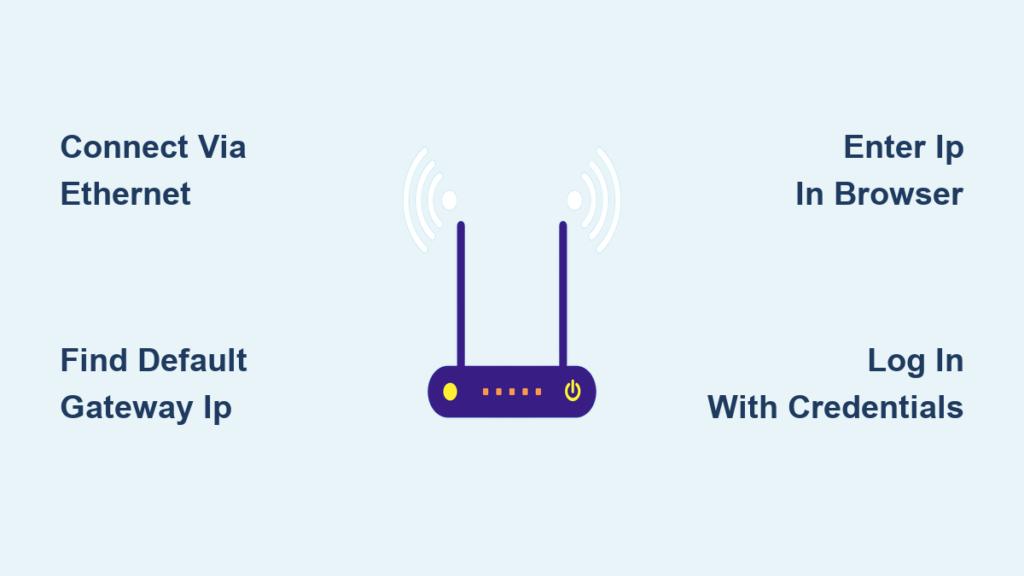
You need to change your Wi-Fi password or block a device, but you do not know how to access router admin page settings. Millions of users face this exact hurdle when trying to secure their home networks or troubleshoot connection drops.
This guide shows you exactly how to connect, find your specific IP address, and log in safely. You will learn to bypass common errors and secure your network in under ten minutes without needing advanced technical skills.
Connect Your Device via Ethernet or Wi-Fi
Your computer or phone must share a local network link with the router before any settings become visible. A stable connection prevents timeouts during critical configuration changes or firmware updates.
Use Wired Ethernet for Maximum Stability
A physical cable offers the most reliable path for administrative tasks. This method eliminates wireless interference that often causes login pages to time out.
- Plug one end of an Ethernet cable into a LAN port on your router.
- Connect the other end directly to your computer’s Ethernet port.
- Wait for the link lights on both devices to turn solid green or amber.
This approach is essential if you plan to update firmware, as dropped signals can corrupt the router software.
Establish a Wireless Connection
You can also use Wi-Fi if running a cable is impractical. Ensure you connect to the correct network name listed on the router label.
- Open your device settings and select Wi-Fi.
- Choose your network SSID from the available list.
- Enter the current password found on the router sticker.
- Verify connection status before opening a browser.
Note: You do not need an active internet connection to reach the admin panel. Local network access is sufficient for this task.
Find Your Router Default Gateway IP Address
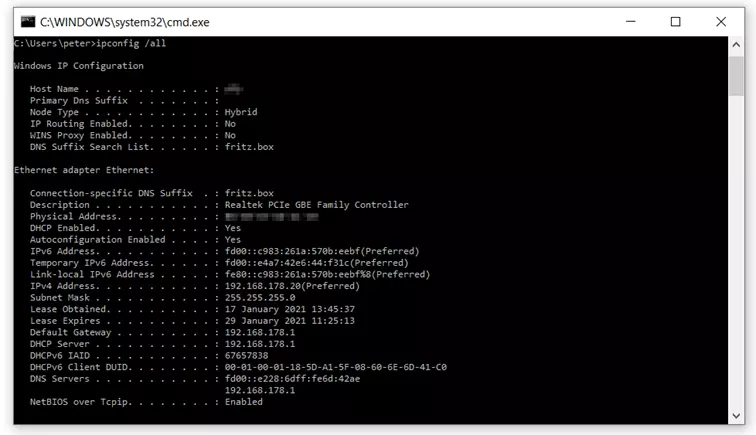
The admin page lives at a private IP address known as the default gateway. You must find this specific number to reach the login screen.
Locate IP Using Command Prompt on Windows
This method provides the exact address your router currently uses, even if it differs from standard defaults.
- Press Windows Key + R on your keyboard.
- Type
cmdin the run box and hit Enter. - Type
ipconfigin the black window and press Enter. - Scroll to find your active connection labeled Ethernet adapter or Wireless LAN adapter.
- Read the number next to Default Gateway.
This four-part number (like 192.168.1.1) is your direct key to the admin interface.
Try Common Router IP Addresses
If you cannot use the command line, try these frequent manufacturer defaults in your browser address bar.
- 192.168.1.1
- 192.168.0.1
- 192.168.2.1
- 10.0.0.1
- 192.168.100.1
- 192.168.254.1
Enter them one by one until the login page loads. ISP routers from Xfinity or AT&T often use unique addresses like 10.0.0.1.
Open the Router Login Page in Your Browser
Now that you have the correct IP address, you can load the administrative interface through any web browser.
Enter the IP Address Correctly
- Launch Chrome, Firefox, Edge, or Safari.
- Click the top address bar where website URLs appear.
- Type the IP address exactly (e.g.,
192.168.1.1). - Press Enter to load the page.
Do not add “www” or “http” before the numbers. Modern browsers handle this automatically, but extra characters can cause errors.
Common Mistake: Confusing the number “1” with the letter “l”. Ensure you type digits only, as
192.168.l.1will not work.
Log In with Correct Admin Credentials

Access requires a username and password specific to the router hardware, not your Wi-Fi password. These details verify your authority to change network settings.
Locate Default Username and Password
Check the physical sticker on the bottom or back of your router unit. Manufacturers print the default login information there alongside the Wi-Fi details.
- Look for fields labeled Username and Password.
- Try common combinations like
admin/adminoradmin/password. - Use the unique string printed on the label if provided.
Many routers use admin for both fields unless you changed them previously.
Resolve Login Failures and Resets
If the default credentials fail, someone likely changed them in the past. You cannot recover a lost custom password without resetting the device.
How to Factory Reset Your Router:
1. Find the tiny reset button (often a pinhole).
2. Press and hold it for 10 to 30 seconds while the router is on.
3. Release when the lights flash or blink rapidly.
4. Wait two minutes for the device to reboot completely.
Warning: This process erases all custom settings, including Wi-Fi names and port forwarding rules. You must reconfigure your network from scratch.
Secure Your Router After Successful Login
Once inside the admin panel, your first priority must be securing the device against unauthorized access. Default settings leave your network vulnerable to external threats.
Change the Administrative Password
Navigate to the Administration or System tab immediately. Change the default login password to a complex phrase containing letters, numbers, and symbols. This prevents hackers from locking you out of your own network.
Update Firmware and Disable Remote Access
Check the Firmware Update section for available patches. Installing updates fixes security holes that hackers exploit. Also, find Remote Management settings and set them to Disabled. This ensures only devices inside your home can access the admin page.
Configure Essential Wi-Fi Settings
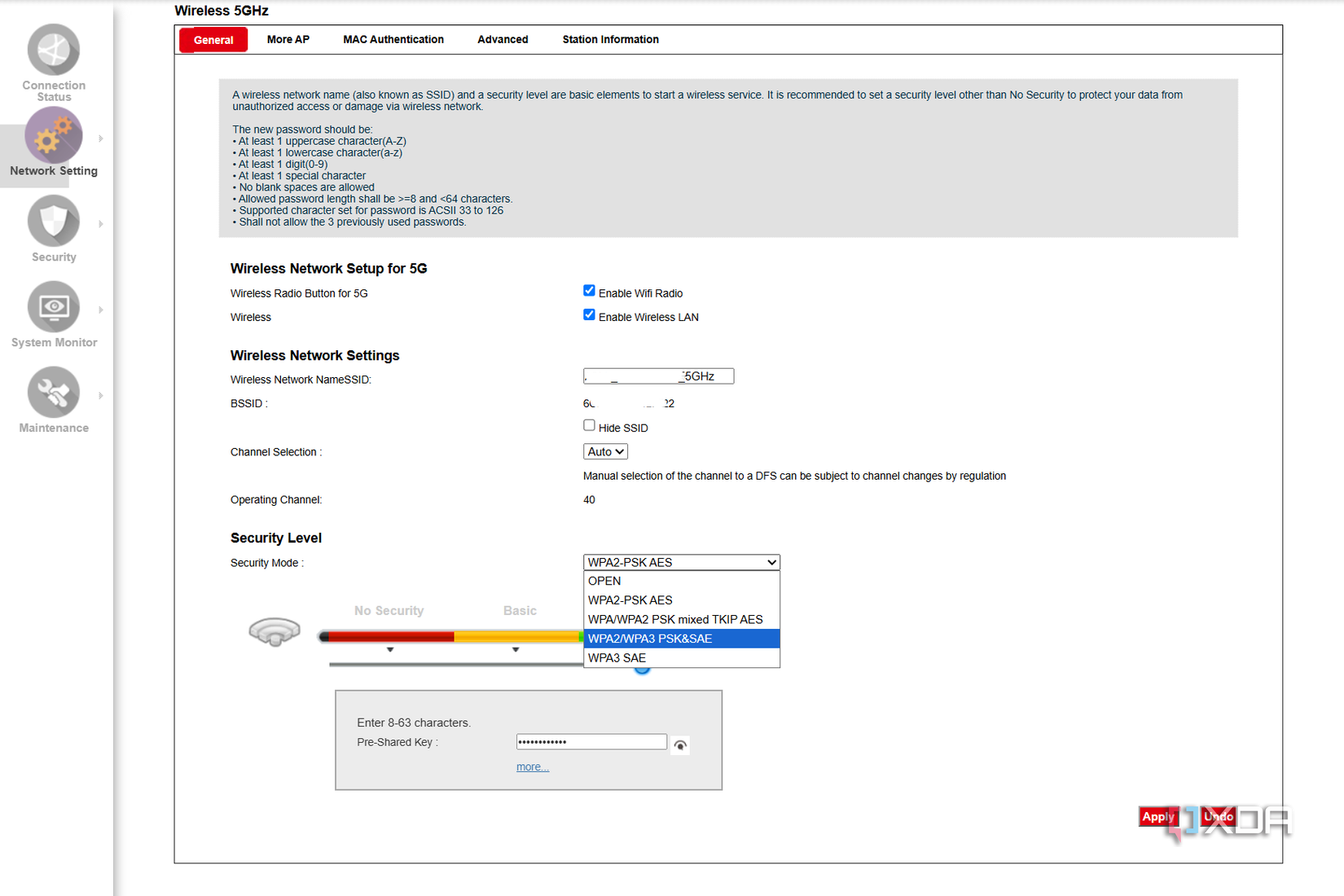
With security updated, optimize your wireless performance and privacy settings. Proper configuration ensures fast speeds and protects your data.
Rename Network and Set Encryption
Change the default SSID to a name that does not reveal your address or router model. Then, set your security mode to WPA3 or WPA2.
- Avoid using WEP as it is easily hacked.
- Create a strong Wi-Fi password with at least 12 characters.
- Enable a Guest Network for visitors to keep your main devices isolated.
These steps ensure your wireless traffic remains private and your bandwidth is reserved for trusted users.
Maintain Long-Term Network Access
Prevent future lockouts by documenting your new settings. Store your IP address, admin username, and passwords in a secure password manager.
Reboot your router once a month to clear memory glitches. Label the physical device with your new admin password if you store it safely elsewhere. These habits ensure you can always access router admin page settings when needed.
Frequently Asked Questions About Router Admin Access
What is the default IP address for most routers?
Most routers use 192.168.1.1 or 192.168.0.1. However, you should run the ipconfig command on your computer to find the exact “Default Gateway” address for your specific network setup.
Can I access the admin page from my phone?
Yes, you can access the admin page from a smartphone as long as it is connected to the router’s Wi-Fi network. Open your mobile browser and enter the router’s IP address just as you would on a computer.
What happens if I forget my custom admin password?
If you forget a custom password, you must perform a factory reset using the pinhole button on the device. This action restores default credentials but deletes all your personalized network settings.
Do I need internet access to reach the admin page?
No, you do not need an active internet connection. The admin page is hosted locally on the router, so a connection between your device and the router is the only requirement.
Why won’t the router login page load?
Check that your device is connected to the correct network and that you typed the IP address without typos. Ensure you are not using “https” if the router only supports “http,” or try a different web browser.
Key Takeaways for Accessing Router Admin Page

Successfully managing your network starts with knowing how to access router admin page interfaces securely. Always use the ipconfig command to find your specific default gateway rather than guessing common IP addresses.
Prioritize changing the default admin password and updating firmware immediately after logging in. These steps protect your home network from unauthorized access and ensure stable performance for all your devices.



