
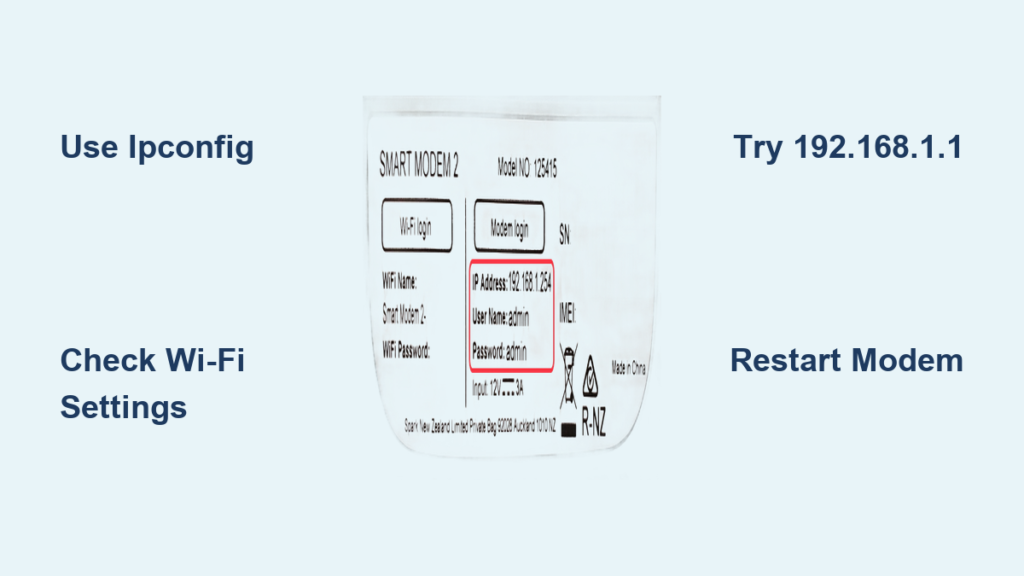
You’re trying to set up port forwarding, configure parental controls, or troubleshoot a stubborn connection issue. The catch? You need access to your modem’s admin dashboard, which starts with one thing: finding your modem IP address. This gateway number is your key to managing Wi-Fi settings, security options, and connected devices. Skip this step, and you’re locked out of the controls that matter most.
The good news: locating your modem IP address takes less than a minute, and you don’t need any special software. Whether you’re on Windows, macOS, Linux, Android, or iOS, your device already has built-in tools that reveal this information. Most home modems use standard private IPs like 192.168.1.1, but your ISP may use something different. This guide walks you through every method, plus what to do if the IP doesn’t appear or login fails.
Check Network Settings on Windows
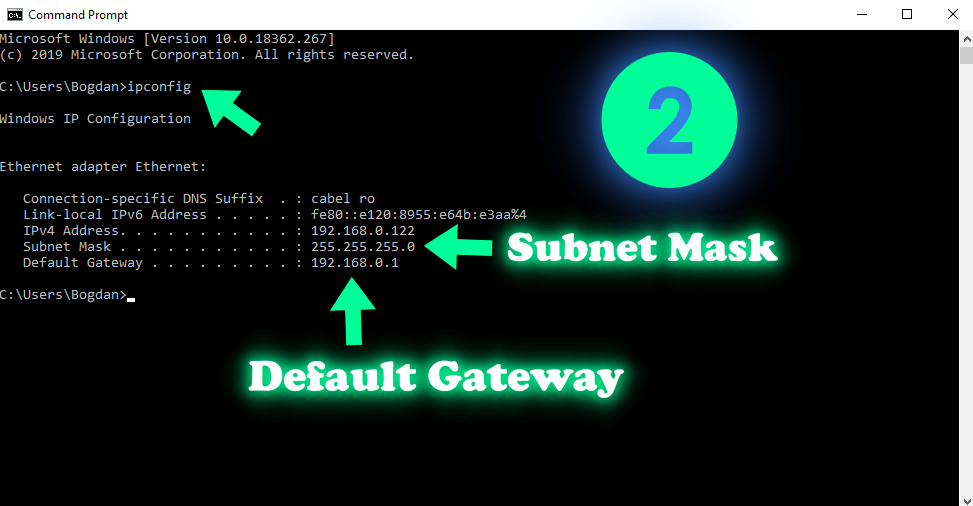
Windows offers two reliable ways to find your modem IP address: Command Prompt and the Settings app. Both are fast and built right into the operating system.
Use Command Prompt to Find Gateway
Press Windows + R, type cmd, and hit Enter to open Command Prompt. Type the following command and press Enter:
ipconfig
Scroll through the results until you see either “Wireless LAN adapter” or “Ethernet adapter,” depending on your connection type. Look for the line labeled Default Gateway followed by an IP address. That number is your modem IP.
Pro Tip: Speed things up by typing
ipconfig | findstr "Default Gateway"instead. This filters the output to show only the gateway line.
Find IP via Network & Internet Settings
Navigate to Settings > Network & Internet > Wi-Fi (or Ethernet if you’re wired). Click on your active connection name, then scroll down to find “IPv4 Gateway.” The address listed there is your modem IP.
⚠️ Common Mistake: Don’t confuse the modem IP with your computer’s IP. Look specifically for “Default Gateway” or “IPv4 Gateway,” not “IPv4 Address.”
Locate Modem IP on macOS
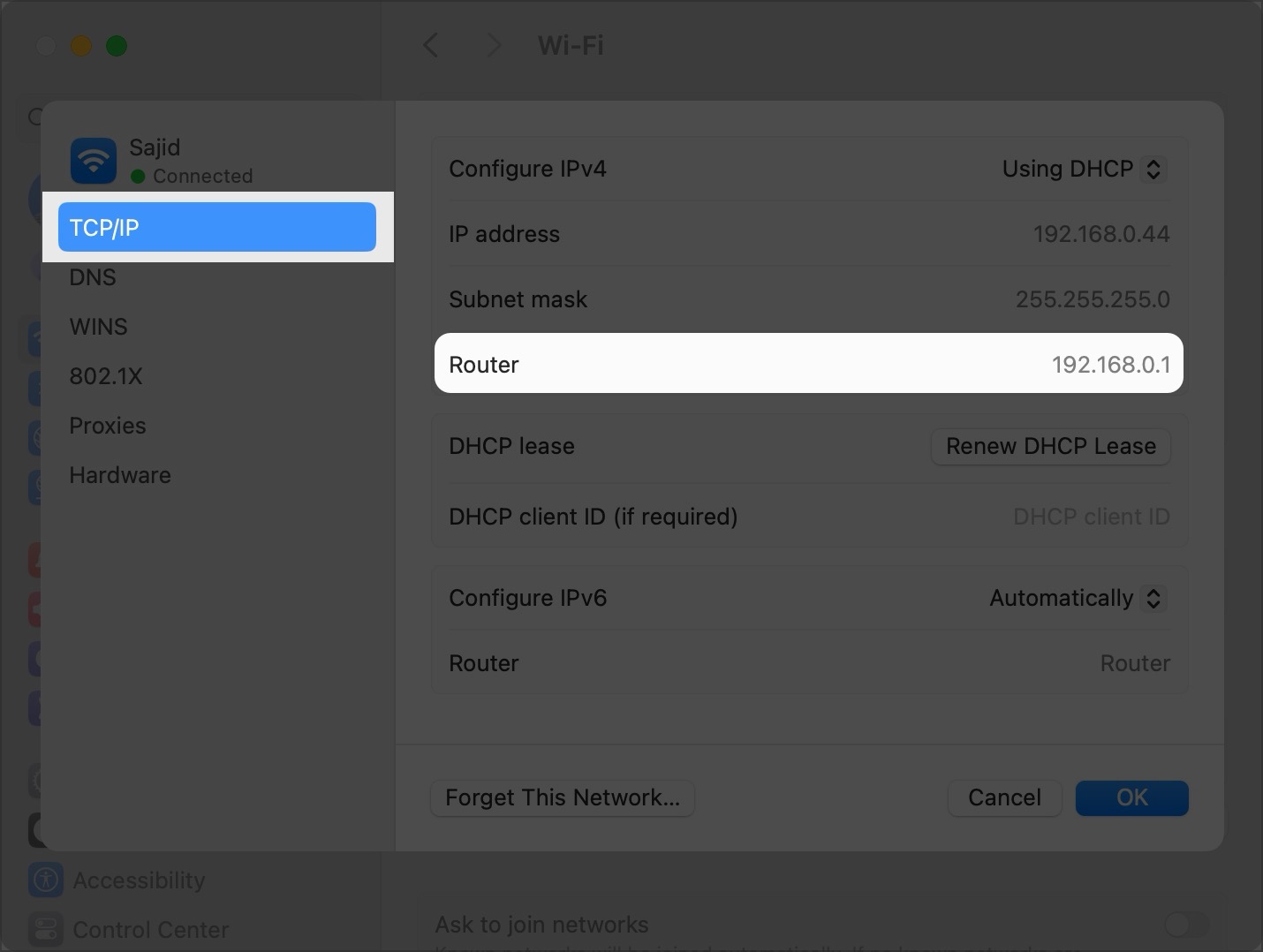
Mac users have two equally quick options: the System Settings interface or the Terminal app. Both deliver accurate results.
View in Network Preferences
Open System Settings > Network. Select your active connection from the sidebar (Wi-Fi or Ethernet), then click Details (or Advanced > TCP/IP on older macOS versions). Look for the field labeled “Router:” followed by an IP address. That’s your modem.
Use Terminal for Instant Access
Open Terminal from Applications > Utilities and type:
netstat -nr | grep default
The IP shown next to “default” is your modem’s gateway address.
✅ Quick Check: For a cleaner output, try
route get default | grep gatewayinstead.
Find Gateway on Linux
Linux distributions give you multiple command-line options to locate the default gateway. These work across Ubuntu, Fedora, Debian, and most other flavors.
Run ip route Command
Open a terminal and enter:
ip route | grep default
The output will look something like: default via 192.168.1.1 dev wlan0. The IP address listed after “via” is your modem IP.
Alternative: Use route Command
If you prefer older syntax, type:
route -n
Find the row where the Destination column shows 0.0.0.0. The Gateway column in that row contains your modem IP.
🔍 Visual Cue: The interface name (like
wlan0oreth0) should match your active network adapter. If it doesn’t, you may be looking at the wrong entry.
Access Modem IP on Android
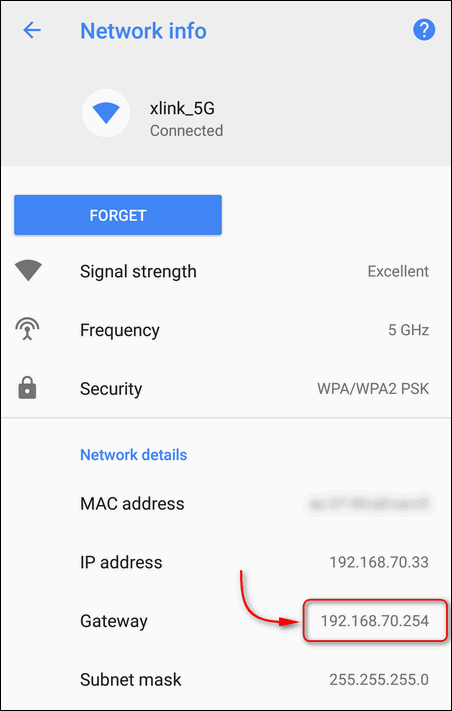
Android doesn’t always show the gateway directly, but a few taps in the right place will reveal it. Third-party apps work as a backup.
View Network Details in Wi-Fi Settings
Go to Settings > Network & Internet > Wi-Fi. Tap the name of your connected network. Scroll down to “Network details” or “Advanced.” Look for the field labeled “Gateway.” That IP is your modem.
📱 Note: On older Android versions, tap the gear icon next to the network name to access gateway info.
Use a Network Scanner App
If the gateway field is missing, download a free app like Fing or Network Scanner from the Play Store. Open the app while connected to your Wi-Fi, and the modem IP will appear under “Gateway” or “Router.”
✅ Pro Tip: Fing also lists every device on your network, which is helpful for spotting unknown connections.
Find Router IP on iPhone and iPad
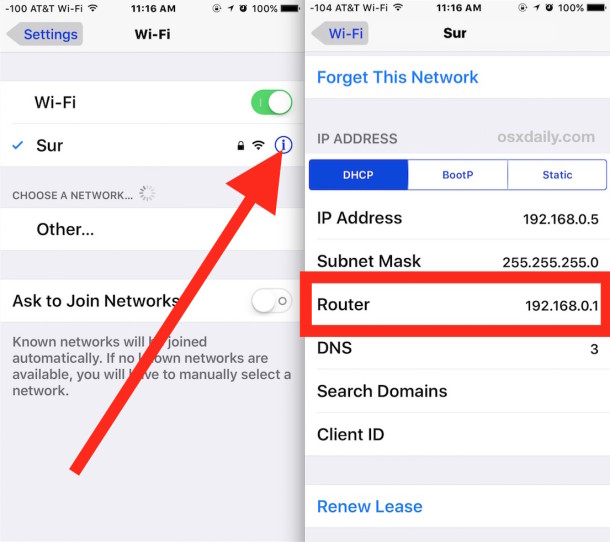
iOS keeps things simple by placing the modem IP right in the Wi-Fi settings. No extra apps required.
Check Wi-Fi Network Info
Open Settings > Wi-Fi, then tap the (i) icon next to your connected network’s name. Scroll down until you see “Router.” The IP address listed there is your modem.
📏 Time Estimate: This takes less than 30 seconds.
❗ Troubleshooting Tip: If the “Router” field is blank, toggle Wi-Fi off and on, or disconnect and rejoin the network to refresh the data.
Common Modem IP Addresses
When automatic detection fails, knowing the most common gateway IPs saves time. Here are the defaults to try first.
Standard Gateway IPs
The following addresses are used most often by home modems:
- 192.168.1.1 (most common)
- 192.168.0.1
- 192.168.100.1
- 10.0.0.1
ISP-Specific Gateways
Some internet providers use unique defaults. If the standard IPs don’t work, try these:
- AT&T: 192.168.1.254
- Verizon Fios: 192.168.1.1
- Xfinity: 10.0.0.1 or 192.168.100.1
- Spectrum: 192.168.0.1
🔐 Security Note: Never guess blindly. Using the wrong IP may land you on a login page for a different device or expose you to phishing risks. Always verify the address through your device’s network settings first.
Access the Modem Admin Page
Once you have the IP, logging into your modem unlocks all the settings you need. Here’s how to get in.
Log Into Your Modem
Open any web browser and type the modem IP into the address bar (for example, http://192.168.1.1). Press Enter. You’ll see a login prompt asking for a username and password. Common default credentials include:
- Username: admin
- Password: admin or password
🛑 Warning: If those defaults don’t work, check the label on the back or bottom of your modem. Many ISPs print the login credentials there.
Reset Credentials If Locked Out
If you’ve changed the password and can’t remember it, locate the reset button on your modem. Press and hold it for about 10 seconds. This restores factory settings, including the default login.
⏱️ Consequence: A factory reset wipes custom settings like your Wi-Fi name, password, and any port-forwarding rules. You’ll need to set those up again afterward.
Troubleshoot Missing Gateway
Sometimes the modem IP doesn’t show up in your network settings. Before assuming something is broken, try these fixes.
Renew IP Configuration
On Windows, open Command Prompt and run these commands one at a time:
ipconfig /release

ipconfig /renew
On macOS or Linux, renew the connection by running:
sudo dhclient
Then check your network settings again to see if the gateway appears.
Restart Your Modem
Unplug the modem’s power cable and wait 30 seconds. Plug it back in and wait about two minutes for a full reboot. Reconnect your device and check for the gateway IP again.
✅ Success Signal: The gateway IP reappears in your network settings once the connection is renewed or the modem finishes restarting.
Prevent Future Access Issues
A few simple habits keep you from getting locked out next time. Save yourself future headaches with these tips.
Save Your Modem IP
Write down the IP address and store it somewhere easy to find, like with your internet bill or in a password manager. Label it clearly as “Modem Gateway.”
Create a Shortcut
Bookmark the modem login page in your browser. Name the bookmark something obvious like “Modem Settings” for one-click access next time.
💡 Pro Tip: If you use multiple browsers, set the homepage to your modem login URL so it’s always within reach.
Frequently Asked Questions About Finding Modem IP Address
What is the difference between a modem IP and a router IP?
In many home setups, the modem and router are combined into one device. When that’s the case, the “modem IP” and “router IP” are the same thing. If you have separate devices, the modem IP is the gateway provided by your ISP, and the router IP is your internal network’s gateway (often something like 192.168.1.1).
Why is my modem IP address 192.168.1.1?
This is the most common default gateway used by consumer modems and routers. Manufacturers chose it because it falls within the private IP range reserved for home networks. Your ISP may use a different default, but 192.168.1.1 is a safe first guess.
Can I change my modem’s IP address?
Yes, but it’s not usually necessary. You can change it through the modem’s admin page under LAN or network settings. Be cautious: changing the gateway IP can disconnect all your devices temporarily, and you’ll need to use the new address to log in next time.
Is it safe to log into my modem?
Yes, as long as you’re accessing the correct IP address and using secure credentials. Never log in from public Wi-Fi, and always change the default password to something strong to prevent unauthorized access.
What if no modem IP address shows up?
This usually means your device isn’t connected to the network properly. Try restarting your modem, renewing your IP configuration, or reconnecting to Wi-Fi. If the problem persists, your modem may need a factory reset.
Key Takeaways for Finding Your Modem IP Address
Finding your modem IP address is a foundational skill that puts you in control of your home network. The fastest method depends on your device: Command Prompt on Windows, System Settings on macOS, and the built-in network menus on Android and iOS all work in under a minute. Most modems use a standard IP like 192.168.1.1, but ISP-specific gateways like 192.168.100.1 or 10.0.0.1 are worth trying if the common defaults don’t work.
Once you’ve located the IP, bookmark the login page and save your credentials somewhere secure. This small step saves time whenever you need to adjust settings, troubleshoot issues, or improve your network security. Pick your device, follow the steps above, and you’ll have full access to your modem’s admin dashboard in no time.



