
Changing your modem password is one of the most effective steps you can take to protect your home network. Most modems ship with default login credentials like “admin/password,” information that’s widely available online and easily exploited by anyone with basic technical knowledge. If an attacker gains access, they could reboot your device, change DNS settings, or even reset it to factory defaults, knocking your internet offline. The good news? Securing your modem takes just a few minutes and requires no technical expertise.
This guide walks you through every step of changing your modem password, from finding the login page to verifying the change. Whether you’re using a standalone modem, a combo unit, or a modern mesh system, we cover the essentials, brand-specific tips, and common pitfalls to avoid. By the end, you’ll know exactly how to lock down your network and keep unauthorized users out.
Find Your Modem’s IP Address
Check Common Default IPs
Most modems use standard IP addresses to access their admin panel. Try these common ones in your browser:
– 192.168.100.1 (frequently used by modems)
– 192.168.1.1
– 192.168.0.1
– 10.0.0.1
If one doesn’t work, try another. These addresses are often printed on a label on the back or bottom of your device.
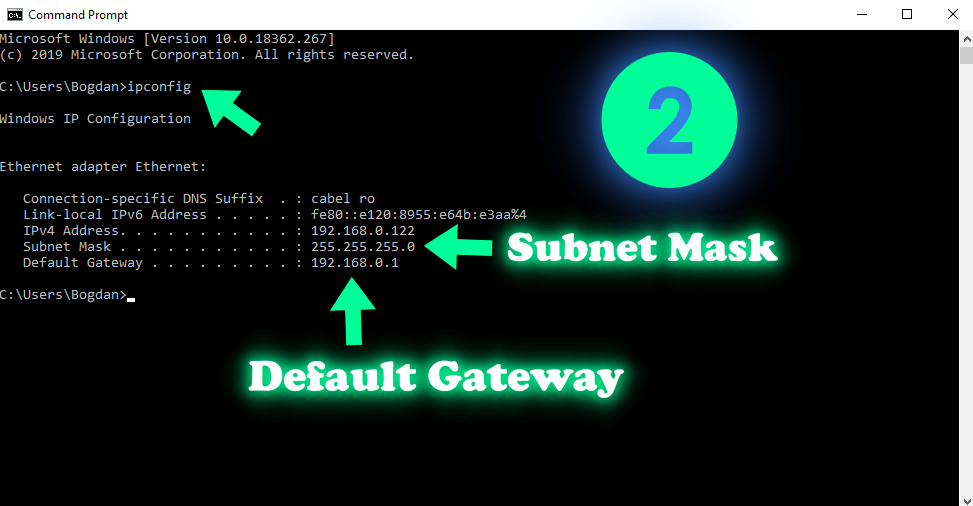
Locate IP via Command Prompt
If you’re unsure, find your modem’s IP automatically.
On Windows:
1. Press Win + R, type cmd, and hit Enter
2. Type ipconfig and press Enter
3. Look for Default Gateway under your active connection
4. Use that IP in your browser (e.g., http://192.168.100.1)
On Mac:
1. Open Terminal
2. Type netstat -nr | grep default
3. The IP listed is your gateway; enter it in your browser
This method ensures you’re using the correct address, even if it’s not a common one.
Access the Modem Login Page
Open Admin Panel in Browser
Once you have the IP:
1. Open any browser (Chrome, Safari, Firefox, etc.)
2. Type the IP into the address bar (e.g., http://192.168.100.1)
3. Press Enter
You’ll be redirected to the login screen.
Note: Always access this from a device connected to your network, either via Wi-Fi or Ethernet. A wired connection offers the most reliable experience.
Bypass Security Warnings
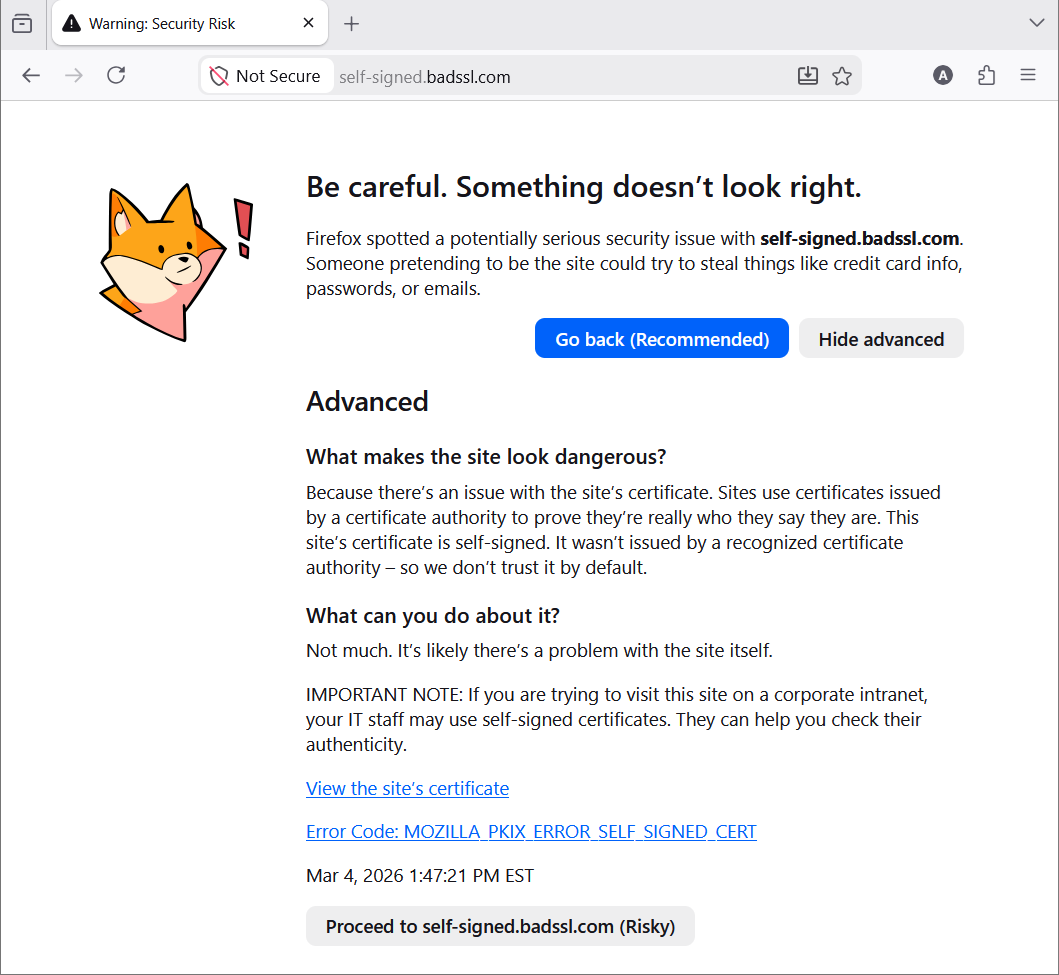
You may see a warning like:
– “Your connection is not private”
– “Invalid security certificate”
This is normal. Modems use self-signed certificates not recognized by browsers.
To proceed:
– In Chrome: Click Advanced → Proceed to [IP address]
– In Firefox: Click Advanced → Accept the Risk and Continue
This is safe as long as you’re on your home network and typing the correct IP.
Log In With Default Credentials
Find Username and Password
Check the sticker on your modem’s bottom or back. It usually lists:
– Username: Often admin
– Password: Could be password, admin, 1234, or a random string
Common default combos:
– Username: admin, Password: admin
– Username: admin, Password: password
– Username: admin, Password: 1234
If you’ve changed the password before, use your custom one.
Handle Login Failures
If the default credentials don’t work:
– Someone may have changed them
– The sticker could be damaged or missing
– Your modem might be managed by your ISP
Solution: Reset the modem to restore factory settings (see Reset Procedures below).
Change Modem Admin Password
Navigate to Password Settings
After logging in:
1. Go to Advanced or Administration tab
2. Look for Set Password, Password, or Management Password
3. Some models list it under System Tools or System Settings
The exact path varies by brand, but always look for “Password” or “Admin” in the menu.
Enter Old and New Passwords
In the password section:
1. Enter your current password (the default or previous one)
2. Type a new password (use a strong one; see best practices below)
3. Confirm the new password
4. Click Apply, Save, or Submit
Wait a few seconds for the modem to process the change.
Verify the Change
To confirm it worked:
1. Click Log Out
2. Reopen your browser
3. Go back to the modem’s IP address
4. Try logging in with your new password
If you can log in, the change was successful.
Create a Strong Modem Password
Use Complex Character Mix
A strong password should include:
– Uppercase letters (A–Z)
– Lowercase letters (a–z)
– Numbers (0–9)
– Special characters (!, @, #, $, etc.)
Example: N3tW0rk$3cure!2025
Avoid simple patterns like 123456, password, or personal info like birthdays.
Follow Length Guidelines
- Modem admin password: 16–20 characters ideal
- Wi-Fi password: At least 12 characters
- Use a password manager (like Bitwarden or 1Password) to generate and store strong passwords
Never reuse passwords from other accounts.
Update Wi-Fi Network Password
Access Wireless Settings
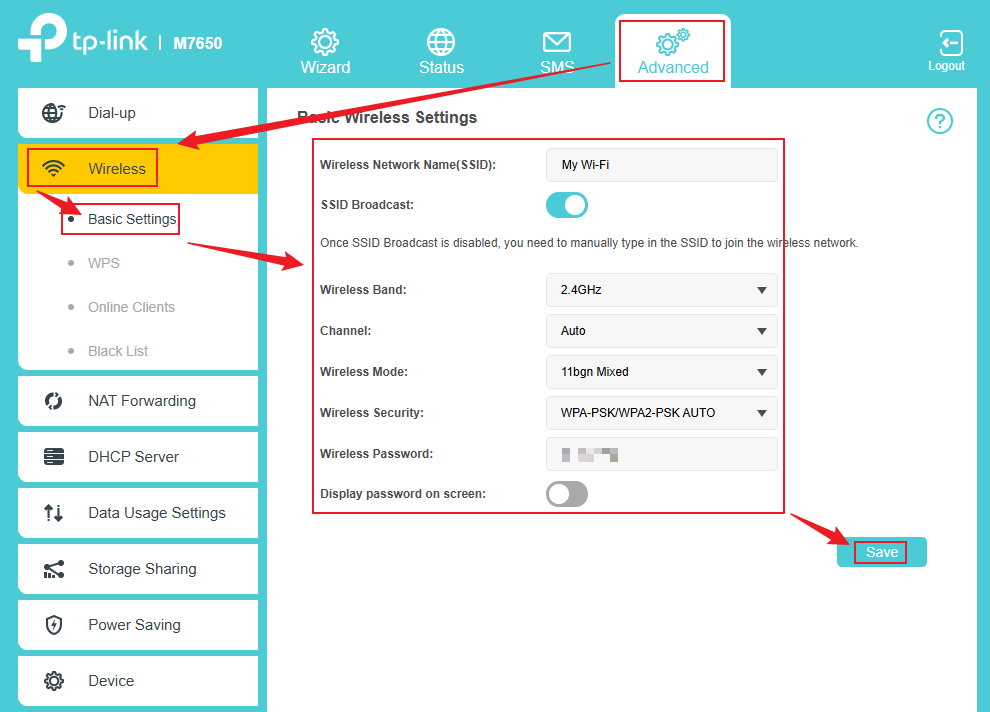
Changing the modem admin password doesn’t change your Wi-Fi password. To update your network’s Wi-Fi key:
1. Log into the modem/router
2. Go to Wireless, Wi-Fi Settings, or Network
3. Look for Password, Passphrase, or WPA Key
This section controls what users enter to connect to your Wi-Fi.
Set New Wi-Fi Password
- Enter your desired new password
- Ensure it’s strong and unique
- Click Save or Apply
The modem or router may reboot; this is normal.
Reconnect All Devices
After saving:
– All devices (phones, tablets, smart TVs) will disconnect
– Manually reconnect each using the new Wi-Fi password
– Double-check for typos; incorrect entries prevent connection
Handle Dual-Band and Mesh Systems
Update Both 2.4 GHz and 5 GHz
If your router supports dual bands:
– You may need to update passwords for both networks separately
– Some routers allow syncing both under one SSID and password
– For simplicity, use the same strong password for both bands
Check each band’s settings to ensure both are secured.
Use App for Mesh Networks
Modern systems (Google Nest, Eero, UniFi) often use apps instead of web interfaces.
To change password:
1. Open the brand’s app (e.g., Eero, Google Home)
2. Tap Network Settings or Wi-Fi
3. Select Change Password
4. Enter new password and save
No browser needed; everything is managed from your phone.
Reset Modem If Locked Out
When to Perform a Factory Reset
Reset only if:
– You’ve forgotten the password
– Default credentials don’t work
– The sticker is missing or damaged
Warning: A reset erases all custom settings, including Wi-Fi name and password.
Perform Physical Reset
- Locate the Reset button (tiny hole on the back)
- Insert a paperclip or toothpick
- Press and hold for 10–15 seconds
- Wait for lights to flash; the device will reboot
After reset, use the default login from the sticker to set up again.
Secure Your New Password
Store in a Password Manager
Never write your modem password on paper or save it in plain text.
Best options:
– Bitwarden (free)
– 1Password
– LastPass
Create a secure note labeled “Modem Login” with:
– IP address
– Username
– New password
This keeps everything safe and accessible.
Avoid Common Mistakes
- ❌ Don’t reuse old passwords
- ❌ Don’t use simple words or patterns
- ❌ Don’t share credentials over text or email
- ✅ Do change passwords every 3–6 months
- ✅ Do enable WPA3 encryption if supported
Troubleshoot Common Issues
Can’t Access Login Page
Possible causes:
– Wrong IP address
– Device not on the same network
– Browser cache issue
Fix:
– Confirm IP using ipconfig
– Connect to your Wi-Fi or use Ethernet
– Try a different browser or incognito mode
Devices Won’t Reconnect After Change
This usually means a typo in the new Wi-Fi password.
To fix:
– Recheck the password in admin settings
– Forget the network on your device and reconnect
– Retype the password carefully
Forgotten New Password
If you forget your custom password:
– You’ll need to factory reset the modem
– All settings will be lost
– Reconfigure Wi-Fi name and password afterward
Prevent this by storing the password securely from the start.
Brand-Specific Tips
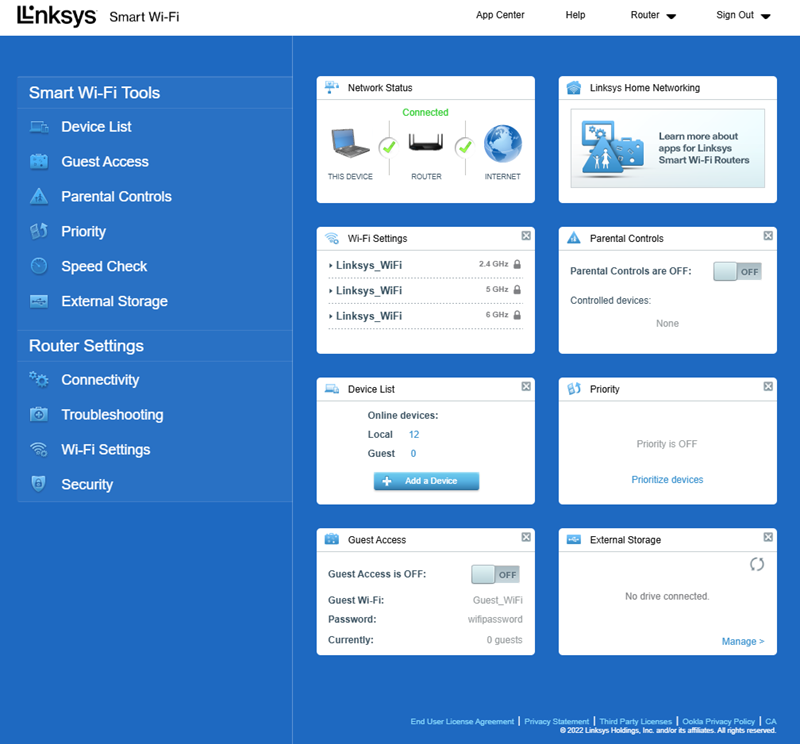
Linksys Modems/Routers
- Log in to
192.168.1.1 - Click Administration > Management
- Change Router Password
- Click Save Settings
Netgear Devices
- Access
routerlogin.netor192.168.1.1 - Go to Advanced > Administration
- Select Set Password
- Enter old and new passwords
- Click Apply
TP-Link and ASUS
- Look for System Tools > Password (TP-Link)
- Or Administration > System (ASUS)
- Always save and reboot after changes
Check your model’s manual if options differ.
Change Hotspot Password (Bonus)
iPhone Personal Hotspot
- Go to Settings → Personal Hotspot
- Tap Wi-Fi Password
- Enter new password and save
Android Hotspot
- Open Settings → Network & Internet → Hotspot & Tethering
- Tap Wi-Fi Hotspot → Set up Wi-Fi hotspot
- Change Network password
- Save
This secures your mobile hotspot just like your home network.
Frequently Asked Questions About Changing Your Modem Password
Do I really need to change my modem’s default password?
Yes. Default credentials like “admin/password” are publicly available online, making your network an easy target. Changing the password takes minutes and prevents unauthorized resets or settings changes.
Will changing my modem password disconnect my devices?
No, changing the modem admin password only affects login access. Your devices stay connected. However, changing your Wi-Fi password (a separate setting) will disconnect all wireless devices until you reconnect them with the new key.
What’s the difference between a modem password and a Wi-Fi password?
The modem admin password controls access to your device’s settings panel. The Wi-Fi password controls which devices can join your wireless network. You should change both for full security.
What if I can’t find the login sticker on my modem?
Check the bottom or back carefully; stickers can fade over time. If you can’t read it, try common defaults like admin/password. If those fail, perform a factory reset using the physical Reset button.
How often should I update my modem password?
Every 3–6 months is ideal. Regular updates reduce the risk of long-term credential exposure, especially if someone may have gained access without your knowledge.
Is a factory reset safe for my modem?
Yes, but it erases all custom settings including your Wi-Fi name and password. After a reset, you’ll need to reconfigure your network and reconnect all devices using the default credentials.
Key Takeaways for Securing Your Modem
Changing your modem password is a small step with big security benefits. Start by locating your modem’s IP address and default credentials, then log in and navigate to the password settings. Always use a strong, unique password with at least 16 characters, and store it in a trusted password manager rather than on paper.
Remember that the admin password and Wi-Fi password are separate settings. Update both, reconnect your devices carefully, and enable WPA3 encryption if your hardware supports it. If you ever get locked out, a factory reset restores access but wipes your custom settings.
Take action today: open your browser, enter your modem’s IP, and replace that default password. Your network’s security is only as strong as your weakest credential.



