
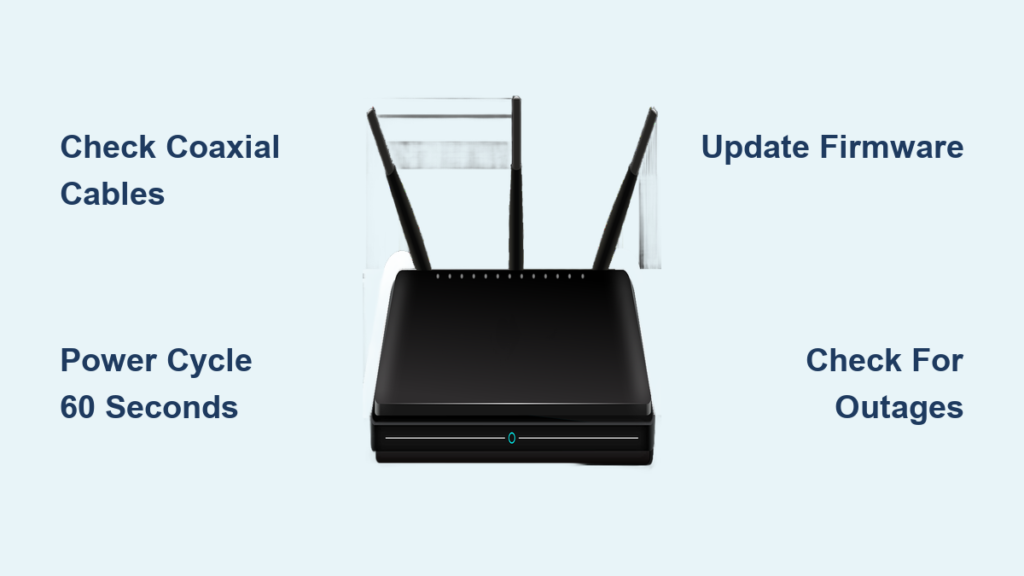
A blinking green light on your router means the device cannot establish a stable upstream connection to the network. This specific signal indicates that while your modem has power, it is failing to send data back to your internet service provider effectively.
You can often resolve this issue at home by checking cables and resetting your equipment properly. This guide explains exactly how to fix blinking green light on router systems by walking you through cable inspection, power cycling, firmware updates, and knowing when to call for professional help.
Inspect Coaxial Cables for Damage and Loose Fits
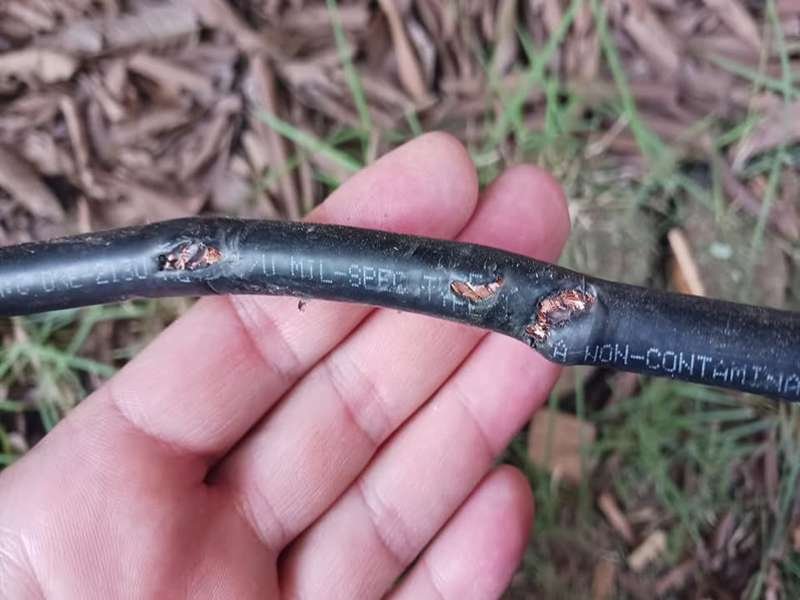
Loose or damaged coaxial cables cause a large percentage of upstream connection failures. The cable connecting your wall outlet to your router must be in perfect condition to carry the signal required for internet access.
Look for Corrosion and Bent Pins
Examine the metal connector on both ends of the coaxial cable closely. You are looking for specific signs of wear that disrupt signal flow.
* Check for green or white corrosion buildup on the metal pins.
* Inspect the center pin to ensure it is straight and not bent.
* Look for cracks in the threading or bent metal sleeves.
Replace the cable immediately if you see any of these defects. A damaged cable cannot transmit the strong signal needed to stop the blinking green light.
Reseat Connections Firmly by Hand
Even a cable that looks perfect can fail if it is loose. Follow these steps to ensure a tight connection.
1. Unscrew the coaxial cable from the wall outlet and the back of your router.
2. Screw the cable back in by hand until it feels snug.
3. Ensure there is no wobbling or visible gap between the connector and the port.
Pro Tip: Do not use pliers or wrenches to tighten the cable. Over-tightening can damage the threads and make the problem worse. Try swapping in a different coaxial cable if you have a spare one available to rule out cable failure completely.
Execute a Complete Power Cycle Reset

Restarting your router incorrectly often leaves temporary glitches in the system memory. A proper power cycle forces the device to clear its cache and re-establish a fresh handshake with the network.
Unplug Device for Full 60 Seconds
Many users plug their routers back in too quickly to be effective. You must follow a specific timing sequence to reset the internal components fully.
1. Disconnect the power cord from the back of the router or the wall outlet.
2. Wait for a full 60 seconds while the device is completely off.
3. Plug the power cord back into the socket firmly.
This waiting period allows the electrical charge to dissipate and clears any corrupted data causing the upstream failure.
Allow Five Minutes for Reboot
After restoring power, the router needs time to sync with the network before you judge the result.
* Wait at least 5 full minutes before checking the light status.
* A solid green light indicates a successful connection.
* A continuing blink means the issue persists and requires further steps.
Common Mistake: Checking the lights immediately after plugging the device in. The router needs time to download configuration data and sync upstream channels.
Verify Local Cox Service Outages
Your troubleshooting efforts will not work if the problem originates from the provider side. It is essential to rule out a regional service interruption before changing more settings.
Check Official Outage Maps
Visit the official Cox outage page using your mobile data or a neighbor’s Wi-Fi. Enter your specific address to see real-time status reports.
* View active outages in your immediate neighborhood.
* Read estimated restoration times provided by the company.
* Confirm which services are affected, such as internet, phone, or TV.
Use Third-Party Tracking Tools
Websites like DownDetector aggregate user reports to show service trends. These tools can confirm if many people in your area are experiencing issues simultaneously. If you see a spike in reports, the blinking green light is likely due to a network-wide problem. In this case, you must wait for the provider to restore service.
Update Router Firmware to Latest Version
Outdated software inside your router can cause instability and prevent proper synchronization with upstream channels. Keeping your firmware current ensures compatibility with network updates.
Access the Admin Panel Interface
You can check for updates using a web browser or a mobile application.
* Web Browser: Connect to your network, open a browser, and type 192.168.100.1 in the address bar. Log in with your admin credentials found on the router label.
* Mobile App: Download the Cox Home Gateway or Cox Connect app and sign in with your account details.
Navigate to the System or Gateway section to find update options.
Install Available System Patches
Once logged in, locate the firmware update section within the system settings.
1. Select the option to check for updates.
2. Click Install if a newer version is available.
3. Wait for the process to finish without unplugging the device.
The router may restart automatically after the update. This process fixes known bugs that could be causing the blinking green light on your router.
Analyze Signal Levels for Upstream Errors

Advanced users can diagnose connection quality by checking signal metrics directly from the router interface. This helps determine if line interference is the root cause.
Locate Diagnostic Data Pages
Log into the admin panel at 192.168.100.1 and find the Status or Signal tab. Look for the following specific metrics to assess health.
* Downstream Power: Should be between -7 dBmV and +7 dBmV.
* Upstream Power: Must remain below 50 dBmV.
* SNR Ratio: Values above 30 dB indicate a good signal-to-noise ratio.
Interpret Signal Readings
Values outside these ranges suggest physical line issues or amplifier problems. High upstream power means the modem is struggling to push data back to the network. If your numbers are out of range, you likely need a technician to adjust line amplifiers or replace outdoor cables.
Replace Faulty Hardware Components
Sometimes the blinking green light indicates that the router itself is failing or the hardware is too old to function correctly.
Test with Alternative Equipment
If you have access to another modem or router, swap it with your current unit. Connect the replacement device to the coaxial wall outlet and power it on. If the new device connects successfully while the old one blinks, your original hardware is defective.
Request a Free Replacement Unit
Providers often replace aging or malfunctioning equipment at no cost. Contact support if your device is over three years old or has a history of connection drops. Mention that you have tried all troubleshooting steps and request a service-qualified replacement. This is often the fastest solution for persistent blinking green light issues on older models.
Prevent Future Connection Failures
Taking preventive measures can stop the blinking green light from returning after you fix it. Protecting your equipment extends its lifespan and maintains signal stability.
Install Surge Protectors
Plug your router into a high-quality surge protector rather than directly into the wall. Power surges can damage internal components and lead to intermittent connection failures. This simple step protects your investment from voltage spikes.
Schedule Monthly Reboots
Set a reminder to power cycle your router once a month. This routine maintenance clears memory leaks and keeps the system running smoothly. Regular reboots prevent minor glitches from turning into major connectivity outages.
Frequently Asked Questions About Router Blinking Lights
What does a blinking green light mean on my router?
A blinking green light indicates an upstream channel failure where the router cannot connect to the provider network. It usually points to cable issues, signal degradation, or a temporary sync error rather than total device failure.
How long should I wait when power cycling my router?
You should unplug the router for at least 60 seconds and then wait 5 minutes after plugging it back in. This duration ensures the internal memory clears and the device has time to re-establish a stable upstream connection.
Can a bad coaxial cable cause the green light to blink?
Yes, loose or damaged coaxial cables are a leading cause of this issue. Inspect the cable for corrosion or bent pins and ensure it is tightened firmly by hand to restore proper signal flow.
What if the light keeps blinking after a reset?
If the light persists after checking cables and resetting, check for local outages or update your firmware. If those steps fail, contact your provider to check signal levels or request a hardware replacement.
Is the blinking green light a sign of a broken router?
Not necessarily. While it can indicate hardware failure, it often results from external factors like loose cables or network outages. Only assume the router is broken after ruling out cable and signal issues.
Key Takeaways for Fixing Your Blinking Green Light

Resolving a blinking green light on your router typically involves checking physical connections and performing a complete power cycle. Most issues stem from loose coaxial cables or temporary sync glitches that a 60-second reset can fix.
Always verify there are no local outages before attempting complex troubleshooting steps. If basic fixes do not work, updating firmware or replacing old hardware will likely restore your internet connection. Start with the cables and power cycle today to get back online quickly.



