

Replacing your modem doesn’t have to be a technical headache. Whether you’re upgrading for faster speeds, eliminating rental fees, or troubleshooting persistent connectivity issues, knowing how to replace a modem gives you more control over your home network. Most cable internet subscribers pay $10–$15 per month to rent a modem from their ISP, which adds up to $180 or more every year. Buying your own compatible modem can save you hundreds of dollars over time while boosting performance.
This guide covers everything from selecting the right replacement and removing your old unit, to activating your new device and returning rented equipment. You’ll also pick up tips on troubleshooting, security, and long-term maintenance. Whether your provider is Spectrum, Xfinity, or another major ISP, the process takes under an hour and requires no technician visit.
Choose a Compatible Replacement Modem
Confirm ISP and Speed Compatibility
Before purchasing a new modem, verify that your provider approves it and that it supports your current plan’s speed tier. For example:
– Spectrum and Xfinity accept most DOCSIS 3.1 modems
– Your modem must handle speeds equal to or higher than your subscription
Using an incompatible modem often results in slow performance or failed activation.
Prioritize DOCSIS 3.1 for Future Use
DOCSIS 3.1 modems are worth the investment even if your current plan doesn’t demand them. They:
– Support speeds up to 10 Gbps
– Stay compatible with future ISP upgrades
– Deliver improved efficiency and stability
Avoid older DOCSIS 3.0 models unless you’re on a tight budget or low-speed plan.
Decide Between Standalone or Combo
You can choose between:
– A standalone modem paired with a separate router (recommended)
– A modem/router combo (gateway)
A standalone setup typically gives you better Wi-Fi performance, deeper customization options, and easier troubleshooting.
Recommended Option: Arris Surfboard SB8200
The Arris Surfboard SB8200 stands out because it:
– Works with Spectrum, Xfinity, Cox, and other major ISPs
– Supports up to 2 Gbps download speeds
– Includes dual Ethernet ports
– Earns strong reliability ratings from real users
Priced under $140, it pays for itself in less than a year compared to rental costs.
Gather Account Details and Tools
Collect Important Information
Before unplugging anything, make sure you have:
– Your ISP account username and password
– Your account number and security code
– The email or phone number linked to your account
– The MAC address of the new modem (printed on the bottom label)
You’ll need these details during activation.
Verify Kit Contents
Confirm your new modem package includes:
– The modem unit
– Power adapter
– Coax cable (some kits include one)
– Ethernet cable
– Setup guide
Missing a cable? Reuse the one from your old modem.
Remove the Old Modem Safely
Disconnect All Cables
Follow these steps to remove your old modem:
- Unplug the power cord from the wall and the modem
- Disconnect the coax cable from the “Cable In” port
- Remove any Ethernet cables connected to your router or computer
- Unplug the phone line, if applicable (usually attached to Port 1)
Wait at least 30 seconds before reconnecting to avoid signal conflicts.
Hold Onto ISP-Provided Equipment
If your old modem came from your ISP, don’t throw it away. Most providers charge $50–$100 for unreturned gear. Keep the unit and its power cord until you’ve finished the return process.
Install the New Modem
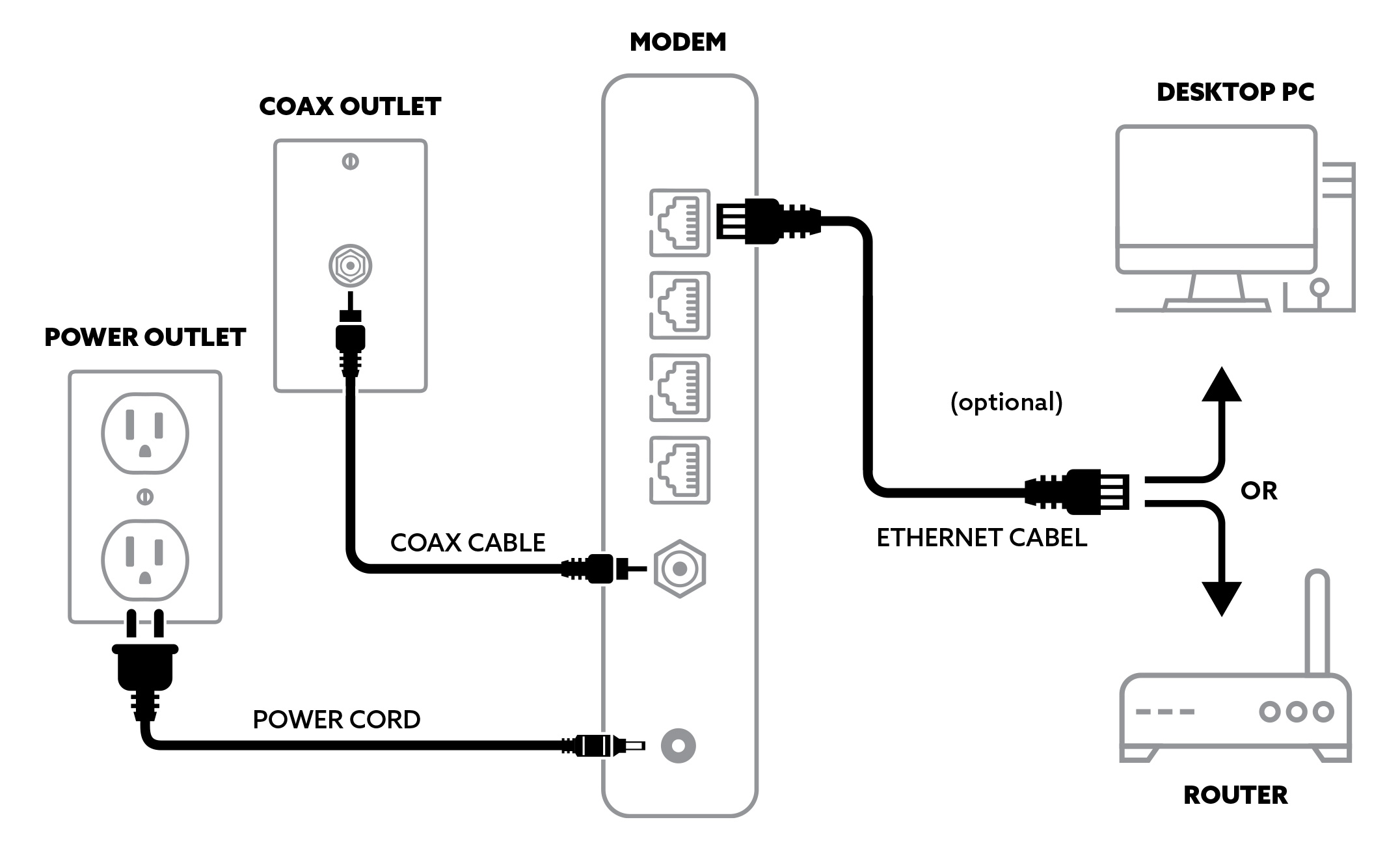
Connect Coax and Power
- Plug the coax cable from the wall into the “Cable In” port on the new modem
- Connect the power adapter and plug it into a working outlet
- Turn the modem on
Make sure every connection is snug. Loose coax cables are a leading cause of signal loss and activation failure.
Link to Your Router or Computer
- Use an Ethernet cable to connect Port 1 on the modem to your router’s WAN port
- Alternatively, connect directly to a computer for initial testing
If you use VoIP phone service, plug the phone line into Port 1 on the modem.
Wait for Status Lights to Stabilize
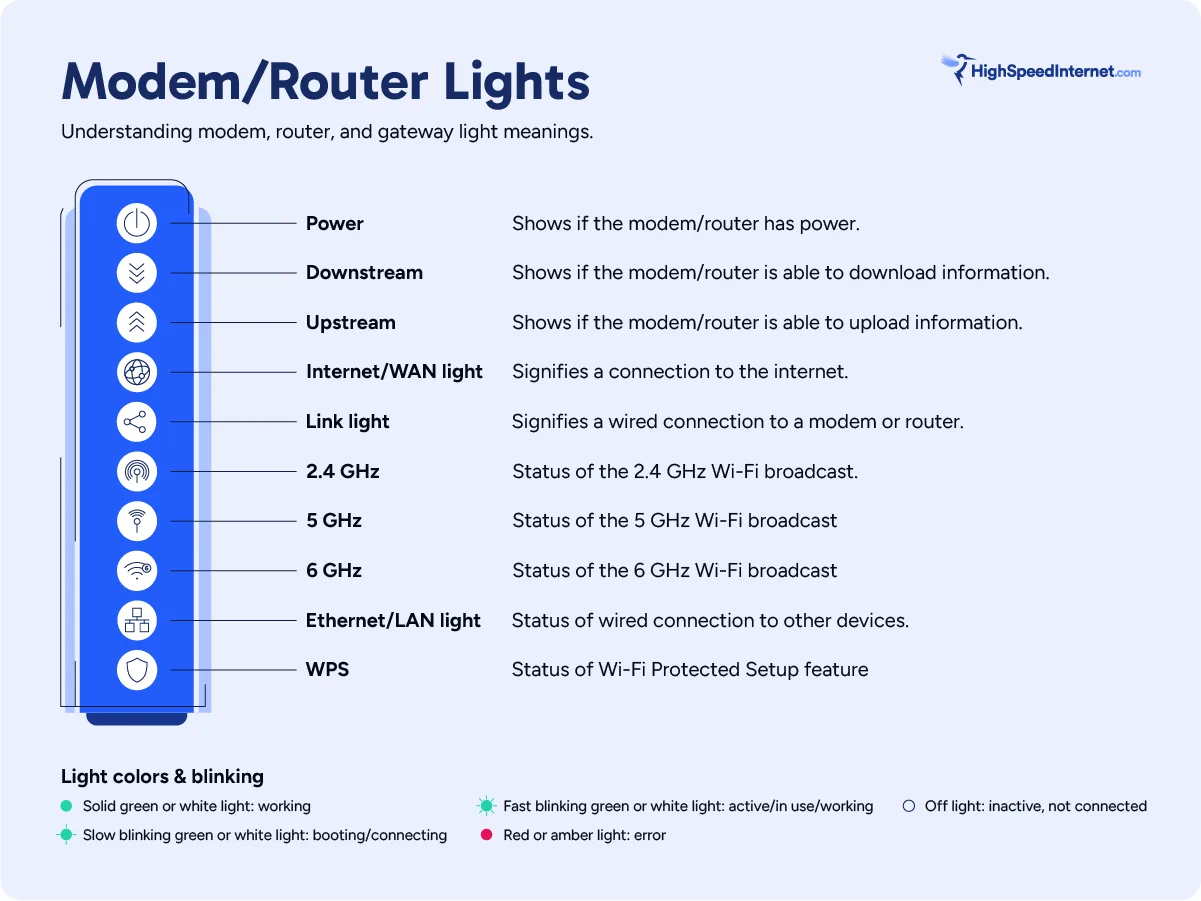
Monitor the Indicator Lights
After powering on, wait 5–10 minutes for the modem to sync with your ISP. Look for these signals:
| Light | Correct Status |
|---|---|
| Power | Solid green |
| DOCSIS | Solid green after initial blinking |
| Internet/Online | Solid green or blue |
Flashing lights mean the modem is still syncing or installing firmware updates. This process can take up to 20 minutes.
Be Patient Before Activating
Even if lights appear stable, wait at least 5 full minutes after plugging in before starting activation. This gives your ISP time to detect the new device.
Restart Your Router
Reset the Router Connection
Your router needs to relearn the new connection:
- Unplug the router from power
- Wait 10 seconds
- Plug it back in
Allow up to 10 minutes for Wi-Fi to return.
Reconnect Your Devices
Once the router is back online:
– Rejoin your Wi-Fi networks using your usual password
– Test connectivity on multiple devices
– Run a speed test to confirm performance matches your plan
Activate Service With Your ISP
Activate on Spectrum
- Visit spectrum.net/selfinstall on a connected device
- Sign in with your Spectrum username and password
- If you don’t have a username:
– Click “Create a Username”
– Enter your account number and security code, or use your email or phone - Follow the onscreen prompts to finish activation
The process typically takes just a few minutes.
Activate on Xfinity via the App
- Open the Xfinity app and log in
- Tap “Activate xFi Gateway or Modem”
- Choose “Modem” (not gateway) for standalone units
- Enter the MAC address from the bottom of the modem (no spaces, all caps)
- Tap “Activate Service”
- Wait 5–10 minutes while Comcast provisions the line
Confirm the Internet light turns solid green when activation completes.
Return ISP-Provided Equipment
Avoid Unnecessary Charges
If you rented your old modem:
– Return it within 30 days to avoid replacement fees
– Visit spectrum.net/equipment-return or Xfinity’s return portal
– Print a prepaid shipping label or drop it off at an authorized location
Save Your Proof of Return
Keep the tracking number or drop-off receipt until your account reflects the return. Some ISPs take 7–10 days to process returns.
Keep the Old Modem as a Backup
Plan for Unexpected Downtime
Even after returning equipment, consider keeping the old modem if your provider allows it. Benefits include:
– Instant replacement during outages
– No waiting for shipping or technician visits
– Peace of mind for remote workers and gamers
Just confirm with your ISP that the device is deactivated to avoid double billing.
Save Over $180 Per Year
Compare Long-Term Costs
| Option | First-Year Cost | Annual Cost After That |
|---|---|---|
| Rent from ISP | ~$180 plus tax | ~$180 plus tax |
| Buy Own Modem | ~$140 | $0 |
You break even in under a year, then keep saving $180+ annually. No more rental fee hikes, and your modem works indefinitely.
Unlock Advanced Network Settings
Take Full Control
With your own modem, you can manage:
– Port forwarding for gaming or remote access
– VPN integration for improved privacy
– QoS settings to prioritize streaming or video calls
– Bridge mode to avoid double NAT with advanced routers
– Firmware updates on your schedule
These features are often locked or remotely reset on ISP gateways.
Maintain Security and Performance
Update Firmware Regularly
For better security and stability:
– Check the manufacturer’s website for firmware updates
– Enable update notifications if available
– Apply patches promptly to guard against vulnerabilities
Unlike ISP-controlled devices, you choose when to update with no surprise reboots.
Change Default Login Credentials
Many modems ship with default admin logins like admin/password. Take these steps immediately:
– Log into the modem’s interface (usually via 192.168.100.1)
– Change the admin username and password
– Use a strong, unique password
This prevents unauthorized access to your network settings.
Troubleshoot Common Issues

No Internet Light After 10 Minutes?
Try these quick fixes:
– Recheck the coax connection at both the wall and modem
– Test the outlet by plugging in another device
– Wait longer since some ISPs take up to 20 minutes to provision
– Restart the modem by unplugging for 30 seconds, then powering it back on
If the light still doesn’t come on, contact your ISP to confirm the MAC address was accepted.
Slow Speeds After Replacement?
Confirm the following:
– Your modem supports your speed tier (DOCSIS 3.1 for gigabit)
– You’re using a Gigabit Ethernet cable
– Your router isn’t the bottleneck
– Wi-Fi devices are close enough to the router
Run a wired speed test directly from the modem to isolate the issue.
Router Won’t Connect?
- Restart the router (unplug, wait 10 seconds, plug back in)
- Make sure the Ethernet cable is in the correct WAN or Internet port on the router
- Try a different Ethernet cable
Know When to Upgrade Again
Signs It’s Time for a New Modem
Replace your modem when:
– Your ISP increases speeds beyond its capability
– You experience frequent disconnects
– It’s more than 3 years old
– You add heavy usage like 4K streaming or smart home devices
– New DOCSIS 4.0 modems become widely supported
Planning ahead avoids rushed upgrades later.
Final Checks Before You Finish
Confirm Everything Works
Before wrapping up:
– Confirm all devices connect to Wi-Fi
– Run a speed test at speedtest.net
– Verify phone service if applicable
– Ensure status lights are solid, not flashing
– Return old equipment or store it safely
Use a Surge Protector
Plug your modem and router into a quality surge protector. Power spikes can damage sensitive electronics, especially during storms.
Label Your Cables
Use tags or colored tape to mark:
– Coax input
– Primary Ethernet
– Phone line
Clear labels make future troubleshooting faster.
Frequently Asked Questions About Replacing a Modem
Do I Need to Notify My ISP Before Replacing My Modem?
You don’t need to notify them beforehand, but you’ll need to activate the new modem through your ISP’s website or app. Have your account credentials and the new modem’s MAC address ready before you start.
How Long Does It Take to Replace a Modem?
The entire process usually takes under an hour. Modem syncing and ISP provisioning can take 5–10 minutes, while router restart and Wi-Fi restoration may take another 10 minutes.
Can I Use Any Modem With My Internet Provider?
No. Your modem must be approved by your ISP and support your speed tier. Check your provider’s compatibility list before purchasing. Most major ISPs accept DOCSIS 3.1 modems like the Arris Surfboard SB8200.
What Happens if I Don’t Return My ISP Modem?
Most ISPs charge $50–$100 for unreturned equipment. Always return rented modems within 30 days and keep proof of return until your account reflects the change.
Will Replacing My Modem Improve Internet Speed?
It can. A newer DOCSIS 3.1 modem supports faster speeds and better efficiency than older ISP-provided units. However, your actual speed depends on your plan, router, and Wi-Fi setup.
Should I Buy a Modem or a Modem/Router Combo?
A standalone modem paired with a separate router gives you better performance and customization. Combos are simpler but often limit control and Wi-Fi quality.
Key Takeaways for a Smooth Modem Replacement
Replacing your modem is one of the simplest ways to save money and improve your home internet experience. Start by choosing a compatible DOCSIS 3.1 modem, gather your account details, and follow the step-by-step installation process. Once activated, return any ISP equipment within 30 days to avoid fees, and consider keeping the old modem as a backup.
Your next step: pick a compatible modem like the Arris Surfboard SB8200, schedule 30 minutes for setup, and enjoy faster speeds with no monthly rental fees.



