

Is your internet cutting out for no reason? Are you seeing “No Internet” on your router while the Wi-Fi stays up? You’re not alone, and the culprit might be your modem. A failing modem can silently sabotage your entire network, even if you’ve got a top-tier router. The good news is you don’t need to be a tech expert to diagnose it. By following a few simple steps, you can determine whether your modem is the weak link.
This guide walks you through the clearest signs of a bad modem, how to test it yourself, and what to do next. Whether that means a reset, a replacement, or a call to your ISP, you’ll know exactly how to proceed.
Check Modem Light Patterns
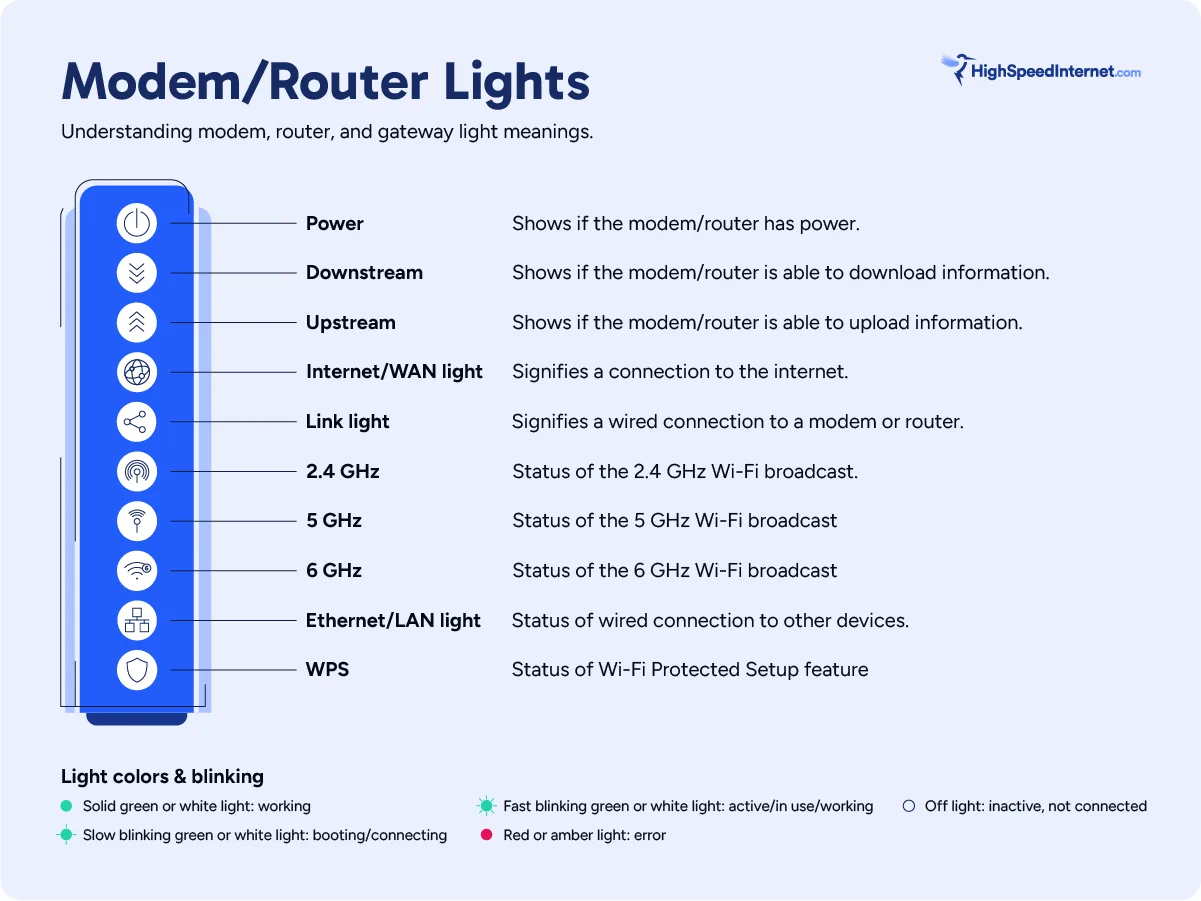
Read the Internet or WAN Light First
The first clue lies in your modem’s lights. Focus on the Internet or WAN indicator. If it’s solid green or blue, your modem likely has a stable connection. If it’s off, red, or blinking erratically, that’s a red flag. A red or absent internet light means the modem isn’t syncing with your ISP’s network, often due to hardware failure, a line issue, or a configuration problem. Don’t confuse this with the power or Wi-Fi lights; the internet light is the key indicator.
What Each Light Tells You
- Power light: Should be solid. If blinking or off, check the power cable.
- Downstream/Receive: Should be solid, showing signal from ISP.
- Upstream/Send: Should be solid, confirming two-way communication.
- Online/Internet: Must be solid. Blinking or off means no internet connection.
If multiple lights are blinking or missing, the modem may be stuck in a boot loop, which is a strong sign of failure.
Test Internet via Direct Ethernet Connection
Bypass the Router Completely
To test if your modem is bad, connect a computer directly to the modem using an Ethernet cable. Unplug the router entirely during this test. If you get internet access, your modem is likely fine. If not, the problem is either the modem or your ISP connection.
This step is critical. Many people blame their router when the real issue is upstream. A direct Ethernet test removes the router from the equation and gives you a clear answer.
Interpret Your Results
- ✅ Internet works: Modem is functional. Problem lies with router or Wi-Fi.
- ❌ No internet: Modem or ISP is at fault. Proceed to the next diagnostic steps.
Make sure your computer’s Ethernet port is working by testing it on another network if you’re unsure.
Restart Modem and Router the Right Way
:max_bytes(150000):strip_icc()/how-to-properly-restart-a-router-modem-2624570-8ef8d3ea41a14c928947e58c32fa3646.png)
Follow the Correct Power Cycle
A simple restart fixes many issues, but most people do it wrong. Here is the right way:
- Turn off both modem and router.
- Wait 60 seconds to ensure capacitors fully discharge.
- Plug in the modem first and wait until all lights stabilize (2–3 minutes).
- Then power on the router.
This full reset clears temporary glitches and forces the modem to re-sync with your ISP. If the problem returns within hours or days, the modem may be failing.
Why the 60-Second Wait Matters
Less than 30 seconds may not fully reset the modem’s memory. A full minute ensures a clean boot. Skipping this step can lead to false diagnostics.
Access the Modem’s Web Interface
Log In at 192.168.100.1
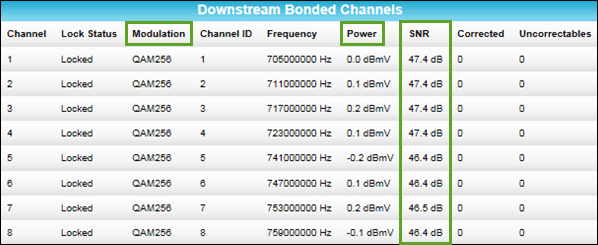
Open a browser and go to http://192.168.100.1, the default IP for most cable modems. You don’t always need a password. The status page is often viewable without login. Look for sections like Signal Levels, Connection Status, and Event Logs.
If the page won’t load during an outage but works later, that’s a sign the modem is dropping connection intermittently, which is common in failing units.
Check Signal Strength and SNR
- Downstream Power: Should be between -10 dBmV and +10 dBmV.
- Upstream Power: Should be under 50 dBmV.
- Signal-to-Noise Ratio (SNR): Should be 30 dB or higher.
Values outside these ranges suggest signal issues. If they are consistently bad, the modem’s tuner may be failing.
Review Modem Event Logs
Look for Connection Drops and Sync Loss
In the modem’s web interface, go to the Event Log or Status Log. Look for recurring entries like:
- “T3/T4 timeout” means the modem failed to sync with ISP
- “Start-up failed” indicates the boot process was interrupted
- “No Ranging Response” points to failed upstream communication
- “Unauthorized” suggests the MAC address is blocked or authentication failed
- “Unexpected reboot” indicates a hardware or power issue
If logs show repeated sync failures or reboots during outages, your modem is likely failing.
No Logs During Outages?
Even more telling: if the modem shows no log entries during known downtime, it may have crashed completely. A healthy modem logs every connection attempt.
Compare Router and Modem Status
Router Shows “No Internet” but Modem Is Online
This is a classic sign of a bad modem. The router sees the local network but can’t reach the internet. If the modem’s internet light is solid but your router says “no internet,” the modem may be passing a fake or incomplete signal.
In one real case, a Netgear Nighthawk router showed no internet while the Cisco DPC3216 modem indicated full connectivity. The issue resolved temporarily after restarts, pointing to a failing, low-quality ISP modem.
When the Router Is the Real Problem
If the direct Ethernet test works but Wi-Fi doesn’t, the router, not the modem, is likely at fault. Test a wired connection to the router to confirm.
Try a Known-Good Modem
Swap to Confirm the Fault
If you suspect a bad modem, the fastest way to confirm is to test with a working, ISP-compatible modem. Borrow one or buy a certified model. If the connection stabilizes immediately, your original modem is faulty.
This method eliminates guesswork. Many users spend hours troubleshooting routers or Wi-Fi when a simple modem swap solves everything.
Ensure ISP Compatibility
Before buying, verify the modem works with your provider:
- Xfinity: Requires DOCSIS 3.1 for gigabit speeds.
- Spectrum: Supports most DOCSIS 3.0+ modems.
- AT&T Fiber: Uses gateway devices and may require bridge mode.
Check your ISP’s approved modem list online.
Reset Modem to Factory Settings
Use the Reset Button
If logs show errors or the modem behaves erratically, reset it to factory defaults. Use a paperclip to press and hold the reset button (usually on the back) for 10–15 seconds.
This clears corrupted settings and forces a fresh ISP registration. After reset, wait 5 minutes for full re-sync.
When Reset Helps (and When It Doesn’t)
A reset may fix firmware glitches or configuration issues. But if problems return within a day, the hardware is likely failing. Repeated resets are not a long-term fix.
Contact Your ISP for Remote Diagnostics
Ask for a Modem Health Check
Call your ISP and ask:
- “Can you see my modem online?”
- “Are there any outages at my address?”
- “Can you push a reset or check signal levels remotely?”
ISPs can run diagnostics, view signal stats, and even reboot your modem from their end. If they report frequent disconnects or authentication failures, it points to modem issues.
Request a Replacement
If you rent your modem, ask for a free replacement. Most ISPs will send one at no cost if you’re having persistent issues. Even if you own it, they may offer a loaner while you troubleshoot.
Check for Firmware Updates
Visit the Manufacturer’s Support Site
Outdated firmware can cause instability. Go to the modem manufacturer’s website (e.g., Cisco, Arris, Netgear) and search for your model. Check if a firmware update is available.
Note: Most consumer modems update automatically. Manual updates are rare and risky, so only attempt if instructed by support.
Why Firmware Matters
Old firmware may lack fixes for known bugs or security flaws. A modem that worked fine for years can start failing after an ISP network upgrade if firmware isn’t compatible.
Replace Low-Quality ISP Modems

Upgrade from Rental Units
ISP-provided modems are often low-cost, entry-level devices. They’re functional but prone to overheating and failure over time. If yours is more than 3–5 years old, consider upgrading.
A $100–$150 DOCSIS 3.1 modem pays for itself in a year by eliminating rental fees ($10–$15/month) and improving reliability.
Best Replacement Models
- Netgear CM2000: DOCSIS 3.1, up to 2 Gbps
- Motorola MB8600: 32×8 channel, excellent stability
- Arris SURFboard SBG7600: Modem plus Wi-Fi 6 router combo
Ensure compatibility with your ISP before purchasing.
Prevent Future Modem Issues
Keep It Cool and Ventilated
Overheating is a leading cause of modem failure. Place it in a well-ventilated area, away from TVs, routers, or enclosed spaces. Use a cooling pad if needed.
Use Power Protection
Use a surge protector. A single power spike can fry modem circuitry. Avoid plugging into overloaded outlets.
Schedule Regular Reboots
Reboot monthly (or use a smart plug) to clear memory and maintain performance.
Frequently Asked Questions About How to Tell If a Modem Is Bad
What Are the Most Common Signs of a Failing Modem?
The most common signs include intermittent connection drops, a router showing “no internet” while the modem shows connectivity, and an off or red internet light. Event logs showing repeated sync failures or unexpected reboots also strongly indicate a failing modem.
How Long Should a Modem Last Before It Goes Bad?
Most modems last between 3 and 5 years, though higher-quality models can last longer. ISP-provided rental modems often fail sooner due to lower-quality components. If your modem is more than 3 years old and showing issues, replacement is worth considering.
Can a Bad Modem Affect Wi-Fi Without Affecting Ethernet?
Yes. A failing modem can pass a weak or incomplete signal that disrupts Wi-Fi connectivity while wired devices may still function intermittently. However, if only Wi-Fi is affected and Ethernet works fine, the router is more likely the culprit.
Will Resetting My Modem Fix a Hardware Problem?
No. A factory reset only clears configuration issues and firmware glitches. If the modem’s hardware is failing, such as a damaged tuner or overheating components, a reset will not provide a permanent fix. Repeated resets with recurring problems indicate hardware failure.
Should I Replace My ISP Modem with My Own?
Buying your own modem is often more cost-effective than renting. It eliminates monthly rental fees ($10–$15/month) and gives you access to higher-quality hardware. Just make sure any replacement modem is on your ISP’s approved list before purchasing.
Can I Test My Modem Without Calling My ISP?
Yes. You can perform a direct Ethernet test, check the modem lights, access the web interface at 192.168.100.1, and review event logs. Swapping in a known-good modem is the most definitive self-test before contacting your ISP.
Key Takeaways for Diagnosing a Bad Modem
A bad modem can mimic router issues, Wi-Fi problems, or ISP outages. The key is testing each component in isolation. Start with the modem lights, run a direct Ethernet test, check the event logs, and confirm with a known-good unit. If your modem shows erratic behavior, fails to sync, or crashes during use, it’s time to replace it.
Upgrading from a low-quality ISP modem not only fixes current issues but prevents future headaches, giving you faster, more reliable internet for years to come. Start by checking your modem lights right now. That single step takes 10 seconds and often points you straight to the answer.



