
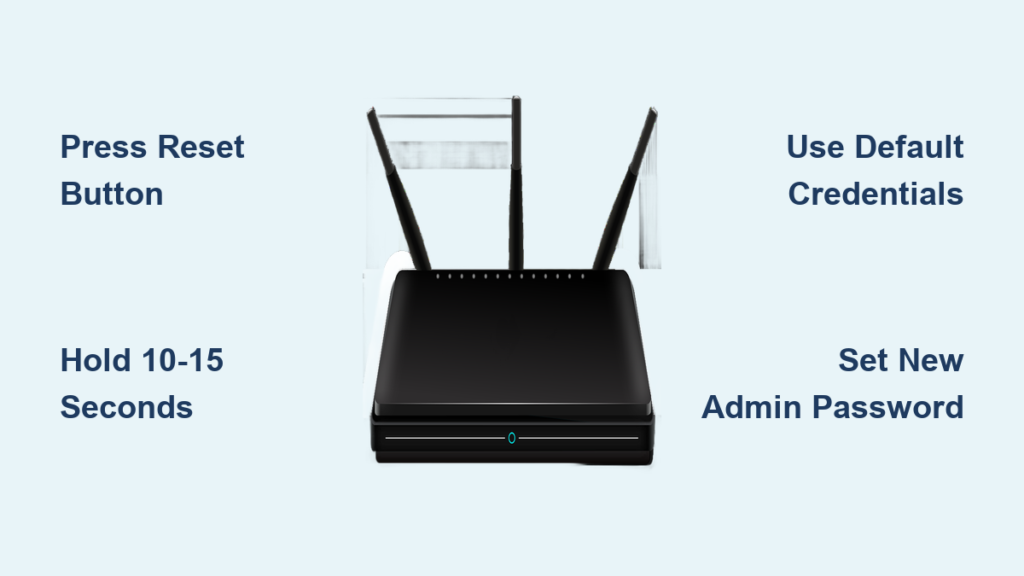
You stare at your router, unable to access the admin panel because the password is lost. This common lockout stops you from changing Wi-Fi names or fixing security gaps instantly.
Learn exactly how to reset router password settings using the physical reset button and default credentials. This guide walks you through every step to regain full control of your network safely.
Gather Essential Tools for Router Reset
You need a few specific items before starting the reset process to ensure success. Having these ready prevents interruptions while the router reboots.
Required Items Checklist
- A working power outlet near the router location
- The physical router unit you intend to reset
- A small pointed object like a paperclip or SIM tool
- Access to the recessed reset button on the device
- Five to ten minutes of uninterrupted time
Ensure the router remains plugged in throughout the initial steps. Most failures occur because users disconnect power too early or lack the right tool to press the button.
Locate the Reset Button Correctly
Find the tiny hole labeled “Reset” on the back or bottom of your device. It is often recessed to prevent accidental presses during normal use.
Do not confuse this with the WPS or power toggle buttons. Using the wrong button will not trigger the factory reset sequence you need.
Perform Factory Reset on Your Router
:max_bytes(150000):strip_icc()/hard-reset-rule-for-routers-3971318-72c97bd9ec7d4dd9aa414dc68b96977d.png)
The core method to reset router password access involves a specific physical action. You must hold the button down for a precise duration to trigger the wipe.
Press and Hold the Reset Button
Insert your paperclip into the reset hole and press firmly against the internal switch. Hold this pressure continuously for at least 10 to 15 seconds without releasing.
Watch the LED lights on the front panel closely during this time. They will often flash erratically or turn off completely to indicate the reset is active.
Wait for the Reboot Cycle to Finish
Release the button and unplug the router from the power source immediately. Wait for 30 seconds to allow the internal capacitors to discharge fully.
Plug the device back in and wait one to two minutes for it to boot up. The status lights will stabilize once the factory settings are fully restored.
Access Default Login Credentials
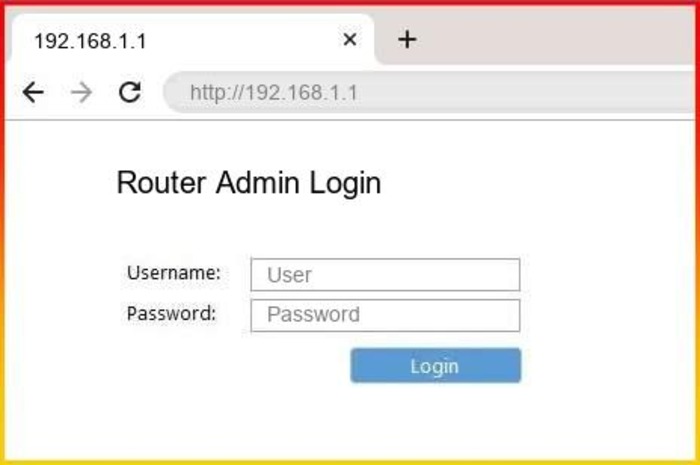
Once the router reboots, it reverts to the original username and password combination. You must find these details to log into the dashboard again.
Find Default Username and Password
Check the sticker on the bottom or back of your router for default credentials. Common defaults include “admin” for both fields or “password” as the passcode.
Newer models often feature unique, randomized passwords printed on the label. Scan any QR code present to view these details on your mobile device quickly.
Log Into the Router Dashboard
Open a web browser and enter the default IP address in the address bar. Common addresses include 192.168.1.1, 192.168.0.1, or brand-specific URLs like routerlogin.net.
Enter the default username and password found on the sticker. If the page does not load, ensure your computer is connected to the router via Wi-Fi or Ethernet cable.
Change Admin Password Securely
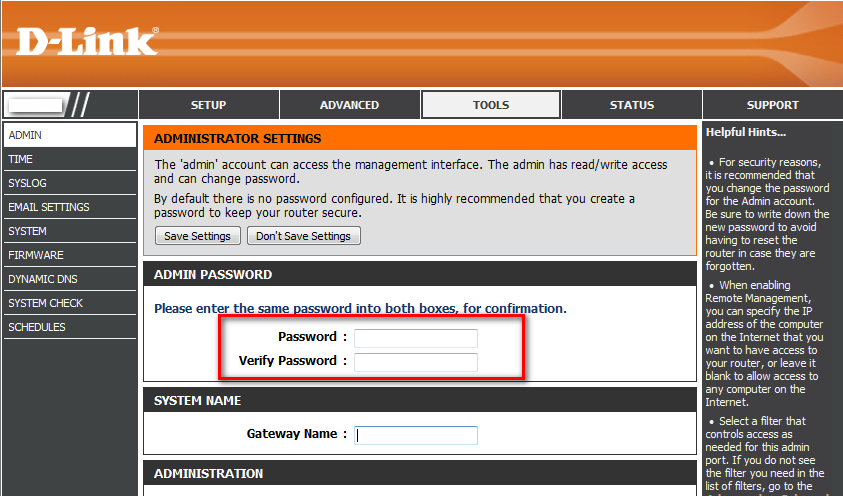
Your immediate goal after logging in is to replace the default password with a strong one. This step prevents unauthorized users from changing your settings again.
Navigate to Administration Settings
Look for tabs labeled “Administration,” “System,” or “Management” within the interface. These are typically located under advanced tools or utility menus.
Select the option marked “Router Password” or “Change Password.” This section allows you to define the new credentials required for future logins.
Create a Strong New Password
Generate a password that is at least 12 characters long for maximum security. Include a mix of uppercase letters, lowercase letters, numbers, and symbols.
- Avoid using personal information like birthdays or names
- Do not reuse passwords from other accounts
- Store the new password in a secure password manager
Save your changes and log out to test the new credentials immediately. You will need this new password for any future adjustments to your network.
Troubleshoot Failed Reset Attempts
Sometimes the standard process does not work on the first try due to hardware quirks. These steps help you diagnose why the router did not reset.
Router Shows No Response
If the lights did not flash or the settings remain unchanged, try holding the button longer. Some models require up to 30 seconds of continuous pressure to activate.
Ensure you are pressing the correct recessed button and not a neighboring switch. Try a different tool if your current paperclip is too thick to reach the switch.
Cannot Access Login Page
Verify that your device is connected to the router’s network directly. If using Wi-Fi, move closer to the router to rule out signal issues.
Clear your browser cache or try opening the page in incognito mode. You may also need to disable any active VPNs or firewalls temporarily to access the local IP.
Prevent Future Lockouts
Taking simple precautions now saves you from repeating this entire process later. Proper management ensures you always have access to your network settings.
Save Credentials Immediately
Record your new admin password in a secure location right after changing it. Use a dedicated password manager app for encrypted storage on all your devices.
Alternatively, write the password in a physical notebook kept in a safe place. Label it clearly so you know it belongs to your router configuration.
Create a Recovery Plan
Document your router model, serial number, and ISP support contact information. Keep a printed copy of the reset steps in case you forget the procedure.
Update this document whenever you change your network name or password. Having this plan ready reduces stress if you ever face a lockout again.
Use Brand-Specific Recovery Modes
Advanced users may need to utilize firmware recovery if a standard reset fails. This method is specific to certain brands like ASUS or Netgear.
Access Firmware Recovery Options
Download the latest firmware file from the manufacturer’s official website. Rename the file according to specific instructions, such as “firmware.bin.”
Place the file on your computer and follow the brand’s specific key-combination startup sequence. This forces the router into a recovery state where it accepts the new firmware upload.
Reconfigure Wi-Fi Settings After Reset
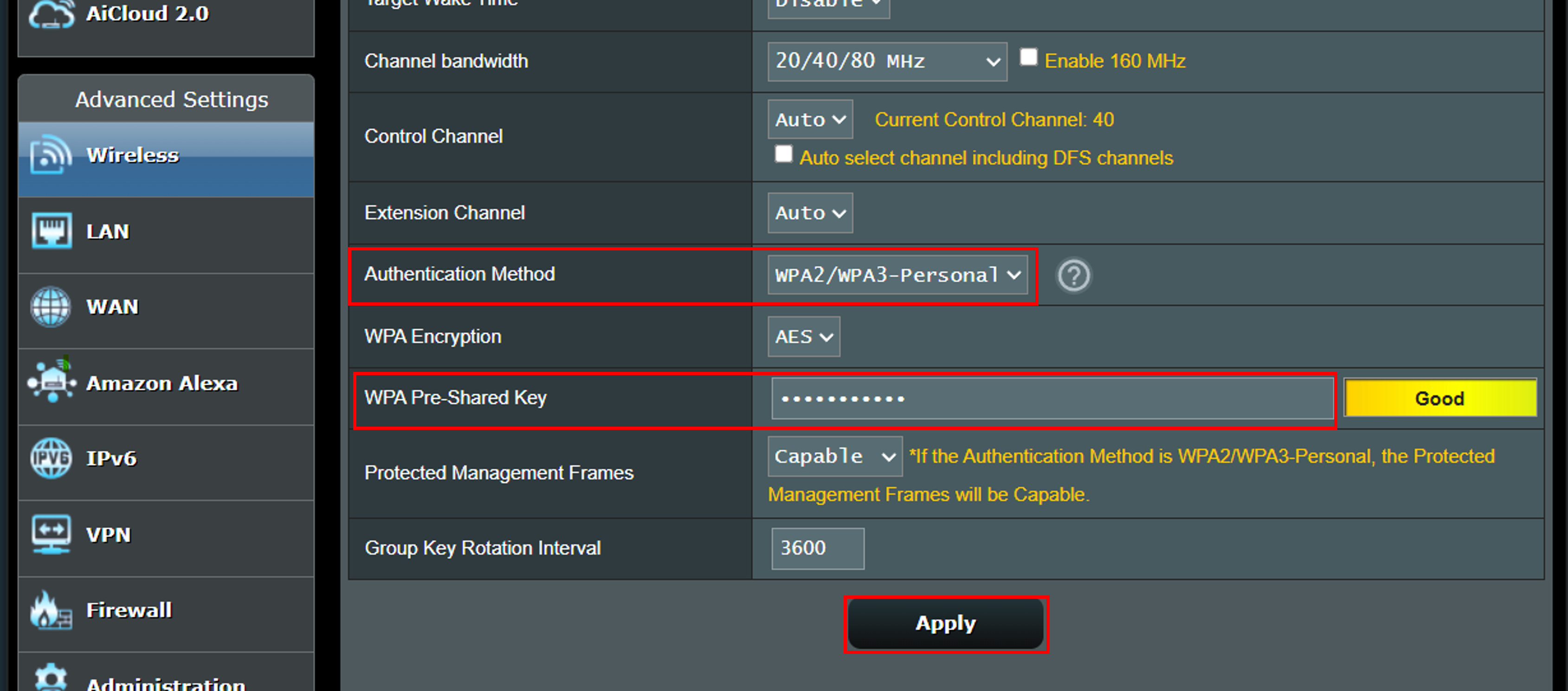
Your network is now open and using default names, so you must reconfigure it immediately. This ensures your internet connection is secure and functional.
Set Up Wi-Fi Name and Encryption
Change the default SSID to a unique name that does not reveal your identity or address. Select WPA2 or WPA3 encryption to protect data transmitted over your network.
Create a strong Wi-Fi password distinct from your admin password. This prevents neighbors or strangers from accessing your internet bandwidth.
Test Internet Connection
Connect a smartphone or laptop to the newly named Wi-Fi network. Open a website to confirm that the router is passing traffic from your modem correctly.
Restart both your modem and router if the internet does not work immediately. Some ISPs require you to re-enter account credentials after a factory reset.
Frequently Asked Questions About Router Passwords
What happens if I reset my router password?
Resetting erases all custom settings including Wi-Fi names, passwords, and port forwarding rules. Your router returns to the exact state it was in when you first bought it.
Can I reset my router without a paperclip?
You can use any thin, pointed object like a SIM eject tool or a straightened pin. The object must be small enough to fit into the recessed reset hole.
Does resetting the router change my Wi-Fi password?
Yes, the Wi-Fi password reverts to the default printed on the router’s sticker. You must log in and set a new Wi-Fi password to secure your network again.
What if the default password on the sticker does not work?
Ensure you are distinguishing between uppercase and lowercase letters exactly as printed. If it still fails, the router may not have completed the reset cycle properly.
Will resetting my router affect my internet speed?
Resetting does not change your internet plan speed from your provider. However, you may need to reconfigure specific settings to optimize performance for your home.
Key Takeaways for How to Reset Router Password
Resetting your router restores factory defaults and allows you to set a new admin password. Always hold the reset button for at least 10 seconds while the device is powered on.
Remember to reconfigure your Wi-Fi name and encryption immediately after logging in. Store your new credentials in a secure password manager to avoid future lockouts.
Take action now by locating your router and checking the label for default details. This simple preparation ensures you can restore your network access quickly if needed.



