

Is your internet crawling, dropping, or refusing to connect at all? A simple modem reset can often restore service in minutes. Whether you’re facing buffering streams, failed video calls, or a stubborn “no internet” message, knowing how to reset your modem the right way is the first real step toward reliable connectivity. But there’s a catch: most people confuse a restart with a factory reset, and choosing the wrong option at the wrong time can wipe your settings or leave your modem stuck in activation limbo.
This guide breaks down exactly how to reset your modem, including when to reboot, when to factory reset, and how to do each safely. You’ll learn three ways to restart your modem (power button, power cord, and software), two methods for a full factory reset, and what to do afterward so your devices reconnect smoothly. Plus, we’ll cover common mistakes, like holding the reset button too long, that could send your modem into a 15-minute reactivation loop.
By the end, you’ll know not just how to reset a modem, but when to do it, what to expect, and how to prevent future problems with simple monthly maintenance.
Restart vs. Factory Reset: Know the Difference
Before pressing any buttons, understand the critical difference between restarting and resetting your modem. Picking the wrong option can cost you time, settings, and your internet connection.
Restart Keeps Your Settings
A restart (or reboot) powers your modem down and back up. It clears temporary glitches, refreshes your connection to the ISP, and improves performance without changing your WiFi name, password, or network settings. This is the first fix for most internet issues and should always come before a full reset.
Factory Reset Wipes Everything
A factory reset erases all custom settings. Your WiFi network name (SSID), password, admin login, and routing configurations revert to factory defaults. You’ll need to set everything up again, just like the first day you got the modem. This is a last-resort fix, only used when a restart fails and your ISP or tech support recommends it.
⚠️ Warning: Never factory reset without guidance. If done incorrectly, your modem may fail to reconnect to your ISP and require professional reactivation.
When to Restart Your Modem
A reboot solves most everyday internet problems. Try this first if you experience:
- Slow speeds or high latency
- Intermittent disconnections
- Devices dropping off WiFi
- Buffering during streaming
- Router lights blinking abnormally
Restart Every 1–3 Months
Even if your internet seems fine, reboot your modem every 1–3 months. This clears memory leaks, refreshes firmware, and maintains stable performance, especially on older devices. Think of it like restarting your computer: it just runs better afterward.
How to Restart Modem via Power Button

Use this method if your modem has a physical power button.
Locate the Power Button
Check the back or side of your modem for a small, recessed On/Off button. It’s often labeled and may require a pen tip to press.
Perform the Restart
- Press and hold the power button until the modem shuts off
- Wait 30 seconds so the modem fully discharges and clears internal memory
- Press the button again to power it back on
Why 30 seconds? Less than 30 seconds may not fully reset the modem’s state. Waiting ensures a clean reboot and a better chance of fixing connectivity issues.
How to Restart Modem by Unplugging Power
Use this method if your modem lacks a power button.
Unplug and Reconnect
- Remove the power cord from the wall outlet or surge protector
- Wait 30 seconds (do not skip this step)
- Plug the cord back in firmly
What to Expect
- Lights will flash as the modem boots
- Full startup takes 2–3 minutes
- The internet light turns solid green when online
This method works the same as using a power button and is safe for all modem types.
Restart Modem Remotely via Settings Page
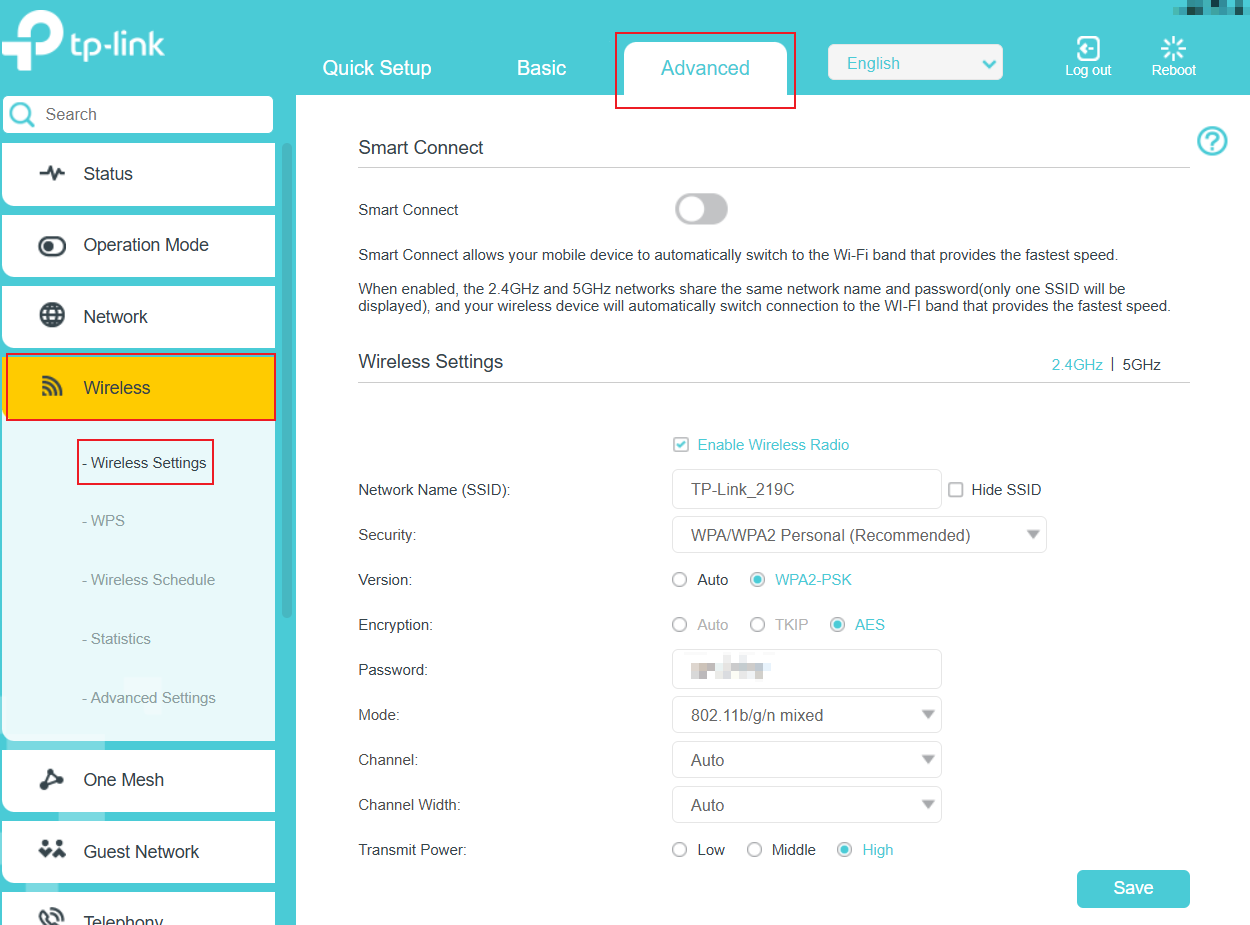
Restart without touching the device, ideal if it’s out of reach or mounted in a hard-to-access spot.
Access the Modem Interface
- Open any web browser (Chrome, Safari, Firefox)
- Enter your modem’s IP address:
–http://192.168.100.1(most common)
–http://192.168.1.1(common for combo units) - Log in with your admin username and password
Tip: Default credentials are on the modem sticker. If you changed them and forgot, you’ll need a factory reset to regain access.
Reboot Through the Menu
- Go to Advanced or System settings
- Find Reboot, Restart, or Restart Gateway
- Click it and confirm the action
All devices will disconnect briefly. The modem reboots in 1–2 minutes.
Note: This is a software reboot and does not erase settings. Safe to use anytime.
Factory Reset via Modem Settings (GUI Method)
This is the preferred method when you can access the modem’s web interface.
Step 1: Log Into Modem
- Open browser and go to
192.168.100.1or192.168.1.1 - Enter admin username and password
Step 2: Navigate to Restore Option
- Click Utilities in the main menu
- Select Restore Defaults from the left panel
Step 3: Reset to Factory State
- Choose Restore Modem to Factory Default State
– Optional: Restore only specific settings (WiFi, admin password, PPP credentials) - Confirm the action
- Wait 3–5 minutes while the modem resets
What Happens After
- Power light turns orange/amber
- Modem enters activation mode
- You must complete setup like a new device
- Internet light turns green when online
All devices must reconnect to WiFi using the default network name and password.
Factory Reset Using the Physical Reset Button
Use this only if you can’t access the settings page or the modem isn’t responding.
Find the Reset Button
- Located on the back of the modem
- Small, recessed, often red
- May require a bent paperclip or pen tip
Perform the Reset
- Ensure modem is plugged in and powered on
- Press and hold the reset button
- Hold for exactly 10 seconds
- Release when the power light turns amber/orange
⚠️ Critical: Do not hold for 15 seconds. At 15 seconds, the light turns red, triggering a reboot instead of a reset. If this happens, wait for the reboot to finish, then try again.
Wait for Completion
- Wait 3–5 minutes (do not unplug)
- Power light will turn orange, signaling reset is complete
- Internet light turns green when connected
You now need to activate the modem and reconnect all devices.
What Happens After a Factory Reset
A factory reset returns your modem to out-of-the-box condition. Here’s what to expect.
Modem Activation Required
You must reactivate the modem with your ISP. This process:
- Can take 5–10 minutes
- May require your account number or service ID
- Is automatic for most providers
Contact your ISP if the internet light stays off or blinking after 15 minutes.
Reconnect All Devices
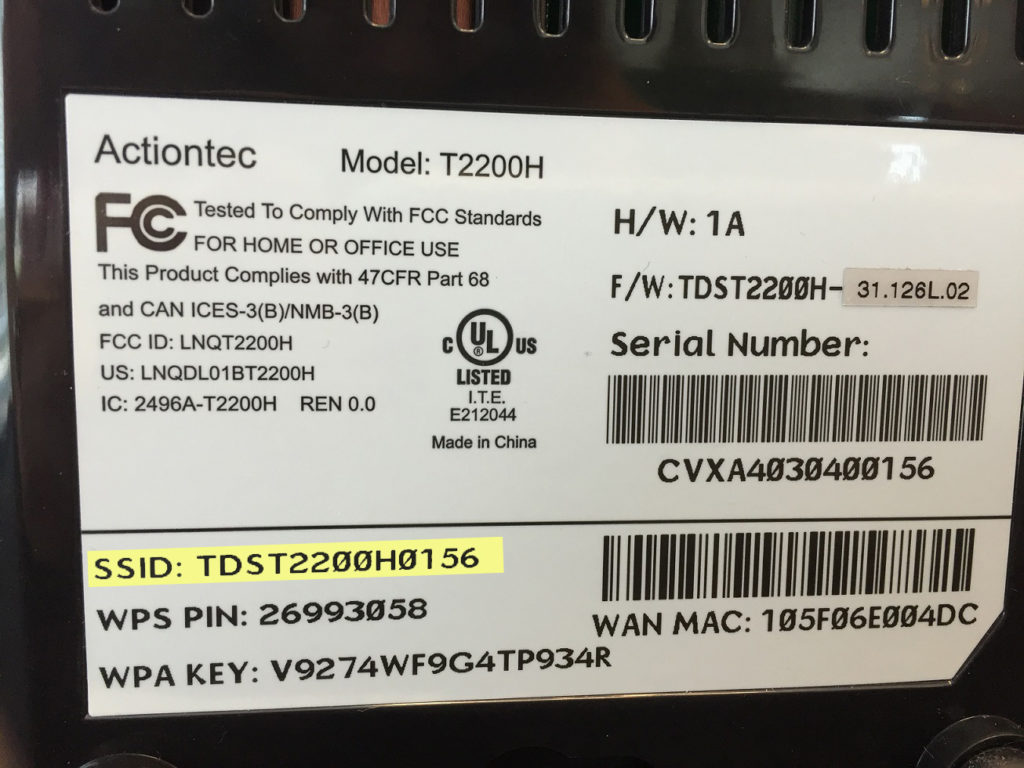
Every device (phones, laptops, smart TVs, doorbells) must reconnect to WiFi using the default network name (SSID) and security key.
Find Default Credentials
Look on the sticker on the bottom or back of the modem. It lists:
- Default SSID (WiFi name)
- Default WiFi password (security key)
- Admin username and password
Write these down. You’ll need them to log in and reconfigure settings.
How to Avoid Common Reset Mistakes
Even simple steps can go wrong. Avoid these frequent errors.
Holding Reset Button Too Long
- 10 seconds: Factory reset initiated (light turns amber)
- 15 seconds: Triggers reboot (light turns red)
- Result: Reset fails, and you must start over
Pro Tip: Use a timer. Count “1001, 1002…” slowly to ensure accuracy.
Skipping the 30-Second Wait
Unplugging and replugging immediately often fails. The 30-second wait lets capacitors fully discharge, ensuring a true reset.
Forgetting to Back Up Settings
If you’ve customized your network, back up settings before a factory reset. Most modems allow export via the settings page under Backup Configuration.
Restart vs. Reset: Decision Guide
Use this flow to choose the right action.
Internet Acting Up?
→ First: Restart the modem (power button, unplugged, or via settings)
→ Wait 2–3 minutes for full reboot
→ Test connection
Still No Internet?
→ Contact ISP or tech support
→ If advised, proceed with factory reset
Need to Reset?
→ Use GUI method if possible (safer, more controlled)
→ Use reset button only if GUI is inaccessible
Never factory reset without reason. It’s disruptive and not always necessary.
Automate Restarts for Maintenance
Keep your modem running smoothly with automated reboots.
Use a Smart Plug
- Plug modem into a smart outlet or timer strip
- Set it to power off and on once a month (e.g., Sunday at 2 AM)
- This ensures regular reboots without manual effort
Best For
- Households with constant streaming or gaming
- Older modems prone to slowdowns
- Users who forget maintenance
Note: Don’t use this with a factory reset, only for routine reboots.
Post-Reset Setup Checklist
After a factory reset, follow these steps to get back online.
- Locate modem sticker for default WiFi name and password
- Connect a device to the default network
- Open browser and go to
192.168.100.1 - Log in with default admin credentials
- Complete ISP activation process
- Reconnect all devices to WiFi
- Test internet on phone, laptop, and TV
- Reapply custom settings (if backed up)
When to Call Tech Support
Not all issues are fixed by a reset. Contact your ISP or support team if:
- Modem won’t power on after reset
- Internet light stays off or blinking red
- Activation fails repeatedly
- You’re unsure how to proceed
Expert help is free and can prevent costly mistakes. A support agent may remotely diagnose or push settings to your modem.
Final Tips for Modem Maintenance
Keep your internet reliable with these habits.
Reboot Monthly
Set a reminder to restart your modem every 30–90 days. It’s the easiest way to prevent slowdowns.
Keep Firmware Updated
Some modems auto-update. Others require manual checks in the settings under Firmware Update.
Position Matters
Place your modem:
- In an open area
- Away from microwaves, cordless phones, and metal objects
- With proper ventilation to avoid overheating
Label Your Modem
Write your ISP account number and support phone number on the bottom. Saves time during outages.
Frequently Asked Questions About Resetting a Modem
How long should I wait when unplugging my modem?
Always wait 30 seconds after unplugging your modem before plugging it back in. This allows the modem to fully discharge and clear its internal memory, ensuring a clean restart rather than a partial reset.
What’s the difference between restarting and resetting a modem?
A restart powers the modem off and on without changing any settings, including your WiFi name and password. A factory reset erases all custom settings and returns the modem to its original out-of-the-box state, requiring full reconfiguration and ISP reactivation.
Will I lose my WiFi password if I reset my modem?
Yes. A factory reset wipes your custom WiFi password and restores the default one printed on the modem sticker. A simple restart does not affect your password or any other settings.
How do I know when my modem is back online after a reset?
Wait for the internet light to turn solid green. During the reset process, the power light will turn orange/amber when reset is complete. If the internet light stays off or blinks red after 15 minutes, contact your ISP.
Can I reset my modem from my phone?
Yes, if you can access the modem’s settings page through your phone’s browser. Enter 192.168.100.1 or 192.168.1.1, log in with your admin credentials, and navigate to the reboot or restore defaults option.
Why is my modem not working after a factory reset?
The modem likely needs reactivation with your ISP. After a factory reset, you must complete the activation process using your account information. If activation fails or the internet light stays off, contact your ISP for assistance.
Key Takeaways for Resetting Your Modem
You now know how to reset a modem the right way, whether you need a quick restart or a full factory reset. The golden rule: restart first, reset only when necessary, and always follow up with proper reconfiguration. Most connectivity issues resolve with a simple 30-second power cycle, so save the factory reset for situations where you’ve already tried rebooting and received guidance from tech support. With these steps, you’ll solve most internet problems fast and keep your network running smoothly for months.



