
You just unboxed your new device, but turning it into a reliable internet source often leads to frustrating “no internet” errors or slow speeds. Most users miss critical steps like APN configuration or SIM compatibility checks that prevent proper connection.
This guide shows you exactly how to use a 4G LTE MiFi router from start to finish. You will learn to verify hardware, configure settings, secure your network, and fix common connection issues quickly.
Verify Hardware Compatibility and SIM Readiness
Successful setup begins before you power on the device. You must ensure your hardware matches your carrier’s network requirements.
Check LTE Band Support for Your Region
Not all routers work on every network. A device labeled “4G LTE” may fail if it lacks specific frequency bands.
* US Users: Ensure support for Bands 2, 4, 5, 12, 13, and 66 for AT&T or T-Mobile. Verizon often blocks non-branded devices entirely.
* UK and EU: Look for Bands 3, 7, and 20. Avoid EU-only models if traveling globally as they may lack Band 20.
* Japan: Requires Bands 1, 3, 19, and 21. Many imported routers miss Band 19, resulting in zero signal.
Download the full specification sheet for your device and cross-reference it with your carrier’s spectrum map.
Prepare Your Data SIM Card
A poorly prepared SIM card is the leading cause of activation failure.
* Use a data-enabled SIM with the PIN lock disabled.
* Confirm the size matches your tray, as most units require a Nano-SIM.
* Activate the SIM in a smartphone first or complete online activation.
* For GL-MiFi with Telnyx, ensure your portal account is active and the plan is assigned.
Select the Correct Power Source
Never rely on a laptop USB port for stable power during setup. Use a 5V/2A adapter or a high-quality USB-C cable. Some models like the TP-Link M7350 will not boot without the battery inserted, even when plugged in. Keep the battery charge above 30% during initial configuration.
Install SIM and Power On the Device Correctly
Proper physical installation prevents boot loops and signal registration errors.
Insert SIM and Battery Properly
- Use a paperclip to eject the SIM tray gently.
- Insert the SIM with contacts facing down and the notch aligned.
- Exception: GL-MiFi models often require the chip facing up. Check your manufacturer diagram.
- Place the 4G SIM in SIM1 for dual-SIM units unless specified otherwise.
- Seat the battery firmly and check for bent pins if the device fails to power.
Attach External Antennas If Applicable
Stationary routers like the TP-Link Archer MR series include external antennas for better reception. Connect both antennas to the rear ports and rotate until snug. Do not overtighten them. Point antennas vertically upward for the best signal reception.
Boot Sequence and Registration Wait Time
- Press and hold the power button for 3 to 5 seconds.
- Wait 60 to 90 seconds before attempting to connect.
- The device must complete SIM authentication.
- It must register with the tower.
- It needs to acquire an IP address.
- The DHCP server must launch.
If you see no signal after two minutes, verify your SIM activation status with your carrier immediately.
Connect to Wi-Fi and Access Admin Panel
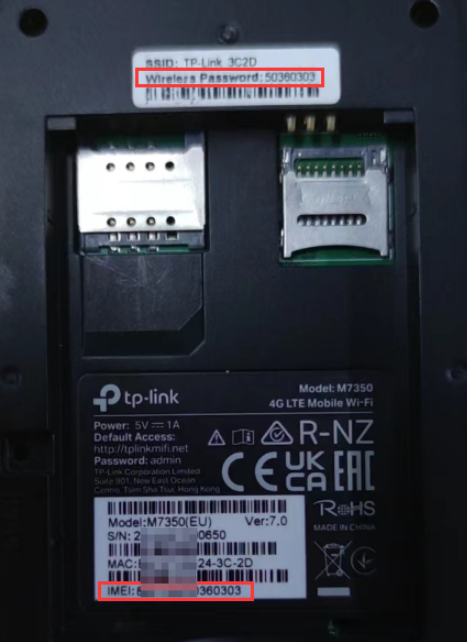
Once the router is online, you must connect your device and access the settings interface.
Find and Join the Default Network
- Open Wi-Fi settings on your phone or laptop.
- Select the SSID printed on the router label such as
TP-Link_XXXXorZTE_WiFi_YYYY.- Avoid generic names like “MiFi” unless confirmed by your label.
- Enter the password on the label exactly as written since it is case-sensitive.
- QR Code Option: Some TP-Link models allow scanning a QR code on the bottom for instant connection.
Connection Fails? Try forgetting the network, ensuring the Wi-Fi toggle is on, or restarting both devices.
Access the Web Admin Interface
- Open a browser and enter the gateway IP in the address bar.
- Common addresses include
192.168.0.1,192.168.1.1, or192.168.8.1for GL-MiFi. - Domain aliases include
tplinkwifi.netormiwifi.com.
- Common addresses include
- Log in with default credentials found on the label.
- Usually
admin/admin,admin/password, or blank username withadminpassword.
- Usually
Page Won’t Load? Confirm you are connected to the MiFi Wi-Fi, disable VPNs, or try Incognito mode.
Use Mobile App for Easier Management
TP-Link and others offer Tether apps for iOS and Android. Download the app while on another network to monitor data usage and adjust settings with larger text. Note that some app features require firmware updates to function correctly.
Configure APN Settings to Fix No Internet Issues
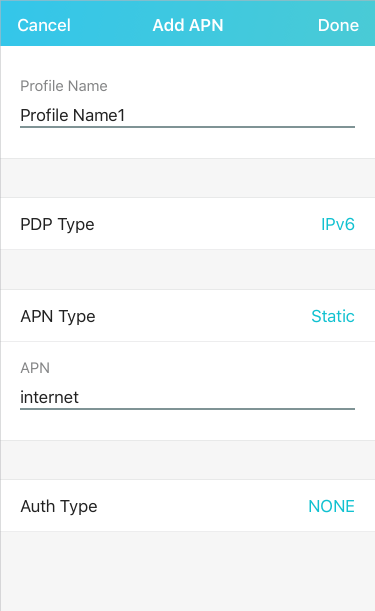
Incorrect APN settings cause 90% of “connected but no internet” problems. You must configure this manually if auto-detection fails.
Navigate to APN Settings Menu
Go to Network > Mobile Network > APN in your admin panel. The path varies by brand. Click Add or Edit to enter your carrier details.
Enter Correct APN Details
Fill in the fields with your carrier-specific information.
* APN Name: Specific to your carrier (see list below).
* Username and Password: Usually blank, but some use web.
* Authentication: Set to PAP or CHAP.
* APN Protocol: Select IPv4 or IPv4/IPv6.
* Bearer: Set explicitly to LTE only.
Common Carrier APN Values
- T-Mobile (US):
fast.t-mobile.com - AT&T:
nxtgenphone - Vodafone (UK):
internet - Three (UK):
three.co.uk - O2 (UK):
mobile.o2.co.uk - Deutsche Telekom (DE):
internet.telekom - Vodafone (DE):
web.vodafone.de - Proximus (BE):
data.proximus.be - Telnyx:
data00.telnyx
Warning: Third-party APN databases are 37% inaccurate. Always get APN details from your carrier’s official site. Disable roaming in mobile network settings unless you are traveling internationally to prevent accidental charges.
Secure Your Wi-Fi Network Immediately
Default settings are insecure. Lock down your network right after initial connection.
Change SSID and Password
- Go to Wireless > Basic Settings.
- Set a new SSID that avoids personal identifiers.
- Enable WPA2-PSK (AES) encryption.
- Create a 12+ character password mixing uppercase, lowercase, numbers, and symbols.
Avoid WEP or TKIP as they are outdated and easily cracked. Short or simple passwords are also risky.
Disable Vulnerable Features
- WPS: Turn this off due to known security flaws.
- Remote Management: Disable to limit admin access to the local network only.
- Hide SSID: Not recommended as it complicates connections and offers minimal security.
Enable HTTPS and Update Firmware
Enable HTTPS-only login in admin settings if supported to encrypt your password. MiFi units rarely auto-update, so check the manufacturer’s website monthly for firmware updates to fix security holes.
Troubleshoot Common Connection Problems
Fix issues fast with these diagnostic steps when things go wrong.
Fix Connected But No Internet Status
This issue is most often caused by incorrect APN, exhausted data allowance, or DNS failure.
Fix DNS:
1. In the admin panel, go to Network > DNS.
2. Set primary DNS to 8.8.8.8 (Google).
3. Set secondary DNS to 1.1.1.1 (Cloudflare).
Resolve No Signal or Registration Errors
Verify your SIM activation status and confirm LTE band compatibility. Try the SIM in a phone. If it fails there, the issue is carrier-related.
Improve Slow Speeds
Slow speeds result from weak signal, network congestion, data throttling, or overheating. Throttling is common after 20–50 GB on unlimited plans. Overheating can reduce speeds by up to 70%. Keep the device below 35°C (95°F) and never enclose it in a bag.
Address Intermittent Disconnects
Likely causes include signal fluctuations, overheating, or unstable power sources. Avoid low-power USB ports and ensure the device has adequate airflow.
Perform Factory Reset When Necessary
Use this step only when needed since it erases all custom settings.
When to Reset the Device
Reset if you forget the admin password, encounter persistent APN errors, or if the Wi-Fi stops broadcasting entirely.
How to Execute a Factory Reset
- Locate the recessed reset button on the device.
- Insert a paperclip and hold for 10 to 15 seconds.
- Wait for LEDs to flash as the device reboots with factory defaults.
Do NOT reset for slow speeds, battery drain, or overheating. These are signal or hardware issues that resetting will not fix.
Optimize Battery Life and Performance
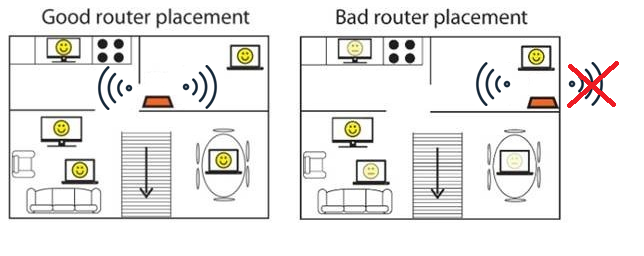
Extend battery life and maintain peak speeds with proper management.
Maximize Battery Duration
Real-world life ranges from 4 to 10 hours. Drains faster with weak signal, multiple connected devices, or high ambient temperature. For stationary use, plug into AC power and disable battery charging in admin settings if available. This reduces heat and prolongs battery lifespan.
Improve Signal Reception
Place the device near a window and away from metal objects. Keep antennas vertical for best results. Avoid basements or concrete-heavy rooms where signal attenuates sharply.
Manage Connected Devices
Limit connections to 5 to 8 devices for best performance. Monitor usage in the admin panel and disconnect unused devices to save bandwidth.
Understand 4G LTE Limitations and Rules
Set realistic expectations for your mobile broadband experience.
Recognize Speed and Data Caps
Real-world LTE speeds range from 20 to 100 Mbps. Speeds over 200 Mbps require 5G technology. “Unlimited” plans often throttle after 20 to 50 GB of hotspot usage.
Note Latency and Gaming Issues
High latency and restrictive NAT are common. Port forwarding is often unavailable, making these devices unsuitable for competitive gaming or specific VoIP needs.
Know Regional Carrier Rules
- United States: T-Mobile and AT&T usually work out-of-box. Verizon blocks non-certified devices.
- United Kingdom: Three UK requires
three.co.ukAPN and may throttle hotspot data. - Germany: Vodafone and Telekom require specific APNs and may enforce tethering limits.
- Japan: Strict band requirements mean most imported routers lack Band 19 and will show no signal.
Ethernet and Fallback Limitations
Most portable MiFis are Wi-Fi only. For wired connections, use specific models like the TP-Link Archer MR series or add a Wi-Fi-to-Ethernet bridge. Unlike phones, MiFi units do not switch carriers if the signal drops.
Frequently Asked Questions About 4G LTE MiFi Routers
Why does my router say connected but have no internet?
This is usually caused by incorrect APN settings or an inactive SIM. Double-check your APN spelling and spacing against your carrier’s official data. Ensure your data plan is active and not exhausted.
How do I find the correct APN settings for my carrier?
Visit your carrier’s official support website or contact customer service. Do not rely on third-party databases as they are often outdated or inaccurate for specific MVNOs.
Can I use any SIM card in my 4G LTE MiFi router?
No. The device must support the LTE bands used by your carrier. Additionally, carriers like Verizon often block non-branded devices. Always check band compatibility and carrier policies first.
Why are my internet speeds so slow on the MiFi?
Slow speeds often result from weak signal strength, network congestion, or overheating. Move the device near a window, ensure it is cool, and check if your plan has throttled your data after heavy usage.
How long does the battery last on a portable MiFi router?
Real-world battery life typically ranges from 4 to 10 hours. Weak signals and multiple connected devices drain the battery faster. Plug into AC power for stationary use to preserve battery health.
Do I need to reset my router if speeds are slow?
No. Factory resets do not fix signal issues or plan throttling. Only reset if you forgot your password, have persistent configuration errors, or the Wi-Fi stops broadcasting.
Key Takeaways for Using Your 4G LTE MiFi Router
Successfully using a 4G LTE MiFi router requires verifying band compatibility, configuring accurate APN settings, and securing your network immediately. Always place the device in a cool location with good signal reception to prevent throttling and overheating.
Remember that mobile broadband has limitations regarding speed caps and latency compared to fixed lines. Keep your firmware updated and only reset the device when absolutely necessary to maintain optimal performance.



