
You might own a SOHO router without realizing it powers your entire home or small office network. The SOHO router meaning refers to an all-in-one device designed specifically for Small Office and Home Office environments. It combines routing, switching, firewall protection, and Wi-Fi access into one compact unit. This consolidation eliminates the need for complex server rooms or dedicated IT staff.
This guide explains exactly how these devices function as the gateway between your internet provider and your digital life. You will learn about different connection types like fiber and 5G while discovering essential security steps. We will also cover troubleshooting tips to keep your network running at peak performance.
Core Functions Integrated Into One Device
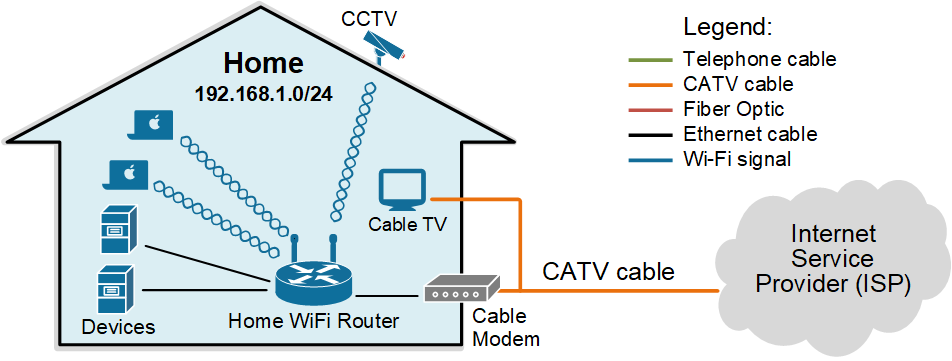
A SOHO router replaces multiple standalone components found in large corporate networks. By merging four critical roles into a single box, it simplifies setup for non-technical users. This integration is the heart of the SOHO router meaning and ensures your devices stay connected securely.
The Four Essential Roles
Your device performs these specific tasks simultaneously to manage data flow:
* Router: Directs traffic between your local network and the global internet while assigning IP addresses.
* Switch: Manages wired connections for computers and printers using Ethernet ports.
* Firewall: Filters incoming and outgoing data to block unauthorized access and cyber threats.
* Wireless Access Point: Broadcasts Wi-Fi signals so smartphones and tablets can connect without cables.
Why Consolidation Benefits You
Enterprise networks use separate hardware for each function to allow granular control. However, a consolidated SOHO router offers distinct advantages for smaller setups:
* Lower Cost: Buying one device is cheaper than purchasing four separate components.
* Space Saving: The compact unit fits easily on a desk or shelf without a server rack.
* Reduced Power: A single power supply consumes less electricity than multiple devices.
* Faster Setup: Most models feature intuitive apps that get you online in minutes.
The Demarcation Point and Network Responsibility
Understanding the demarcation point clarifies where your internet provider stops and your responsibility begins. This physical boundary is crucial for troubleshooting connection issues effectively.
Defining the Network Edge
The demarc is the exact spot where the ISP line enters your building. From this point forward, you own and manage all networking equipment.
* In a home, this is often a wall jack in the basement or utility room.
* In a small office, it might be a fiber termination box inside a wiring closet.
Your SOHO router connects directly to this point to translate the ISP signal into a usable local network.
Who Handles What?
Knowing who fixes what saves time during an outage. Use this breakdown to identify the issue source:
* ISP Responsibility: The line from the street to your building and signal delivery up to the demarc.
* Your Responsibility: The router, modem, Wi-Fi setup, internal cabling, and all connected devices.
Most ISPs will not troubleshoot beyond the demarcation point. Your SOHO router becomes the first line of defense for maintaining connectivity within your space.
Internet Input Technologies for SOHO Routers
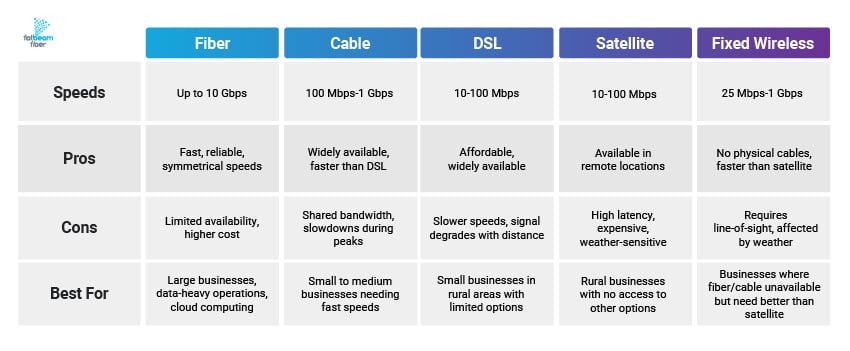
The type of internet connection determines how your SOHO router receives data. Different technologies require specific hardware and offer varying levels of performance.
DSL: Using Existing Phone Lines
DSL uses telephone wiring to deliver internet service alongside voice calls.
* How it works: A DSL modem connects to a phone jack and separates voice and data by frequency.
* Pros: Uses existing infrastructure and allows simultaneous phone use.
* Cons: Speed drops with distance from the hub and typically caps at 100 Mbps.
Cable Internet: Shared Bandwidth
Cable internet leverages coaxial cables originally designed for television service.
* How it works: A cable modem connects to the coax line while a CMTS manages neighborhood traffic.
* Pros: Widely available with speeds up to 2 Gbps.
* Cons: Shared bandwidth means speeds slow down during peak neighborhood usage.
Fiber to the Home: The Gold Standard
Fiber-optic technology transmits data as light pulses through glass cables.
* How it works: An Optical Network Terminal converts light signals for your router.
* Pros: Delivers gigabit speeds with low latency and immunity to electrical interference.
* Cons: Limited availability in rural areas and higher installation costs.
5G and Satellite Options
Wireless alternatives provide flexibility where cables cannot reach.
* 5G Home Internet: Uses mobile towers to deliver broadband without physical lines. Performance depends on tower density.
* LEO Satellites: Systems like Starlink use low-orbit satellites for global coverage with lower latency than traditional satellite.
SOHO vs Enterprise Network Differences

Comparing SOHO and enterprise architectures highlights why these routers are designed for simplicity rather than massive scale.
All-in-One vs Specialized Hardware
Enterprise networks use discrete devices for routing, switching, and firewalling to support thousands of users. A SOHO router consolidates these roles to support 10 to 20 devices efficiently. This design reduces complexity and cost for smaller environments.
Flat vs Hierarchical Topology
SOHO networks utilize a flat topology where every device connects directly to the central router. Enterprise networks use a hierarchical model with access, distribution, and core layers to manage traffic across multiple floors. Attempting to run an enterprise-scale network on a single SOHO router will result in performance bottlenecks.
Advanced Features for Modern Networks
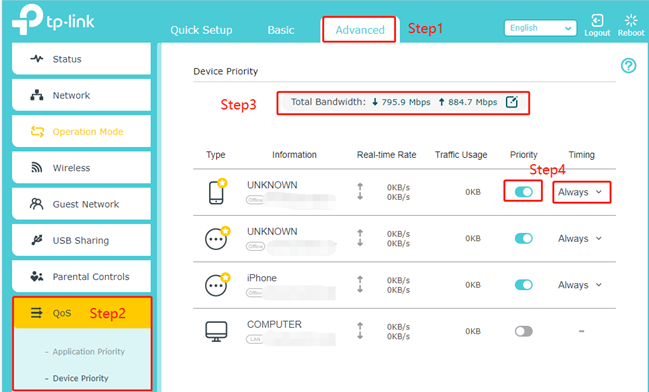
Modern SOHO routers include enterprise-grade features packaged for easy use. These tools help you manage traffic and enhance security without specialized knowledge.
Controller-Based Management
High-end systems allow centralized control of multiple devices from one dashboard. You can monitor access points, push firmware updates remotely, and configure traffic rules easily. This brings professional-level oversight to small business environments.
VLANs and Guest Networks
Virtual LANs let you segment your network for better organization and security.
* Separate work devices from personal gadgets.
* Isolate IoT devices like cameras to prevent breaches.
* Provide guests with internet access without exposing your main network.
Traffic Prioritization
Quality of Service settings let you prioritize critical applications. You can ensure video calls remain smooth even when others are downloading large files. This feature prevents buffering and maintains productivity during peak usage.
Security Best Practices for Your Router
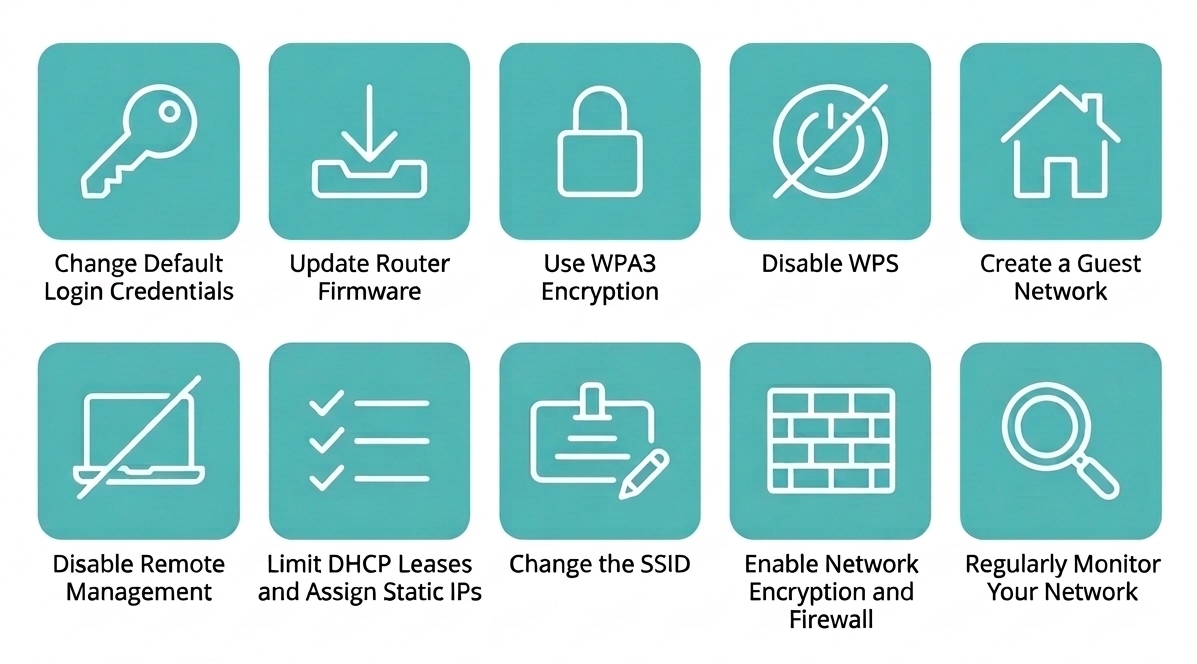
Securing your SOHO router is vital since it acts as the gateway to your entire digital life. Neglecting these steps leaves your data vulnerable to attackers.
Essential Security Steps
Take these actions immediately to harden your network defense:
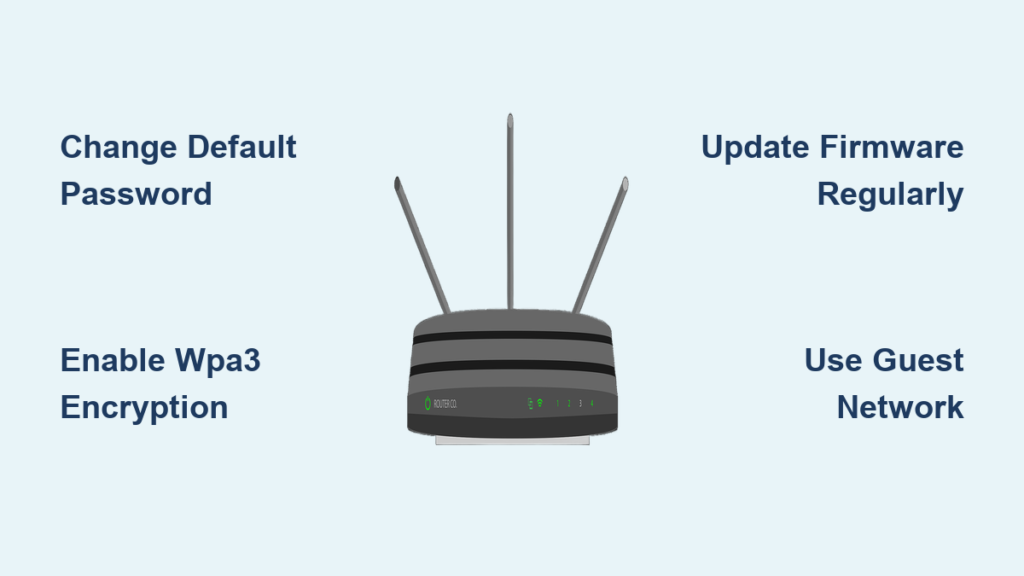
1. Change Default Credentials: Replace factory usernames and passwords with strong, unique alternatives.
2. Enable WPA3 Encryption: Use the latest Wi-Fi security standard or WPA2 if WPA3 is unavailable.
3. Update Firmware Regularly: Check for updates monthly to patch security flaws and improve performance.
4. Disable Remote Management: Turn off external access features unless you specifically need them.
5. Use a Guest Network: Keep visitor devices isolated from your primary system.
Troubleshooting Common Connection Issues
Even reliable hardware encounters problems. Use these diagnostic steps to resolve common issues quickly.
No Internet Connection
Check if the ISP line is working by observing status lights on your modem. Restart your router by unplugging it for 30 seconds. Ensure all Ethernet and power cables are secure. If lights remain off, the issue likely lies with the ISP or modem.
Slow Wi-Fi Speeds
Distance and interference often cause sluggish performance. Move closer to the router or add a Wi-Fi extender. Use a Wi-Fi analyzer app to find less congested channels. Upgrading to Wi-Fi 6 hardware can also significantly boost coverage and speed.
Device Dropouts
Frequent disconnections may indicate driver issues or an overloaded router. Update device drivers on your laptops and reduce the number of connected gadgets. Search online for known firmware bugs affecting your specific router model.
Frequently Asked Questions About SOHO Routers
What does SOHO stand for in networking?
SOHO stands for Small Office/Home Office. It describes networking equipment designed for small environments that do not require complex enterprise infrastructure. These devices combine multiple functions into one unit for simplicity.
How is a SOHO router different from a standard modem?
A modem only converts the signal from your ISP. A SOHO router takes that signal and manages traffic between your devices and the internet while providing Wi-Fi and firewall protection. Many modern units combine both functions.
Can I use a SOHO router for a large business?
No, SOHO routers are built for 10 to 20 devices. Large businesses need enterprise-grade hardware with specialized components to handle hundreds of users and complex traffic routing without crashing.
Why is my SOHO router slow during the evening?
If you use cable internet, your bandwidth is shared with neighbors. Speeds often drop during peak hours when many people in your area are online. Fiber connections do not suffer from this shared bandwidth issue.
How often should I update my router firmware?
You should check for firmware updates monthly or enable automatic updates if available. Manufacturers release these updates to fix security vulnerabilities and improve network stability against new threats.
Key Takeaways for Understanding SOHO Router Meaning

The SOHO router meaning centers on consolidation and simplicity for small environments. These devices merge routing, switching, firewalling, and wireless access into one affordable unit. They sit at the edge of your network right after the demarcation point to manage all your local traffic.
Choosing the right input technology like fiber or 5G maximizes your router potential. Regular security updates and proper configuration ensure your network remains fast and safe. Take action today by checking your router settings and verifying your firmware is current.



