
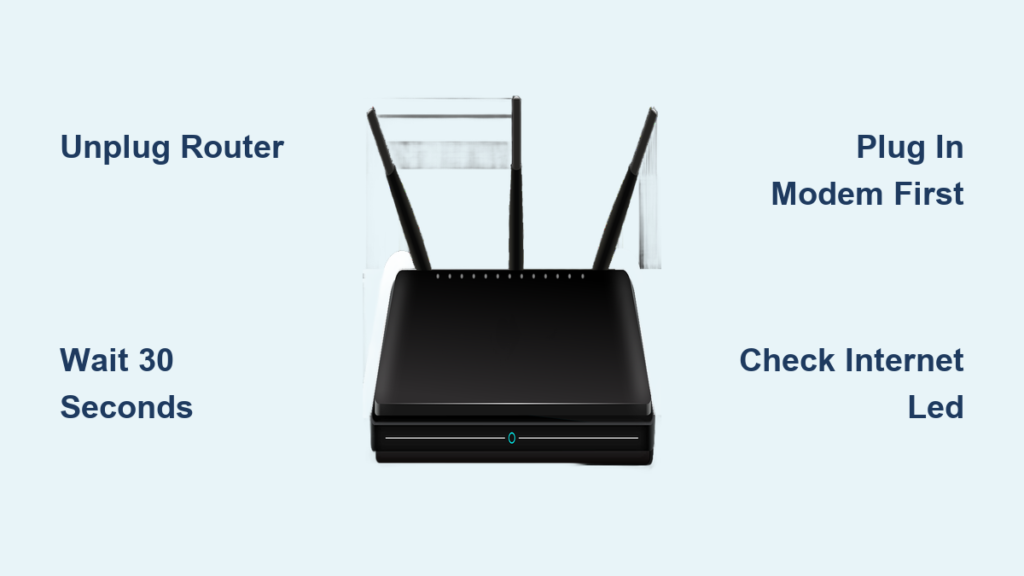
When your internet suddenly drops or Wi-Fi feels sluggish, power cycling the router is the fastest way to restore service. This simple process clears memory glitches and resets network connections without needing a technician.
You will learn the exact steps to reboot your modem and router correctly for maximum effectiveness. We also cover remote solutions and diagnostic tips to keep your network stable long-term.
Why Power Cycling the Router Resolves Connectivity Glitches
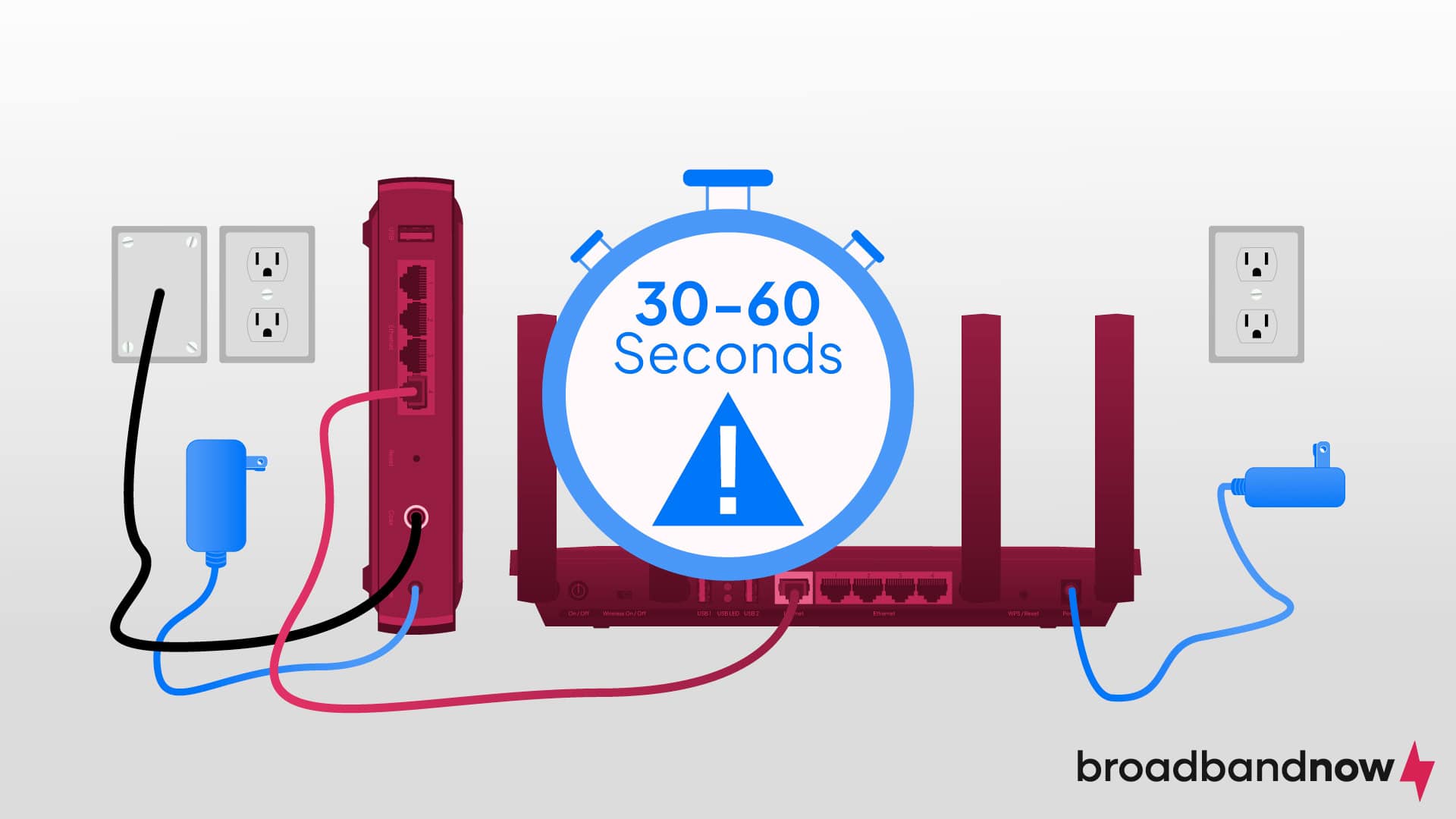
Routers act as small computers that can freeze or misroute data over time. Power cycling the router forces a full reboot to clear temporary memory and reset internal states.
What Happens During a Reboot
This process erases cached errors and re-establishes a fresh handshake with your Internet Service Provider. It effectively stops memory leaks and resolves IP address conflicts that cause slowdowns.
Common Symptoms Requiring Action
You should perform this fix if you experience specific signs of failure. Look for these indicators before calling support:
* No internet access despite Wi-Fi being active
* Devices connect but cannot load web pages
* Intermittent disconnections during use
* Slow speeds without a clear cause
* Network issues following a power outage
Standard Procedure to Power Cycle the Router
:max_bytes(150000):strip_icc()/how-to-properly-restart-a-router-modem-2624570-8ef8d3ea41a14c928947e58c32fa3646.png)
This method resolves ninety percent of connectivity problems in under ten minutes. Follow these steps precisely to ensure a complete reset.
Unplug Both Modem and Router
Start by turning off and physically unplugging both the modem and router. If you use a combo gateway unit, unplug that single device.
Critical: Do not just press the power button. You must physically unplug the cord to drain residual power from internal capacitors.
Wait Thirty to Sixty Seconds
Let the devices sit unplugged for at least thirty seconds. This duration ensures all temporary data is erased and internal circuits fully discharge.
Some providers recommend waiting up to two minutes for older modems or fiber connections. This wait time is essential for the ISP connection to reset on the modem side.
Plug Back In and Wait for Stabilization
Restore power in a specific sequence to avoid synchronization errors.
1. Plug in and power on the modem first.
2. Wait two to five minutes until its lights stabilize.
3. Power on the router next.
4. Allow another two to three minutes for Wi-Fi to return.
Watch the “Internet” LED closely. A solid light means success, while blinking after five minutes indicates a remaining issue.
Complete Network Reset for Stubborn Connection Issues
When a basic reboot fails, follow this deeper protocol. This approach is necessary if multiple devices are affected or your modem is unresponsive.
Shut Down All Connected Devices
Turn off every device using your network to clear local conflicts. This prevents devices from holding onto bad connection states during the reset.
* Computers and laptops
* Smartphones and tablets
* Gaming consoles
* Smart TVs and printers
* VOIP phones and cameras
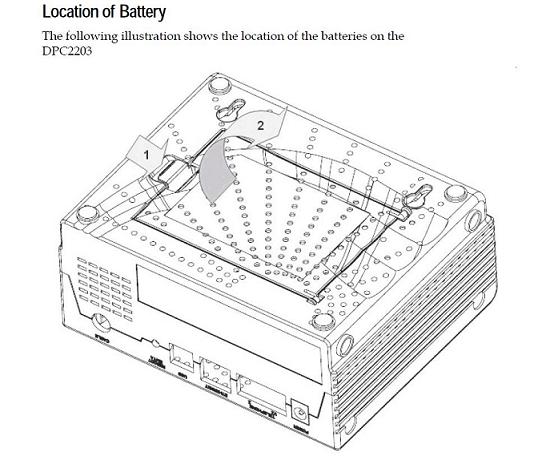
Remove Modem Battery If Present
Many cable modems include a backup battery that keeps them running during outages. You must remove this battery to ensure total power loss.
Warning: Without removing the battery, the modem may not fully reset, leading to repeated failures.
Wait two full minutes with everything off and the battery removed.
Power On Modem First
Reinsert the battery if applicable, then plug in and turn on the modem only. Wait five minutes while it reconnects to your ISP.
Check the lights for stable downstream and upstream indicators. Solid white or green usually means the modem is connected. Skip to the next step if you have a gateway unit.
Turn On the Router and Reconnect Clients
Once the modem is stable, power on the router and wait two to three minutes. Confirm the “Internet” LED turns solid before proceeding.
Turn on your client devices one by one. Start with a wired computer or phone to test internet access before reconnecting others.
Fix Router Without Access Using Remote Power Cycling
You cannot reach the router physically if the Wi-Fi is down. These solutions let you reboot remotely even when the network is dead.
Use a Smart Plug With Internet Monitoring
Smart plugs like KeepConnect or WiFi ResetPlug detect internet outages automatically. They cut power and reboot the router without your intervention.
How It Works
The plug pings a website like Google every few seconds. If pings fail for a set time, it cuts power for thirty seconds and then restores it.
You can also trigger a manual reboot via the app using cellular data. This works even if your home Wi-Fi is completely down.
Try a Cellular-Controlled Relay
A GSM relay uses your phone’s cellular network to control the router’s power switch. This method works independently of your home internet connection.
Trigger reboots via SMS or a mobile app from anywhere. This solution is ideal for vacation homes or critical locations where uptime matters.
Automate With Smart Home Hubs
Users with SmartThings or Home Assistant can create self-healing networks. These systems monitor device presence and reboot the router if clients go offline.
Requirements
- Ethernet-connected hub (must not rely on Wi-Fi)
- ZigBee or Z-Wave smart plug linked to the router
- Automation driver like LAN Device Monitor
The hub detects offline devices and triggers the smart plug to cut power. It waits thirty seconds before restoring power to reboot the router automatically.
Diagnose Router Status Using LED Light Patterns
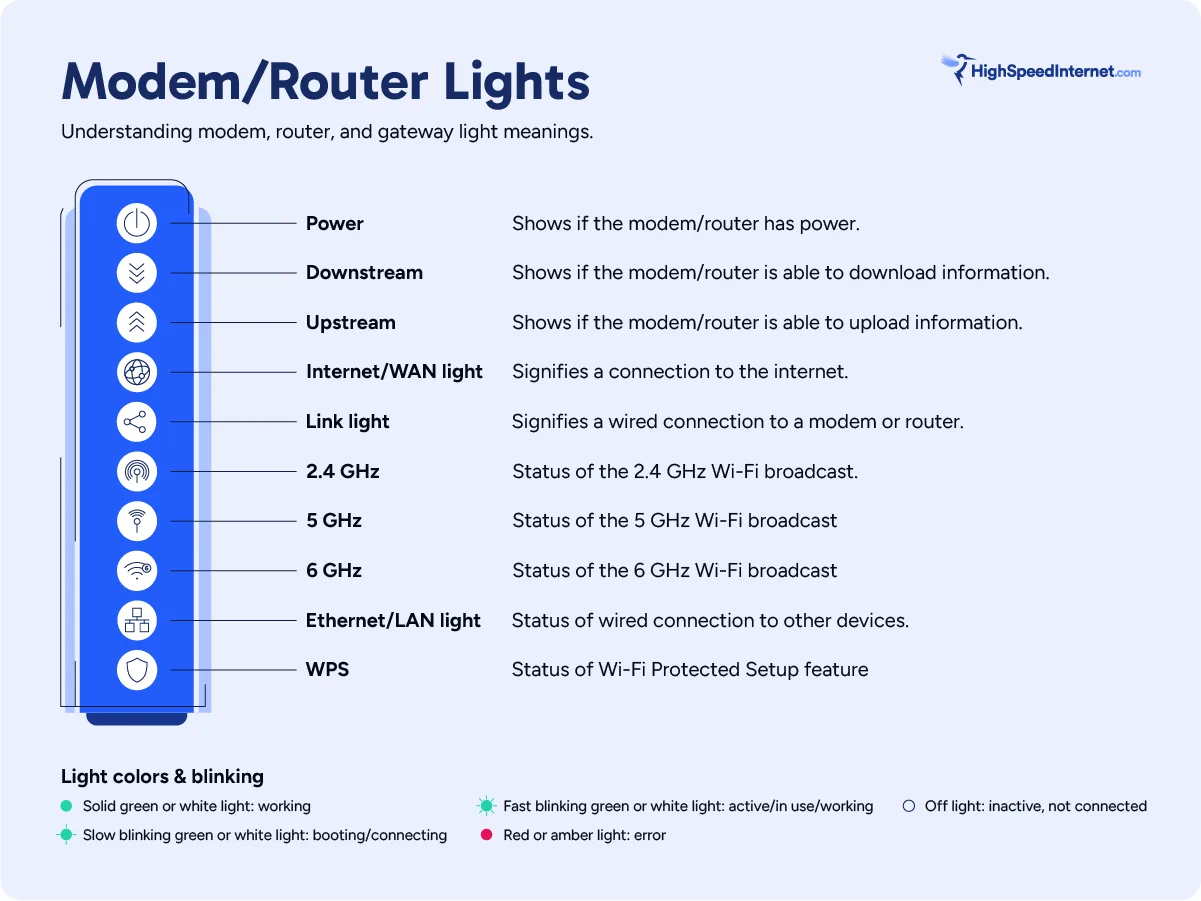
LED indicators tell you if power cycling the router worked or what is still broken. Understanding these lights saves time during troubleshooting.
Blinking Green Light Meaning
A blinking green light is normal during the boot-up sequence. The device is actively attempting to sync with your ISP.
If blinking persists after five minutes, the handshake has failed. This could indicate an ISP outage, line issue, or hardware defect.
Solid White or Green Means Connected
On most modern routers, a solid Internet LED confirms success. This means the modem has locked onto the ISP signal and the router has established a WAN connection.
Your network is ready for devices when this light remains steady.
No Lights Indicates Power Failure
If nothing turns on, check your power source immediately. Test the outlet with another device and inspect cords for damage.
Ensure any backup battery is not swollen or corroded. A dead unit often points to a faulty power adapter or internal electrical failure.
Next Steps When Power Cycling Fails
If your internet still does not work after a full reset, dig deeper into physical connections and hardware health.
Check Physical Connections
Loose or damaged cables often mimic router failure. Verify the following connections are tight and secure:
* Coaxial cable at the wall and modem
* Fiber optic line for bends or disconnections
* Ethernet cable between modem and router
* Power adapters for correct voltage
Replace any frayed cables with known-good alternatives.
Perform a Factory Reset
Use the recessed reset button on the back of the router if issues persist. Press and hold for ten seconds with a paperclip until lights flash.
Warning: This erases custom passwords, port forwards, and Wi-Fi names. You will need to reconfigure everything.
After the reset, power cycle the router again and set it up as new.
Test for Hardware Age Issues
Devices older than ten to twelve years often fail permanently. Frequent reboots on aging hardware indicate dying components rather than software glitches.
Consider replacing old Arris DOCSIS 3 modems or early NETGEAR R6000 series routers. Modern DOCSIS 3.1 or Wi-Fi 6 equipment offers better stability.
Prevent Future Problems With Maintenance Tips
Avoid daily reboots by adopting smart habits and automation strategies. Regular maintenance keeps your network running smoothly.
Schedule Automatic Reboots
Use a smart plug with scheduling to reboot your router weekly. This prevents memory leaks and clears stale connections automatically.
Set the schedule during low-usage hours like 2:00 AM. This maintains peak speed without disrupting your day.
Keep Devices Cool and Ventilated
Overheating causes instability and frequent crashes. Place your router in an open area away from enclosed shelves.
Dust vents monthly to ensure proper airflow. Consider a cooling pad for high-end models that run hot.
Update Firmware Regularly
Outdated firmware causes bugs that mimic hardware failure. Log into your router’s admin page monthly to check for updates.
Enable auto-updates if your model supports them. Some routers notify you via app when a new version is ready.
Best Tools for Hands-Off Power Cycling
Select the right tool based on your technical comfort and needs. Here is how top solutions compare.
| Tool | Best For | Auto-Reboot? | Remote Control? |
|---|---|---|---|
| KeepConnect | Set-and-forget users | Yes (ping-based) | Yes (cellular app) |
| WiFi ResetPlug | Dedicated router reset | Yes | Yes (manual trigger) |
| SmartThings Hub | Custom automation | Yes (LAN monitoring) | Yes (if wired) |
| GSM Relay | Zero-internet environments | No (manual only) | Yes (SMS/Cellular) |
| Generic Smart Plug | Occasional manual reboot | No | Yes (if Wi-Fi works) |
For most homes, KeepConnect offers the best balance of reliability and ease. It requires minimal setup and works immediately.
Frequently Asked Questions About Power Cycling the Router
How long should I wait when power cycling the router?
You should wait at least 30 seconds to 1 minute with the device unplugged. This ensures all residual power drains from internal capacitors for a full reset.
Does power cycling the router delete my settings?
No, standard power cycling does not delete custom settings. Only a factory reset using the recessed button erases passwords and configurations.
How often should I power cycle my router?
Experts recommend rebooting your router every few weeks for preventative maintenance. Frequent daily reboots indicate an underlying hardware or line issue.
Can I power cycle the router remotely without Wi-Fi?
Yes, you can use a smart plug with cellular monitoring or a GSM relay. These tools bypass the local network to control power externally.
What if the internet light keeps blinking after rebooting?
Persistent blinking after 5 minutes suggests a failed handshake with the ISP. Check cable connections or contact your provider for line diagnostics.
Key Takeaways for Power Cycling the Router Effectively
Power cycling the router is the most effective first step for fixing internet issues. It clears memory errors and re-establishes a clean connection with your ISP quickly.
Remember to unplug devices physically and wait at least thirty seconds for best results. If problems persist, check physical cables and consider hardware age before seeking professional help.
Implement automated reboots using smart plugs to maintain long-term network stability. This proactive approach reduces downtime and keeps your connection reliable.



