
You stream movies, video call friends, and download files simultaneously without a single buffering icon. This seamless digital experience happens because your Wi-Fi router acts as a silent traffic cop managing data flow. But how does a Wi-Fi router work to keep everything running smoothly?
This guide explains exactly how your router connects devices, assigns addresses, and routes data packets efficiently. You will learn the difference between modems and routers, how wireless signals travel, and simple steps to optimize your home network speed.
Modem vs Router: Understanding the Difference
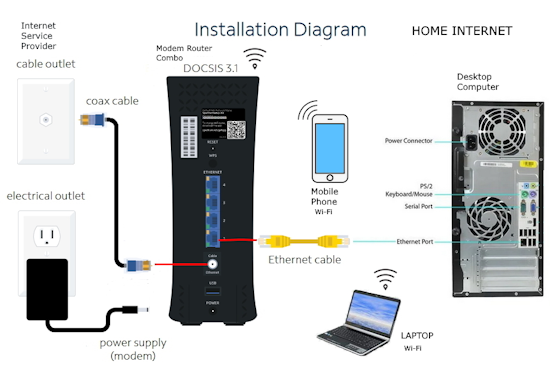
Many people confuse these two devices, yet they perform distinct jobs. Your modem brings the internet signal into your home from your Internet Service Provider (ISP). It translates the incoming cable or fiber signal into digital data your devices can use. Without a modem, you have no connection to the outside world at all.
The router takes that single internet connection and shares it across your phone, laptop, and smart TV. It creates a Local Area Network (LAN) and ensures data goes to the correct device. While the modem talks to the ISP, the router manages traffic inside your house.
How the Connection Flow Works
The modem connects to the router’s WAN port using an Ethernet cable. The router then distributes this connection wirelessly or through wired LAN ports. You can have a router without Wi-Fi for wired networks, but you cannot have Wi-Fi without a router managing the traffic.
Gateway Units Explained
Many ISPs provide a combo unit called a gateway that includes both modem and router functions. This simplifies setup for most users. However, standalone routers often offer better performance and more control over your network settings.
Data Routing and IP Address Management
Your router functions as a dispatcher that analyzes data packets and determines their destination. When you open a webpage, your device sends a request that the router receives and processes instantly. It checks routing tables to find the fastest path for your data to travel.
Public vs Private IP Addresses
The router manages two types of addresses to keep traffic organized. Your ISP assigns a public IP address that identifies your entire network on the global internet. The router then assigns unique private IP addresses to every device inside your home, such as 192.168.1.10.
Network Address Translation (NAT)
This system allows multiple devices to share one public IP without confusion. The router uses NAT to track which private IP made each specific request. When data returns from the internet, the router reads the destination and delivers it to the correct phone or laptop.
Wireless Signal Transmission Basics
Wi-Fi technology uses radio waves to transmit data between your router and devices. Built-in antennas broadcast these signals in all directions so your devices can detect and connect to them. These signals operate on specific frequency bands that determine speed and range.
2.4 GHz vs 5 GHz Bands
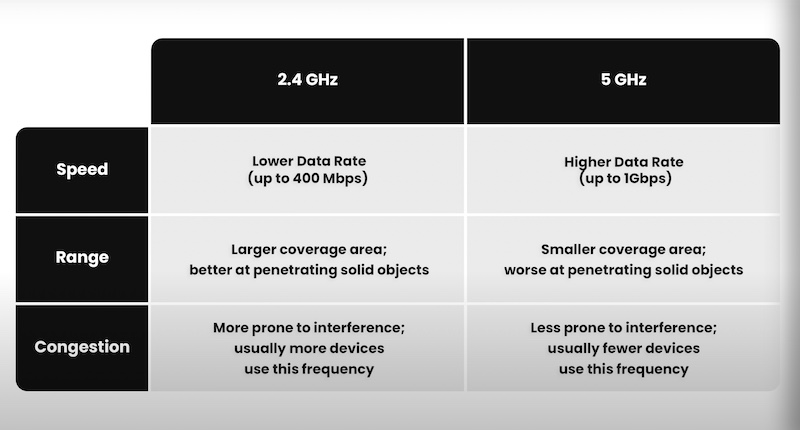
Modern routers broadcast on two primary frequencies with different strengths. The 2.4 GHz band offers longer range and better wall penetration but slower speeds. The 5 GHz band provides faster data transmission ideal for streaming but has a shorter range.
Automatic Band Selection
Dual-band and tri-band routers automatically switch devices to the best available band. Your phone might use 5 GHz when close to the router for speed. It will switch to 2.4 GHz if you move to the backyard for better range.
Wired Ethernet vs Wireless Connectivity
You can connect devices using physical Ethernet cables or wirelessly via Wi-Fi. Ethernet connections plug directly into LAN ports on the back of your router. This method eliminates interference and provides the lowest latency possible.
Benefits of Wired Connections
Wired connections offer higher throughput and zero signal drops. This makes them critical for online gaming or large file transfers. Most routers include two to four LAN ports for your most important devices.
When to Use Wi-Fi
Wireless connectivity is perfect for mobile devices and hard-to-reach rooms. It allows you to move freely while staying connected to the network. Remember that Wi-Fi speed is shared among all connected devices in your home.
LAN and WAN Network Types
A Local Area Network (LAN) connects devices within a small area like your home or office. The router creates this network to allow file sharing and local streaming. You can even set up a LAN without an active internet connection for local multiplayer gaming.
Wide Area Network (WAN) Basics
The WAN connects LANs over large geographical distances. The internet itself is the largest WAN in existence. Your router uses its WAN port to link your local network to this global system.
Mesh Systems and Extenders
Large homes may need multiple nodes to cover every room effectively. Mesh systems use several units working together as one seamless network. Wi-Fi extenders repeat signals to dead zones but can cut bandwidth in half.
Router Security and Firewall Protection
Your router acts as the first line of defense against cyber threats from the internet. It includes a built-in firewall that blocks unauthorized incoming connections. This feature filters malicious traffic before it reaches your personal devices.
WPA2 and WPA3 Encryption
Never leave your Wi-Fi network open without a password. WPA2 is the current standard for securing most networks effectively. WPA3 is the newer standard that resists brute-force attacks and offers individualized encryption.
Advanced Security Features
You can create a guest network to keep visitors off your main devices. MAC filtering allows only specific hardware addresses to connect to your network. Always update your router firmware monthly to patch security holes.
Business Router Features and QoS
Business environments require routers that handle heavy traffic loads efficiently. Quality of Service (QoS) features prioritize critical applications over less important traffic. This ensures video conferences do not lag when someone downloads large files.
Edge and Core Routers
Edge routers connect your internal network to the ISP and handle external traffic. Core routers act as the high-speed backbone for large internal networks. Virtual routers use software to route traffic in cloud environments.
Remote Access Capabilities
Business routers support secure VPN access for remote workers. They often include redundant connections to ensure uptime during outages. These features allow companies to scale their networks as they grow.
Router Setup and Firmware Updates
Router firmware acts as the operating system for your device. Outdated firmware can lead to slow performance and security vulnerabilities. You should check for updates regularly through the admin interface.
How to Update Firmware
Open a web browser and enter your router IP address like 192.168.1.1. Log in with your admin credentials and navigate to the firmware section. Follow the prompts to install any available updates immediately.
Port Forwarding Configuration
Port forwarding directs incoming internet traffic to a specific device. This is useful for hosting game servers or accessing security cameras remotely. Be careful when opening ports as it exposes devices to the internet.
Optimal Router Placement Strategies

Physical placement significantly impacts your Wi-Fi signal strength and coverage. Place your router in a central location to distribute signals evenly. Elevate the device on a shelf rather than placing it on the floor.
Obstructions to Avoid
Keep your router away from metal objects and large appliances. Microwaves and cordless phones can interfere with radio signals. Thick walls and mirrors can block or reflect waves away from your devices.
Line of Sight Benefits
Every wall or floor can reduce your signal strength by up to 25 percent. Try to maintain a clear line of sight between the router and your main devices. This simple adjustment often improves speed dramatically.
Troubleshooting Slow Wi-Fi Speeds
Slow speeds often result from too many devices connecting at once. Disconnect unused devices or upgrade to a Wi-Fi 6 router for better capacity. Interference from other electronics can also degrade performance significantly.
Common Fixes for Lag
Switch to the 5 GHz band if you are close to the router. Change your Wi-Fi channel in the router settings to avoid neighbor interference. If your router is over four years old, consider replacing it with newer hardware.
Speed Requirements by Activity
Basic browsing requires only 1 to 5 Mbps for smooth operation. HD video streaming needs 10 to 25 Mbps per device. Multiple users streaming 4K content may need 100 Mbps or more.
Internal Hardware Components
Your router contains several key parts that enable its functionality. The WAN port connects to the modem while LAN ports handle wired devices. Internal or external antennas transmit and receive radio signals.
Power and Reset Functions
The power port connects to your electrical outlet for energy. A tiny reset button allows you to restore factory settings if needed. Some models include USB ports for sharing printers or storage drives.
Network Interface Cards
Routers possess at least two Network Interface Cards to function properly. One card faces the WAN to connect to the internet. The other faces the LAN to communicate with your local devices.
IPv4 and IPv6 Protocol Support
Internet Protocol version 4 (IPv4) addresses are running out globally. IPv6 solves this issue with a nearly infinite number of unique addresses. This newer protocol offers improved security and better routing efficiency.
Enabling IPv6 on Your Network
Most modern routers support IPv6 alongside traditional IPv4 addresses. Check your router settings to see if your ISP provides IPv6 connectivity. Enabling it can improve performance for compatible devices.
Coexistence of Protocols
Both IPv4 and IPv6 will coexist on networks for many years. Your router handles both protocols automatically without user intervention. This ensures compatibility with all websites and services online.
Step by Step Data Flow Process

Understanding the journey of a data packet clarifies router functionality. You click a link on your phone to start the process. Your phone creates a data packet with a destination IP address.
The Routing Journey
- The router receives the packet via Wi-Fi signal.
- It checks the routing table for the best path.
- The packet moves to the modem through the WAN port.
- The modem sends the request to the ISP and internet.
- Data returns to the modem and enters the router.
- The router identifies your device by private IP.
- The packet travels wirelessly back to your phone.
- Your phone displays the requested webpage.
This entire cycle completes in less than a second. Local traffic between devices stays within the LAN without touching the internet.
Frequently Asked Questions About Wi-Fi Routers
Can a router work without a modem?
A router can create a local network for file sharing and printing without a modem. However, you need a modem to access the internet. The router manages local traffic while the modem connects you to the global web.
How often should I update my router firmware?
You should check for firmware updates monthly to ensure security. Manufacturers release patches to fix bugs and close vulnerabilities. Outdated firmware is a common cause of slow speeds and security risks.
Why is my 5 GHz Wi-Fi slower than 2.4 GHz at distance?
The 5 GHz band has a shorter range and struggles to penetrate walls. If you are far from the router, the signal weakens quickly. Switch to 2.4 GHz for better range or move closer to the source.
Does more antennas mean faster Wi-Fi?
More antennas improve signal stability and coverage rather than raw speed. They help with beamforming and handling multiple devices simultaneously. The router processor and Wi-Fi standard determine maximum speed limits.
What happens if I disable NAT on my router?
Disabling NAT exposes every device on your network directly to the internet. This removes a critical security layer and increases vulnerability to attacks. Only disable NAT if you have a specific networking need and advanced security knowledge.
Key Takeaways for How a Wi-Fi Router Works
Your router is the intelligent hub that connects devices and manages data traffic efficiently. It assigns unique addresses, routes packets correctly, and protects your network from threats. Understanding these functions helps you optimize performance and troubleshoot issues effectively.
Focus on placing your router centrally and keeping firmware updated for best results. Use 5 GHz for speed and 2.4 GHz for range depending on your needs. Secure your network with strong encryption and consider mesh systems for large homes.
Now that you know how does a Wi-Fi router work, you can make informed decisions about your home network. Check your current setup today and apply these tips to improve your connectivity.



