
You stare at your screen while the NETGEAR router code refuses to work. Blinking lights and login errors leave you stuck without internet access or control over your network settings.
This guide explains exactly how to find your credentials, access the admin panel, and recover lost passwords using official methods. You will learn safe reset procedures and security steps to prevent future lockouts.
Access Your NETGEAR Router Admin Interface
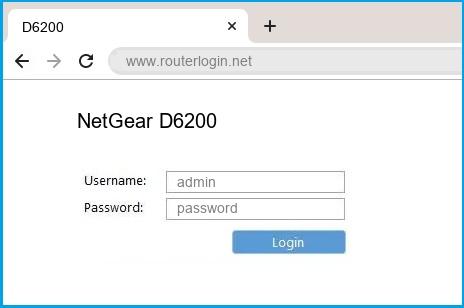
You must connect to the network before attempting to log in to the administrative settings. A stable connection ensures the browser can communicate with the router hardware effectively.
Connect via WiFi or Ethernet Cable
Ensure your computer or phone connects directly to your NETGEAR WiFi network. Using an Ethernet cable provides the most reliable link for configuration changes. Avoid using guest networks or neighbor connections during this process.
Enter the Correct Web Address
Type one of the following addresses directly into your browser URL bar. Do not type these into a search engine box.
www.routerlogin.netwww.routerlogin.com192.168.1.1192.168.0.1
Check the label on your device if these addresses do not load the login page. Some models require a specific IP address printed on the hardware.
Resolve Page Loading Errors
Clear your browser cache if the login screen fails to appear after entering the address. Disable any active VPNs or proxy settings that might block local network access. Try opening the address in an incognito or private browsing window to bypass extensions.
Use Default NETGEAR Router Code Credentials
The factory settings provide a standard username and password for initial access. These codes work unless a previous user changed them manually.
Input Standard Username and Password
Enter admin in the username field and password in the password field. These are the universal defaults for most NETGEAR devices. Verify the specific defaults on the sticker located on the bottom of your unit.
Warning: Repeated failed login attempts may temporarily lock the interface. Do not guess randomly if these codes fail.
Log In Using the Nighthawk App
Modern routers allow management through the official Nighthawk mobile application. Download the app from the Apple App Store or Google Play Store. Connect your phone to the router WiFi and sign in with your NETGEAR account.
Note: The legacy Genie App is no longer supported. Use the Nighthawk App for all current firmware updates and settings.
Change Your WiFi Network Password
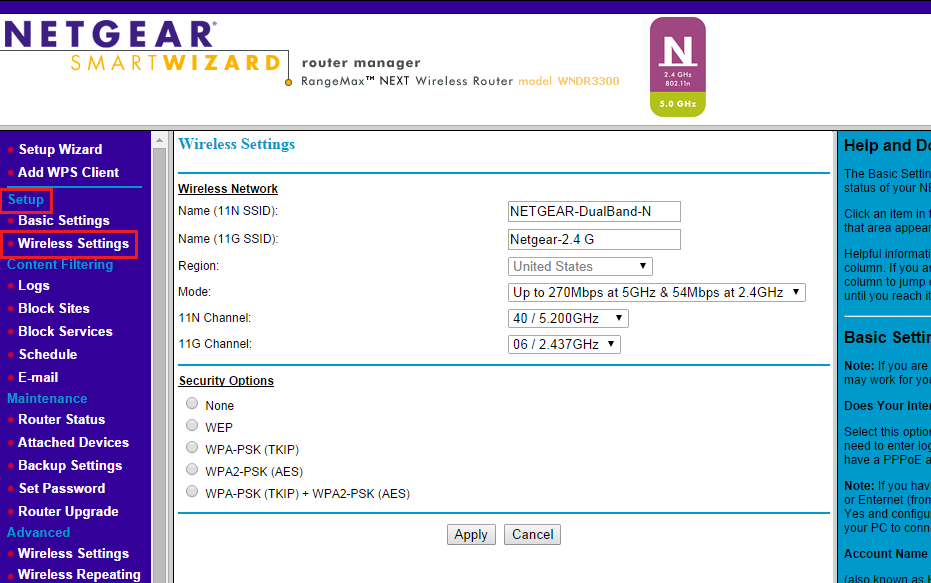
Securing your wireless network prevents unauthorized users from accessing your data. You must log in to the admin panel before making these changes.
Navigate to Wireless Security Settings
Click the Wireless tab within the main menu of the admin interface. Select the Wireless Network option to view security configurations. Locate the section labeled Security to begin editing.
Select WPA2 Personal Encryption
Choose WPA2 Personal from the security mode dropdown menu. This protocol offers strong protection for home networks. Avoid older standards like WEP as they are easily compromised.
Save Changes and Reconnect Devices
Type your new strong password into the passphrase field. Click Apply to save the new settings to the router memory. Wait 1 to 2 minutes for the system to apply the changes.
All your devices will disconnect immediately after saving. Rejoin the network on each device using the new password.
Update Both Frequency Bands
Repeat the password change process for both 2.4 GHz and 5 GHz bands if your router supports dual frequencies. You can set them to the same name and password for easier roaming. This ensures consistent security across all wireless connections.
Recover a Forgotten Admin Password
Losing your custom login credentials does not mean you must discard the hardware. NETGEAR provides specific recovery paths depending on your prior setup.
Attempt Non-Destructive Password Recovery
Click the Cancel button on the login screen if you previously enabled the recovery feature. This action redirects you to a dedicated recovery page. You will need the router serial number and answers to two security questions.
Critical: This method only works if you configured the security questions before forgetting the password.
Perform a Factory Hardware Reset
Locate the small reset pinhole on the back or bottom of the router unit. Insert a paperclip and hold the button for 7 to 10 seconds until the lights flash. Release the button and wait 2 to 3 minutes for the reboot cycle.
The router will return to factory defaults with the username admin and password password. You must reconfigure all network names and settings from scratch.
Fix Common Login Access Issues
Technical glitches often mimic credential errors during the login process. Troubleshoot these common barriers before assuming the worst.
Clear Browser Cache and Cookies
Old data stored in your browser can prevent the login page from loading correctly. Go to your browser settings and clear the browsing data. Restart the browser and try accessing the NETGEAR router code page again.
Verify Your Network Connection
Confirm your device is connected to the correct SSID. If you have multiple routers or extenders, ensure you are not trying to log in to a guest network. Switch to the primary network listed on your router label.
Update Router Firmware Regularly
Outdated software can cause the login interface to malfunction or freeze. Use the Nighthawk App to check for and install available updates automatically. You can also download firmware manually from the NETGEAR support site.
Secure Your Router After Initial Setup
Leaving default settings active exposes your network to potential security threats. Hackers often scan for routers still using standard credentials.
Change Default Admin Credentials
Navigate to the Administration or Management section in the admin panel. Create a unique and complex password for the router login itself. This password should differ from your WiFi network password.
Enable Password Recovery Features
Go to Advanced > Administration > Set Password in the interface. Click Enable Password Recovery and answer the two security prompts. Store these answers in a secure location like a password manager.
Enforce Strong Wireless Encryption
Ensure your network always uses WPA2 Personal or WPA3 security modes. Never leave your network open without a password. Regularly update your WiFi password to maintain high security standards.
Model-Specific Access Instructions

Different NETGEAR product lines require slightly different access methods. Identify your specific model type for the best results.
Nighthawk Router Series
Use routerlogin.net or 192.168.1.1 for web access. These models work best with the Nighthawk App for mobile management. Newer units support advanced WPA3 encryption protocols.
Orbi Mesh Systems
Access Orbi systems via orbilogin.com instead of the standard URL. Use the dedicated Orbi App to manage satellites and mesh performance. Login credentials sync automatically across all mesh units.
Legacy Router Models
Older models may still reference the deprecated Genie App. Ignore instructions for Genie and use the web interface instead. These units rely on standard IP addresses for configuration.
Prevent Future Lockout Scenarios
Proactive measures save time and frustration when credential issues arise later. Implement these habits to maintain constant access.
Document Critical Access Codes
Write down your admin username, password, and serial number physically. Store this information in a safe place away from the router itself. Digital notes should be encrypted within a secure password manager.
Schedule Regular Firmware Checks
Set a calendar reminder to check for updates every three months. Enable automatic updates in the Nighthawk App if your model supports this feature. Current firmware reduces bugs and security vulnerabilities.
Utilize a Password Manager
Use tools like Bitwarden or 1Password to store complex credentials. These tools auto-fill login details on your devices securely. This eliminates the need to remember multiple complex strings.
Frequently Asked Questions About NETGEAR Router Code
What is the default NETGEAR router code?
The standard username is admin and the password is password. Check the label on your specific device as some models have unique defaults printed there.
How do I find my NETGEAR router IP address?
Look at the sticker on the bottom or back of the router for the IP. Common addresses include 192.168.1.1 or 192.168.0.1 if the label is missing.
What if I forgot my custom password and recovery is disabled?
You must perform a factory reset using the physical pinhole button on the device. This erases all settings and restores the default NETGEAR router code.
Can I use the Genie App to manage my router?
No, the Genie App is deprecated and no longer supported by NETGEAR. You should use the Nighthawk App or the web interface for all management tasks.
Why will routerlogin.net not load on my browser?
Clear your browser cache and ensure you are connected to the router network. Try using the numeric IP address directly if the URL fails to resolve.
Key Takeaways for NETGEAR Router Code Management
Mastering your NETGEAR router code ensures secure and reliable internet access for your home. Always change default credentials immediately and enable the password recovery feature to avoid future lockouts.
Use the Nighthawk App for easy management and keep your firmware updated regularly. If you lose access, attempt recovery first before resorting to a full factory reset.