
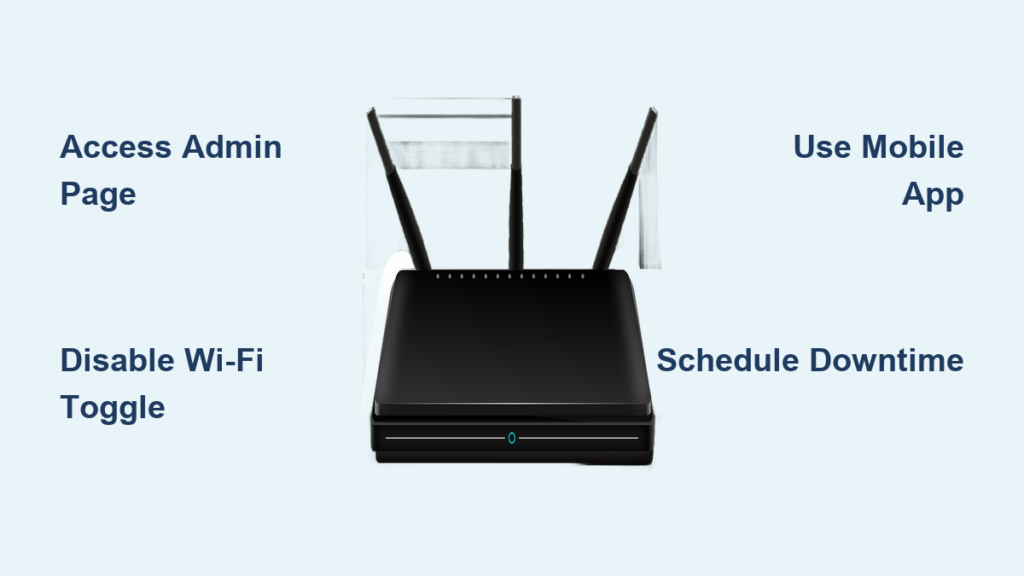
You need to limit screen time, troubleshoot a glitch, or secure your home network by learning how to disable Wi-Fi on your router. This simple action stops all wireless traffic instantly while keeping your wired connections active for desktops and smart TVs.
This guide shows you exactly how to turn off wireless signals using web interfaces, mobile apps, or physical buttons. You will also learn to schedule downtime and prevent unauthorized access without needing any technical degree.
Access Router Admin Page via IP Address
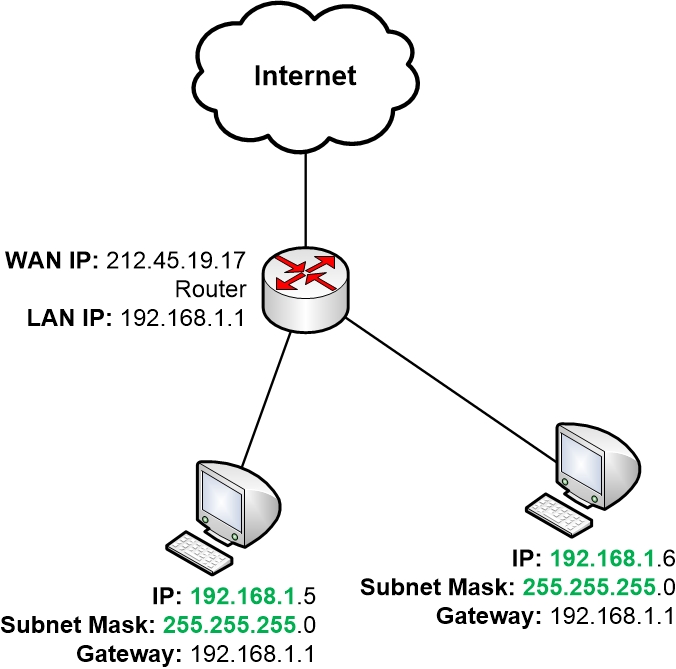
You must enter the router’s command center before changing any wireless settings. This web-based portal controls every aspect of your local network configuration.
Find Your Default Gateway IP
Every router uses a specific numerical address to identify its settings page. Common addresses include 192.168.1.1, 192.168.0.1, or 10.0.0.1.
You can find your specific address using these steps:
* Windows: Open Command Prompt, type ipconfig, and locate the Default Gateway.
* Mac: Navigate to System Settings > Network > Wi-Fi > Details and check the Router field.
* Mobile: View your current Wi-Fi network details in your phone settings.
Write this number down immediately as you need it to log in.
Log In With Administrator Credentials
Type your router’s IP address directly into your web browser address bar. Press Enter to load the login screen.
Enter your username and password when prompted. Default credentials are often:
* Username: admin
* Password: admin or password
Check the sticker on the back of your device if these defaults fail. You must reset the unit if you changed the password and cannot remember it.
Disable Wi-Fi via Web Interface
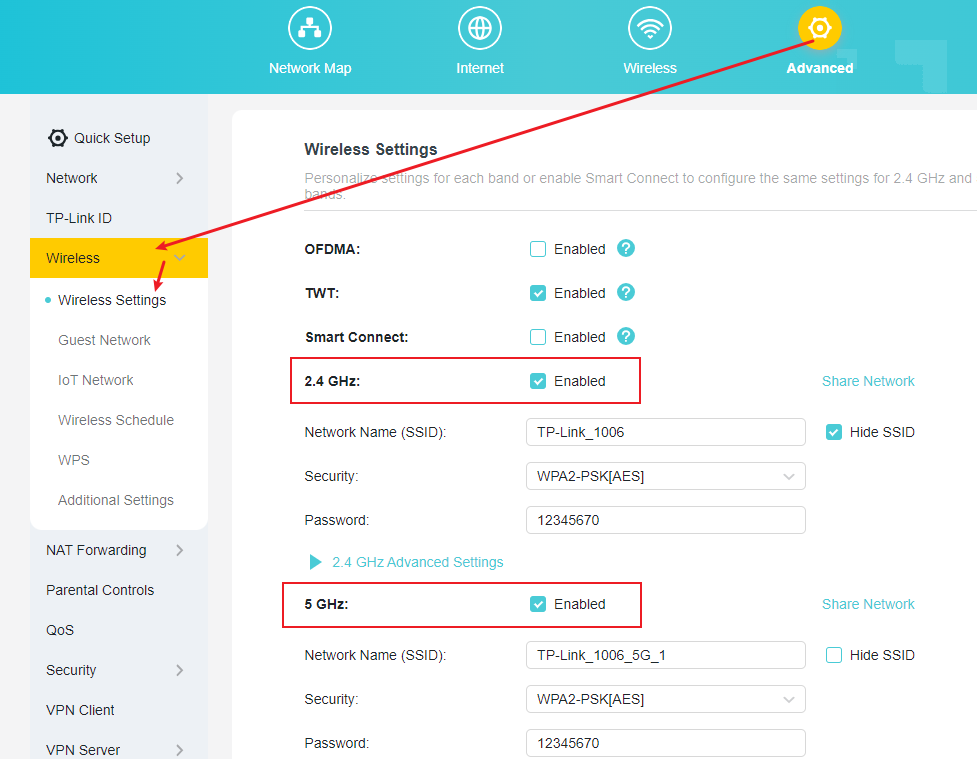
The web interface offers the most reliable method to disable Wi-Fi on your router across all brands. The menu labels vary slightly but the core logic remains consistent.
Navigate to Wireless Settings
Look for menu items labeled Wireless, Wi-Fi Settings, Wireless Network, or Network Mode. These options usually appear in the main navigation menu.
Click the relevant link to open your wireless configuration panel. Some routers separate settings into 2.4 GHz and 5 GHz bands requiring individual attention.
Turn Off Wireless Radio Function
Search for a checkbox or toggle labeled Enable Wireless, Turn On Wi-Fi, or Wireless Radio. Uncheck the box or switch the toggle to the Off position.
Click Save or Apply to confirm your changes. Your devices will lose connection within seconds and no new devices can join.
Pro Tip: If you cannot find the toggle, look inside advanced menus for “Disable” options hidden deep in the settings.
Use Router Mobile App for Quick Control
Modern routers often include companion apps that simplify how to disable Wi-Fi on your router with just a few taps. This method is ideal for quick temporary pauses.
Launch Your Specific Router App
Download the official app for your brand such as Netgear Nighthawk, TP-Link Tether, Asus Router, or Xfinity xFi. Log in using your administrator account credentials.
Tap to Pause or Disable Network
Navigate to the Wi-Fi or Guest Network section of the app interface. You will typically see a large toggle switch or a Pause Wi-Fi button.
Tap the control to disable wireless access immediately. Many apps allow you to:
* Pause Wi-Fi for specific devices only
* Schedule automatic pause times
* Turn off guest networks while keeping main network active
Changes apply instantly across your entire network environment.
Press Physical WPS or Wi-Fi Button
Some hardware models feature a dedicated button on the back or side to control wireless functions physically. This button often doubles as the WPS pairing key.
Locate the Wi-Fi Toggle Button
Inspect your router for an icon resembling a wireless signal or text labeled Wi-Fi or WPS. Holding this button for 3 to 5 seconds typically disables the radio.
Confirm Wireless Signal Is Off
Watch the LED indicators on your device after pressing the button. The Wi-Fi light should turn red or go completely dark.
Connected devices will lose signal immediately. Press the button again to re-enable the wireless radio if your model supports this specific function.
Caution: On some models, this button only activates WPS pairing or disables the guest network. Consult your manual to verify functionality.
Disable Specific Wi-Fi Bands Independently
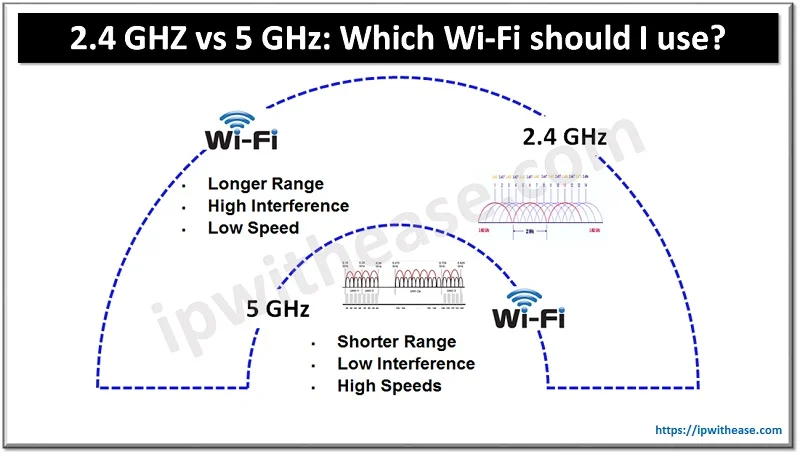
Dual-band routers broadcast on both 2.4 GHz and 5 GHz frequencies. You can disable one band while leaving the other active for specific needs.
Turn Off 2.4 GHz Network
The 2.4 GHz band offers longer range but slower speeds. Disable it if you only need high-speed 5 GHz connections nearby.
- Go to Wireless Settings in your admin panel.
- Select the 2.4 GHz tab or section.
- Uncheck Enable or toggle the switch off.
- Save your settings.
Turn Off 5 GHz Network
The 5 GHz band provides faster speeds over shorter distances. Disable it to reduce interference or conserve energy.
- Open Wireless Settings in your interface.
- Choose the 5 GHz band option.
- Disable the network radio.
- Apply changes to save.
Leaving one band active helps with troubleshooting connectivity issues on older devices.
Schedule Wi-Fi Downtime Automatically
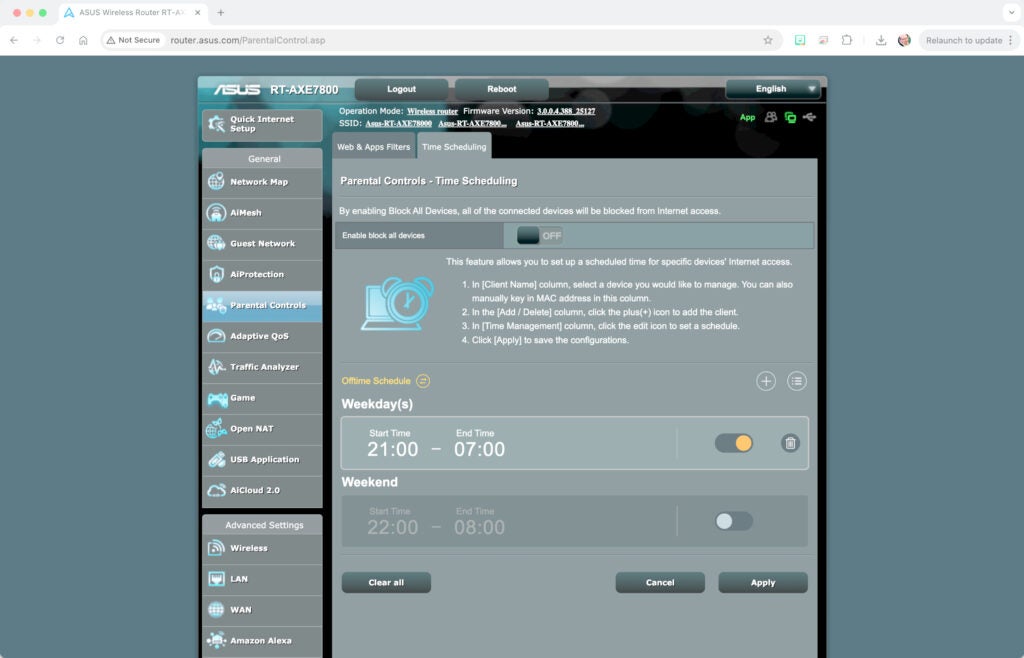
You can automate how to disable Wi-Fi on your router by setting a specific schedule. This eliminates the need for manual intervention every day.
Enable Wi-Fi Schedule Feature
Find this feature under Parental Controls, Access Schedule, or Device Rules. Create a new rule to define your downtime window.
- Go to Parental Controls or Schedule.
- Create a new rule for all devices.
- Set specific days and times like 10 PM to 6 AM.
- Save the rule to activate automatic shutdowns.
Your router will power down Wi-Fi during these hours automatically. This is perfect for enforcing digital curfews without daily effort.
Disable Guest Network Separately
Guest networks provide internet access to visitors without exposing your main private network. It is wise to disable this when not in use.
Find Guest Network Settings
Locate the Guest Network, Guest Access, or Wi-Fi Guest section in your menu. You will see separate controls for 2.4 GHz and 5 GHz guest signals.
Turn Off Guest Wi-Fi Access
Toggle the guest network switch to Off or uncheck the Enable box. Click Save to disconnect all guest devices immediately.
Security Tip: Always disable guest Wi-Fi after visitors leave to prevent unauthorized access and improve overall network security.
Factory Reset as Last Resort Option
A factory reset disables Wi-Fi by restoring default settings but erases all your custom configurations. Use this only if you cannot access the admin panel.
Perform Hard Reset Procedure
- Locate the tiny Reset hole on the back of your router.
- Use a paperclip to press and hold the button for 10 to 15 seconds.
- Release when the lights flash rapidly.
- Wait two minutes for the device to reboot completely.
The router returns to factory defaults including disabled custom names. You must reconfigure everything from scratch after this process.
Warning: You lose all settings including port forwards and passwords. Only use this method when necessary.
Re-enable Wi-Fi When Needed
Disabling wireless access is temporary and easily reversible when you need connectivity again. Follow these steps to restore your network.
Restore Via Web Interface
- Access your router admin page using your IP address.
- Navigate to Wireless Settings.
- Re-enable the wireless radio toggle.
- Save changes and wait 30 seconds.
Use Mobile App or Physical Button
Open your router app and tap Resume Wi-Fi or press the physical Wi-Fi button again. All your devices should reconnect automatically once the signal returns.
Troubleshooting: Restart the router if Wi-Fi does not return after re-enabling the setting.
Prevent Unauthorized Re-enabling
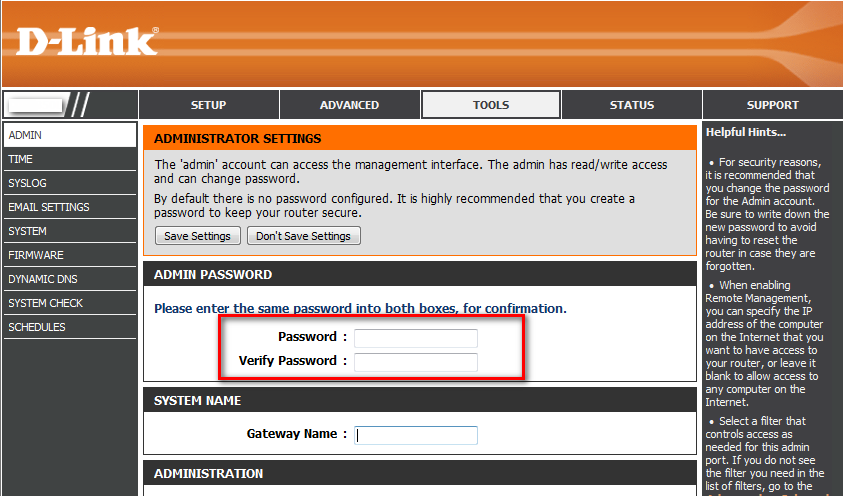
Secure your settings so others cannot turn the Wi-Fi back on without your permission. This ensures your downtime rules remain effective.
Change Admin Password
Navigate to Administration or System in your router settings. Change the Router Password to a strong unique phrase and save.
Limit Physical and Remote Access
Place your router in a secure location to prevent physical tampering. Disable Remote Management features to block external login attempts from the internet.
Advanced Tips and Warnings
Understand the full impact of how to disable Wi-Fi on your router before making changes. These insights help you manage expectations.
Disable Wi-Fi Without Losing Ethernet
Turning off Wi-Fi does not affect wired Ethernet connections. Devices plugged directly into LAN ports stay online while wireless devices disconnect.
Wi-Fi vs Internet Difference
Disabling Wi-Fi stops wireless access but the internet connection itself remains active via cable. Unplug your modem to cut all internet access completely.
Security Benefits of Disabling Wi-Fi
Shutting down wireless signals offers several advantages:
* Reduces hacking risk significantly
* Prevents neighbor piggybacking
* Lowers EMF exposure in the home
* Saves electrical power
What Happens to Connected Devices
Phones and laptops will show “No Internet” when the signal cuts. Smart home devices go offline and cloud backups pause until you re-enable the network.
Frequently Asked Questions About Disabling Router Wi-Fi
Does disabling Wi-Fi stop all internet access?
No, disabling Wi-Fi only stops wireless connections. Devices connected via Ethernet cables will still have full internet access unless you unplug the modem.
Will disabling Wi-Fi damage my router?
No, turning off the wireless radio is safe and designed for regular use. It does not harm the hardware or reduce the lifespan of your router.
Can I disable Wi-Fi remotely when away from home?
Yes, if your router supports a mobile app or remote management feature. You can log in from anywhere to pause or disable the network.
Do I need to reset my router to disable Wi-Fi permanently?
No, you do not need a reset. Simply turn off the wireless radio in settings and do not turn it back on. A reset is only for lost passwords.
How do I know if Wi-Fi is actually disabled?
Check the LED lights on your router. The wireless light should be off or red, and your phone should fail to connect to the network name.
Key Takeaways for How to Disable Wi-Fi on Router
You now know multiple methods to disable Wi-Fi on your router including web interfaces, apps, and physical buttons. Scheduling downtime and securing admin passwords ensures long-term control over your network environment.
Start by accessing your admin panel today to test these settings. Combine manual controls with automated schedules for the best balance of security and convenience.



