
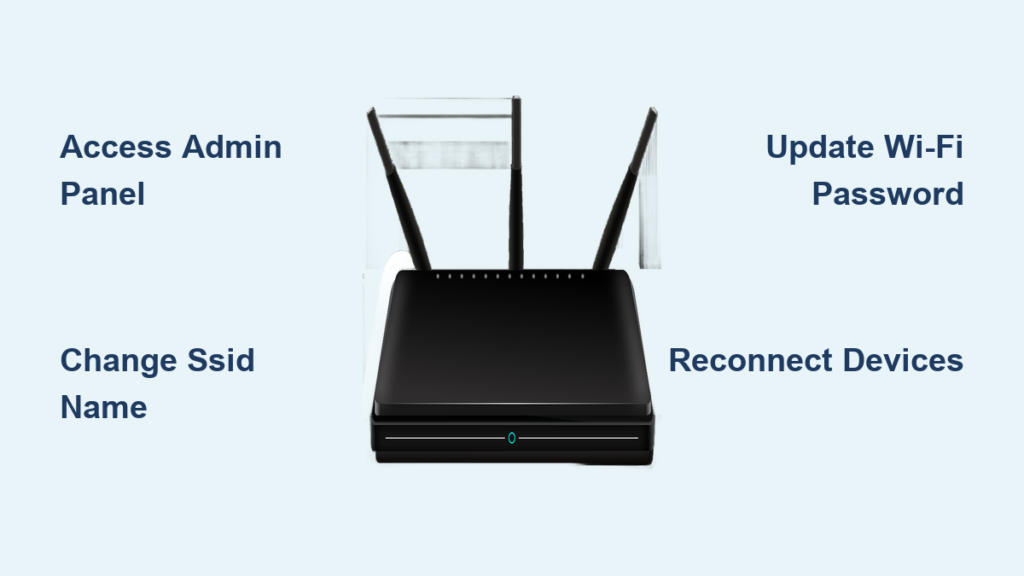
Is your home Wi-Fi still broadcasting a generic label like “HomeNetwork123” or a confusing string of characters from your ISP? Learning how to change router name improves your security, prevents connection errors in crowded areas, and gives your network a personal touch. This guide walks you through the exact steps for Verizon Fios users and manual setups alike.
You will discover how to access your admin panel, update your SSID, and secure your password without losing connectivity. We also cover essential troubleshooting tips to ensure every device reconnects smoothly after the change.
Access Your Router Admin Panel Successfully
You must log in to your router’s administrative interface before making any network changes. This central hub controls all your Wi-Fi settings, including the network name and security protocols.
Connect Your Device to the Network
Ensure your computer or smartphone is currently connected to the Wi-Fi network you intend to modify. You can also use an Ethernet cable for a more stable connection during the update process. Without an active link to the router, your browser cannot reach the settings page.
Locate Your Default Gateway IP Address
Most routers use a specific IP address as their gateway, commonly 192.168.1.1 or 192.168.0.1. You can find your specific address by checking your network settings.
* Windows Users: Open Command Prompt, type ipconfig, and look for the “Default Gateway” entry.
* Mac Users: Navigate to System Settings, select Network, click Details on your Wi-Fi connection, and find the “Router” address under the TCP/IP tab.
Type this number directly into your web browser’s address bar to load the login screen.
Enter Administrator Credentials
Input the required username and password to access the backend system. If you have never changed these, the defaults are often printed on a sticker on the router itself.
* Common defaults include admin/admin or admin/password.
* Check the physical label on the bottom or back of your device for exact credentials.
If you previously customized these credentials and forgot them, you may need to reset the device to factory settings.
Change Router Name Using My Verizon App
Verizon Fios customers with a Quantum Gateway or Advanced Router can update settings quickly through the My Verizon portal. This method avoids complex IP addresses and offers a user-friendly interface.
Log Into Your Verizon Account
Visit the My Verizon website or open the mobile app and sign in with your account credentials. Select the Home section from the main dashboard to view your internet services.
Navigate to Internet Management Tools
Hover over the Services menu and click on Internet. Under the “My Network” heading, locate your specific network and select the Manage button. This action opens the configuration panel for your Wi-Fi settings.
Update Your Network SSID
Find the field labeled Network Name (SSID) within the Wi-Fi settings section.
* Delete the existing name.
* Type your preferred new name.
* Click Save Changes to apply the update.
If your Wi-Fi signal is currently disabled, a popup will appear prompting you to enable Wi-Fi access before saving. Once saved, all devices will disconnect immediately.
Manually Update SSID on Third-Party Routers
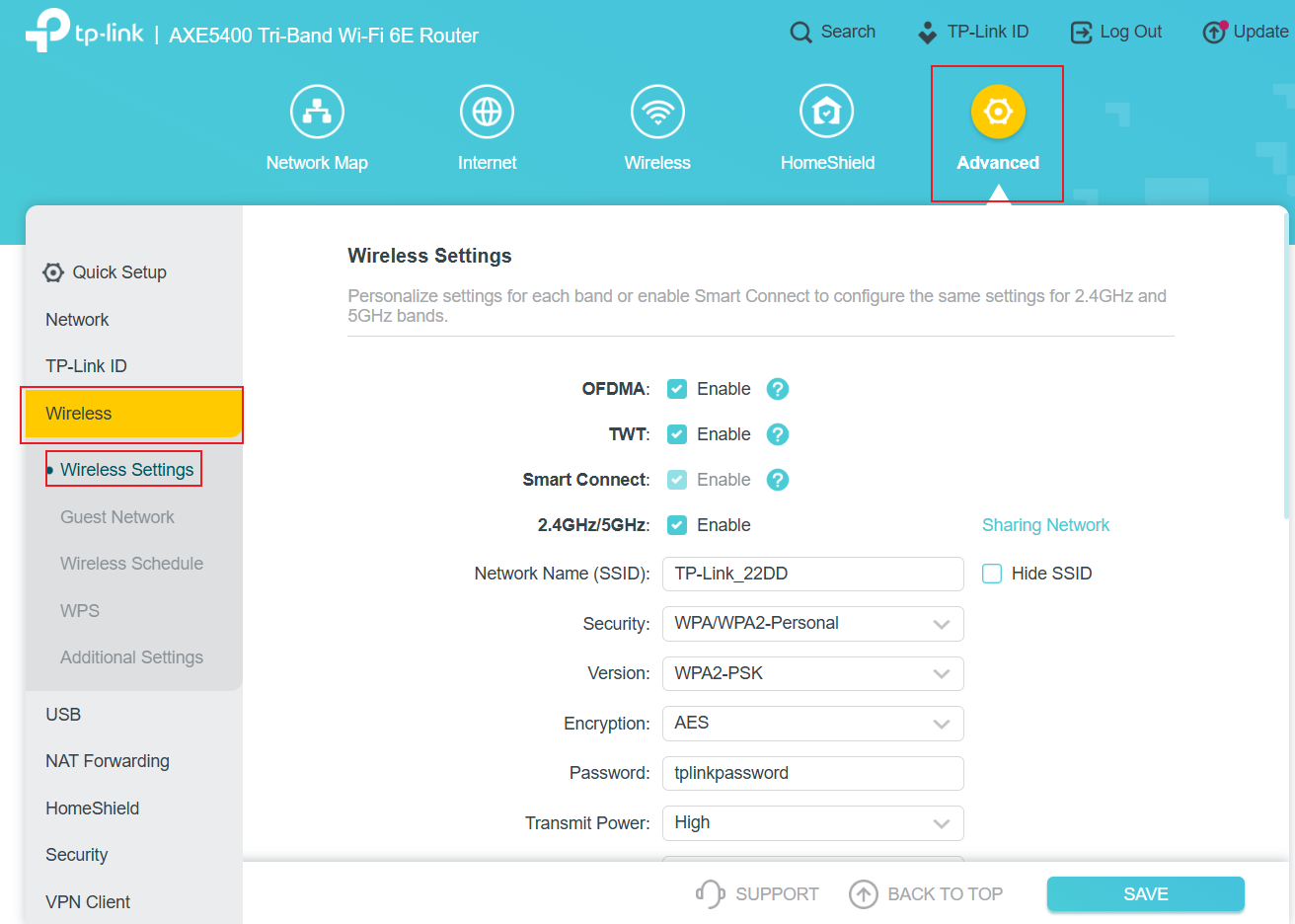
Users with non-Verizon equipment from brands like TP-Link, Netgear, or ASUS must change the name through the router’s local interface. The process varies slightly by manufacturer but follows a similar logic.
Open the Wireless Configuration Tab
After logging into your router’s IP address, look for a tab or menu item labeled Wireless, Wi-Fi Settings, or Network. This section contains all broadcast parameters for your device.
Edit the 2.4 GHz and 5 GHz Names
Modern routers often broadcast two frequencies. You may see separate fields for 2.4 GHz and 5 GHz SSIDs.
* Enter your desired name in the SSID field.
* Avoid using special characters or spaces that might confuse older devices.
* Do not include personal information like your address or last name in the title.
Apply Settings and Reboot
Click the Apply or Save button to commit the changes. Your router will likely restart to apply the new configuration. During this brief reboot, your internet connection will drop temporarily.
Optimize Dual-Band Network Naming Strategies

Many modern routers support dual-band technology, allowing you to broadcast on both 2.4 GHz and 5 GHz frequencies. You have two main options for naming these bands.
Assign Distinct Names for Each Band
Create unique SSIDs for each frequency, such as MyHome-2.4G and MyHome-5G. This approach allows you to manually connect specific devices to the band that suits them best. For example, smart home gadgets often work better on 2.4 GHz, while streaming boxes benefit from 5 GHz speeds.
Merge Bands Under a Single Name
Use the same SSID for both frequencies to let your router decide the best connection path. Devices will automatically switch between bands as you move around your home.
* Pro Tip: Ensure your router supports “band steering” if you choose this method to prevent devices from sticking to slower speeds.
Strengthen Security When Updating Credentials
Changing your router name is an excellent time to update your Wi-Fi password. This dual update ensures that only authorized users can access your refreshed network.
Configure a Strong Passphrase
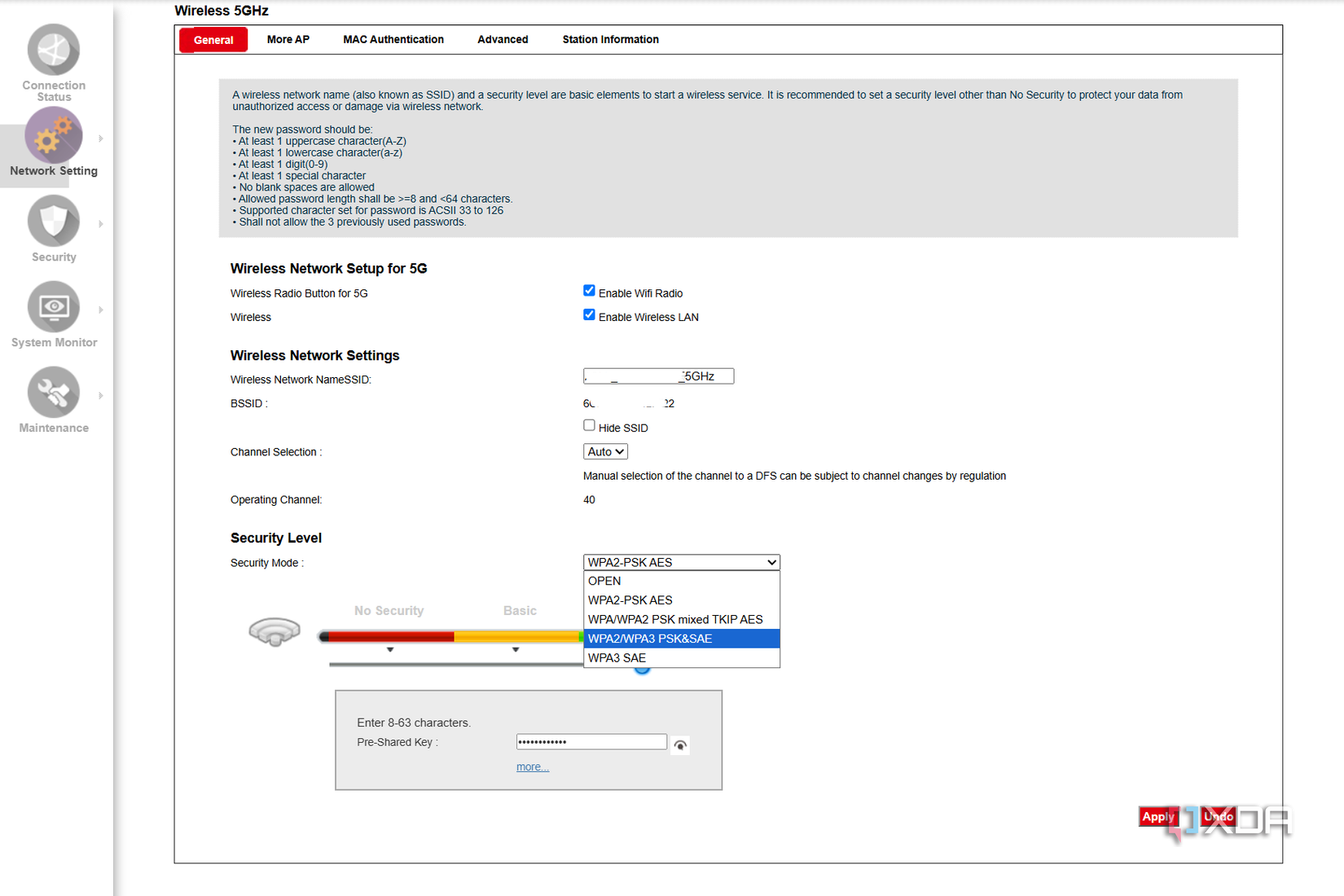
Locate the Password, Passphrase, or WPA Key field in your wireless security settings. Create a complex password with at least 12 characters, mixing uppercase letters, numbers, and symbols. Avoid using common words or easily guessed phrases.
Select WPA2 or WPA3 Encryption
Always choose the highest security protocol available in your dropdown menu.
* Select WPA3-Personal if your devices support it.
* Use WPA2-PSK (AES) as a reliable standard for most homes.
* Never select WEP or leave your network open without a password.
Click Save to lock in your new security settings. All devices will require the new password to reconnect.
Reconnect Devices to the New Network
Once you change the router name, every previously connected device loses its link to the internet. You must manually rejoin each one to restore functionality.
Rejoin with Smartphones and Computers
Open the Wi-Fi settings on your phone, tablet, or laptop. Scan for the new network name you just created. Select it and enter your updated password when prompted. Your device will remember this new configuration for future use.
Reset Smart Home Gadgets
Smart speakers, thermostats, and security cameras often require extra steps.
* Open the companion app for the device.
* Initiate the setup or reconnection mode.
* Follow the on-screen prompts to input the new SSID and password.
Some devices may lose their custom settings and require a full reconfiguration from scratch.
Refresh Printers and Streaming Sticks
Older printers and streaming devices like Roku often lack automatic reconnection features. You may need to navigate their physical menus to find the network list. Enter the new name and password using the remote control or screen interface.
Troubleshoot Common Connection Issues
Occasionally, the new network name might not appear immediately, or you may face login barriers. These common issues have straightforward solutions.
Resolve Admin Page Access Errors
If your browser refuses to load the login page, try restarting your router. You can also switch to a wired Ethernet connection or clear your browser cache. Using an incognito window often bypasses cached credential conflicts.
Fix Missing SSID After Update
If your new name does not show up on devices, wait two minutes for the router to fully reboot. Check your settings to ensure “SSID Broadcast” is enabled. If the network remains invisible, verify that the wireless channel is set to automatic.
Recover Lost Login Credentials
If you cannot log in because you forgot your custom admin password, you must reset the hardware. This action restores all factory defaults, including the original Wi-Fi name and password found on the device label.
Restore Factory Defaults If Necessary
Use this method only if you are locked out of your settings or the configuration becomes corrupted. It erases all custom changes.
Initiate the Hardware Reset
Locate the small Reset hole on the back or bottom of your router. Use a paperclip or pin to press and hold the button inside for 10 to 15 seconds. Watch for the lights on the front to flash, indicating the reset process has started.
Reconfigure Your Network From Scratch
Allow the router to reboot completely. You must now log in using the default credentials on the label. Proceed to change your router name and password again, then reconnect all your devices as if the network were brand new.
Implement Post-Change Security Best Practices
A custom name is just the first step in securing your home network. Follow these additional practices to maintain a safe digital environment.
Avoid Personal Identifiers in SSID
Never include your full name, street address, or apartment number in your Wi-Fi name. Broadcast names are visible to anyone nearby, and personal details can aid potential attackers in targeting your home.
Disable Remote Management Features
Check your admin panel for a setting called “Remote Management” or “WAN Access.” Turn this feature off to prevent outsiders from accessing your router settings from outside your home network.
Keep Firmware Updated
Regularly check the admin panel for firmware updates. Manufacturers release these updates to patch security vulnerabilities and improve performance. Enable automatic updates if your router supports this feature.
Frequently Asked Questions About Changing Router Names
Will changing my router name disconnect my devices?
Yes, every device connected to your Wi-Fi will lose its connection immediately after you save the new name. You must manually reconnect each device using the new network name and your existing password.
Can I use special characters in my new Wi-Fi name?
It is best to avoid special characters, spaces, or symbols in your SSID. Some older devices and smart home gadgets may fail to connect if the name contains characters they do not recognize. Stick to letters, numbers, and underscores.
Do I need to change both 2.4 GHz and 5 GHz names?
You do not have to, but you can. You may give them the same name for seamless switching or different names to manually control which band your devices use. The password can remain the same for both bands.
What happens if I forget my new Wi-Fi password?
If you forget the new password, you can log back into your router’s admin panel to view or reset it. If you also forgot the admin login, you will need to factory reset the router to restore the default credentials.
Is it safe to use my name in the Wi-Fi network title?
No, using your name or address in the SSID is a security risk. It links the network directly to your identity and location, making it easier for bad actors to target your specific household.
Key Takeaways for Changing Your Router Name Successfully
Updating your network identity is a quick task that significantly improves your home Wi-Fi organization and security. By following the steps above, you can easily customize your SSID, strengthen your encryption, and manage your connected devices with confidence. Remember to write down your new credentials and reconnect all gadgets promptly to restore full functionality.
Take action today by logging into your router or My Verizon account to finalize your network upgrade. A personalized and secure Wi-Fi environment ensures smoother streaming, safer browsing, and total control over your digital home.



