
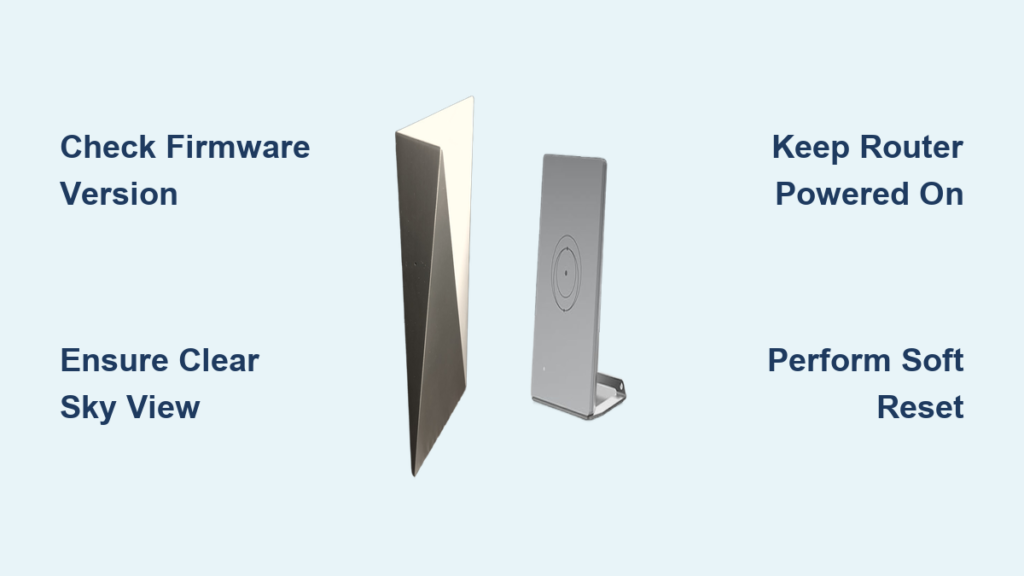
Your Starlink internet feels sluggish or drops connection occasionally, signaling a potential need to update Starlink router firmware. While the system usually manages itself, ensuring your hardware runs the latest software is vital for peak speed and security.
This guide explains exactly how automatic updates work and what steps you can take if your system seems stuck. You will learn how to check versions, reset your hardware safely, and troubleshoot common issues preventing installation.
Verify Your Current Firmware Version

You cannot manually download firmware files for Starlink, but you can verify which version your router currently runs. Checking this status is the first step in determining if an update is pending or if your system is already current.
Locate Hardware Details in the App
Open the Starlink app on your mobile device and tap the menu icon in the top left corner. Select Settings from the list, then tap Hardware to view detailed device information. You will see your router serial number and the specific firmware version currently installed on the unit.
Compare Version Numbers
Take note of the firmware number displayed and compare it against the latest versions listed in official Starlink support documentation. If your installed version is older than the most recent release noted online, your router likely has a pending update waiting to download.
Understand Automatic Update Mechanisms
SpaceX controls all firmware rollouts directly from their servers rather than relying on user initiation. This design ensures network stability but means you must wait for the update to reach your specific device based on regional rollout schedules.
How SpaceX Deploys Firmware
Updates are pushed remotely to routers based on your geographic region and hardware type. The company releases software to a small group of users first to test stability before expanding the rollout to the wider network.
Why You Cannot Force an Update
There is no “Check for Updates” button because the process is entirely server-side. Attempting to force an update through unofficial means is impossible and could damage your equipment, so you must rely on the automatic delivery system.
Ensure Optimal Connection Conditions
Your router requires a stable and active link to the Starlink satellite network to download and install new firmware successfully. Poor signal quality or frequent disconnections will prevent the update process from completing.
Maintain Clear Sky Visibility
Check the app for any obstruction warnings that might indicate your dish lacks a clear view of the sky. Resolve any physical blockages like tree branches or snow to ensure the dish maintains a strong, uninterrupted signal for hours.
Keep the Router Powered Continuously
Leave your router plugged in and powered on at all times to allow background downloads to occur. Frequent power cycling or turning off the router at night can interrupt the download window and delay the installation of critical updates.
Perform a Soft Reset to Trigger Installation
If you suspect an update is stuck or pending, a soft reset can often prompt the system to re-establish contact with the update server. This simple troubleshooting step resolves many minor connectivity glitches preventing firmware downloads.
Steps to Reset Your Router
- Locate the power cable connected directly to your Starlink router.
- Unplug the power source completely and wait for at least 30 seconds.
- Plug the power cable back in and allow the system to reboot fully.
Interpret LED Status Lights
Watch the LED light on the router as it restarts to understand its current state. A solid white light indicates normal operation, while a pulsing white light often suggests the system is syncing or actively installing an update.
Diagnose Network Health via the App
The Starlink app includes built-in diagnostic tools that help you verify if your network conditions are suitable for receiving updates. Running these checks can reveal underlying issues that stop firmware from installing.
Run the Built-in Diagnostic Test
Navigate to Settings in the app, then select Network and tap Diagnostics. Tap Run Test to generate a report on your latency, packet loss, and overall connection health.
Confirm Device Communication Status
Ensure both your dish and router display a “Connected” status within the application interface. If the dish is in sleep mode or the router appears offline, the system will not initiate any update procedures until communication is restored.
Avoid Common Firmware Update Mistakes
Many users attempt actions that are unnecessary or potentially harmful when trying to update their systems. Avoiding these common errors ensures your hardware remains safe and functions correctly during the update cycle.
Do Not Seek Manual Installation Files
Never trust third-party websites claiming to offer manual firmware downloads for Starlink routers. These files do not exist officially and using them could compromise your system security or void your warranty.
Prevent Overheating During Updates
Place your router in a well-ventilated area away from direct sunlight or enclosed cabinets. If the device overheats, it may shut down automatically, which can interrupt an update and potentially corrupt the firmware.
Wait for Regional Rollout Schedules
Patience is often the only solution when waiting for a new firmware version to arrive at your specific location. Rollout times vary significantly based on logistics that are outside of your direct control.
Recognize Variable Timing Factors
Some users receive updates within days while others wait weeks depending on their region and hardware batch. There is no method to accelerate this timeline, so you must wait for the server-side rollout to reach your account.
Monitor Official Feature Announcements
Watch for emails or website posts from SpaceX announcing new features like improved Quality of Service or Wi-Fi scheduling. If a new feature is announced but missing from your app, it confirms your router is waiting for the next firmware wave.
Contact Support for Persistent Issues
If your firmware remains outdated for several weeks despite a healthy connection and multiple resets, professional assistance may be required. Support agents can check your account status and verify if a specific issue is blocking your update.
Submit a Detailed Support Ticket
Visit the Starlink support website and log in to your account to describe your issue clearly. Include your router serial number, current firmware version, and details about the steps you have already taken to troubleshoot.
Utilize Live Chat for Quick Resolutions
Use the live chat feature in the app or website for faster responses compared to email tickets. Have your diagnostic screenshots ready to share so the agent can quickly verify if an update is pending for your specific device.
Frequently Asked Questions About Starlink Router Updates
Can I manually update my Starlink router firmware?
No, you cannot manually update the firmware as SpaceX controls all installations remotely. The system is designed to download and install updates automatically without user intervention.
How long does a Starlink router update take?
Most updates install within a few minutes to an hour depending on your connection speed. The process usually happens in the background while you continue using your internet service.
What should I do if my router light is pulsing white?
A pulsing white light typically means the router is syncing with the satellite or installing an update. Do not unplug the device during this time to avoid corrupting the firmware.
Why hasn’t my Starlink router updated yet?
Updates roll out gradually by region and hardware type, so timing varies for every user. As long as your router is powered on and connected, it will receive the update eventually.
Does restarting my router force a firmware update?
Restarting does not force an update but can help the router reconnect to the server and check for pending downloads. It is a useful troubleshooting step if an update seems stuck.
Key Takeaways for Updating Your Starlink Router
Keeping your Starlink router updated is essential for maintaining fast speeds and accessing new features, even though the process is automatic. You can support this process by ensuring your dish has clear sky visibility, keeping your router powered on continuously, and performing occasional soft resets if issues arise.
Remember that you cannot force an update manually, so patience is required while waiting for regional rollouts. Check your firmware version regularly in the app, and contact Starlink support only if your system remains outdated for an extended period despite having a healthy connection.



