
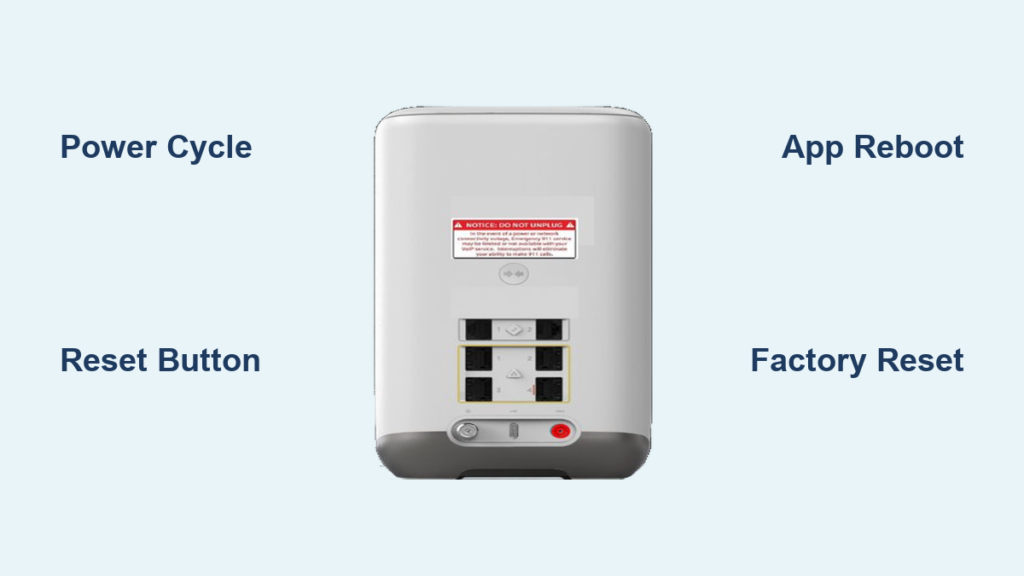
Is your Cox internet crawling, dropping connections, or refusing to load anything at all? A quick reset might be all you need to get back online. Whether your modem is frozen, your Wi-Fi settings are scrambled, or you just want a performance refresh, knowing how to reset Cox modem equipment the right way saves you time and a support call. This guide walks through all three reset methods—physical button, power cycle, and app-based reset—so you can pick the best option for your situation. You will also learn what to expect after each reset and how to troubleshoot if things still do not work.
Choose the Right Reset Type for Your Problem
Before you reach for a paperclip or open an app, figure out which reset actually solves your issue. Not every reset does the same thing.
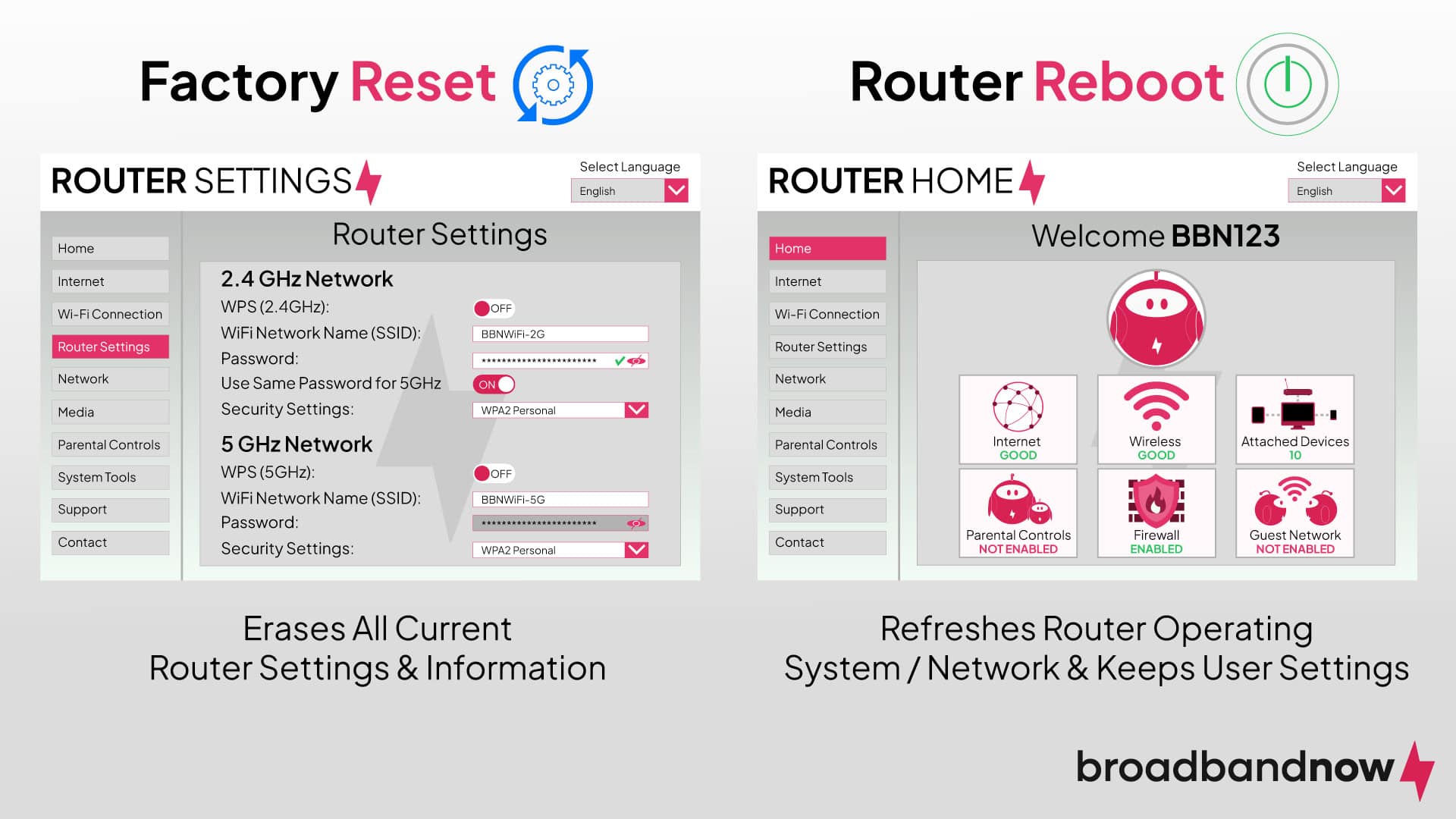
Factory Reset vs. Power Cycle: What Changes
A factory reset wipes all custom settings. That includes your Wi-Fi name, password, and any port forwards you set up. The modem goes back to the way it looked on day one. Use this only when nothing else works or when you have lost access to your network.
A power cycle simply restarts the device. It clears short-term glitches but leaves your settings untouched. This is the best first step for slow speeds or random disconnects.
When to Use Each Method
- Factory reset: forgotten admin password, persistent offline status, or bad configuration
- Power cycle: slow speeds, dropped connections, or an unresponsive device
- App reset: no physical access to the modem or you want a quick remote restart
Use the Physical Reset Button on Your Modem
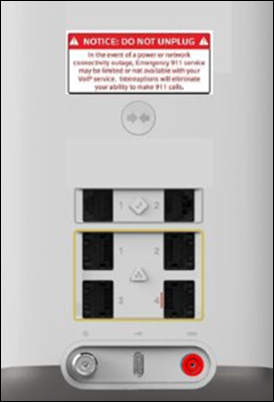
This method performs a full factory reset using the hardware button built into the device.
Locate the Reset Button
The reset button is a small, recessed hole on the back, bottom, or side of most Cox modems and gateways. On Panoramic Wi-Fi gateways, it is often labeled “Reset” or marked with a tiny pin icon. Some models combine it with the WPS button.
You will need a paperclip, pin, or SIM eject tool to press it.
Press and Hold for 30 to 40 Seconds
- Unplug all Ethernet cables from the modem while leaving power connected.
- Make sure the device is powered on.
- Insert the paperclip into the reset hole and press and hold for 30 to 40 seconds. That is longer than most people expect.
- Release when the lights begin flashing. This signals the reset has started.
Releasing too early may prevent the reset from triggering. Keep holding until you see the lights respond.
Wait for Reboot and Reconfiguration
Once you release the button:
- The modem restarts on its own.
- Wait 5 to 10 minutes for all lights to stabilize.
- Do not unplug during this time. Cutting power mid-process can cause boot failures.
When the modem is back online:
- Connect to the default Wi-Fi network (name and password are on the device label).
- Open a browser and visit
192.168.254.1or192.168.100.1. - Log in with the default username and password printed on the label.
From here, use the Cox app or admin panel to set up your Wi-Fi name and password again.
⚠️ Warning: A factory reset erases everything. If you do not have the default credentials, you will not be able to log back in.
Power Cycle the Modem Without Losing Settings
This is the safest, most common fix for everyday internet hiccups. It does not erase your settings.
Unplug Both Ends of the Power Cord
- Unplug the power cord from the back of the modem.
- Unplug it from the wall outlet as well.
- Disconnecting both ends ensures no leftover power remains inside the device.
Wait 60 Seconds (10 Minutes for Fiber Gateways)
- For standard cable modems: Wait at least 60 seconds.
- For fiber gateways like Cox Gigablast: Wait 10 minutes to fully discharge.
Skipping the wait can leave residual power in the system, which may prevent the reset from clearing the cache.
Reconnect and Wait for the Lights to Stabilize
- Plug the power cord back into the wall, then into the modem.
- Wait 5 to 10 minutes for all lights to settle:
– Power: solid
– Downstream/Upstream: solid or blinking until locked
– Online/Internet: solid white or green
– Wi-Fi: solid (on gateways)
Fiber customers may need up to 10 minutes after reboot for full service to return.
This method clears memory glitches and usually restores normal speed and connectivity without any reconfiguration.
Reset Your Modem Using the Cox Mobile App
If you cannot reach the modem, the Cox app lets you reset it remotely.
Log In and Navigate to Your Internet Service
- Open the Cox Mobile App on your phone or tablet.
- Sign in with your Cox account credentials.
- Tap “My Services” or “Services”.
- Select “Internet” under your service details.
Choose Between a Reboot or a Full Reset
The app gives you two options.
Factory Reset via the App
- Tap “Reset Modem” then “Begin Reset”.
- Confirm the action.
- The modem performs a full factory reset.
- The process takes 5 to 10 minutes.
- After reboot, reconnect using the default Wi-Fi credentials on the device label.
- Use the app to set up internet again and customize your network.
This option erases all settings, just like a physical reset.
Reboot via the App
- Go to “My Devices”.
- Select your modem or gateway.
- Tap “Reboot” or “Restart”.
- Confirm and wait a few minutes for the device to come back online.
This is the easiest option for quick restarts when you are away from home.
Benefits of an App-Based Reset
- No physical access required
- No risk of accidentally triggering a factory reset
- Faster than manual methods
- Preserves settings (when using reboot only)
Reconfigure Your Network After a Factory Reset

If you wiped the modem, your network is now back to factory defaults. Here is how to set it up again.
Connect to the Default Wi-Fi Network
- Find the default SSID and password on the modem label. It often looks like “Cox-XXXX”.
- Connect your phone or laptop to that network.
Access the Modem Admin Panel
- Open a web browser.
- Enter
192.168.254.1or192.168.100.1. - Log in with the default username and password on the label.
Cox recommends using the app for setup instead of changing settings in the admin panel unless necessary.
Use the Cox App to Set Up Internet Again
- Open the Cox app.
- Follow the in-app prompts to:
– Reconnect to internet service
– Choose a new Wi-Fi network name (SSID)
– Create a new password - Save your new credentials somewhere secure.
Pro Tip: Write your new Wi-Fi name and password on a sticker and attach it to the modem for easy reference later.
Troubleshoot Common Reset Issues
Sometimes a reset does not fully solve the problem. Here is what to do next.
No Lights Appear After Reset
- Check the power connection and outlet.
- Try a different power cable or wall outlet.
- If there are still no lights, the modem may be faulty.
Internet Light Blinking or Red
- Blinking: The modem is syncing with the Cox network. Wait 10 to 15 minutes.
- Red: Signal issue or outage. Check Cox service status or call support.
Cannot Access 192.168.254.1
- Make sure you are connected to the modem’s network.
- Try
192.168.100.1instead. - Clear your browser cache or try a different device.
App Says “Device Offline” After Reset
- Wait longer. Modems need time to register with Cox.
- Power cycle the modem again.
- If it stays offline, contact Cox support.
When to Contact Cox Support
Some issues go beyond a simple reset. Call Cox Support at 1-800-234-3993 or reach out through the app if:
- The modem does not come online after 15 minutes
- You suspect hardware failure
- You need a firmware update
- The reset button is broken or inaccessible
- Service is down in your area
Cox may dispatch a technician or ship a replacement if needed.
Prevent Future Connectivity Problems
A reset fixes problems, but prevention keeps your internet stable.
Schedule Monthly Reboots
Set a reminder to reboot your modem once a month. It clears memory, refreshes connections, and prevents slowdowns.
Keep Firmware Updated
Cox pushes updates automatically, but you can check manually:
– In the Cox app under “My Devices”
– Or in the admin panel under “Firmware”
Label Your Modem
Write your custom Wi-Fi name and password on a sticker and attach it to the modem. This saves time when devices need reconnecting.
Use a Surge Protector
Power surges can damage modems. Always plug into a quality surge protector, not directly into the wall.
Quick Reference: Reset Method Comparison
| Method | Time Required | Settings Lost? | Best For |
|---|---|---|---|
| Physical Reset Button | 5 to 10 minutes | Yes | Forgotten password, deep issues |
| Power Cycle | 5 to 10 minutes | No | Slow speeds, drops, glitches |
| App Factory Reset | 5 to 10 minutes | Yes | Remote reset, no physical access |
| App Reboot | 2 to 5 minutes | No | Quick restart, hands-off |
Frequently Asked Questions About Resetting a Cox Modem
How long do you hold the reset button on a Cox modem?
Hold the reset button for 30 to 40 seconds. Do not release early, even if the lights flicker sooner. The full hold time ensures the factory reset fully triggers.
Will resetting my Cox modem delete my Wi-Fi name and password?
A factory reset will erase your custom Wi-Fi name, password, and all settings. A power cycle or reboot keeps your settings intact.
How long does it take for a Cox modem to reboot after a reset?
The reboot process usually takes 5 to 10 minutes. Fiber gateways may take up to 10 minutes after power is restored for full service to return.
What is the default IP address for a Cox modem?
The most common default IP addresses are 192.168.254.1 and 192.168.100.1. Check the label on your modem or your user manual to confirm.
Where do I find the default username and password for my Cox modem?
The default username, password, Wi-Fi name, and Wi-Fi password are all printed on the label on the modem itself, usually on the back or bottom.
What if my Cox modem does not work after a reset?
Wait at least 15 minutes, then try power cycling again. If the modem still will not connect, contact Cox Support at 1-800-234-3993 for help or a possible replacement.
Key Takeaways for Resetting Your Cox Modem
- Power cycle first for most issues. It is fast, safe, and preserves your settings.
- Use the physical factory reset only when you have lost access or need a clean slate. Hold the button for the full 30 to 40 seconds.
- Try the Cox app when you want a remote option. It offers both quick reboots and full resets.
- Save your default credentials before any factory reset so you can log back in.
- Reboot monthly to keep your connection stable and avoid future slowdowns.
Resetting your Cox modem does not have to be stressful. Pick the method that matches your problem, follow the wait times, and you will be back online in minutes.



