You plug in your laptop, gaming console, or smart TV, but nothing happens. Wi-Fi runs fine, yet your Arris modem’s Ethernet ports refuse to deliver a connection. This frustrating scenario affects popular models like the Arris SBG7580, SB8200, and TG1672, and it usually traces back to misconfigurations, hardware wear, or signal problems. When Arris modem Ethernet ports stop working, your work meetings, game nights, and streaming sessions all grind to a halt.
The good news? Most cases are fixable at home without a technician visit. This guide walks you through power resets, cable inspections, direct connection tests, firmware updates, and the exact moment to request a replacement. Every step is tested and proven, so you can stop guessing and start fixing.
Restart the Modem and Connected Devices
A full reboot clears temporary glitches that quietly disable Ethernet ports. Internal memory errors and stuck processes often resolve with a clean power cycle.
Power Cycle the Arris Modem
- Unplug the power cable from the back of the modem.
- Wait 30 seconds so capacitors fully discharge.
- Reconnect the power and wait 2 to 3 minutes for all lights to stabilize.
- Do not rush this step. Incomplete booting can leave ports inactive.
Restart the Router and Test Device
- Power off any separate router, wait 30 seconds, then restart it.
- Restart the device connected via Ethernet (PC, console, or streaming box).
- This syncs DHCP assignments and prevents IP conflicts that mimic port failure.
Inspect the Ethernet Port and Cable

Damaged cables or dirty ports are the most overlooked cause of dead Ethernet connections. A quick physical check saves hours of troubleshooting.
Examine the Port for Damage or Debris
- Look inside the Ethernet port for bent pins, dust, or corrosion.
- Use a flashlight to see deep into the connector.
- Blow out loose debris with compressed air. Never insert metal tools.
Swap and Test Ethernet Cables
- Try a known working cable from another device.
- Avoid old, frayed, or tightly bent cables. They often fail internally even if the exterior looks fine.
- Use a Cat 5e or Cat 6 cable under 10 feet for best results.
✅ Pro Tip: Plug the same cable into a working router. If it fails there too, the cable is the culprit.
Run a Direct Connection Test
Bypassing your router isolates whether the problem lives in the modem or your network setup. This single test eliminates half of all guesswork.
Connect a Computer Directly to the Modem
- Plug a laptop or desktop straight into the modem using Ethernet.
- Disable Wi-Fi on the device to force wired communication.
- Open a browser and load any website to confirm connectivity.
Watch the Link and Activity Lights
- Look at the Ethernet port light on the modem:
- Solid or blinking green: Physical link detected.
- No light or amber: No handshake established.
- No light usually means a bad cable, a disabled port, or hardware failure.
❗ If the light never turns on even with a good cable, the port may be disabled in settings or physically damaged.
Verify the Online and Internet Status Lights
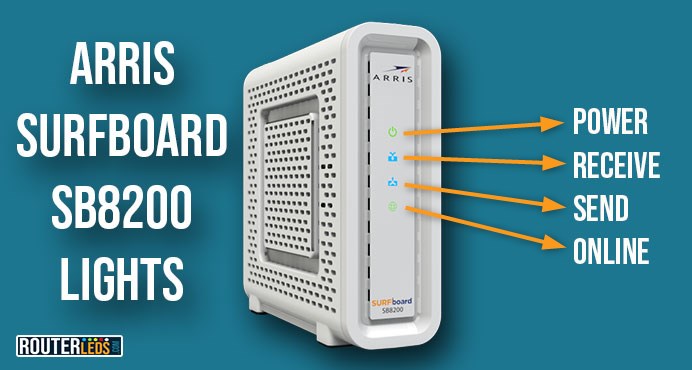
Even with a perfect Ethernet cable, no internet means the modem has an upstream problem. Your front panel lights tell the whole story.
Read the Front Panel Indicators
- Power (solid green): Modem is receiving power normally.
- Online (solid green): Modem is synced with your ISP.
- Internet (solid green): Active internet session is live.
- Blinking red or dark Online light: Modem is not registering with the ISP.
Check Model-Specific Light Codes
- Arris SBG7580: Blinking white Online light means syncing. Solid white means online.
- Arris SB8200: Blue Internet light signals a good connection. Red indicates an error.
- Always cross-reference your specific model label for accurate codes.
❌ If the Online or Internet light is not solid, your Ethernet ports will not work, even if the cable is plugged in correctly.
Confirm Service Status with Your ISP
Sometimes your ISP is the reason Arris modem Ethernet ports are not working. Outages, account holds, or provisioning errors block all traffic.
Check for Local Outages
- Visit your ISP’s service status page (Spectrum, Xfinity, Cox, etc.).
- Enter your address to see if a known outage is affecting your area.
- Wait 30 to 60 minutes if an outage is reported before testing again.
Call Your ISP for a Line Check
- Request a line health test from customer support.
- Ask them to verify these three things:
- Your modem MAC address is recognized on their network.
- No service suspension or billing block is active.
- Signal levels fall within acceptable ranges.
✅ Many ISPs can remotely reboot or re-provision your modem, which often restores Ethernet functionality.
Log Into the Modem Dashboard

The web interface reveals whether Ethernet is enabled, DHCP is running, and your device is detected. This step confirms the modem’s internal state.
Access the Arris Modem Interface
- Connect via Wi-Fi or Ethernet.
- Open a browser and type
http://192.168.0.1orhttp://10.0.0.1. - Log in with the default credentials (usually admin and password, found on the modem label).
Navigate to the LAN or Status Page
- Go to Status > LAN or Network > Local Network.
- Confirm these settings:
- LAN IP Address is assigned (for example, 192.168.0.1).
- DHCP Server is Enabled.
- Connected Devices lists your wired device.
❌ If DHCP is off, wired devices will never receive an IP address. Toggle it on and reboot the modem.
Update or Reinstall Firmware
Outdated firmware can silently disable LAN ports or cause random instability. A quick update often fixes long-standing bugs.
Check Your Current Firmware Version
- In the dashboard, go to Administration > Firmware Update.
- Compare the installed version to the latest release on Arris’s site or your ISP’s support page.
- Proceed if your version is outdated.
Install the Firmware Update
- Download the correct firmware file from your ISP or Arris.
- Upload it through the Firmware Upgrade tool in the dashboard.
- Wait 5 to 7 minutes for installation. Do not power off the modem.
- The modem will reboot automatically when finished.
⚠️ Warning: Only use firmware approved by your ISP. Wrong files can permanently damage the modem.
Reset the Modem to Factory Settings
Use this step only when all other fixes fail. A factory reset wipes every custom setting but often resurrects dead ports.
Perform a Hard Reset
- Find the reset button (a tiny hole on the back or bottom).
- Insert a paperclip and hold for 10 to 15 seconds.
- Release when all front lights flash at the same time.
- Wait 4 to 5 minutes for full reboot and ISP re-sync.
Reconfigure After the Reset
- Reconnect using the default Wi-Fi name and password on the modem label.
- Re-enable any custom settings like port forwarding or firewalls.
- Test the Ethernet connection again with a direct cable.
❌ Avoid repeated factory resets. They gradually wear out flash memory over time.
Inspect Downstream and Upstream Signal Levels
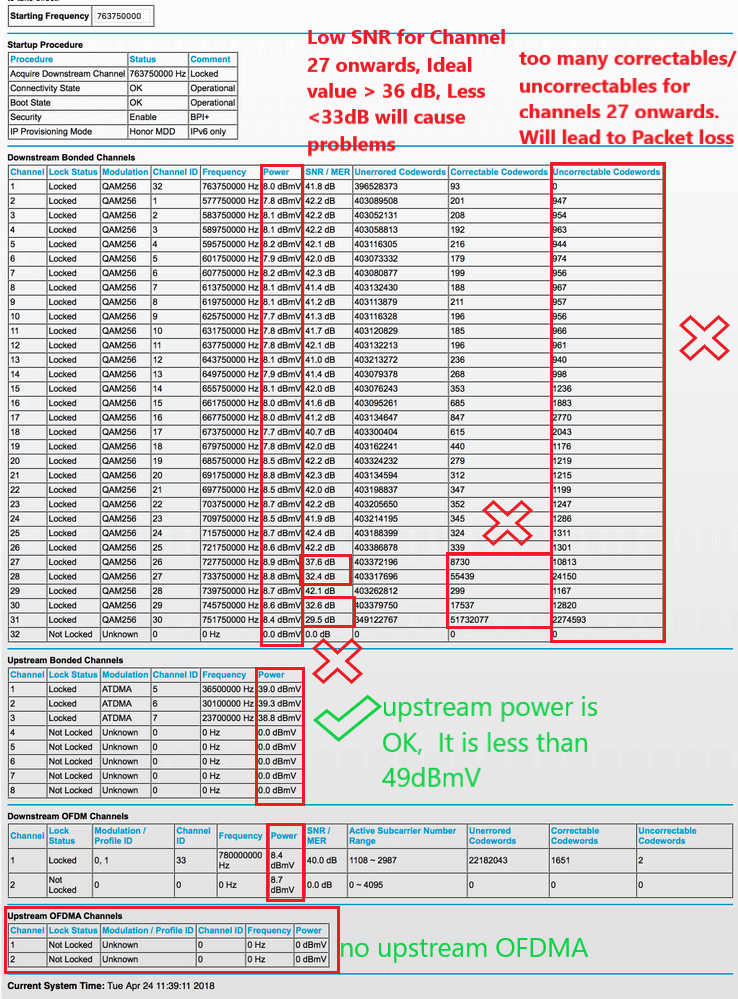
Poor signal strength can disable Ethernet ports to protect the modem from instability. Checking these values prevents unnecessary hardware swaps.
Open the Signal Levels Page
- Log into the modem dashboard.
- Navigate to Status > Signal Levels or Network > Downstream/Upstream.
Compare Your Readings to Healthy Ranges
| Signal Type | Acceptable Range | Problem Range |
|---|---|---|
| Downstream Power | -7 to +7 dBmV | Below -15 or above +15 dBmV |
| Downstream SNR | Above 30 dB | Below 25 dB |
| Upstream Power | 35 to 50 dBmV | Below 30 or above 55 dBmV |
❌ Out-of-range values can cause the modem to disable LAN ports automatically.
Request a Line Repair From Your ISP
- Share your signal readings with support.
- Ask for a line equalization check, coaxial cable inspection, or splitter replacement.
- A technician visit is often required when levels are far outside spec.
Replace the Modem if Ports Are Permanently Failed
Hardware failure means no software fix will help. Recognizing the signs early saves weeks of frustration.
Identify a Dead Ethernet Port
- Multiple devices fail on every Ethernet port.
- No link lights appear with known-good cables.
- The dashboard shows zero LAN activity.
- Firmware updates and resets do not restore function.
Request an ISP-Approved Replacement
- Most ISPs lease modems and offer free swaps for faulty hardware.
- Call support and report: “Ethernet ports are not working after full troubleshooting.”
- Ask for a DOCSIS 3.1 modem (such as the Arris SB8200) for better long-term performance.
✅ Pro Tip: Buying your own modem, like the Arris SBG7600, eliminates monthly rental fees and gives you full control.
Frequently Asked Questions About Arris Modem Ethernet Ports
Why is my Arris modem Ethernet port not connecting?
The port often fails due to a temporary glitch, a damaged cable, or disabled DHCP settings. Start with a power cycle, test with a known-good cable, and check the LAN status in the modem dashboard.
How do I reset the Ethernet port on my Arris modem?
Log into the dashboard at http://192.168.0.1, confirm DHCP is enabled, and reboot the modem. If that fails, perform a factory reset by holding the reset button for 15 seconds.
Can a bad Ethernet cable stop Arris modem ports from working?
Yes. Cables fail internally even when they look perfect. Always swap in a tested Cat 5e or Cat 6 cable before assuming the port is broken.
What do the lights on my Arris modem mean for Ethernet?
A solid or blinking green Ethernet light means a working link. No light or an amber color means no physical connection is detected, usually pointing to a cable, port, or device issue.
Should I replace my Arris modem if Ethernet ports fail?
If all troubleshooting steps fail, the port is likely damaged. Contact your ISP for a replacement or purchase a new DOCSIS 3.1 modem for better speed and reliability.
Final Thoughts on Fixing Arris Modem Ethernet Ports
When your Arris modem Ethernet ports stop working, start with the simplest fixes first. A 30-second power cycle and a fresh cable resolve the majority of cases. If those fail, move to direct connection tests, dashboard checks, and firmware updates to rule out software issues.
Watch your front panel lights carefully. They reveal whether the problem is local (cable or port) or upstream (ISP signal or outage). When signals fall outside the healthy ranges listed above, your ISP needs to inspect the line before any port can function reliably.
If you have exhausted every step and the ports remain dead, the hardware is almost certainly damaged. Request a replacement modem through your ISP or invest in a modern DOCSIS 3.1 model you own outright. With this approach, you can restore wired internet quickly and avoid unnecessary downtime.