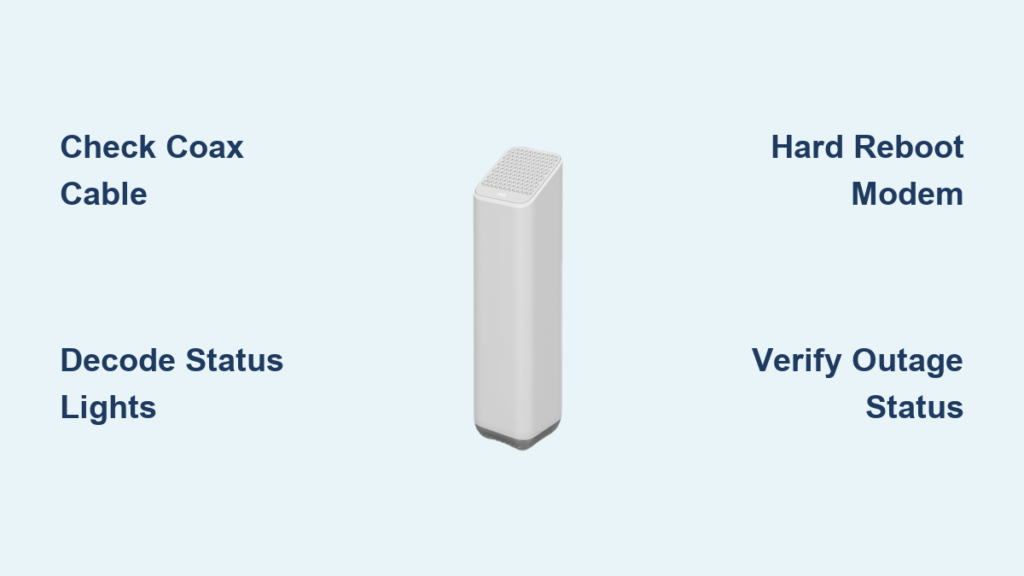
Your Comcast modem suddenly stops working, the lights are blinking orange, and your internet is completely down. You’re not alone—Xfinity customers face connection issues regularly, and most problems look worse than they actually are. The good news is that you can resolve the majority of these issues yourself in under 15 minutes without scheduling a technician visit.
This guide walks you through checking physical connections, interpreting modem status lights, performing a proper hard reboot, confirming outages, and optimizing Wi-Fi performance. You’ll also learn how to use the Xfinity app for remote diagnostics and exactly when to contact support. By the end, you’ll have a clear plan to get your Comcast modem back online and keep it running smoothly.
Check Power and Coax Connections First
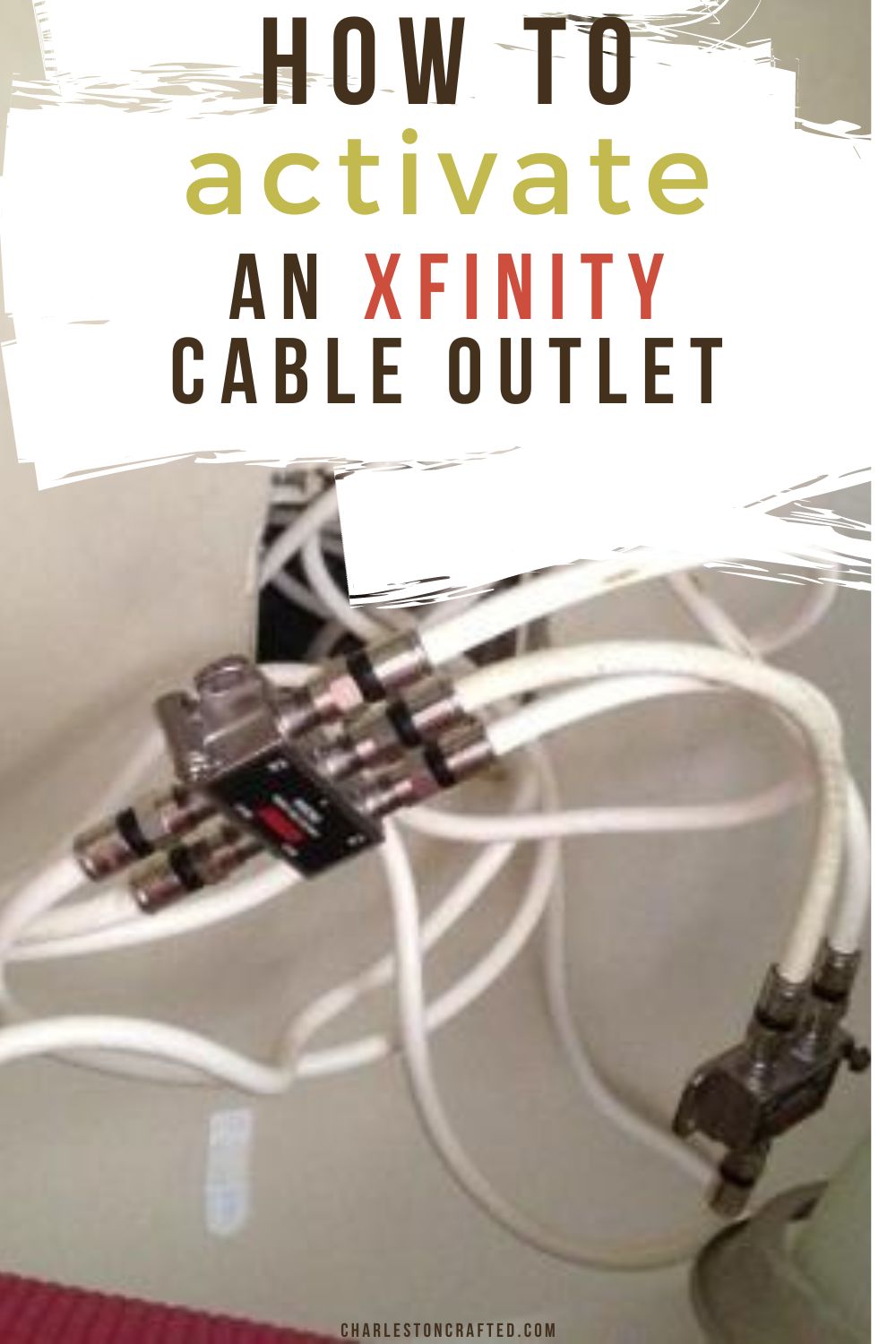
Before exploring complex fixes, confirm your Comcast modem has power and a solid signal connection. Physical connection problems cause more internet failures than any other issue.
Verify the Power Supply
- Plug the white power cord directly into a working wall outlet (bypass power strips)
- Test the outlet with another device like a lamp to confirm it’s live
- Inspect the power adapter and cord for any visible damage
- If using a surge protector, make sure it’s turned on and functioning
Pro Tip: A flickering or dim light on your modem may indicate unstable power. Switch to a direct wall outlet to rule out a failing power strip.
Inspect the Coax Cable
- Confirm the coax cable is hand-tightened at both the modem and wall outlet
- Avoid overtightening—this can strip threads and damage the connector
- Check for kinks, bends, or corrosion on the cable or connector
- Replace damaged coax cables with RG6-grade shielding for best performance
Warning: A loose coax connection often causes blinking orange lights or intermittent service drops.
Decode Your Comcast Modem Status Lights

Your modem’s LED lights are the fastest diagnostic tool available. Learning what each color means helps you skip unnecessary troubleshooting steps.
Light Patterns and What They Mean
| Light State | What It Indicates |
|---|---|
| Solid White | Normal operation—internet is online |
| Blinking White | Booting up—wait 5–10 minutes for stabilization |
| Blinking Orange | Firmware update in progress or weak signal |
| Solid Red | Hardware failure or service outage |
| No Light | No power—check outlet and cord |
What to Do Based on the Light
Blinking Orange Light
- Wait 10–15 minutes—this may be a firmware update completing
- Do not unplug the modem during an update, as this can cause corruption
- If the orange light persists, check coax connections and signal strength
Solid Red Light
- Use the Xfinity app to check for local outages
- If no outage is reported, perform a hard reboot
- If the red light returns after rebooting, contact Xfinity for hardware replacement
No Lights at All
- Test the outlet with another device
- Try a different power cord if you have one available
- Ensure the power button (if present) is turned on
Perform a Hard Reboot
A hard reboot clears glitches, resets internal memory, and resolves most temporary connectivity issues. This single step fixes more problems than any other troubleshooting method.
Reboot in 3 Simple Steps
- Unplug the power cord from the back of the modem
- Wait 60 seconds—this drains residual power and resets internal memory
- Plug back in and wait 5–10 minutes for full restart
Note: During reboot, lights will blink white, orange, or blue before stabilizing. This is completely normal.
When to Reboot Your Modem
- Internet drops unexpectedly during normal use
- Wi-Fi devices can’t connect even when the modem appears online
- Modem shows abnormal light patterns
- After changing settings or moving the device
Pro Tip: Reboot your modem once a week to prevent slowdowns and maintain stable performance.
Confirm Local Service Outages
Even with a perfectly working modem, you can’t access the internet if Xfinity has an outage in your area. Always check this before diving deeper into troubleshooting.
Use the Xfinity App
- Open the Xfinity app on your phone
- Tap the Wi-Fi tab at the bottom of the screen
- Review your device status and any outage alerts
- If status shows “Online” with no alerts, the issue is local to your setup—keep troubleshooting
- If an outage is detected, wait for Xfinity to restore service before doing anything else
Check Online as an Alternative
Visit the Xfinity Service Status page and enter your address. The page displays:
- Current outages in your area
- Estimated restoration time
- Affected services including internet, TV, and phone
Warning: Don’t waste time troubleshooting if there’s a known outage—wait for Xfinity to resolve it.
Optimize Wi-Fi Signal Strength
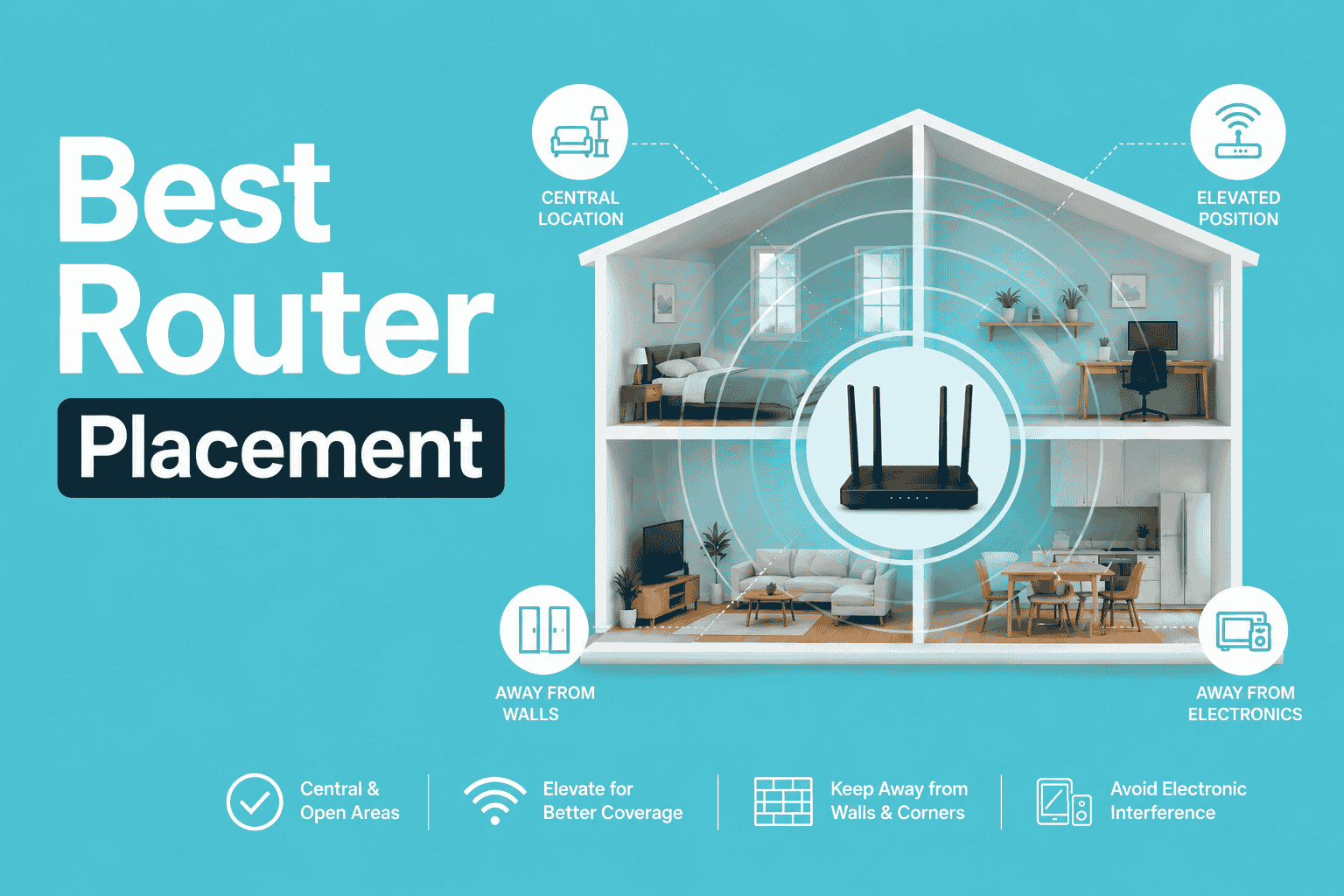
Even when your modem is online, poor placement can kill your Wi-Fi signal. Xfinity gateways combine modem and router functions, so location affects everything.
Ideal Modem Placement
- Central location in your home for even coverage
- Elevated on a shelf or table, never on the floor
- Away from walls and metal objects that block signals
- Not inside cabinets—enclosures significantly reduce range
Avoid Common Interference Sources
- Microwaves disrupt the 2.4GHz band when running
- Cordless phones and baby monitors compete for frequencies
- Bluetooth devices can cause intermittent interference
- Refrigerators and large appliances block signal paths
Expert Note: Because Xfinity gateways combine modem and router functions, placement affects Wi-Fi performance directly.
Test Your Signal Coverage
- Walk around your home with a connected device and check signal strength
- If signal drops in key areas, consider:
- Repositioning the gateway to a more central spot
- Adding a Wi-Fi extender for larger homes
- Upgrading to xFi pods for mesh coverage
Enable JavaScript for Full Website Access
Can’t log into your modem settings or use the Xfinity portal? JavaScript may be disabled in your browser. This blocks login forms, troubleshooting tools, and device management features.
Browser-Specific Instructions
Google Chrome
- Click the three-dot menu in the top-right corner
- Go to Settings > Privacy and security > Site Settings
- Click JavaScript and toggle on Allowed (recommended)
Mozilla Firefox
- Click the menu button (three horizontal lines)
- Select Settings > Privacy & Security
- Under Permissions, ensure JavaScript is allowed
Microsoft Edge
- Click the three-dot menu in the top-right corner
- Go to Settings > Privacy, search, and services
- Under Permissions, enable JavaScript
Safari (Mac)
- Open Safari > Preferences
- Go to the Security tab
- Check the box for Enable JavaScript
After enabling: Refresh the page to restore full functionality.
Follow the Troubleshooting Decision Tree
Use this systematic flow to fix issues fast without guessing what to try next.
Step 1: Check Physical Connections
- Power cord plugged in securely?
- Coax cable snug at both ends?
- Outlet confirmed working?
If any answer is no, fix the connection and reboot.
Step 2: Read the Modem Lights
- Solid White → Internet is up, no action needed
- Blinking White → Wait 10 minutes for startup
- Blinking Orange → Wait (update) or check coax
- Red → Check for outage
- No Light → Test power source
Step 3: Hard Reboot
Unplug the power cord, wait 60 seconds, plug back in, and wait 5–10 minutes.
Step 4: Verify Outage Status
Use the Xfinity app or website to check for outages. If confirmed, wait. If not, proceed to support.
Step 5: Contact Xfinity Support
Open the Xfinity app, tap Troubleshoot, then Connect to Support, and allow remote diagnosis.
Fact: Xfinity can often fix issues remotely without sending a technician to your home.
Know When to Call Xfinity Support
Not every issue can be self-resolved. Recognizing when to escalate saves time and frustration.
Contact Support If:
- Modem shows a red light after hard reboot
- No internet despite a solid white light
- Firmware update fails (orange light for over 30 minutes)
- Wi-Fi is down but wired connection works
- Multiple devices can’t connect at once
How Xfinity Support Helps
- Remote reboot your modem from their end
- Check signal levels and line quality
- Push firmware updates that may have stalled
- Dispatch a technician if hardware fails
Tip: Use the Xfinity app for faster support—phone voice menus can delay resolution significantly.
Prevent Future Modem Issues
Keep your Comcast modem running smoothly with simple maintenance habits.
Monthly Maintenance Checklist
- Reboot the modem once a week for optimal performance
- Dust vents regularly to prevent overheating
- Check cable connections for any looseness
- Update router settings through the xFi app
Monitor with the Xfinity App
- View all connected devices on your network
- Run speed tests to verify performance
- Pause Wi-Fi access for specific devices
- Receive outage alerts automatically
Pro Tip: Enable auto-reboot features in the xFi app when available—this lets Xfinity fix issues remotely without any action on your part.
Frequently Asked Questions About Comcast Modem Troubleshooting
Why is my Comcast modem blinking orange?
A blinking orange light typically means a firmware update is in progress or your signal is weak. Wait 10–15 minutes to see if the update completes. If the orange light persists, check your coax cable connection and ensure it’s hand-tightened at both ends.
How long does a Comcast modem hard reboot take?
A hard reboot takes about 5–10 minutes total. You unplug the power cord, wait 60 seconds, then plug it back in. The modem needs several minutes to fully reconnect to Xfinity’s network before the light turns solid white.
What does a solid red light on my Xfinity modem mean?
A solid red light indicates either a hardware failure or a service outage in your area. Check the Xfinity app first to see if an outage is reported. If no outage exists, perform a hard reboot. If the red light returns, contact Xfinity for a possible hardware replacement.
Can I fix my Comcast modem without calling support?
Yes, most modem issues can be fixed at home. The standard troubleshooting steps—checking connections, reading lights, and performing a hard reboot—resolve the majority of problems in under 15 minutes without technician intervention.
How do I check if Xfinity has an outage in my area?
Open the Xfinity app and tap the Wi-Fi tab at the bottom to view outage alerts. You can also visit the Xfinity Service Status page online and enter your address to see current outages and estimated restoration times.
Where should I place my Xfinity modem for best Wi-Fi?
Place your modem in a central location, elevated on a shelf or table, away from walls and metal objects. Avoid placing it inside cabinets or near microwaves, cordless phones, and Bluetooth devices, which can interfere with the signal.
Final Thoughts on Resolving Comcast Modem Issues
Most Comcast modem problems come down to three simple fixes: checking your physical connections, reading the status lights correctly, and performing a hard reboot. These three steps resolve the majority of internet issues in under 15 minutes without needing professional help.
Keep the Xfinity app installed on your phone for instant outage checks and remote diagnostics. Make weekly reboots a habit to prevent slowdowns, and always check connections before assuming the modem itself has failed.
Your next step is simple: start with the power and coax cables, then decode the lights, then reboot. If those steps don’t restore your internet within 15 minutes, contact Xfinity support through the app for remote assistance.