
Your router is not working, leaving every device in your home without internet access. Phones, laptops, and smart TVs all show connection errors while you stare at blinking lights with no clear solution. This frustrating scenario happens more often than you might think, but the fix is usually straightforward if you know where to look.
This guide walks you through exact steps to diagnose why your router is not working and how to fix it quickly. You will learn to read indicator lights, test your modem directly, clone MAC addresses, and change DNS settings to restore your connection today.
Decode Your Router Indicator Lights

Your router LEDs provide the first and most critical clues about why your internet is down. Ignoring these lights means missing the easiest path to a solution. A blinking Wi-Fi light is actually normal and indicates active data transmission between devices.
The real story lies with the Internet, WAN, or globe-shaped light on the front panel. If this specific light is off, blinking red, or showing amber, your router cannot talk to your Internet Service Provider. Power and LAN lights being on simply means your local hardware has electricity but no upstream connection.
What Does a Red or Missing WAN Light Mean?
A missing or red WAN light signals a break in the chain between your router and the outside world. This usually points to a loose cable, a modem issue, or an ISP outage rather than a broken router.
Check that the Ethernet cable runs firmly from your modem to the yellow WAN/Internet port on your router. Swap the cable if it looks damaged or try a different port if your model allows it.
Is a Blinking Wi-Fi Light a Problem?
Do not panic if your Wi-Fi light blinks while you have no internet access. This blinking simply means your devices are trying to communicate with the router successfully.
Focus your troubleshooting efforts upstream on the modem and WAN connection instead of Wi-Fi settings. The router itself may be functioning perfectly while lacking an internet signal to distribute.
Test Your Modem Directly to Isolate Failure

Blaming the router immediately is a common mistake that wastes valuable time. You must rule out the modem and ISP service before adjusting router settings. Disconnect your router completely and plug your computer directly into the modem using an Ethernet cable.
Internet Works on Direct Modem Connection
If your computer accesses the web when connected straight to the modem, your ISP and modem are healthy. This confirms the problem exists specifically between the modem and your router.
You can now focus entirely on router configuration issues like IP conflicts or MAC address locks. This saves you from calling support for an issue they cannot fix.
No Internet on Direct Modem Connection
If the direct connection fails, restart your modem by unplugging it for 60 seconds. Plug it back in and wait two to three minutes for all status lights to stabilize completely.
Contact your ISP immediately if the Online or Cable light remains blinking or off after a restart. There is likely a line issue or account problem that only your provider can resolve.
Check Your Router Internet IP Address Status
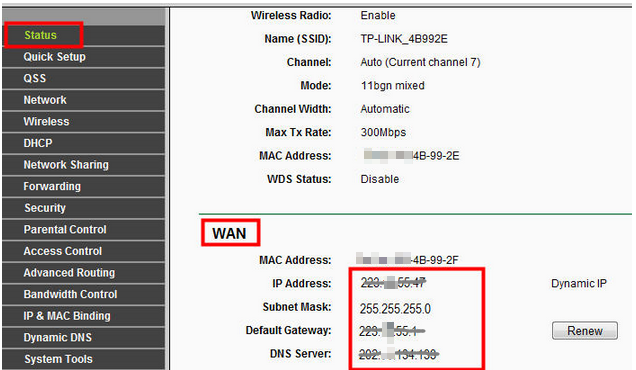
This single diagnostic step determines your entire troubleshooting path forward. You must log into your router interface to see if it has received a valid address from the modem.
How to Access the Router Status Page
Connect your computer to the router via Ethernet or Wi-Fi and open a web browser. Type 192.168.0.1 or 192.168.1.1 into the address bar and log in with your admin credentials.
Navigate to Advanced > Status and locate the Internet IP Address field. The number displayed here tells you exactly which fix to apply next.
Fix 0.0.0.0 IP Address Errors
An IP address showing 0.0.0.0 means the router failed to get an address from the modem. This handshake failure often stems from MAC address locking or IP conflicts between devices.
You must perform specific configuration changes to force the modem to recognize and accept the router.
Clone Your Computer MAC Address
Some ISPs lock service to the first device connected to the modem, often your old computer. When you introduce a new router, the ISP blocks it because the MAC address does not match their records.
- Connect your computer to the router using an Ethernet cable.
- Log into the router web interface.
- Go to Advanced > Network > Internet.
- Find the MAC Clone section.
- Select Use Current Computer MAC Address.
- Click Save to apply changes.
Note: You must use a wired connection for this step. Wi-Fi connections cannot transmit the correct MAC address for cloning.
Change Router LAN IP to Prevent Conflict
Network conflicts occur if your modem and router both try to use 192.168.0.1 as their default address. This confuses traffic and prevents internet data from flowing correctly.
- Log into your router settings.
- Navigate to Advanced > Network > LAN.
- Change the IP address to
192.168.2.1. - Click Save and wait for the reboot.
You will need to log back in using the new IP address once the router restarts.
Verify Your Connection Type Settings
Your ISP requires a specific connection type such as Dynamic IP, PPPoE, or Static IP. Using the wrong setting prevents the router from authenticating with the provider network.
Contact your ISP to confirm your required type and update it under Advanced > Network > Internet. Dynamic IP is most common, but DSL users often need PPPoE credentials.
Resolve DNS Issues with Valid IP Addresses
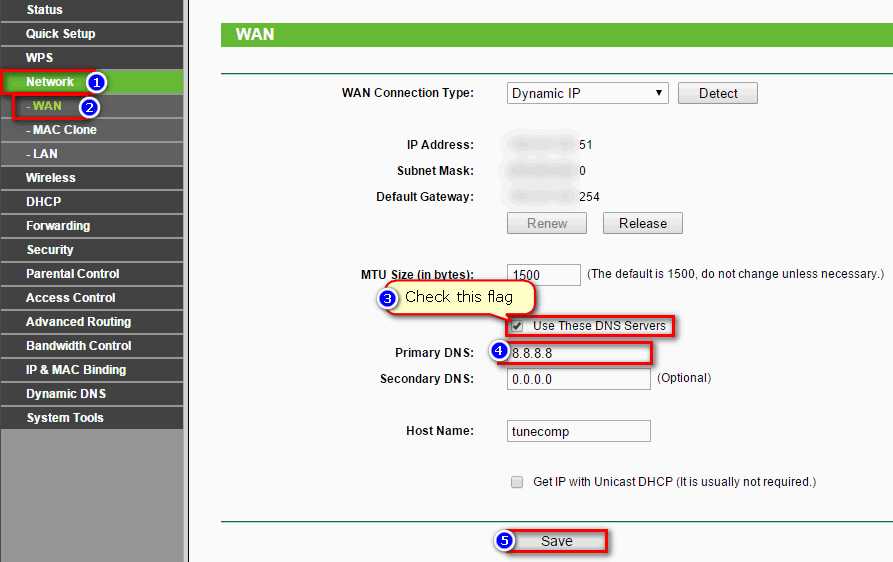
If your Internet IP is a valid number not starting with 0, 10, or 192, the router has connected successfully. Devices still failing to browse likely suffer from DNS resolution failures.
Manually Set DNS to Google Servers
Automatic DNS assignment often fails during outages or configuration glitches. Manually forcing your router to use reliable public DNS servers can restore browsing instantly.
- Log into your router admin panel.
- Go to Advanced > Network > DHCP Server.
- Enter
8.8.8.8as the Primary DNS. - Enter
8.8.4.4as the Secondary DNS. - Click Save to update settings.
All devices on your network will now bypass faulty automatic DNS and use Google servers instead.
Perform a Factory Reset as Last Resort
Corrupted internal settings may persist despite your best efforts to fix them manually. A factory reset wipes the slate clean and removes any bad configurations.
Locate the small reset pinhole on your device and press it for 10 full seconds. Wait for the lights to cycle completely before setting up your network again from scratch.
Power Cycle Modem and Router Correctly
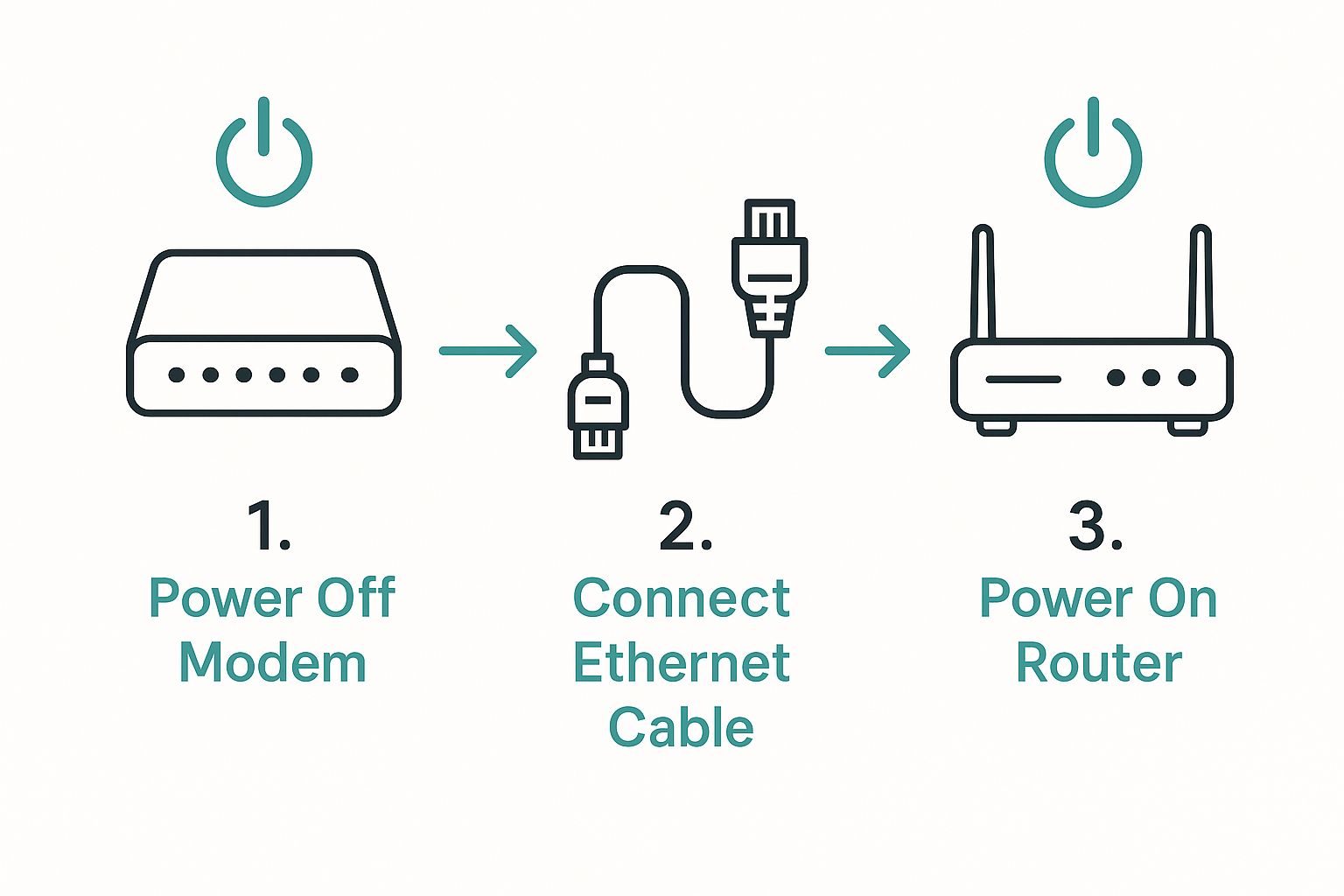
Restarting equipment clears temporary memory errors, but the sequence matters immensely. Doing this wrong can cause the modem to reject the router entirely.
Correct Power-Down Procedure
Turn off both your modem and router then unplug them from the wall outlet. Wait at least 60 seconds to ensure all capacitors discharge and temporary leases clear.
This full minute wait is crucial for clearing old IP assignments that might block new connections.
Correct Power-Up Sequence
Power on the router first and wait two minutes for it to fully initialize. Then power on the modem and wait another two to three minutes for it to sync with the ISP.
Wait one final minute to let the router request and receive its IP address from the freshly restarted modem. Testing too early often yields false negatives while the handshake completes.
Rule Out ISP Outages and External Factors
Not every connectivity issue stems from your home equipment. External factors like service outages or account problems can mimic hardware failure.
Check for Local Service Outages
Visit your ISP website or call their support line to ask about local outages. If their system shows downtime in your area, no amount of router tweaking will restore service.
Ask specifically if your account is active and if the modem is receiving a signal from their network.
Verify Firmware and Hardware Health
Old routers struggle with modern traffic loads and may drop connections frequently. Check your admin panel under System Tools > Firmware Update for available upgrades.
Installing the latest firmware fixes known bugs and improves stability for your specific hardware model.
Avoid Common Router Troubleshooting Mistakes
Even experienced users make simple errors that prolong downtime unnecessarily. Avoiding these pitfalls saves time and prevents further configuration headaches.
Holding Reset Button Too Briefly
Pressing the reset button for only a few seconds often just reboots the device instead of resetting it. You must hold the button for 10 seconds to trigger a true factory reset.
Attempting MAC Clone Over Wi-Fi
Cloning a MAC address requires a direct Ethernet connection to work properly. Trying this over Wi-Fi will fail because the router cannot read the computer MAC address wirelessly.
Ignoring the WAN Light Status
Focusing on Wi-Fi settings while the WAN light is red wastes valuable troubleshooting time. Always address the upstream connection indicated by the Internet light first.
Skipping the Modem Restart
Restarting only the router leaves the modem in a stuck state sometimes. Always power cycle both devices in the correct order to ensure a fresh handshake.
Quick Fix Guide by Symptom
| Symptom | Likely Cause | Immediate Action |
|---|---|---|
| WAN light off/red | No modem handshake | Check cable, test modem, clone MAC |
| IP shows 0.0.0.0 | No IP from modem | Clone MAC, change LAN IP, check type |
| Valid IP, no internet | DNS failure | Set DNS to 8.8.8.8 / 8.8.4.4 |
| Intermittent drops | Outdated firmware | Update firmware, clean vents |
| No lights at all | Power failure | Check outlet, replace adapter |
Frequently Asked Questions About Router Not Working
Why is my router not working even though the modem lights are on?
Your router may have a configuration conflict or failed handshake with the modem. Check if the Internet IP address is 0.0.0.0 and try cloning your computer MAC address to resolve the issue.
How do I know if my router is broken or just misconfigured?
Test by connecting your computer directly to the modem. If internet works directly but not through the router, the device is likely misconfigured rather than broken.
What does it mean if my router IP address is 0.0.0.0?
This means the router failed to receive an IP address from the modem. You should check physical cables, clone your MAC address, or change the LAN IP to fix this.
Can changing DNS settings fix a router not working issue?
Yes, if your router has a valid IP but devices cannot browse, manual DNS settings like 8.8.8.8 often restore access immediately.
How long should I wait when power cycling my router?
Wait at least 60 seconds with everything unplugged, then power the router on first followed by the modem after two minutes.
Key Takeaways for Fixing Your Router Not Working Issues
Most router not working scenarios stem from simple handshake failures or DNS glitches rather than hardware death. By checking your IP status, cloning MAC addresses when needed, and power cycling in the correct order, you can restore service quickly.
Always verify the WAN light status first and test the modem directly to isolate the true source of failure. Keep this guide handy so you can solve connectivity issues confidently next time they arise.



