
Setting up your Xfinity modem might feel overwhelming if you’ve never done it before, but the self-install process is designed for everyday users. Whether you just activated a new internet plan or received an upgrade, the Xfinity Gateway (especially the XB7 model) delivers fast Wi-Fi without requiring a technician visit. This guide on how to install Xfinity modem equipment walks you through every step in under 30 minutes, from unboxing the device to connecting your phone, laptop, or smart TV.
You’ll learn the correct cable connection order, how to use the Xfinity app for activation, what each LED light means, and how to avoid the most common setup mistakes. Everything you need comes right in the box.
Unbox and Identify the Gateway Components
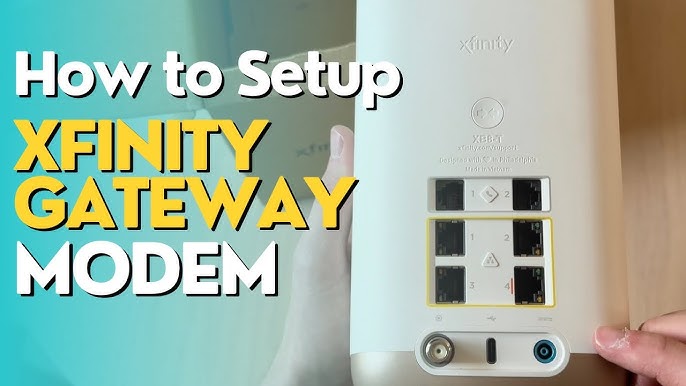
Before plugging anything in, take a moment to open the package and verify that all parts are present. The XB7 Gateway kit includes everything required for a complete installation.
What’s Included in the Box
- Xfinity Gateway (XB7) — modem and router combined in one device
- Power adapter — standard wall plug
- Coaxial (coax) cable — connects your wall jack to the modem
- Ethernet cable — for wired setup or testing
- QR code setup guide — labeled “Hello and Hola”
- Quick-start instruction card
- Xfinity Voice setup guide — only included if you have phone service
No extra tools are needed. If any item is missing, contact Xfinity support before continuing.
Download the Xfinity App Before Powering On
The Xfinity app controls the entire activation and setup process. Installing it before you power on the modem is critical, especially if your home doesn’t have active internet yet.
App Download Essentials
- Get the app from the App Store (iOS) or Google Play (Android)
- Use cellular data to download if Wi-Fi isn’t available
- Sign in with your Xfinity email and password
- New users can create an account directly in the app
The app lets you activate service, customize your Wi-Fi name and password, and manage connected devices from your phone.
Connect the Coaxial Cable First
Always follow the correct cable sequence: coaxial first, then Ethernet, phone, and finally power. Starting with coax prevents signal conflicts during activation.
Securing the Coax Connection
- Locate a coaxial wall outlet, ideally in a central, unobstructed room
- Insert one end of the coax cable into the wall jack
- Connect the other end to the “Cable In” port on the back of the XB7
- Tighten by hand only — never use tools or force it
Warning: Over-tightening the connector can damage the threads and degrade your signal quality. If your wall jack is far from your preferred location, purchase a longer coax cable separately.
Plug In Power and Monitor the LED Lights
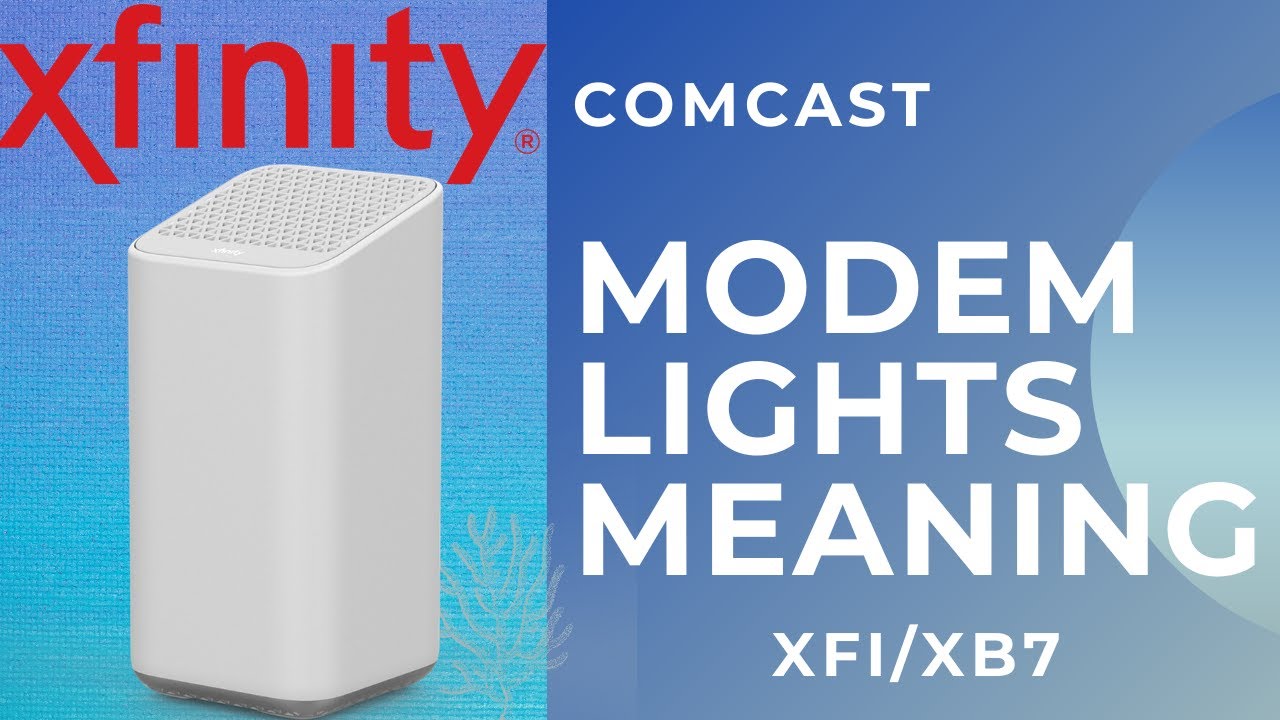
Once the coax cable is secure, power on the gateway and watch the front LED for status updates.
Powering On the XB7
- Plug the power adapter into the back of the gateway
- Connect it directly to a wall outlet, not a power strip
- Wait for the power LED to illuminate
LED Status Light Guide
- Flashing orange: Booting up and syncing with the Xfinity network
- Blinking white: Ready for activation
- Solid white: Activation successful
- Solid green: Strong signal lock
- Erratic flashing: Signal problem — check connections
The light typically transitions to solid white within 5 to 10 minutes. The maximum wait time is 15 minutes.
Activate Service Using the Xfinity App
When the LED blinks white, the gateway is ready for activation. Open the Xfinity app to begin.
Scanning the QR Code
- Open the app and sign in
- Tap “New Equipment Setup” or navigate to Services > Internet Equipment > Activate
- Select “Xfinity Gateway”
- Tap “Scan Label”
- Point your phone camera at the QR code on the bottom of the gateway
Pro Tip: Make sure the room is well-lit and hold your phone steady. If the scan fails, manually enter the 12-digit MAC address printed next to the QR code.
Confirming Setup Details
The app will prompt you to verify:
– Coaxial cable is connected
– Power is on (solid white LED)
– Gateway is in a central location
Tap “Next” through each prompt. Activation usually finishes within a few minutes.
Set Your Wi-Fi Name and Password
After activation, personalize your network for security and easy recognition.
Choosing a Network Name (SSID)
- Pick something unique like HomeNetwork or Xfinity-ABC123
- Avoid default names that reveal the device model
- Edit the suggested name if needed
Creating a Strong Password
- Use 12 or more characters
- Combine uppercase, lowercase, numbers, and symbols
- Avoid simple passwords like 123456 or password
Save the password in a secure manager or write it down before tapping “Save”. The gateway restarts automatically, and your new Wi-Fi appears within 1 to 2 minutes.
Connect Your Devices to the New Network
With your Wi-Fi live, it’s time to link your phones, laptops, smart TVs, and other gadgets.
Joining the Network
- Open Wi-Fi settings on your device
- Select your network name from the list
- Enter the password you just created
- Tap Connect
Verifying Internet Access
- Open a browser and visit any website
- Stream a video or launch an app to test speed
- Previously connected devices automatically reconnect once the new network is active
For the best performance, plug gaming consoles, desktops, or 4K streaming boxes directly into the gateway using Ethernet cables.
Optimize the Gateway Placement

Where you position the XB7 affects Wi-Fi coverage throughout your home.
Ideal Placement Guidelines
- Place it in a central area like a living room or office
- Keep it elevated on a shelf or table
- Avoid walls, metal objects, and appliances like microwaves or refrigerators
- Don’t hide it inside cabinets or behind furniture
If the LED flashes orange or your connection feels weak, move the gateway closer to the coax outlet or try a different room.
Troubleshoot Common Setup Issues
Even with careful preparation, occasional hiccups happen. Here’s how to resolve the most frequent problems.
LED Never Turns Blinking White
- Recheck the coaxial connection at both ends
- Make sure the power cable is fully seated
- Wait the full 10 to 15 minutes for initial sync
App Won’t Scan the QR Code
- Allow camera access in your phone’s app permissions
- Wipe the QR label if it’s dusty
- Manually enter the 12-digit code printed on the device
Wi-Fi Network Not Visible
- Unplug the gateway for 30 seconds, then plug it back in
- Re-scan the QR code and repeat activation
- Confirm you’re searching for the correct network name
Activation Fails Completely
- Try a different coaxial outlet in another room
- Remove any splitters, which weaken the signal
- Contact Xfinity support if the problem continues
Use Ethernet Ports for Maximum Speed
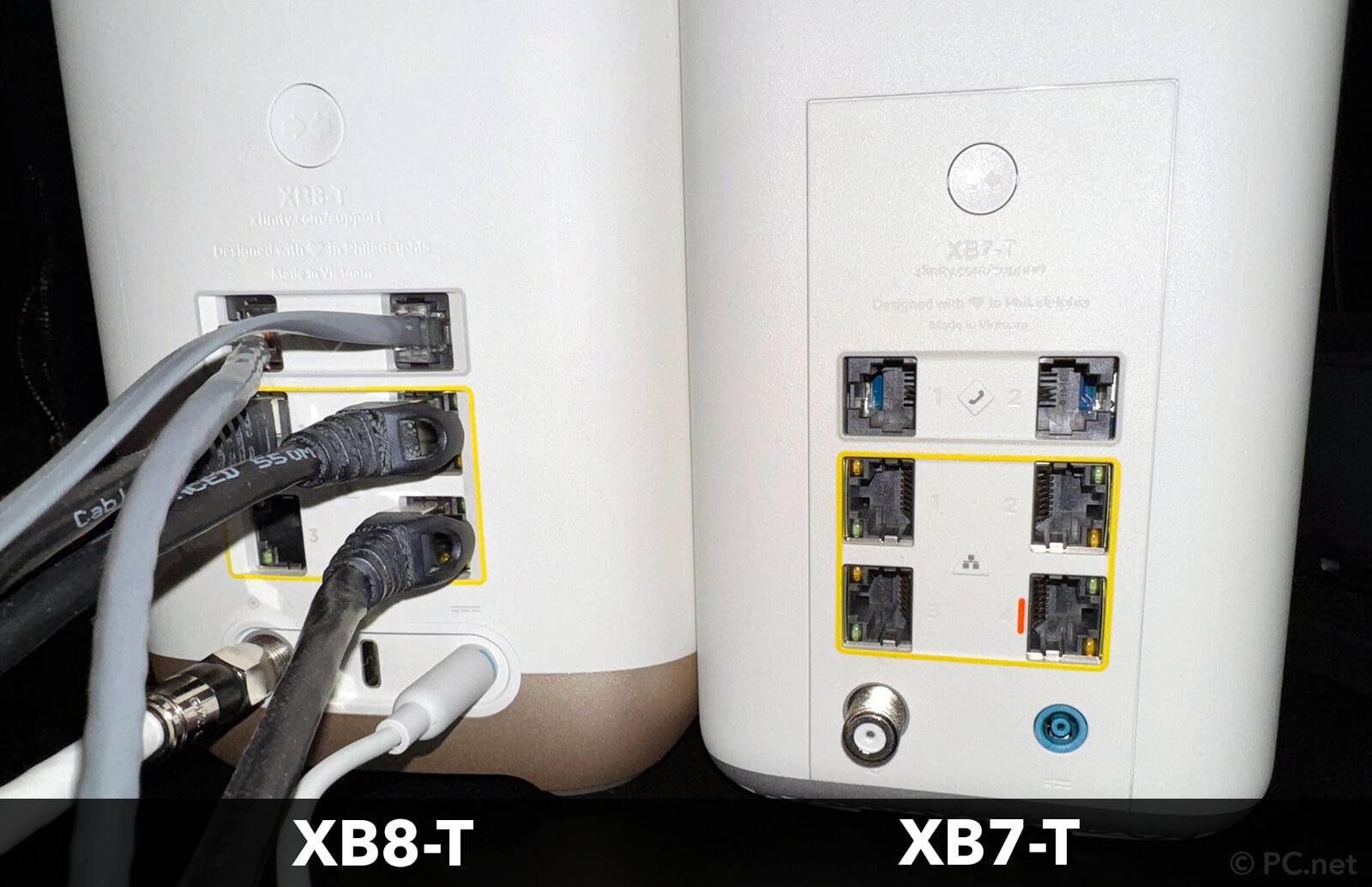
While Wi-Fi is convenient, wired connections deliver faster, more stable performance.
Ethernet Port Breakdown
- Four 1 Gbps ports: Ideal for computers, smart TVs, and game consoles
- One 2.5 Gbps port: Perfect for high-performance gear like gaming PCs or NAS drives
- Use a network switch to expand connectivity if you need more ports
Wiring your most demanding devices directly into the gateway eliminates lag and buffering.
Reset the Modem When Necessary
If the gateway becomes unresponsive or your custom settings disappear, perform a factory reset.
Factory Reset Steps
- Find the reset button on the back of the XB7
- Press and hold for 15 seconds
- Release when the lights flash
- Wait 5 to 10 minutes for the reboot to finish
After a reset, you’ll need to repeat the activation process using the Xfinity app.
Note: A factory reset erases your Wi-Fi name, password, and all custom configurations.
Manage Your Network Through the Xfinity App
Once installation is complete, the Xfinity app becomes your central hub for network control.
Key App Features
- View all connected devices
- Pause Wi-Fi for specific gadgets
- Set parental controls
- Create a guest network
- Run speed tests
- Check for service outages
For deeper customization, switch to the xFi app, which offers advanced settings and detailed analytics.
Consider Buying Your Own Modem
The Xfinity Gateway is rented equipment, not purchased. Monthly fees of $10 to $15 apply for as long as you use it.
Rent vs. Buy Comparison
- Renting the Gateway: $10–$15 per month with limited control
- Buying your own: One-time cost of $200–$300 with full ownership
Purchasing a compatible modem-router combo eliminates monthly rental fees and often delivers better long-term performance. Just confirm any third-party device appears on Xfinity’s approved equipment list before buying.
Frequently Asked Questions About Installing Xfinity Modems
How long does it take to install an Xfinity modem?
The full process typically takes 20 to 30 minutes, including unboxing, cable setup, and activation. The modem itself usually syncs within 5 to 10 minutes, with a maximum wait of 15 minutes for the LED to turn solid white.
What does the blinking white light mean on my Xfinity modem?
A blinking white light indicates the gateway is ready for activation. At this point, open the Xfinity app and scan the QR code or enter the MAC address to complete setup. Once activation finishes, the light becomes solid white.
Can I install Xfinity internet without the app?
Yes. Visit xfinity.com/activate on any web browser and follow the on-screen instructions. You’ll still need the 12-digit MAC address from the bottom of the gateway to complete activation manually.
Do I need to use the coax cable that came in the box?
You can use any standard coaxial cable, but the included one is sized for most setups. If your wall outlet is far from your desired location, buy a longer RG6 coax cable rated for internet use.
How do I know if my Xfinity modem is activated?
The LED light turns solid white once activation succeeds. You can also confirm in the Xfinity app under Services > Internet Equipment, where the status shows “Active.”
Is renting an Xfinity modem worth it?
Renting costs $10–$15 per month, which adds up to $120–$180 per year. Buying your own compatible modem usually pays for itself within two years and gives you full control over settings and firmware updates.
Final Thoughts on Installing Your Xfinity Modem
Learning how to install Xfinity modem equipment yourself saves time and eliminates the need to schedule a technician visit. By following the correct cable order (coax first, then Ethernet, phone, and power), monitoring the LED lights, and activating through the Xfinity app, you can have your home network running in under 30 minutes.
Keep three key points in mind: always tighten coax connections by hand to avoid damage, choose a central, elevated location for the best Wi-Fi coverage, and remember that the XB7 is rented equipment. If you plan to use Xfinity for several years, purchasing a compatible modem saves significant money over time. For ongoing support or troubleshooting, the Xfinity app and xfinity.com/support are excellent resources available 24/7.



