You settle in for a movie night only to see your Xfinity router blinking blue instead of showing a solid connection light. This rhythmic flashing often means the device is booting up, but it can also signal a stuck system or failed network registration. Knowing the difference helps you avoid unnecessary panic or downtime.
This guide explains exactly why your Xfinity router is blinking blue and how to fix it if the light won’t stop. You will learn specific troubleshooting steps, reset procedures, and how to tell if your hardware needs professional replacement.
Determine If Your Xfinity Router Blinking Blue Is Normal

Xfinity uses color-coded lights to tell you what your gateway is doing at any given moment. A blue light specifically relates to startup sequences, firmware updates, or device pairing activities. Understanding these normal states prevents you from troubleshooting a healthy router.
Normal Startup and Update Sequences
Your router will blink blue briefly when it first powers on or reboots after an outage. This process usually lasts between one and three minutes as the device initializes its internal systems. You may also see this light while the router downloads or installs critical firmware updates in the background.
Device Pairing Activities
The blue blink appears when your gateway attempts to connect with MoCA adapters or xFi pods. This indicates an active handshake where the router is securely exchanging data with a new extension device. Once the pairing succeeds, the light typically changes to a solid color to indicate stability.
When the Blinking Becomes a Problem
A persistent blue light that continues for more than five minutes suggests the router cannot complete its boot sequence. This state often points to a boot loop where the device repeatedly tries and fails to connect to the Xfinity network. Immediate action is required if the light does not transition to solid white or blue within a reasonable timeframe.
Identify Why Your Xfinity Router Is Blinking Blue

Pinpointing the root cause helps you apply the correct fix without wasting time on unrelated solutions. Several common issues can prevent your router from finishing its startup cycle and cause the blue light to flash endlessly.
Power Supply and Cable Connection Faults
Loose coaxial cables or faulty power adapters are frequent culprits behind registration failures. The router requires a stable power source and a tight signal connection to communicate with the local Xfinity node effectively. Any interruption in these physical links halts the boot process and leaves the LED blinking.
Firmware Corruption Issues
Interrupted updates or sudden power surges can corrupt the software that runs your router. When the firmware is damaged, the device struggles to load its operating system and gets stuck in a pre-online state. This often happens after storms or unexpected power outages in your neighborhood.
Hardware Malfunctions and Registration Errors
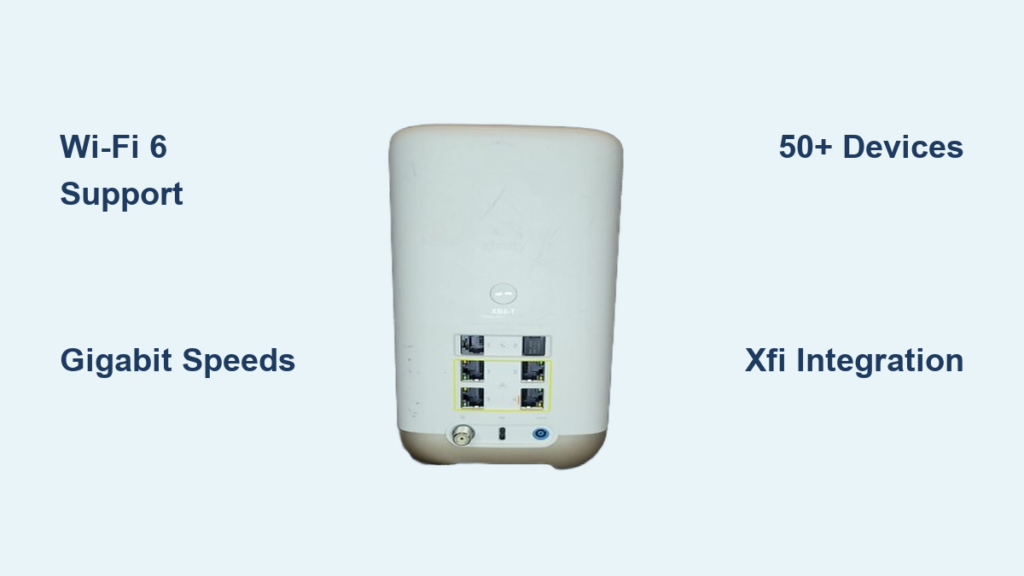
Internal hardware failures in older models like the XB6 or XB7 can stop the power-on self-test from completing. Additionally, if the router cannot register its MAC address with the Xfinity network due to account errors, it remains in a blinking state. These issues often require more than just a simple reboot to resolve.
Restart Your Xfinity Router to Stop Blinking Blue
A proper power cycle is the most effective first step to clear temporary glitches causing the blue blink. This process clears the router’s memory and forces it to attempt a fresh connection to the network.
Execute a Full Power Cycle
- Unplug the power cable directly from the back of the router.
- Wait at least 60 seconds to ensure all residual power drains from the capacitors.
- Plug the power cable back in firmly and watch the LED sequence closely.
- Allow 3 to 5 minutes for the light to transition from blinking blue to solid.
Pro Tip: Do not plug the router back in immediately. Waiting a full minute ensures a complete reset of the internal hardware components.
Verify Coaxial Cable Security
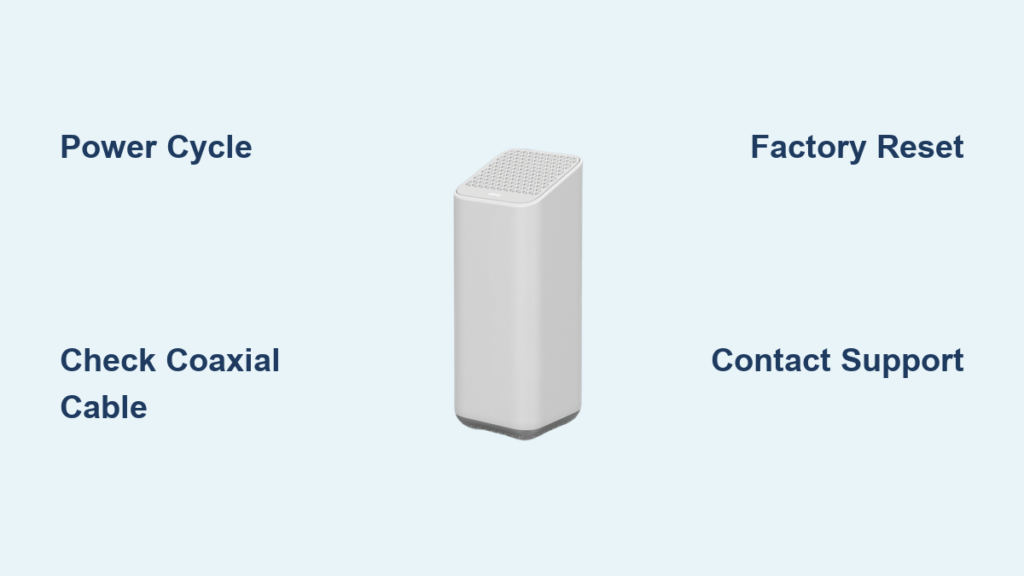
Loose cables often mimic hardware failure by interrupting the signal path during bootup. Check that the coaxial cable is screwed in tightly at both the wall outlet and the router port. Inspect the cable for sharp bends or corrosion that might degrade signal quality.
Test Alternative Power Sources
Plug your router directly into a wall outlet rather than a power strip or surge protector. Third-party adapters or overloaded strips may not provide the consistent voltage required for a successful boot. If the adapter feels hot or shows signs of damage, contact Xfinity for a replacement immediately.
Factory Reset Your Xfinity Router Settings
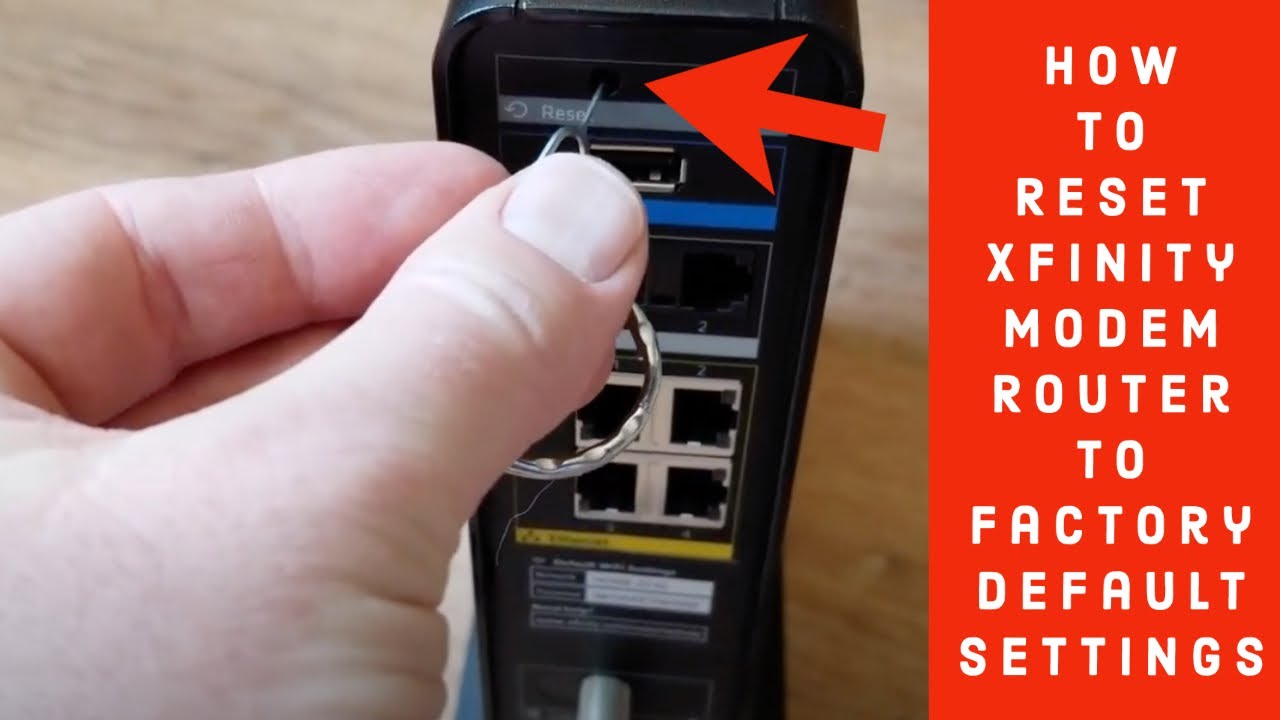
If a standard restart does not stop the Xfinity router blinking blue, a factory reset may clear deep-seated configuration errors. This action returns the device to its original state and forces a fresh registration with the network.
Steps to Perform a Hard Reset
- Locate the small recessed reset button on the back or bottom of the gateway.
- Use a paperclip to press and hold the button for 10 to 15 seconds while the device is on.
- Release the button when you see the LED flash rapidly or change behavior.
- Wait up to 10 minutes for the router to reboot and re-provision completely.
Warning: This process erases all custom Wi-Fi names, passwords, and port forwarding rules. You will need to set up your network preferences again from scratch.
Troubleshoot Failed Reset Attempts
If the blue light persists after a reset, wait an additional 20 minutes as some models take longer to re-provision. Check the Xfinity status page to ensure there are no widespread outages affecting your area. Contact support if the device still fails to register after these extended wait times.
Use the Xfinity App for Diagnostics

The Xfinity app offers powerful tools to diagnose connection issues remotely without needing technical expertise. It can reveal status messages that explain why the blue light continues to blink.
Check Gateway Status Messages
- Open the Xfinity app and navigate to the Internet tab.
- Select your specific gateway device from the list.
- Look for alerts such as “Not online,” “Unable to register,” or “No signal.”
- Follow any on-screen prompts to run automated repairs.
Run Remote Network Tests
The app can sometimes push a remote reboot or firmware update to your device directly. This feature allows Xfinity technicians to re-provision your account or fix software errors from their end. Utilizing this tool can save you a trip to the support center.
Contact Xfinity Support for Persistent Issues
You should reach out to professional support if the Xfinity router blinking blue continues after all troubleshooting steps. Persistent issues often indicate defective hardware or complex account provisioning errors that require backend access.
Prepare Information for Your Call
Have your router model number, MAC address, and account details ready before calling. Explain exactly how long the light has been blinking and list the steps you have already tried. This information helps the technician diagnose the problem faster and potentially skip basic troubleshooting.
Request Hardware Replacement if Needed
If the router is defective, Xfinity can schedule a technician visit or mail a replacement unit. Older models are more prone to hardware fatigue and may need an upgrade to newer xFi Advanced Gateways. A replacement often resolves chronic blinking issues caused by aging internal components.
Prevent Future Xfinity Router Blinking Blue Problems
Taking proactive measures can reduce the likelihood of your router getting stuck in a boot loop again. Regular maintenance ensures your hardware stays healthy and your connection remains stable.
Maintain Firmware and Signal Health
Ensure your router receives automatic updates by keeping it powered on during off-peak hours. Log in to the admin interface periodically to check that your upstream and downstream signal levels are within the recommended range. Poor signal strength is a leading cause of registration failures.
Protect Against Power Surges
Use a high-quality surge protector to shield your router from voltage spikes that can corrupt firmware. Avoid plugging your gateway into the same outlet as heavy appliances like microwaves or refrigerators. Stable power delivery extends the lifespan of your networking equipment significantly.
Frequently Asked Questions About Xfinity Router Blinking Blue
How long should my Xfinity router blink blue?
Typically, the blue light should only blink for 1 to 3 minutes during startup or updates. If it blinks for longer than 5 minutes, the device is likely stuck in a boot loop and requires troubleshooting.
Does a blinking blue light mean I have no internet?
Yes, while the light is blinking blue, your router is not fully connected to the network. You will not have internet access until the light turns solid white or blue, indicating a successful connection.
Can I use my own router if the Xfinity gateway keeps blinking?
You can connect your own router to the Xfinity gateway, but if the gateway itself is stuck blinking, it cannot pass an internet signal. You must fix the gateway issue or get a replacement before your personal router will work.
What does it mean if the light turns red after blinking blue?
A red light indicates a critical failure, such as a complete loss of signal or hardware malfunction. This is more severe than a blinking blue light and usually requires immediate assistance from Xfinity support.
Will resetting my router delete my internet history?
No, a factory reset only clears the router’s configuration settings like Wi-Fi names and passwords. It does not delete your browsing history or data stored on your personal devices like phones or computers.
Key Takeaways for Fixing Xfinity Router Blinking Blue

A blinking blue light on your Xfinity router is normal during startup but indicates a problem if it lasts longer than five minutes. Most issues can be resolved by power cycling the device, checking coaxial connections, or performing a factory reset. If these steps fail, the issue likely lies with the hardware or network provisioning, requiring assistance from Xfinity support.
Start by unplugging your router for a full minute and checking all cable connections tightly. If the light continues to blink endlessly, use the Xfinity app to run diagnostics or contact customer service for a potential hardware replacement. Taking these steps will help restore your internet connection quickly and efficiently.