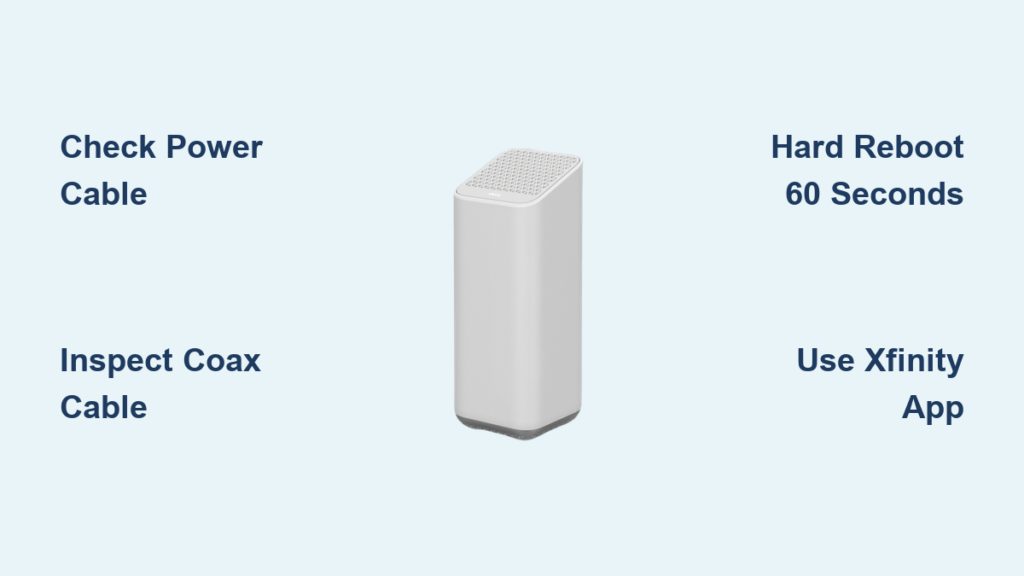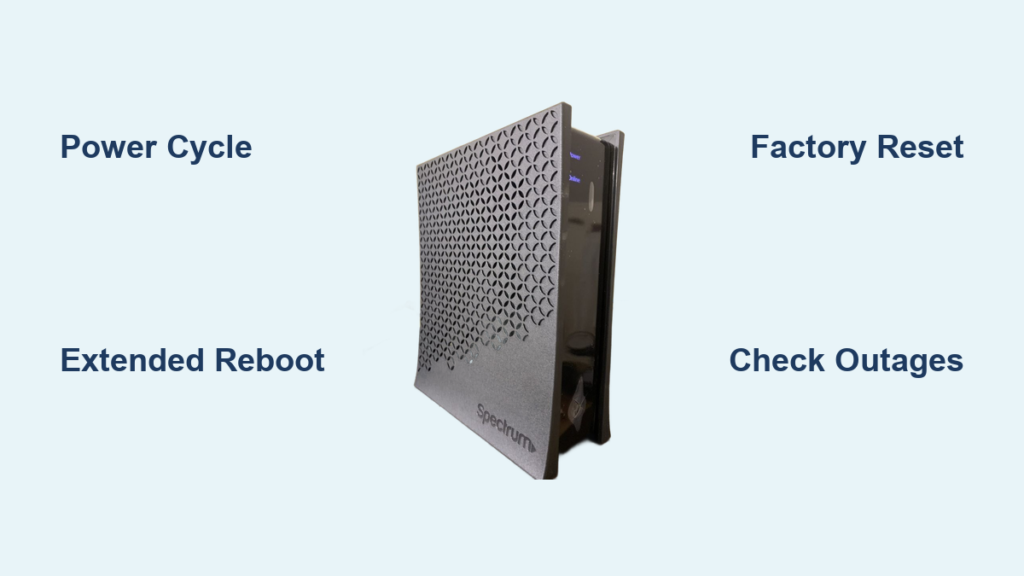
Is your Spectrum internet down right when you need it most? A blinking light, slow speeds, or complete disconnection can derail your work, streaming, or video calls in seconds. The good news is that most Spectrum modem problems resolve in under 10 minutes when you follow the right steps.
This guide covers everything you need for effective Spectrum modem troubleshooting, from quick power cycles to factory resets and outage checks. Whether you use a standalone modem, a separate router, or a wireless gateway, you’ll learn the exact process to restore your connection without waiting on hold.
Perform a Soft Reset (Power Cycle)
A soft reset clears temporary glitches without erasing your Wi-Fi settings. This single step resolves the majority of Spectrum modem troubleshooting cases.
Unplug Devices in the Correct Order
Start by turning off your computer or phone. Unplug the modem first, then unplug the router if you have a separate unit. This sequence prevents data conflicts during the reboot process.
Wait at Least 60 Seconds
Leave both devices unplugged for a minimum of 60 seconds. This allows internal capacitors to discharge fully and clears the device memory. For tougher issues, extend this wait to 5–10 minutes.
Power Up the Modem First
Plug the modem back in before the router. Wait 2 to 5 minutes for the lights to stabilize. You should see steady lights for Power, Send, Receive, Online, and DL/UL. Only connect the router after the modem fully syncs.
Reconnect Your Devices and Test
Once all lights are steady:
• Turn your computer or phone back on
• Confirm Wi-Fi is enabled
• Open a browser and visit two different websites
If both pages load, your Spectrum modem troubleshooting session is complete. If not, move to the next method.
Try an Extended Reboot for Stubborn Issues
When a basic power cycle fails, a longer unplug period can clear deeper firmware glitches affecting your modem or gateway.
Restart All Connected Devices First
Restart every device experiencing connectivity problems before plugging the modem back in:
• TV: Go to Settings > Power > Restart
• Laptop: Perform a full system restart
• Phone: Power off completely, wait 10 seconds, then power on
This ensures no device holds onto corrupted network data.
Leave the Modem Unplugged for 5–10 Minutes
Keep the modem unplugged for 5 to 10 minutes with all devices powered down. This clears firmware-level errors and resets the modem’s handshake with Spectrum’s network.
Watch for Full Re-Sync
After plugging the modem back in, wait up to 10 minutes for full reconnection. Rushing this step leads to false positives. Only plug in the router once the Online light stays solid.
Test your connection again. If internet still fails, advance to a factory reset.
Execute a Hard Reset (Factory Reset)

Reserve this step for when soft resets fail. A hard reset wipes all custom settings and returns your modem or gateway to factory defaults.
Locate and Press the Reset Button
Find the small pinhole Reset button on the back of your device. Insert a paperclip or safety pin and press and hold for exactly 10 seconds. You’ll feel a click and see the lights flash or turn red, confirming the reset started.
Wait for the Full Reboot
After releasing the button, the device reboots automatically. This takes 5 to 10 minutes. Do not unplug anything during this period. Wait until all lights stabilize, especially the Online and Power indicators.
Reconnect Using the Default Wi-Fi
A factory reset means your Wi-Fi name and password are reset to defaults. Find the original credentials printed on the label attached to your device. The format typically looks like “blue fox 412” or “sunny tree 789”.
On your phone or laptop:
1. Open Wi-Fi settings
2. Select the default network name from the label
3. Enter the default password
4. Connect and test your internet access
Pro Tip: After reconnecting, log into your gateway settings through a browser to rename your network and set a strong, secure password.
Check for Spectrum Service Outages

If your modem still won’t connect, the problem may exist on Spectrum’s end.
Use the Spectrum Outage Checker
Visit spectrum.net/outage and enter your service address. The system displays any active outages along with an estimated restoration time.
View the Spectrum Outage Map
For visual confirmation, check the Spectrum Outage Map. Red or yellow zones indicate service disruptions. No troubleshooting on your end will fix this, so wait for Spectrum to complete repairs.
Verify Your Account and Billing Status
Perfect equipment cannot deliver internet if your account is suspended or past due.
Confirm Your Service Is Active
Log in to your Spectrum account at spectrum.net. Review:
• Payment history
• Current service status
• Any disconnection notifications
If your bill is overdue, submit payment right away. Service typically resumes within 30–60 minutes after payment clears.
Call Support if Your Account Is Flagged
If you notice a service hold, call 1-800-SPECTRUM (1-800-773-8276). A representative can verify your status and reactivate service when possible.
Use Spectrum’s Automated Tools Before Calling
Spectrum offers self-service options that diagnose and fix issues without a technician.
Run the Online Reset Tool
Go to spectrum.net/reset. This tool remotely checks your modem’s signal levels, restarts it from Spectrum’s side, and diagnoses line problems. It often works faster than manual resets.
Watch Spectrum Support Videos
Visit spectrum.net/videos for visual guides on:
• Light indicator meanings
• Router setup
• Wi-Fi optimization
These videos help you recognize what “steady lights” look like on your specific model.
Prevent Future Connectivity Issues
A few simple habits keep your Spectrum modem running smoothly.
Restart Your Modem Monthly
Even when everything works fine, restart your modem every 3–4 weeks. This clears memory leaks and resets connections before problems develop.
Pro Tip: Pick a recurring day like the first Sunday of each month and set a phone reminder.
Keep Firmware Updated
Spectrum gateways update firmware automatically. Third-party modems require manual checks through the admin interface, typically accessible at 192.168.0.1 or 192.168.100.1.
Avoid Overheating
Ensure proper airflow around your modem:
• Don’t stack items on top of the device
• Keep it away from radiators, TVs, and direct sunlight
• Clean dust from vents regularly
Overheating causes random reboots and signal drops.
Read Your Modem’s Light Indicators

The lights on your modem communicate exactly what’s happening internally.
Solid Lights Indicate a Healthy Connection
• Power: Solid means the device is powered on
• Receive (Rx): Solid means the modem receives a signal from Spectrum
• Send (Tx): Solid means the modem sends data back successfully
• Online: Solid means the modem is connected to the internet
• Wi-Fi: Solid means the wireless network is active
Blinking or Red Lights Signal Problems
• Blinking Online: The modem cannot sync with the network
• Red Power: Hardware or power supply failure
• No Lights: Power failure or dead device
If lights fail to stabilize after 10 minutes, suspect a deeper issue requiring a technician.
Reconnect After a Factory Reset
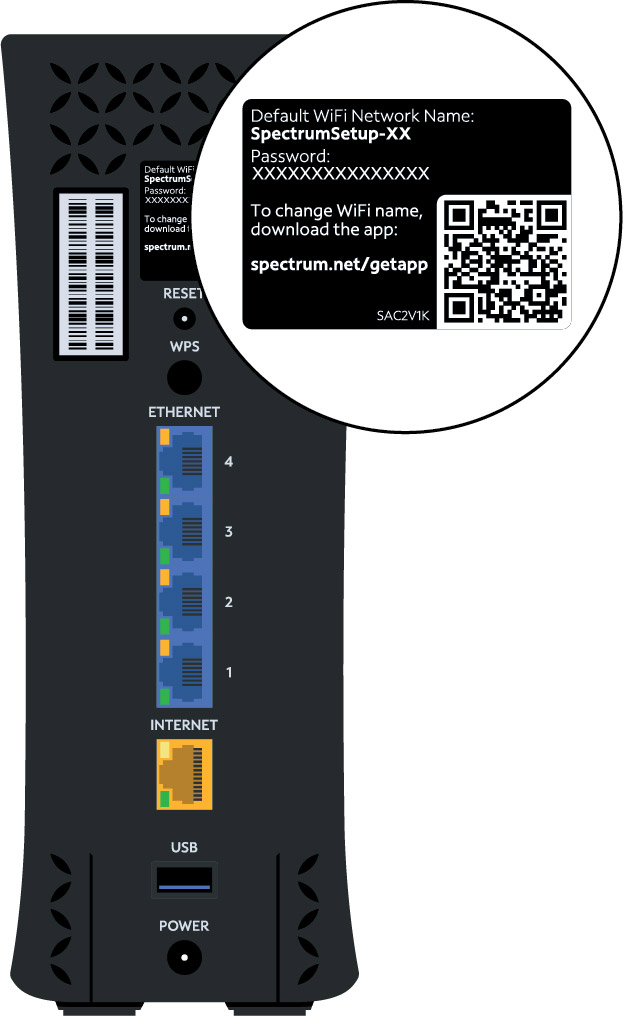
After a hard reset, you must reconnect using the default credentials printed on the device.
Find Default Credentials on the Device Label
Locate the sticker on the bottom or back of your modem or gateway. It contains:
• Network Name (SSID): A two-word identifier like “sandy hill 205”
• Password: A long string of letters and numbers
Change Your Wi-Fi Name and Password
Once online:
1. Open a browser and go to 192.168.0.1
2. Log in with admin credentials from the label
3. Navigate to Wi-Fi Settings
4. Set a custom network name and strong password
This step keeps your network secure and easy to identify.
When to Contact Spectrum Support
If you’ve completed every Spectrum modem troubleshooting step and still lack internet, call for help.
Call 1-800-SPECTRUM
Dial 1-800-773-8276 for live support. Have these details ready:
• Your account number
• The modem MAC address from the device label
• Your service address
Support can run remote diagnostics, check signal levels, and dispatch a technician if needed.
Best Time to Call: Weekday mornings between 8–10 AM for the shortest wait times.
Request a Technician Visit
When your modem cannot sync or signal levels remain weak, a technician can inspect:
• Cable line integrity
• Splitters and connectors
• Signal strength at the tap
This service is free when the issue originates on Spectrum’s end.
Frequently Asked Questions About Spectrum Modem Troubleshooting
How long does a Spectrum modem take to reboot after a power cycle?
A standard power cycle takes 2 to 5 minutes for lights to stabilize. For full network synchronization after an extended reboot, allow up to 10 minutes before testing your connection.
Will a factory reset delete my custom Wi-Fi settings?
Yes. A hard reset erases all custom settings, including your Wi-Fi network name and password. After the reset, you must reconnect using the default credentials printed on the device label.
Does Spectrum Voice work during a modem reset?
No. Spectrum Voice service is unavailable during any reset procedure. Expect a temporary disruption to voice calls until the modem finishes rebooting and reconnects to the network.
How do I check if there’s a Spectrum outage in my area?
Visit spectrum.net/outage and enter your address. You can also view the Spectrum Outage Map for a visual display of service disruptions near you.
What does a blinking Online light on my modem mean?
A blinking Online light indicates the modem cannot complete synchronization with Spectrum’s network. This usually resolves with a proper power cycle, but persistent blinking may signal a service outage or account issue.
How often should I restart my Spectrum modem?
Restart your modem every 3–4 weeks as preventive maintenance. Regular restarts clear memory leaks and refresh network connections before minor glitches become major problems.
Key Takeaways for Spectrum Modem Troubleshooting
Start every troubleshooting session with a soft reset (60-second power cycle), following the correct power-up sequence: modem first, then router. If the issue persists, escalate to an extended reboot (5–10 minutes unplugged), then a hard reset (10-second button hold) as a last resort.
Before calling support, verify there are no local outages through the Spectrum outage checker and confirm your account status is active with no billing holds. Use the online reset tool at spectrum.net/reset for automated diagnostics that often solve problems faster than manual methods.
Your next step: Bookmark this guide and try the soft reset method now if you’re currently offline. Most connectivity issues clear within minutes when you follow the sequence correctly. For persistent problems, the automated reset tool or a quick call to 1-800-SPECTRUM will get you back online fast.