If your Verizon modem is not working, you’re not alone. Thousands of users face sudden outages, slow speeds, or complete Wi-Fi failure, often without warning. The good news? Most issues can be resolved in under 15 minutes with the right steps. Whether you’re seeing blinking lights, no internet at all, or devices that refuse to connect, this guide walks you through proven fixes drawn from Verizon’s own troubleshooting protocols.
Below, you’ll learn how to diagnose the root cause, perform a proper restart, verify every cable, and know exactly when to call support. No fluff, just actionable solutions that work.
Check Physical Connections First
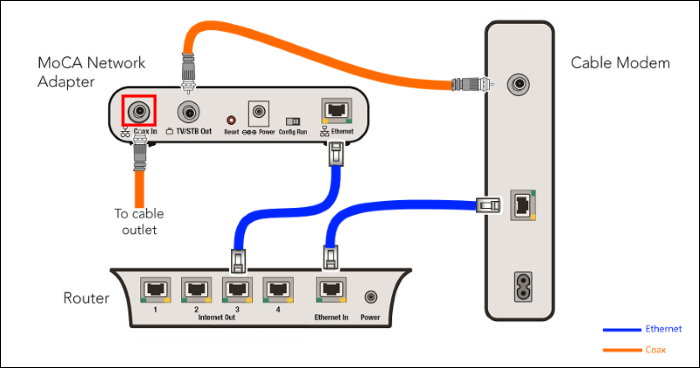
Before diving into resets or support calls, inspect your modem’s physical setup. A loose cable or misconnected port is one of the most common reasons a Verizon modem is not working.
Verify Ethernet and Coax Cables
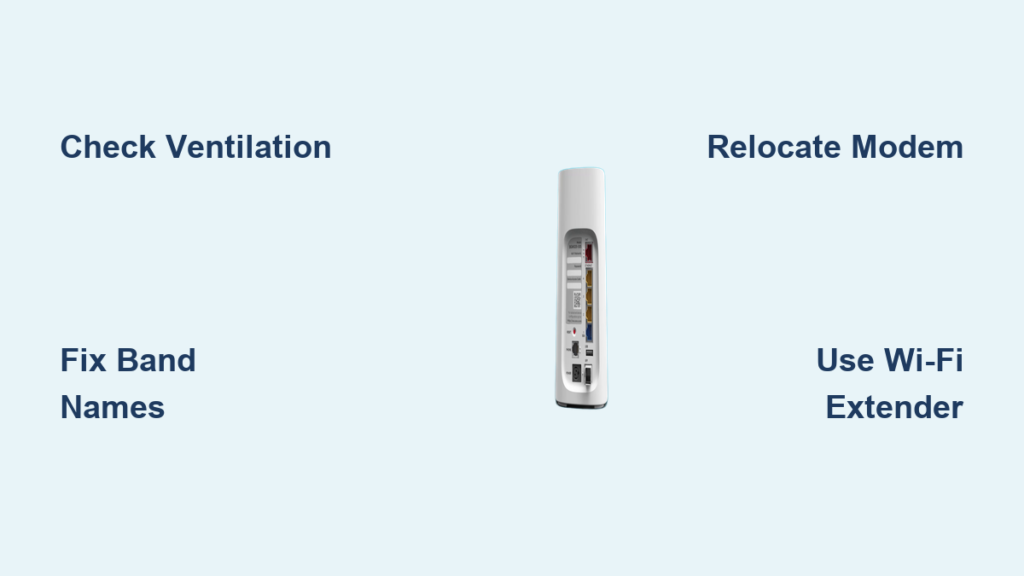
Ensure the white Ethernet/WAN cable is securely plugged into the back of your modem. This port links your modem to the internet and must be firmly seated. If you have Verizon TV service, confirm the coax cable is screwed tightly into both the wall outlet and the modem. A loose coax connection can disrupt both TV and internet signals.
Confirm LAN and Power Connections
Any wired device, like a smart TV, computer, or gaming console, should connect to the yellow LAN ports on the back of the modem. Also double-check that the power cord is fully inserted into both the modem and the wall outlet. Even a slightly loose plug can prevent the device from powering on correctly.
Inspect the WAN Light Indicator
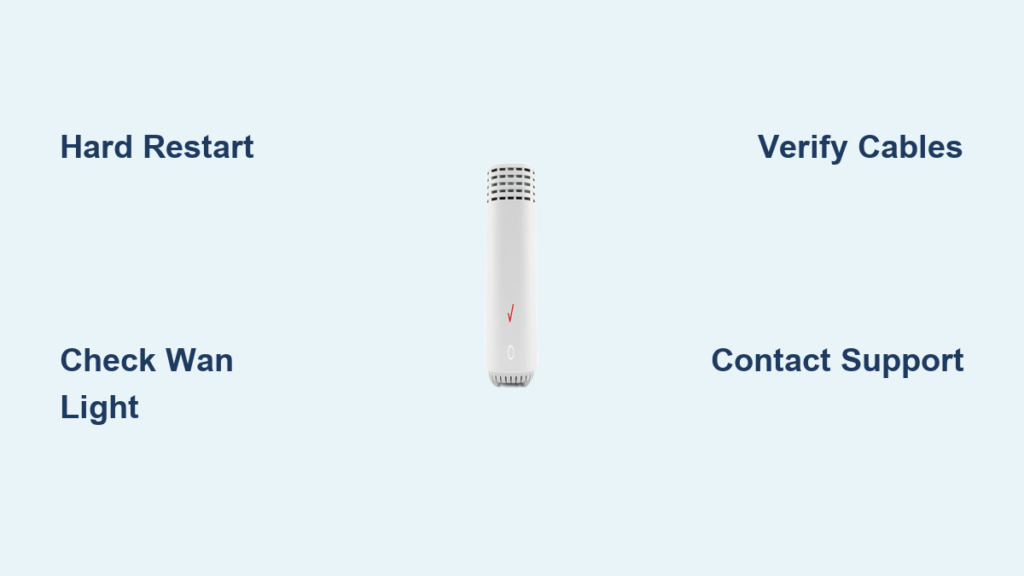
Look for the WAN light on your modem. Its location varies by model, and it may sit on the front or lower back. The light should be solid green or blue. If it’s off or blinking red, your modem isn’t establishing a connection to Verizon’s network. That single clue often points straight to a line or provider-side issue.
Pro Tip: Never assume cables are secure just because they appear plugged in. Unplug and reseat each one to eliminate poor contact.
Perform a Hard Restart (Most Effective Fix)
A hard restart clears memory leaks, resets network settings, and reestablishes your connection with Verizon’s servers. It resolves the majority of outage scenarios.
Unplug and Wait 60 Seconds
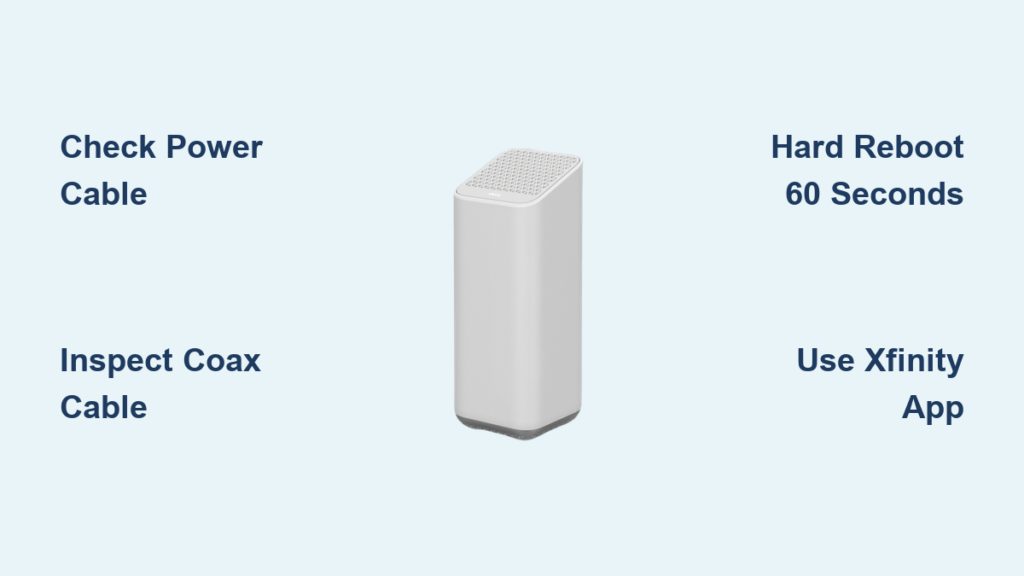
Unplug the power cable from both the modem and the wall outlet. Do not skip unplugging from the wall, since this ensures a full power discharge. Wait 60 seconds, with a minimum of 30. This pause allows internal capacitors to drain, ensuring a complete reset.
Why 60 seconds? Modems retain residual power. A shorter wait may not clear temporary glitches.
Reconnect and Wait for Full Reboot
Plug the power cable back in securely. The modem will begin rebooting, and lights will flash in sequence. Wait 5 to 10 minutes for all lights to stabilize. A solid white, green, or blue WAN light means the connection is restored.
Warning: Don’t use the internet during reboot. Interrupting the process can extend downtime.
When to Use This Method
Reach for a hard restart whenever you experience:
– Complete internet outages
– Persistent slow speeds
– Frequent disconnections
– Issues after power surges or storms
This is the first and most critical step in any Verizon modem troubleshooting sequence.
Try Remote Restart via Web Interface

If you can’t access the modem physically, restart it remotely using your browser. You just need to stay connected to the network.
Access Router Settings at 192.168.1.1
Open any web browser and go to http://192.168.1.1. This is the default IP address for Verizon modems. Make sure your device is connected via Wi-Fi or Ethernet to the same modem.
Log In with Default Credentials
Enter admin as the username. The password is usually printed on the label of your modem.
Critical Note: If you’ve changed your login details and forgotten them, this method won’t work. Use a hard restart instead.
Navigate to Reboot Option
Once logged in:
1. Click the Advanced tab
2. Select Utilities from the left menu
3. Choose Reboot Router
4. Click Reboot Device
Wait 5 to 10 minutes for the modem to restart and reconnect.
Limitations of Remote Restart
Remote restarts are less effective than hard restarts because they don’t fully discharge residual power or reset firmware. Use this method only when physical access is impossible.
Diagnose DSL-Specific Issues

If you’re on Verizon High Speed Internet (DSL), special line conditions and hardware rules apply.
Power Cycle the DSL Modem
For DSL users, follow these steps:
1. Unplug the modem
2. Wait 60 seconds
3. Plug it back in
4. Wait for DSL and internet lights to stabilize
This simple step often restores service after ISP-side outages or line noise.
Install Filters on All Phone Devices
DSL uses phone lines for data. Without proper filtering, devices like fax machines or answering machines create interference.
- Install a DSL filter on every phone device in the home
- Never place a filter between the wall jack and the modem, since this blocks the internet signal
Common Mistake: People filter the modem port. This kills connectivity. Filters go on phones, not the modem.
Verify Hardware and Line Integrity
Check that the phone line from the wall to the modem is undamaged and plugged into the correct port, usually labeled “DSL” or “WAN.” If multiple jacks exist, test another one in case of line faults.
Fix Wi-Fi Connection Problems
Even when the modem is online, Wi-Fi issues can make it seem like the internet is down.
Move Closer to the Router
Distance and walls weaken signals. If you’re far from the modem, move closer. Thick walls, metal objects, and appliances like microwaves interfere with both 2.4 GHz and 5 GHz bands.
Reduce Electronic Interference
Keep the modem away from:
– Cordless phones
– Baby monitors
– Microwave ovens
– Bluetooth speakers
These devices operate on similar frequencies and can cause signal degradation.
Update Firmware Regularly
Outdated firmware can cause instability. To update:
1. Log in to 192.168.1.1
2. Go to Advanced > Administration > Firmware Update
3. Follow prompts to install the latest version
Pro Tip: Enable automatic updates if available to prevent future issues.
Recover a Forgotten Wi-Fi Password
Can’t connect because you forgot the password? Here’s how to find it.
Check the Modem Label
Flip your modem over. The sticker lists:
– Network Name (SSID)
– Wi-Fi Password (WPA2 Key)
Warning: If you’ve ever changed the Wi-Fi name or password in settings, this label info is outdated and won’t work.
Retrieve from My Verizon Portal
Log in to your My Verizon account online. Navigate to:
– My Services > Internet > Manage Your Network
– View or reset your Wi-Fi credentials
This method always shows the current password, even after changes.
Use the Guided Solutions Tool
Verizon offers a free online troubleshooting assistant that walks you through common issues.
Access the Tool Online
Visit Verizon’s support site and launch the Guided Solutions Tool. It helps you:
– Find your Wi-Fi name and password
– Connect new devices
– Diagnose connection problems
– View modem status remotely
No technical skills needed, just follow the prompts.
When to Use It
This tool works best for:
– First-time troubleshooting
– Non-technical users
– Quick password or setup recovery
It won’t fix hardware issues but saves time on basic questions.
Understand Indicator Light Patterns
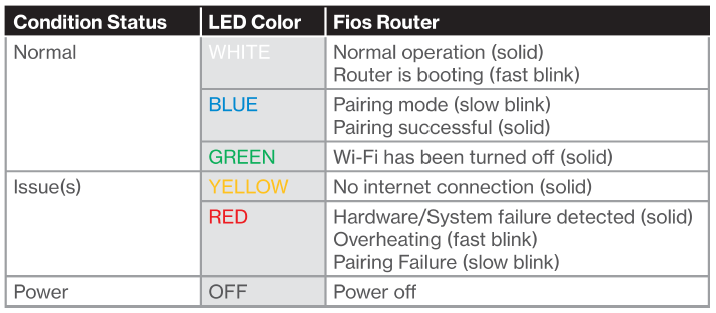
Your modem’s lights tell you exactly what’s wrong, no guessing required.
Solid Green or Blue WAN Light
This means:
– Modem is online
– Internet connection is active
– ISP handshake successful
If other lights are off or red, the issue may be local, such as Wi-Fi or device-related problems.
Blinking Red or No WAN Light
This indicates:
– No internet signal
– Line fault
– ISP outage
Check cables, perform a hard restart, and verify service status.
Flashing Internet Light During Boot
This is normal during reboot. If the light stays flashing after 10 minutes, the modem can’t sync with Verizon’s network. Contact support at that point.
Know When to Contact Verizon Support
Some issues require professional intervention.
Call Support If:
- Hard restart fails after two attempts
- WAN light remains off or red
- DSL line tests show no signal
- Multiple modems fail in the same location
Have your account info and modem serial number ready when you call.
Request a Replacement Modem
If your modem is defective:
– Call Verizon or use the My Verizon app
– Request a free replacement if under warranty
– Set up delivery or pickup
Most customers receive a new unit within 2 to 3 days.
Expert Note: If outages persist with a new modem, the problem is likely in the line or network. Verizon must send a technician.
Prevent Future Outages
Avoid repeat issues with these proactive steps.
Schedule Monthly Reboots
Set a reminder to restart your modem once a month. This clears memory, refreshes your IP, and prevents slowdowns.
Use a Surge Protector
Power surges damage modem electronics. Plug your modem into a quality surge protector, not a direct outlet.
Upgrade to a Mesh System
For large homes:
– Add a Wi-Fi extender
– Or install a mesh network system
This eliminates dead zones and improves stability.
Frequently Asked Questions About Verizon Modem Not Working
Why is my Verizon modem not working even after a restart?
If a hard restart doesn’t restore service, the issue is likely outside your home. Check the WAN light. If it’s off or red, there’s a line fault or ISP outage. Also verify that all cables, including the white WAN cable and coax if applicable, are fully seated.
How long does it take for a Verizon modem to reboot?
After a hard restart, allow 5 to 10 minutes for the modem to fully reboot and reconnect. Lights will flash during startup and stabilize once the connection is active. Interrupting the process can extend downtime.
What does a blinking red WAN light mean on a Verizon modem?
A blinking red WAN light means your modem isn’t connecting to Verizon’s network. This usually points to a line fault, a loose coax cable, or an outage in your area. Check all physical connections first, then contact Verizon if the light persists.
Can I restart my Verizon modem remotely?
Yes. Log in to 192.168.1.1 from a device on the same network using admin as the username and the password from your modem label. Go to Advanced > Utilities > Reboot Router and click Reboot Device. Note that remote restarts are less effective than hard restarts.
Where can I find my Verizon Wi-Fi password?
Check the sticker on the back or bottom of your modem for the default SSID and WPA2 key. If you’ve changed these settings, log in to your My Verizon account and go to My Services > Internet > Manage Your Network to view or reset your current credentials.
Do DSL filters go on the modem or on phones?
DSL filters go on every phone device in your home, including fax machines and answering machines. Never place a filter between the wall jack and the modem, since this blocks your internet signal entirely.
Key Takeaways for Fixing Your Verizon Modem
When your Verizon modem is not working, start with the simplest fix: a hard restart using the 60-second unplug method. If that fails, verify every physical connection, paying close attention to the white WAN cable and the WAN light indicator. For DSL users, confirm that filters are installed on phones but never on the modem itself.
Use the remote restart option at 192.168.1.1 only when physical access isn’t possible, and remember that the Guided Solutions Tool can save time on basic questions. If lights remain red or off after two restart attempts, it’s time to contact Verizon support or request a replacement modem. With these steps in order, most users restore their internet in minutes rather than hours.